
 By Saad Qureshi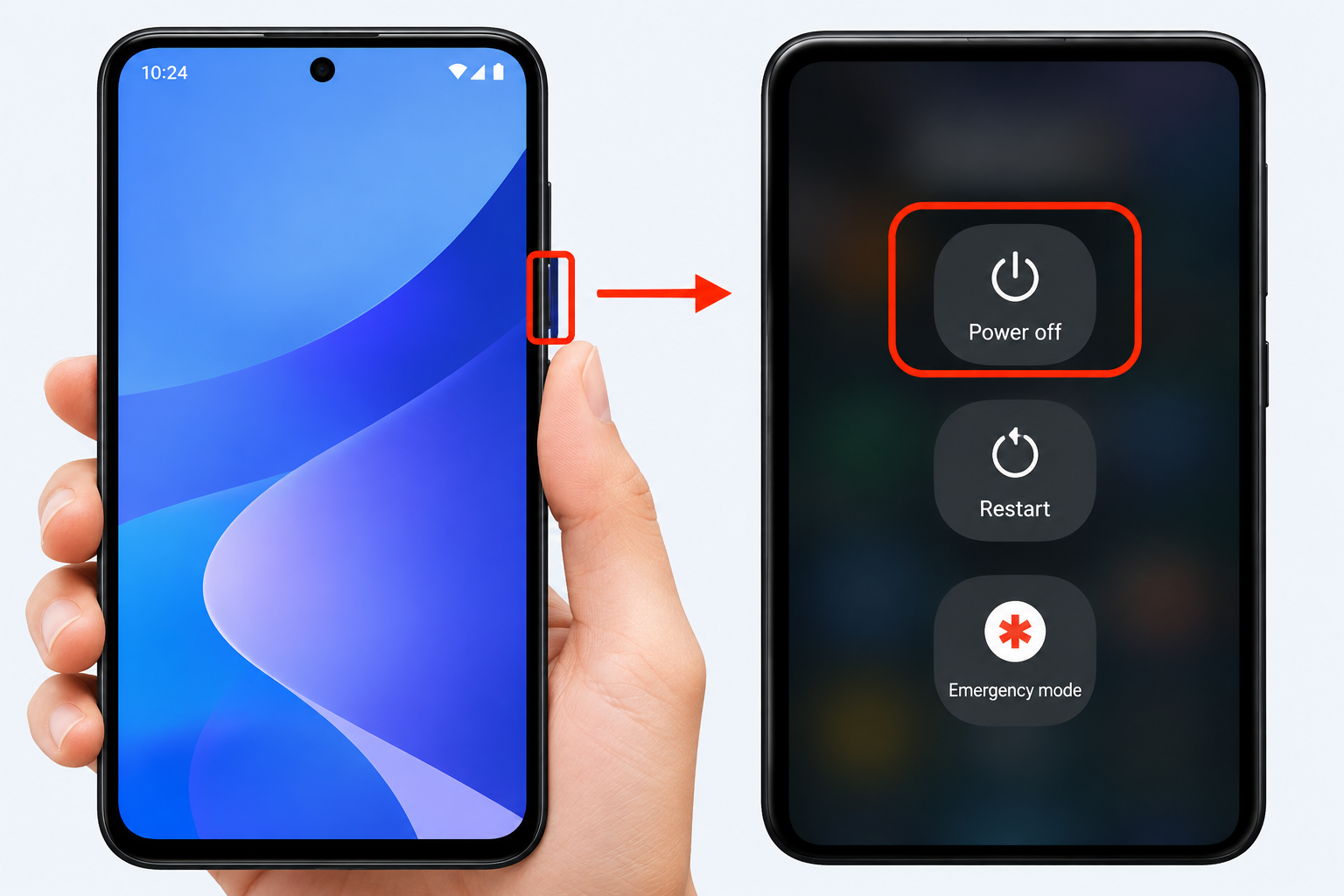
Turning off a phone sounds like one of the simplest things you can do with it, and most of the time it is. Press a button, tap an option, and the screen goes dark. But Android phones come from dozens of manufacturers, each with its own button layout, gesture system, and software skin, so the steps are not always identical from one device to the next. A method that works perfectly on one phone might do nothing at all on another.
There are also situations where the obvious method fails. The power button might be damaged, physically stuck, or missing entirely after a drop. The screen might be frozen, unresponsive to touch, or completely black. In these cases, knowing the alternative routes to turning off your phone, or at least restarting it, can save you a trip to a repair shop or a moment of real panic.
This guide walks through every practical way to turn off an Android phone, starting with the standard approach and moving through gesture-based options, accessibility features, scheduled shutdowns, and emergency methods for when nothing seems to respond. Along the way, it also explains the difference between turning off a phone and simply restarting it, since the two are often confused but serve very different purposes.
If you are new to Android devices in general, it helps to start with a broader understanding of what an Android phone is and how it differs from other smartphone platforms. Android is built on top of an operating system that manages every hardware function, including the power system, so understanding that foundation makes the shutdown process easier to follow.
Why Turning Off Your Phone Still Matters
Modern smartphones are designed to run for days without needing a full shutdown. Many people never manually turn their phone off at all, relying instead on the screen going to sleep and waking up again. So why does the shutdown function still matter?
Clearing Temporary Glitches
A full power cycle clears the phone’s temporary memory and restarts every background process. If an app is frozen, the screen is behaving oddly, or the phone feels sluggish, turning it off and back on again often resolves the issue without any deeper troubleshooting.
Saving Battery During Storage
If you plan to store a phone for an extended period, such as an old backup device, turning it off prevents background apps and network searching from draining the battery to zero, which can sometimes damage a lithium-ion battery over time.
Completing Software Updates
Many system and security updates require a full restart to finish installing. Simply locking the screen is not the same as a complete restart, so manufacturers often prompt a shutdown-and-restart cycle after major updates.
Conserving Power in Low-Battery Situations
When you know you will not have access to a charger for a while, turning the phone off completely preserves the remaining battery far better than leaving it in standby mode, since background processes continue to run even when the screen is off.
Resolving Overheating
If a phone becomes unusually hot, powering it down for a short period allows it to cool and stops any runaway process that might be causing the heat.
Privacy and Security
Turning a phone off disables its network and Bluetooth connections entirely, which some people prefer in sensitive situations, such as when traveling through certain locations or attending confidential meetings.
Method 1: The Standard Power Button Method
This is the method built into almost every Android phone and the one most people already know.
Step-by-Step Instructions
- Locate the power button. On most phones, this is on the right-hand side of the device, though some manufacturers place it on the top edge. On certain models, the power button is combined with a fingerprint sensor.
- Press and hold the power button. Hold it for about one to three seconds, not a quick tap.
- Wait for the power menu to appear. A menu will pop up on the screen with options that typically include Power Off, Restart, and sometimes Emergency Mode or Emergency SOS.
- Tap Power Off. The screen will go dark after a short animation, and the phone will fully shut down.
Variations by Manufacturer
Not every phone shows the same menu after a long press. On some devices, particularly Samsung phones running newer versions of its software, a long press on the power button alone opens Bixby or a digital assistant rather than the power menu. In these cases, you need to press and hold the power button together with the volume down button simultaneously for a couple of seconds to bring up the shutdown options.
On Google Pixel phones, a long press of the power button typically brings up the power menu directly, including Power Off and Restart.
On some older or budget Android phones, you may need to hold the power button for a longer duration, sometimes up to five seconds, before any menu appears.
Because of these inconsistencies, it is worth checking your specific phone’s manual or the manufacturer’s support page if the standard press-and-hold does not work as expected the first time.
Confirming the Shutdown
After tapping Power Off, most phones display a brief confirmation prompt asking you to confirm the action, especially if you have apps running that need saving. Tap OK or Power Off again to complete the process. The screen will go black, sometimes after a short logo or animation, indicating the phone is now fully off.
Method 2: Turning Off Through the Quick Settings Panel
Many Android phones allow you to access the power menu without using the physical button at all, which is useful if the power button is damaged or hard to reach.
Step-by-Step Instructions
- Swipe down from the top of the screen with two fingers, or swipe down twice with one finger, to open the full Quick Settings panel.
- Look for a power icon, usually located in the top corner of the panel alongside icons for settings and your account profile.
- Tap the power icon. This brings up the same power menu you would see from a long press of the physical button.
- Select Power Off.
This method varies depending on the manufacturer’s software skin. Samsung’s One UI, for example, places a power icon in the notification shade, while stock Android, as found on Pixel phones, may not include this shortcut by default and relies more heavily on the physical button.
Method 3: Using Gestures to Access the Power Menu
Gesture controls have become more common on Android phones, especially as manufacturers reduce the number of physical buttons. Several gesture-based options can help you reach the power menu.
Assistant-Triggered Power Menu
On many Android phones, you can ask your voice assistant to help, though most assistants are designed to prevent remote shutdown for security reasons. Instead, some phones let you set up a gesture, such as a specific tap pattern on the back of the device, to open quick actions including a shortcut to the power menu.
Accessibility Menu Shortcut
Android’s built-in accessibility features include a option specifically designed for people who have difficulty pressing physical buttons.
- Go to Settings.
- Tap Accessibility.
- Select Accessibility Menu and turn it on.
- A floating icon will appear on your screen.
- Tap the icon, then select Power from the menu that appears.
- Choose Power Off or Restart from the options shown.
This method is particularly useful for anyone with limited hand mobility or for situations where the physical power button is unreliable.
Assistive Touch or Side Panel Features
Several manufacturers, including Samsung, offer their own assistive touch overlays, sometimes called Assistant Menu or Side Panel, that provide an on-screen floating button with shortcuts, including power options. These are typically found under Settings > Accessibility and can be customized to show exactly the shortcuts you use most.
Method 4: Scheduling an Automatic Power Off
Some Android phones, particularly those from Samsung, include a built-in feature to automatically turn the phone off and on at scheduled times. This is useful for people who want their phone to power down overnight to save battery or reduce distractions.
How to Set a Scheduled Power Off
- Open Settings.
- Scroll to General Management or Battery and Device Care, depending on your phone model.
- Look for an option labeled Schedule power off/on or Auto start/stop.
- Toggle the feature on.
- Set the days of the week and the specific time you want the phone to power off and, if desired, power back on automatically.
- Confirm and save your settings.
Not all Android manufacturers include this feature natively, so if you do not see it under your settings menu, check whether a trusted battery-saving or automation app from the Google Play Store offers a similar function. Be cautious when granting such apps permission to control power functions, and only install automation apps from reputable developers.
Method 5: Turning Off the Phone During Setup or Restart Loops
Sometimes you need to turn off a phone not because you are done using it, but because something has gone wrong during setup or a restart. If your device has recently been reset and you are stuck on a setup screen that refuses to proceed, a forced shutdown may be the only way to break the loop and try again.
For a detailed walkthrough of what to do when this happens, see our guide on what to do when Android setup keeps stopping, which covers both the shutdown steps and the deeper troubleshooting that usually follows.
In general, when a phone is stuck during setup:
- Attempt the standard long-press method first.
- If the screen does not respond, move to the force restart method described later in this article.
- After the phone restarts, allow it to boot fully before attempting setup again.
- If the loop continues, consider wiping the cache partition or performing a factory reset, as detailed in the dedicated troubleshooting guide.
Method 6: Turning Off an Android Phone Using the Back Key or Navigation Buttons
While the back key and other navigation buttons are not designed as shutdown tools, understanding how Android’s on-screen and physical navigation buttons work is helpful context for anyone troubleshooting power issues, since confusion between the back key, recent apps key, and power button is common, especially for people switching from other platforms. If you are unclear on how the back key on Android functions compared to the power button, it is worth reviewing, since some troubleshooting guides reference combinations involving the back key alongside the power and volume buttons to access hidden menus such as recovery mode.
On a small number of devices, particularly older models, a combination of the back key and power button, or the recent apps key and power button, can trigger a screenshot or a reboot into a diagnostic mode rather than a simple shutdown. If you find yourself in an unfamiliar menu after trying a button combination, look for an option to restart normally or use the volume keys to navigate to Reboot System Now, then confirm with the power button.
Method 7: Force Restarting an Unresponsive Android Phone
Sometimes a phone freezes completely. The screen may be black, unresponsive to touch, or stuck displaying a single image or app with no way to navigate away from it. In these situations, a standard shutdown through the touchscreen is not possible, and you need to force a restart instead.
Standard Force Restart Combination
On most modern Android phones, the combination is:
- Press and hold the power button and the volume down button at the same time.
- Hold both for approximately ten seconds.
- The screen should go black and then display the manufacturer’s logo as the phone restarts.
- Release the buttons once you see the logo appear.
Manufacturer Variations
- Samsung: Press and hold the power button and volume down button together for about seven to ten seconds.
- Google Pixel: Press and hold the power button for roughly ten seconds until the device restarts.
- OnePlus, Xiaomi, and most other Android brands: The power button and volume down combination is the most common, though some very old models use power and volume up instead.
If you are unsure of the exact combination for your specific model, a quick search of your phone’s model number alongside “force restart” on the manufacturer’s official support site will confirm the correct buttons.
What Force Restart Does Not Do
It is important to understand that a force restart is not the same as turning the phone off. A force restart reboots the device immediately; it does not leave the phone in an off state. If your goal is specifically to turn the phone off and keep it off, you will need to let it boot back up fully and then use the standard power-off method once the screen responds normally again.
When a Force Restart Does Not Work
If holding the power and volume down buttons for ten seconds produces no response at all, the issue may be deeper than a simple software freeze. Possible causes include:
- A completely drained battery, in which case charging the phone for fifteen to twenty minutes before trying again often resolves the issue
- A damaged power button that is not registering the press
- A more serious hardware or software fault that requires professional diagnosis
If you notice unusual visual symptoms alongside the unresponsiveness, such as colored lines appearing across the display, this can point to a display connection issue.
Our guide on Android lines on the screen explains what these patterns typically mean and whether they suggest a hardware fault that needs repair.
Method 8: Turning Off a Phone With a Broken or Missing Power Button
A cracked or non-functional power button does not mean you are stuck with a phone that can never be turned off. Several workarounds exist depending on the condition of the phone.
Using Quick Settings
If the touchscreen still works and the phone is currently on, the Quick Settings panel method described earlier is the most reliable option, since it does not require the physical button at all.
Using Scheduled Power Off
If your phone supports scheduled power off and on, as described earlier, you can set this up in advance so the phone turns off automatically without needing to press any button at the time.
Using Third-Party Apps
Some apps available on the Google Play Store offer a software-based shutdown or reboot shortcut, though their functionality is often limited on non-rooted devices due to Android’s security restrictions. These apps work best for scheduling restarts rather than true shutdowns, since standard Android security policies generally reserve full power control for the operating system and certain system-level settings menus.
Letting the Battery Drain
As a last resort, if no other method works and the phone genuinely cannot be turned off through software, allowing the battery to fully drain will turn the phone off naturally. This is not ideal for long-term battery health if done repeatedly, but it is a safe option in a pinch.
Professional Repair
If the power button is physically broken and you need reliable access to shutdown and restart functions going forward, a repair technician can typically replace the button assembly. Official manufacturer support pages, such as Samsung Support or Google Pixel Help, list authorized repair options and can confirm whether your device is still under warranty.
Understanding the Difference: Turning Off vs. Restarting
People often use “turn off” and “restart” interchangeably, but they are distinct actions with different purposes.
Turning Off (Shutdown)
A shutdown closes every running process, disconnects the phone from cellular networks and Wi-Fi, and leaves the device completely powered down until you press the power button again to turn it back on. This fully clears the phone’s temporary memory and stops all background activity, including notifications.
Restarting (Reboot)
A restart turns the phone off and then automatically back on again without you needing to press any button during the process. This also clears temporary memory and refreshes background processes, but the phone returns to an active, usable state on its own within a minute or two.
Soft Reset vs. Force Restart
A soft reset uses the standard menu options, selecting Restart from the power menu while the phone is responsive. A force restart is used specifically when the phone is frozen and unresponsive, bypassing the normal menu entirely through a button combination.
When to Choose Each
- Choose shutdown when you want to conserve battery for an extended period, store the device, or ensure no background activity occurs, such as before a flight in regions where this is still requested, or before opening the phone for any physical inspection.
- Choose restart when the phone feels sluggish, an app is misbehaving, or you have just installed a system update that requires a reboot to finish.
- Choose force restart only when the phone is completely unresponsive and the standard menu cannot be reached.
Turning Off Specific Android Phone Brands: Quick Reference
While the general methods above apply broadly, here is a quick reference for some of the most common Android manufacturers.
Samsung Galaxy Phones
Press and hold the power button and volume down button together for a few seconds to bring up the power menu, since a lone long press on many newer Samsung models opens the Bixby assistant instead. Tap Power Off from the menu that appears.
Google Pixel Phones
Press and hold the power button alone for one to two seconds. The power menu appears with Power Off and Restart options directly available.
OnePlus Phones
Press and hold the power button for a few seconds until the power menu appears, then tap Power Off.
Xiaomi and Redmi Phones
Press and hold the power button, then tap Power Off from the menu. Some models running MIUI may require a slightly longer press.
Motorola Phones
Press and hold the power button until the menu appears, then select Power Off. Motorola phones generally stick close to stock Android behavior.
Because software updates frequently adjust these menus and button behaviors, checking your manufacturer’s official support page is always the most reliable way to confirm the exact steps for your current software version.
Troubleshooting: My Android Phone Won’t Turn Off
If none of the standard methods are working, work through this checklist.
Check the Battery Level
A phone with an extremely low battery may not respond to any button presses because it lacks the power to display the shutdown menu. Plug the phone into a charger for at least fifteen minutes before trying again.
Try the Force Restart Combination
Hold the power button and volume down button together for ten seconds. Even if your ultimate goal is to turn the phone off completely, a successful force restart confirms the hardware is still functioning and gives you a working screen to then perform a proper shutdown.
Inspect for Physical Damage
Check whether the power button is stuck, cracked, or does not click when pressed. Physical damage after a drop is a common cause of button failure.
Check for Software Freezes Tied to a Specific App
If the phone becomes unresponsive only after opening a particular app, that app may be the underlying cause. Once you manage to restart the phone, uninstall or update the app in question.
Update Your Software
Outdated software can contain bugs that affect power management. Check for available updates once the phone is responsive again, since manufacturers regularly patch issues related to button responsiveness and shutdown behavior.
Consider a Factory Reset as a Last Resort
If the phone repeatedly freezes or refuses to turn off through any method, and you have ruled out physical damage, a factory reset may resolve a persistent software fault. Back up your data first, since this erases everything on the device.
Visit a Repair Center
If physical damage is confirmed or software troubleshooting does not resolve the issue, a certified repair technician can inspect the internal power circuitry. Manufacturer support pages such as Apple Support for comparison purposes, or the equivalent Android manufacturer pages, list authorized repair locations near you.
Safety Considerations When Turning Off Your Phone
Save Your Work First
Before initiating a shutdown, make sure any unsaved work in open apps, such as draft messages or documents, is saved, since a shutdown closes all running apps immediately.
Avoid Forcing a Restart Unnecessarily
Force restarts should be reserved for genuinely frozen devices. Repeatedly force restarting a phone that is simply running slowly, rather than actually unresponsive, skips the normal shutdown sequence and is not the recommended first step for general slowdowns.
Be Cautious With Third-Party Power Apps
Apps that claim to control deep system functions, including shutdown and restart, sometimes request excessive permissions. Only install such apps from reputable developers and review the permissions requested before granting access.
Battery Health Considerations
Letting a phone’s battery drain completely on a regular basis, rather than charging it before it reaches zero, can contribute to faster battery degradation over time. Use this method only as an occasional last resort, not a routine practice.
Frequently Asked Questions About Turning Off an Android Phone
How do I turn off my Android phone if the power button does not work?
Use the Quick Settings panel power icon if the touchscreen is responsive, set up a scheduled power off in advance, or let the battery drain fully as a last resort. For a permanent fix, have the power button repaired by a professional.
What is the difference between turning off and restarting an Android phone?
Turning off fully shuts down the device until you manually press the power button again. Restarting automatically turns the phone off and back on without requiring further input, which is useful for refreshing the system after updates or minor glitches.
How long should I hold the power button to turn off my phone?
Typically one to three seconds brings up the power menu on most phones. If nothing appears, try holding it slightly longer, or check whether your specific model requires pressing the power button together with the volume down button.
Why does holding the power button open Bixby or an assistant instead of the power menu?
On many Samsung phones, a single long press on the power button is configured to launch the Bixby assistant rather than the shutdown menu. Press and hold the power button together with the volume down button instead, or reconfigure this setting under Settings > Advanced Features > Side Button.
What should I do if my phone is completely frozen and won’t respond to anything?
Perform a force restart by holding the power button and volume down button together for about ten seconds. If this does not work, charge the phone for fifteen minutes and try again, since a drained battery can prevent any response.
Can I schedule my Android phone to turn off automatically every night?
Many phones, particularly Samsung devices, include a built-in scheduled power off and on feature found under Settings > General Management or Battery and Device Care. If your phone lacks this feature, a reputable automation app from the Google Play Store may offer similar functionality.
Does turning off my phone save battery?
Yes. A fully powered-down phone uses no battery at all, while a phone in standby mode still uses small amounts of power for background processes, notifications, and network searching.
Is it bad to turn my phone off every day?
No, turning your phone off occasionally is not harmful and can actually help clear minor software glitches. There is no requirement to turn it off daily, but doing so from time to time is a healthy habit for most users.
Why does my phone restart instead of turning off completely?
Check whether an automatic restart feature, such as a scheduled power on setting or an automatic update process, is enabled in your settings. Some phones are also configured by the manufacturer to restart rather than fully shut down when selecting certain menu options, depending on the software version.
What should I do if my phone won’t turn off after a factory reset or during setup?
If your phone is stuck during the initial setup process after a reset, try a force restart first. If the problem continues, review our detailed guide on what to do when Android setup keeps stopping for further troubleshooting steps.
Disclaimer
This article is for educational and informational purposes and provides a general overview of how to turn off Android phones. Button locations, menu names, and gesture options vary by manufacturer, model, and Android version, so some steps may differ slightly on your device. Forcing a shutdown or removing a battery should only be used when a phone is unresponsive, since it skips the normal save process and can occasionally cause data issues. Always refer to your phone manufacturer’s official support resources for model-specific instructions.