
 By Saad Qureshi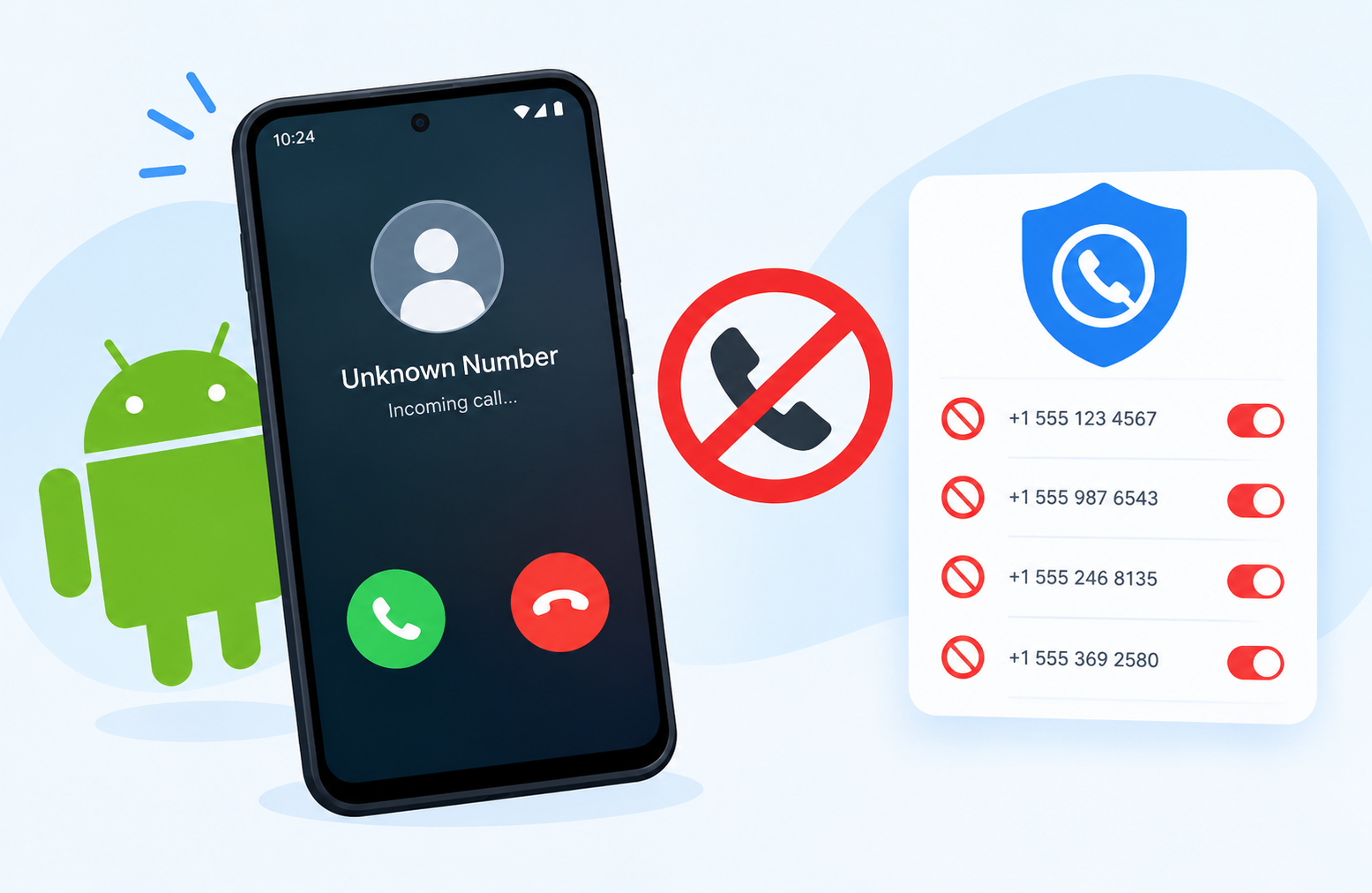
Unwanted calls have become a daily nuisance for nearly everyone with a phone number. Robocalls pitching fake warranties, scammers posing as banks or government agencies, and relentless telemarketers interrupt meals, meetings, and sleep. Many of these calls are not just annoying; some are outright attempts at fraud, designed to pressure people into revealing personal or financial information.
A call blocker app is one of the most effective tools available for reducing this problem on an Android phone. These apps identify likely spam calls before you even answer, let you build your own block lists, and in many cases silence known scam numbers automatically. But not every call blocker app is equally safe or effective, and choosing one carelessly can introduce privacy risks of its own, since these apps often request access to sensitive data like your call log and contacts.
This guide explains how call blocker apps work, the difference between Android’s built-in blocking tools and third-party apps, what permissions to expect and why, how to evaluate an app before installing it, and how to set one up correctly once you have made a choice.
Why Unwanted Calls Have Become Such a Widespread Problem
Spam and scam calls are not a minor inconvenience anymore; they are a large-scale, automated industry. Robocalling software allows a single operation to dial thousands of numbers per hour at almost no cost, and caller ID spoofing lets scammers disguise their real number behind one that looks local or familiar. The Federal Trade Commission has tracked consistently high volumes of unwanted call complaints for years, reflecting just how widespread the problem has become across the United States. You can review current consumer guidance and complaint data directly through the Federal Trade Commission’s website.
Because the source of these calls constantly changes numbers to avoid detection, permanently blocking a single number rarely solves the problem for long. This is exactly why call blocker apps rely on constantly updated spam databases rather than static block lists alone.
How Call Blocker Apps Actually Work
Understanding the mechanics behind call blocking helps you judge whether a given app is doing something genuinely useful or just offering a basic feature Android already includes for free.
Caller ID and Spam Database Matching
Most call blocker apps maintain or connect to a large, frequently updated database of phone numbers reported as spam, scam, or robocall sources by other users of the same app. When a call comes in, the app checks the incoming number against this database in real time and displays a warning label, such as “Suspected Spam” or “Scam Likely,” often before you even pick up.
Custom Block Lists
Beyond automatic detection, most apps let you manually block specific numbers, entire area codes, or numbers not saved in your contacts. This is useful for persistent callers that a shared database has not yet flagged.
Call Screening
Some apps offer a screening feature where unknown calls are answered by an automated system that asks the caller to state their name or reason for calling before the phone actually rings for you, letting you decide whether to pick up based on what you hear.
Silence Unknown Callers
A simpler approach, built into some apps and also offered natively by Android and iOS, silences any call from a number not already saved in your contacts, sending it straight to voicemail without ringing at all.
Community Reporting
Many call blocker apps rely on crowdsourced reporting, where users flag a number as spam after receiving an unwanted call. This collective reporting is what keeps spam databases current, since scam operations change numbers frequently.
Built-In Android Call Blocking vs. Third-Party Apps
Before installing anything, it is worth checking what your phone can already do on its own, since Android’s built-in tools have improved significantly over the years.
What Android’s Default Phone App Offers
Google’s Phone app, used as the default dialer on many Android devices, includes built-in spam detection and call screening in many regions. To check your options:
- Open the Phone app.
- Tap the three-dot menu or Settings.
- Look for Caller ID & spam or Spam and Call Screen.
- Enable See caller and spam ID and Filter spam calls if available.
Samsung, Xiaomi, and other manufacturers often include their own built-in spam protection within their default phone apps as well, sometimes branded differently, such as Samsung’s Smart Call feature.
When a Third-Party App Adds Value
Third-party call blocker apps are worth considering when:
- Your phone’s built-in protection is limited or unavailable in your region
- You want a larger, more actively updated spam database than your default app provides
- You want more granular control, such as blocking entire number patterns or countries
- You want additional features like call recording, reverse number lookup, or detailed call analytics
For many users, especially those in regions well covered by Google’s spam detection, the built-in tools may already be sufficient, making a dedicated app unnecessary. For others dealing with heavy spam volume, a specialized app can offer a noticeably better experience.
Understanding Call Blocker Apps as Android Apps
A call blocker app is, at its core, just another Android app built to run on the Android operating system and interact with your phone’s calling functions. Like any app, it is typically distributed through the Google Play Store as an installable package, and understanding what an app actually is in general terms helps put call blockers in context: they are software built to perform one specific job, in this case, screening and filtering incoming calls, rather than being a built-in part of the operating system itself.
Installing From the Play Store vs. an APK File
The safest and most common way to install a call blocker app is directly through the Google Play Store, where apps go through a review process before being listed. Some users instead download an APK file directly from a website to install an app manually, bypassing the Play Store entirely. While this is sometimes done to access an app unavailable in a certain region or an older version of an app, it comes with meaningfully higher risk for something as sensitive as a call blocker, since a modified or malicious APK file could be used to intercept call data, read your contacts, or worse, without any of the safety checks the Play Store provides. For a security-sensitive category like call blocking, sticking to the official Play Store listing is strongly advisable.
Permissions a Call Blocker App Typically Requests
Call blocker apps need fairly broad access to your phone to function properly, which makes understanding app permissions especially important before installing one.
Phone Permission
This allows the app to see incoming call information, including the phone number, so it can check that number against its spam database and decide whether to flag or block it. This is a core, expected permission for any call blocker.
Contacts Permission
Many apps request access to your contacts so they can distinguish between known and unknown callers, since calls from saved contacts are usually treated differently from calls by unfamiliar numbers.
Call Log Permission
Access to your call history allows the app to build features like call history review, repeat caller detection, and reporting a number as spam after the fact.
Notification Access or Default Phone App Status
Some apps request to become your default phone or caller ID app in order to show spam warnings directly on the incoming call screen rather than as a separate notification afterward. This is a significant permission, since it gives the app deep control over your calling experience.
Red Flags to Watch For
Be cautious of a call blocker app that requests permissions unrelated to its core function, such as:
- Access to your photos or media files
- Access to your precise location at all times
- Access to your microphone when not actively on a call
- Permission to send SMS messages without a clear, related feature
If a permission request does not have an obvious connection to call blocking, treat it as a warning sign and review the app’s privacy policy carefully, or choose a different app entirely. Google’s official Play Console policies outline what developers are supposed to disclose regarding sensitive permissions, and you can review Android’s general approach to runtime permissions through Google’s Android Developers documentation.
How to Choose a Trustworthy Call Blocker App
With dozens of call blocker apps available, a structured evaluation process helps you avoid a poor or risky choice.
Step 1: Check the Developer’s Reputation
Look for an established developer with a history of other reputable apps, a working website, and a clear privacy policy. Avoid apps from unknown developers with no verifiable information.
Step 2: Read Recent Reviews Carefully
Focus on recent reviews rather than older ones, since spam databases and app quality can change significantly over time. Watch for repeated complaints about excessive ads, intrusive permissions, or the app failing to actually block calls as promised.
Step 3: Review the Permissions Requested
Compare the permissions list against what the app actually claims to do. A call blocker that also wants access to your photos or microphone without a clear reason deserves extra scrutiny.
Step 4: Check the Privacy Policy
A legitimate app should have a clear, accessible privacy policy explaining what data it collects, how it is used, and whether it is shared with third parties. Treat the absence of a privacy policy as a serious red flag, especially for an app handling call data.
Step 5: Test the Free Version First
Most reputable call blocker apps offer a free tier with core blocking features, reserving advanced features like call recording or extended spam lookups for a paid subscription. Test the free version thoroughly before committing to a paid plan.
Step 6: Confirm It Does Not Conflict With Other Tools
If your carrier already provides a call-blocking or spam-labeling service, check whether running a third-party app alongside it causes conflicts, duplicate labeling, or battery drain from both systems running simultaneously.
Setting Up a Call Blocker App Correctly
Once you have chosen an app, proper setup makes a real difference in how well it performs.
Step 1: Install From the Play Store
Download the app directly from the Google Play Store to ensure you are getting a verified, unmodified version.
Step 2: Grant Only Necessary Permissions
During setup, review each permission request individually rather than tapping through quickly. Grant phone and call log access, since these are core to the app’s function, but decline anything that seems unrelated to call blocking.
Step 3: Set It as the Default Caller ID App (If Needed)
If the app requires default caller ID or phone app status to show warnings on the incoming call screen, follow its prompts to set this in your phone’s settings. You can usually find this under Settings > Apps > Default Apps > Phone App.
Step 4: Customize Your Block List
Add any specific numbers you already know are unwanted. Many apps also let you block entire area codes or set rules for blocking numbers that are not saved in your contacts.
Step 5: Adjust Sensitivity Settings
Some apps let you choose how aggressively they block calls, ranging from only blocking confirmed scam numbers to silencing all unknown callers automatically. Adjust this based on how often you receive legitimate calls from unsaved numbers, such as deliveries or appointment confirmations.
Step 6: Report Spam Calls as They Happen
After an unwanted call gets through, use the app’s reporting feature to flag the number as spam. This strengthens the shared database for you and other users of the app.
Blocking Calls Without a Third-Party App
If you prefer not to install an additional app, Android offers several native ways to reduce unwanted calls.
Block a Specific Number
- Open the Phone app and go to Recents or Call History.
- Tap and hold the number you want to block.
- Select Block number or Block/report spam.
Silence Unknown Callers
Many Android phones allow you to silence calls from numbers not in your contacts automatically:
- Open the Phone app.
- Tap Settings.
- Look for Spam and Call Screen or Blocked numbers.
- Enable Silence unknown callers if available.
Use Carrier-Provided Call Blocking
Major carriers often provide their own free or paid spam-blocking services at the network level, filtering certain calls before they even reach your phone. Check your carrier’s app or account settings, or contact customer support, to see what is available and whether it is already active on your line.
Register With the National Do Not Call Registry
While it will not stop illegal scam calls, registering your number with the National Do Not Call Registry can reduce legitimate telemarketing calls from companies that comply with the law, which is a meaningful subset of unwanted calls.
Limitations of Call Blocker Apps
It is important to set realistic expectations, since no call blocker app is perfect.
Scammers Change Numbers Constantly
Spoofed and newly activated numbers are not always in a spam database yet, meaning some scam calls will still get through even with a strong call blocker in place.
False Positives Happen
Legitimate businesses, delivery services, or even doctors’ offices sometimes get mistakenly flagged as spam, particularly if their number was recently reassigned from a previous spam source.
Some Apps Rely on Ads for Free Tiers
Free call blocker apps often display ads, and some monetize more aggressively than others. Review how intrusive the ad experience is in user reviews before settling on an app.
Battery and Performance Impact
Because these apps constantly monitor incoming calls, they run persistently in the background, which can have a small but measurable impact on battery life, especially on older devices.
Not All Apps Work the Same Across Regions
Spam databases are often stronger in regions with larger numbers of app users reporting calls, meaning effectiveness can vary considerably depending on where you live.
Frequently Asked Questions About Call Blocker Apps for Android
Do I need a third-party app if my phone already has spam protection built in?
Not necessarily. Check your phone’s built-in Caller ID and spam settings first, since many modern Android phones already include solid spam detection. A third-party app is most useful if the built-in protection is limited, unavailable in your region, or you want more advanced features.
Are free call blocker apps safe to use?
Many are, as long as they come from a reputable developer with a clear privacy policy and request only relevant permissions. Be cautious of free apps that request excessive permissions unrelated to call blocking, since this can indicate the app is monetizing your data in ways you may not expect.
What permissions should a call blocker app realistically need?
At minimum, phone and call log access to detect and screen incoming calls. Contacts access is common to distinguish known from unknown callers. Anything beyond this, such as media, location, or microphone access, should be questioned carefully.
Can a call blocker app stop all scam calls completely?
No app can block one hundred percent of scam calls, since scammers constantly rotate numbers and use spoofing techniques to disguise their identity. A good app will significantly reduce unwanted calls but cannot eliminate them entirely.
Is it better to install a call blocker app from the Play Store or download an APK file?
The Play Store is strongly recommended for call blocker apps, since Google reviews listed apps for basic safety standards. Installing an APK file from an unverified source carries real risk for an app that needs deep access to your calls and contacts.
Will a call blocker app also block spam text messages?
Some apps include spam text filtering as an additional feature, while others focus exclusively on calls. Check the app’s feature list specifically if blocking unwanted texts is also a priority for you.
Can I block an entire area code instead of individual numbers?
Many call blocker apps allow this, since scam operations sometimes use a cluster of numbers from the same area code. Check your chosen app’s custom block list settings for this option.
Why do I still get spam calls after installing a call blocker app?
New or spoofed numbers that have not yet been reported to the spam database can slip through initially. Reporting these numbers as spam after the fact helps improve future detection for you and other users.
Does using a call blocker app drain my battery?
It can have a modest impact, since the app runs continuously in the background to monitor incoming calls. This is usually minor on newer devices but worth monitoring on older phones with smaller batteries.
Can I use more than one call blocker app at the same time?
It is generally not recommended, since running multiple apps with overlapping call-screening permissions can cause conflicts, duplicate notifications, or unreliable blocking behavior. Choose one primary app and uninstall or disable others.
Disclaimer
This article is for educational and informational purposes and provides a general overview of call blocker apps for Android phones. App features, pricing, and permissions vary by developer and change over time, so review each app’s current listing and privacy policy before installing. Granting broad permissions, such as access to your contacts or call log, carries privacy implications, and you should only install call blocker apps from reputable sources. This article does not constitute a recommendation of any specific product, and mentions of named apps are for illustrative purposes only.