
 By Saad Qureshi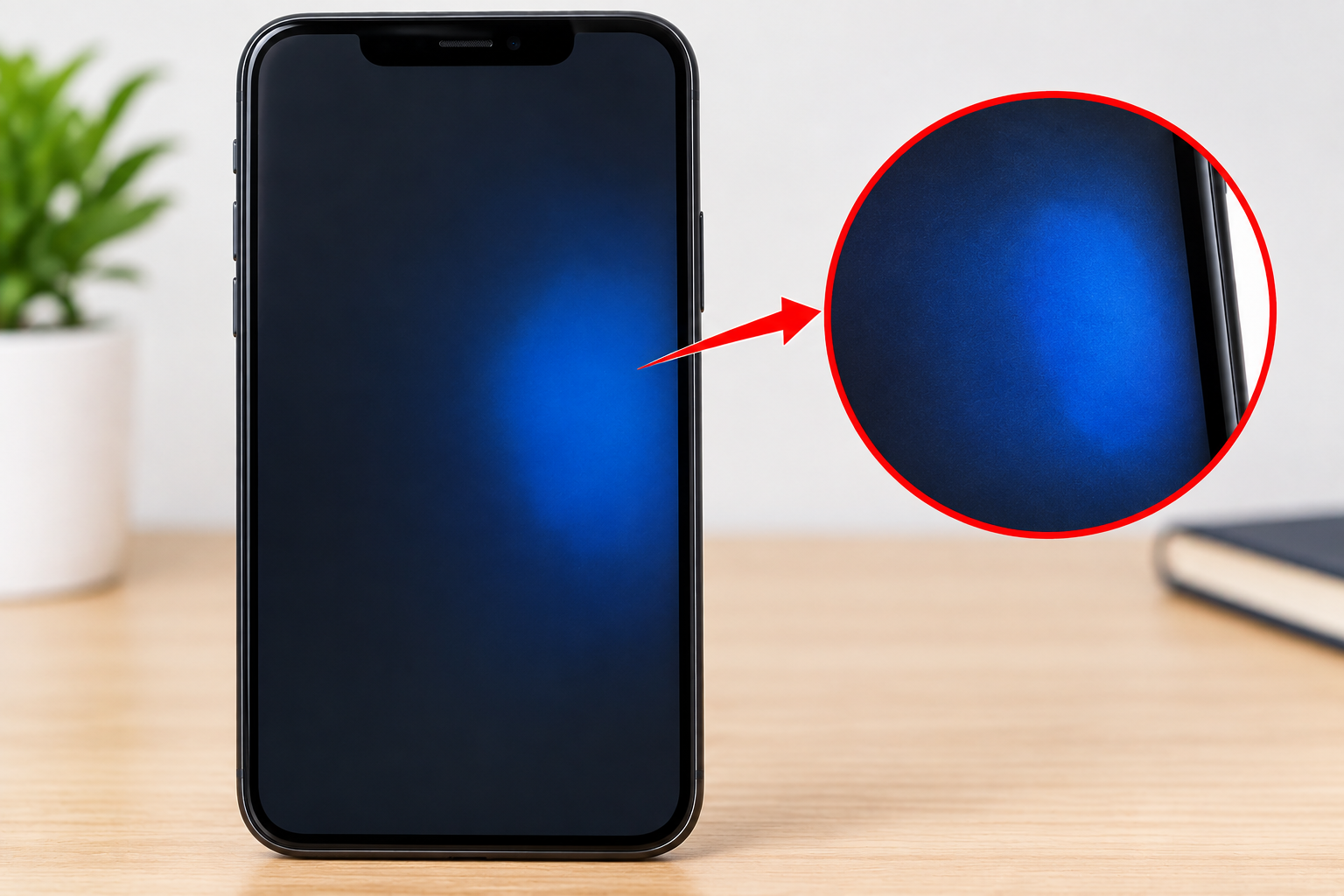
You unlock your phone and notice a strange blue patch in one corner, or a bluish stain spreading under the glass. It may be tiny or large, sharp or blurry, and it may be visible only on dark backgrounds. Either way, it is hard to ignore.
A blue patch can mean something minor, such as a display setting or a software glitch. It can also point to internal damage that needs repair. Knowing which one you are dealing with helps you avoid wasting money on the wrong fix, and it helps you act quickly if the damage is spreading.
This guide explains what blue patches are, why they appear, how to test for the cause at home, what you can try, and when to stop and call a professional. If you also see pale marks on your display, our guide to a white spot on an Android screen covers a closely related problem.
What Does a Blue Patch on a Phone Screen Look Like?
A blue patch is any area of the display that shows an unwanted blue, purple-blue, or bluish-tinted color that does not belong to the image. It can appear in several forms:
- A soft blue cloud that glows on dark screens
- A dark blue or ink-like blot that grows slowly, sometimes with purple or black edges
- A blue tint across the whole screen or one side of it
- A blue rectangle or block that appears only in certain apps
- Blue lines or streaks that run alongside the patch
The appearance gives useful clues. An ink-like stain that spreads usually points to physical damage or liquid. A uniform blue tint that changes with settings often points to software or display configuration.
How a Phone Display Works (and Why It Matters)
A phone screen is a stack of layers:
- Cover glass: the protective surface you touch
- Touch layer (digitizer): detects your finger
- Display panel: creates the image from pixels
- Backlight (LCD only): lights the panel from behind
- Driver circuitry and connectors: send signals from the phone’s main board to the panel
There are two main display types:
- LCD (including IPS): uses a backlight. Blue or bluish patches often relate to pressure on the liquid crystal layers or backlight problems.
- OLED and AMOLED: each pixel makes its own light. Blue patches are often linked to pressure damage, liquid damage, or failing pixels.
Your device’s specification page will tell you which display you have. The phone itself is typically an Android phone or an iPhone, and the cause of a blue patch can differ between the two mainly because of the display technology each model uses, not the operating system.
Common Causes of a Blue Patch on a Mobile Screen
1. Pressure Damage
Sitting on your phone, carrying it in a tight pocket, or squeezing it in a crowded bag can compress the display layers. This can disturb the liquid crystals in an LCD or damage the organic layers in an OLED, creating colored blotches. Blue and purple patches are especially common after pressure damage.
2. Drops and Impact
A fall can harm the panel internally even when the glass does not crack. A blue patch that appears right after a drop strongly suggests internal damage. These patches often grow over time as the damage spreads through the panel.
3. Liquid and Moisture Damage
Water, sweat, or humidity that reaches the display can leave stains and discoloration. Moisture-related patches often start small, then spread, and may come with flicker or touch problems. Water-resistant phones are not immune, because seals can weaken with age and wear.
4. Heat Exposure
Leaving a phone on a car dashboard, in direct sun, or under a pillow while charging can stress the adhesives and layers in the display. Heat can cause discoloration or color shifts that appear as patches.
5. OLED Pixel Wear and Burn-In
OLED screens age with use. Blue sub-pixels in particular tend to wear differently from the red and green ones, which can lead to uneven color or tint in heavily used areas, such as where a navigation bar or app icon stays on screen for long periods. This usually develops gradually rather than suddenly.
6. Display Driver or Connection Problems
If the connection between the display and the phone’s main board becomes loose or damaged, the screen can show colored patches, blocks, or lines. This is common after impact or when the phone has been opened and reassembled. If you see lines alongside the patch, read our guide to Android lines on the screen for more about what they mean.
7. Display Settings and Color Features
Not every blue patch is damage. Settings can create a blue tint, including:
- Color mode or screen color temperature set to “cool”
- Color correction or color inversion in accessibility settings
- Adaptive display or auto-color features behaving oddly
- Night light or eye comfort modes (these usually add a warm tint, but a bug can cause odd results)
8. Software and System Glitches
A system bug, a bad update, or a misbehaving app can cause temporary blue patches or tints. The phone’s operating system controls how the display is driven, so a software fault can produce visual artifacts even when the hardware is healthy. Software-based patches tend to move, disappear after a restart, or appear only in certain apps.
9. Screen Protector or Case Problems
A damaged screen protector, a poorly applied one, or a tinted or low-quality protector can create bluish patches or a color cast. Pressure from a tight case can also stress the screen edges.
10. Manufacturing Defects
Some devices have display defects from the factory, such as uneven color or a panel flaw. A patch that was present in the first days or weeks of ownership may be a warranty issue.
How to Diagnose a Blue Patch at Home
Spend a few minutes working out the cause before you try any fix.
Step 1: Restart the Phone
A restart clears many temporary display glitches. If the patch disappears and does not return, it was likely a software hiccup.
Step 2: Take a Screenshot
Take a screenshot and view it on another device or a computer.
- If the patch appears in the screenshot, the problem is software-related, because the image data contains it.
- If the patch does not appear, the problem is almost certainly in the physical display.
Step 3: Remove the Screen Protector
Peel off the protector and check again. If the patch vanishes, the protector was the cause. Replace it with a quality one.
Step 4: Check Display Settings
Open your display settings and look for color mode, color temperature, color correction, color inversion, and night or eye comfort features. Reset these to default and see if the tint changes.
Step 5: Run Solid Color Tests
Display full-screen black, white, red, green, and blue using a display test app or website. Watch how the patch behaves:
- A patch that is visible on every color usually means panel damage.
- A patch visible only on dark colors suggests pressure damage or backlight issues.
- A patch that shifts with color may indicate a driver or connection problem.
Step 6: Try Safe Mode
Boot into safe mode, which temporarily disables third-party apps. If the patch disappears, a recently installed app may be responsible. If it stays, the cause is likely system-level or hardware.
Step 7: Look for Other Symptoms
Check for flicker, dead touch zones, lines, heat, or a bulging screen. These signs point toward deeper hardware damage.
Possible Fixes for a Blue Patch on a Mobile Screen
Start with the simplest, safest options.
Fix 1: Restart the Phone
It is free, fast, and fixes many temporary glitches.
Fix 2: Reset Display Settings
Turn off color correction, color inversion, and any special color mode. Set the screen color or temperature option back to the default or “natural” setting. If you changed advanced display options, return them to their original values.
Fix 3: Update the Software
Manufacturers release updates that fix display bugs. Check your settings for system updates and install any that are available while the phone is charged and on Wi-Fi.
Fix 4: Remove Suspect Apps
If safe mode cleared the patch, uninstall recently added apps one at a time. Be especially cautious with apps that overlay content or change display settings.
Fix 5: Replace the Screen Protector
If the protector caused the tint or patch, a fresh one fixes it. Clean the screen first and apply the new protector slowly to avoid trapping air or dust.
Fix 6: Let the Phone Cool Down and Dry Out
If heat or moisture may be involved, power the phone off and let it rest somewhere cool and dry. Do not use a hairdryer, oven, or bag of rice as a shortcut, because heat can cause further damage. Avoid charging the phone until it is fully dry, and consider professional inspection if liquid exposure is likely.
Fix 7: Back Up and Factory Reset
If the patch shows up in screenshots or seems tied to software, a factory reset can clear deeper system problems. Back up your photos, contacts, and files first, because a reset erases everything. If a reset does not help, the cause is almost certainly hardware.
Fix 8: Check Warranty and Support Options
If the patch looks like a hardware issue, check your warranty. Manufacturers may cover display defects but usually not damage from drops, pressure, or liquid. Retailers, carriers, and protection plans may add coverage. Official support pages are the best place to confirm current terms, for example Samsung Support, Google Pixel Help, and Apple Support.
Fix 9: Professional Screen Repair or Replacement
Blue patches caused by pressure, impact, liquid, or panel failure usually need a replacement display assembly. Use an authorized service provider or a reputable repair shop, and ask about:
- Whether they use original or high-quality parts
- How long the repair takes
- What warranty covers the work
- The total cost compared with the phone’s value
If you are considering a DIY repair, review a model-specific guide first. iFixit offers step-by-step tutorials and parts, but DIY screen replacement risks further damage and may affect your warranty.
What Not to Do
- Do not press or massage the patch. This can enlarge pressure damage and crack the panel.
- Do not use heat guns, hairdryers, or ovens. Heat can destroy adhesives and display layers.
- Do not spray cleaner directly on the screen. Liquid can seep inside.
- Do not pry the phone open without proper tools and knowledge. You risk damaging the battery.
- Do not ignore a spreading patch. A growing patch usually means active damage, and waiting can raise repair costs.
- Do not keep charging a phone with suspected liquid damage. This can cause short circuits and further harm.
When Is a Blue Patch Serious?
Treat the issue as urgent if:
- The patch is growing or multiplying
- The phone was recently dropped, crushed, or exposed to liquid
- The screen flickers, shows lines, or has unresponsive areas
- The phone is unusually hot or the screen looks swollen
- The patch spreads to cover much of the display
A bulging screen can indicate a swollen battery. Stop using the phone and seek professional help right away.
Repair or Replace? Making the Decision
Consider these factors:
- Age of the phone: On an older, low-value device, a new phone may be more sensible than a costly repair.
- Repair cost: Compare the quote with the price of a comparable replacement. OLED panels on flagship phones can be expensive.
- Severity: A small, stable patch at the edge may be tolerable. A large patch in the center of the screen is much harder to live with.
- Warranty or insurance: Coverage can change the calculation entirely.
- Data safety: Back up your data before any repair.
How to Prevent Blue Patches
- Use a sturdy case with raised edges to absorb impact.
- Apply a quality screen protector and replace it when it cracks or peels.
- Avoid back-pocket storage, since sitting on a phone is a classic cause of pressure damage.
- Keep your phone away from extreme heat, including hot cars and direct sun.
- Protect against moisture, and remember that water resistance can fade over time.
- Avoid leaving static images on an OLED screen at high brightness for long periods.
- Keep software updated to avoid preventable display bugs.
- Avoid unreliable repair shops, since poorly fitted parts can cause connection and color problems.
Frequently Asked Questions About Blue Patches on Mobile Screens
Why did a blue patch suddenly appear on my phone screen?
Sudden patches usually come from pressure, an impact, heat, or moisture, even if you did not notice the event. A software glitch or display setting can also cause one. Restarting the phone and taking a screenshot are the quickest ways to tell the difference.
Can a blue patch on a phone screen go away on its own?
If it is caused by a software glitch or a display setting, it may disappear after a restart or a settings change. Patches caused by physical damage generally do not heal and often grow.
Will a blue patch spread?
It can. Patches from impact, pressure, or liquid sometimes expand over days or weeks. Spreading is a sign of active damage, so get the phone checked promptly.
How do I know if a blue patch is a software problem?
Take a screenshot. If the patch appears in the screenshot, it is software-related. If it does not appear, the problem is almost certainly in the physical display.
Is a blue patch on a phone screen covered by warranty?
It depends on the cause and the manufacturer. Manufacturing defects are often covered, while damage from drops, pressure, or liquid usually is not. Check your warranty terms and contact official support.
Can a screen protector cause a blue patch?
Yes. A low-quality, tinted, or damaged protector can create bluish patches or a color cast. Remove it and see whether the patch disappears.
Are blue patches more common on OLED or LCD screens?
Both can develop them. OLED screens may show blue or purple blotches after pressure, liquid damage, or pixel wear, while LCD screens may show discoloration from pressure on the liquid crystal layers or backlight problems.
Does a factory reset remove a blue patch?
Only if the cause is software-related. A reset will not fix hardware damage, and it erases your data, so back up first.
Can I fix a blue patch at home?
You can fix software and settings problems at home, and you can replace a bad screen protector. Physical damage to the display itself generally requires professional repair.
How much does it cost to fix a blue patch on a phone screen?
Costs vary significantly by model, region, and provider. Budget phones often have affordable screen replacements, while premium OLED displays cost considerably more. Get quotes from the manufacturer and independent shops before deciding.
Is it safe to keep using a phone with a blue patch?
A small, stable patch is often safe to live with. If it grows, or if the phone shows heat, flicker, bulging, or touch problems, stop using it and get it checked.
Does this happen only on Android phones?
No. Blue patches can appear on any smartphone, including iPhones. The cause depends mainly on the display hardware and how the phone was treated, not the brand. If you are new to the platform, our explainer on what an Android phone is gives helpful background.
Disclaimer
This article is for educational and informational purposes and gives a general overview of why blue patches appear on mobile screens and what you can try. Phone models, display technologies, warranty terms, and repair costs vary widely by manufacturer, region, and device age. Some troubleshooting steps, such as a factory reset, erase data, so back up your information first. Opening a phone yourself can void your warranty and risk damage or injury. For hardware faults, contact the manufacturer or a qualified repair technician. Mentions of specific brands or services do not constitute endorsements.