
 By Saad Qureshi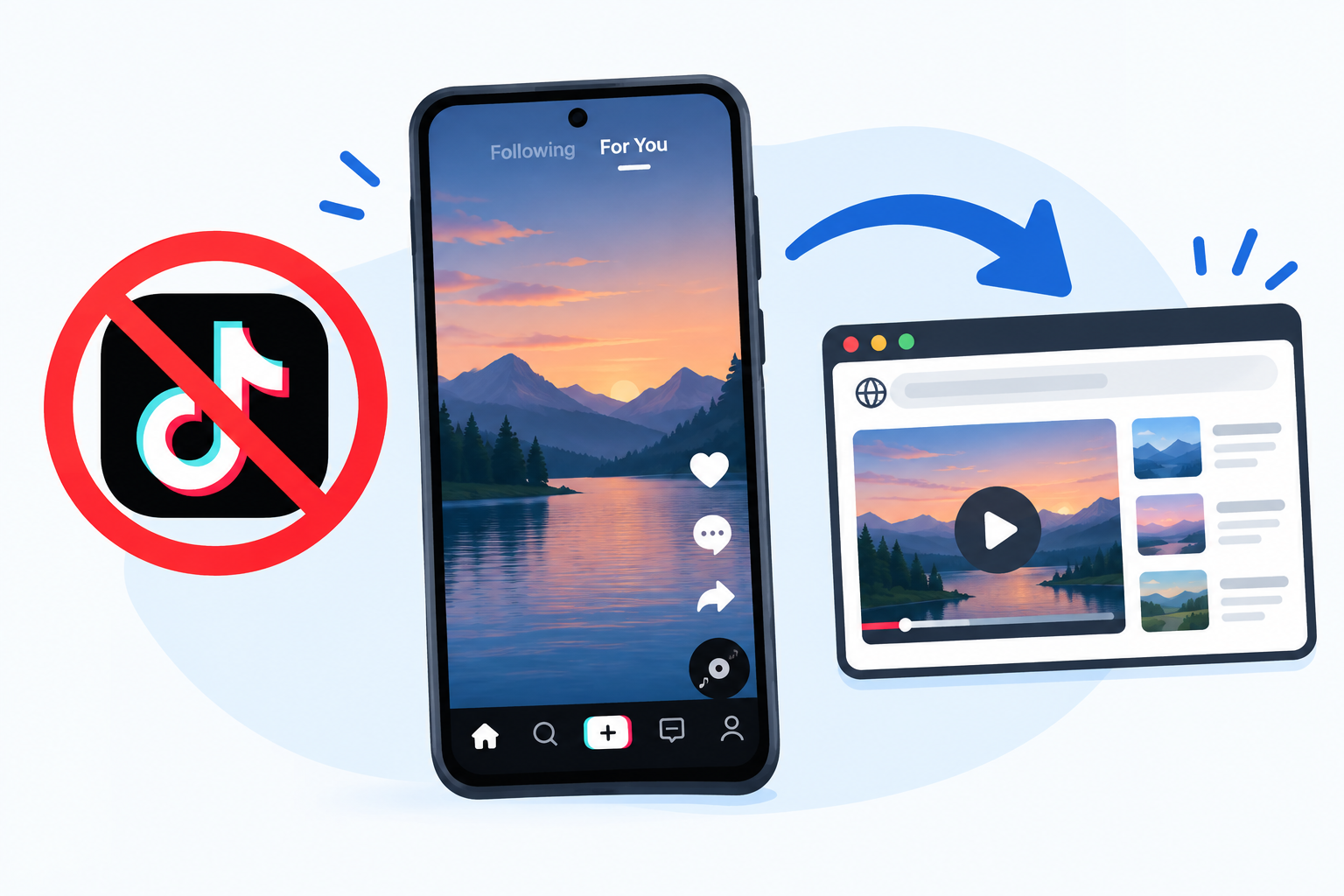
TikTok has become one of the most watched video platforms in the world, with billions of videos spanning every imaginable topic from cooking tutorials and comedy sketches to news commentary, educational content, and creative performances. Many people want to watch TikTok content without installing the mobile app, whether because their device has limited storage, because they are using a computer or smart TV, because they have privacy concerns about the app, because they are in a region where the app has been restricted, or simply because they prefer using a web browser for their content consumption.
The good news is that watching TikTok without installing the app is entirely possible through several different methods. TikTok operates a full web version accessible through any modern browser, individual videos can be opened through direct links without the app being installed, and various device-specific approaches make TikTok content accessible on computers, tablets, smart TVs, and other devices where installing the mobile app is not practical or desirable.
TikTok is one of the most prominent examples of a social media app that has evolved beyond its mobile app origins to offer meaningful web-based access, recognizing that a significant portion of potential viewers prefer or require non-app access methods. This guide covers every available method for watching TikTok without the app in full practical detail.
Why People Watch TikTok Without the App
Understanding the reasons why people choose to watch TikTok without installing the app helps identify which method best suits each situation.
Storage Space Concerns
The TikTok app is not a small application. It requires a meaningful amount of device storage not just for the app itself but also for the app data and cache it accumulates during normal use. TikTok’s cache grows rapidly because the app pre-loads videos to ensure smooth playback, and this pre-loading consumes significant storage over time. Users with limited internal storage on their devices may prefer browser-based access that does not permanently occupy device storage.
Privacy Concerns About the TikTok App
The TikTok mobile app has been the subject of significant scrutiny regarding the data it collects from devices where it is installed. Various regulatory bodies and security researchers have raised concerns about the breadth of data the app accesses including device information, location data, contact details, and usage patterns. Users who are privacy-conscious may prefer to access TikTok content through a web browser where the platform has more limited access to device-level data compared to a native app with the app permissions that mobile operating systems grant to installed applications.
Using a Non-Mobile Device
The TikTok mobile app is designed for smartphones and tablets. People watching content on a Windows PC, Mac, Chromebook, or Linux computer cannot install the mobile app directly on their computer and need a browser-based or alternative method to access TikTok content.
Accessing Shared Links Without the App Installed
When someone shares a TikTok video link through a message or email the recipient may want to watch the video without being redirected to download the TikTok app. Browser-based methods allow opening shared TikTok links directly without installing the app.
Regional App Restrictions
TikTok has faced app store restrictions in certain countries and regions. In locations where the app is unavailable through the official app store the web version may still be accessible as an alternative means of viewing content, depending on local regulations.
Parental Monitoring Situations
Parents who want to check on TikTok content their children are engaging with may prefer to view the platform through a browser on a shared family computer rather than installing the app on their own device.
Method 1: Watch TikTok on a Computer Browser
The most straightforward method for watching TikTok without the app is visiting TikTok’s official website through any modern web browser on a computer. TikTok’s web version provides a rich browsing experience that includes most of the core features of the mobile app.
How to Access TikTok on a Computer Browser
- Open any modern web browser on your computer. Google Chrome, Mozilla Firefox, Microsoft Edge, Safari, and Brave all work well with TikTok’s web interface.
- Navigate to tiktok.com in the browser’s address bar.
- The TikTok homepage loads showing a For You feed of recommended videos immediately without requiring login.
- Videos begin playing automatically as you scroll through the feed.
- Click on any video to open it in full view.
- Use the mouse scroll wheel or the on-screen navigation arrows to move between videos.
What You Can Do on TikTok Web Without an Account
TikTok’s web version allows a significant amount of browsing and viewing without creating an account or logging in:
- Watch videos from the For You page recommendation feed
- Search for specific creators, hashtags, sounds, or topics using the search bar
- View any creator’s public profile and browse their uploaded videos
- Watch individual videos shared through direct links
- View comment sections on videos
- See like counts, share counts, and view counts on videos
What Requires an Account on TikTok Web
Certain interactive features require creating a TikTok account and logging in even on the web version:
- Liking videos and adding them to your favorites
- Leaving comments on videos
- Following creators
- Sharing videos to your own profile
- Creating and posting your own videos
- Accessing your personalized saved content and following feed
TikTok Web Features Available with an Account
Logging into TikTok’s web version unlocks the full interactive feature set of the platform. The web version supports account creation directly through the browser at tiktok.com without requiring the app. You can create an account using an email address, phone number, Google account, or other supported sign-in method.
Browser Recommendations for the Best TikTok Web Experience
Google Chrome provides the smoothest TikTok web experience with full video playback capability, fast loading, and good compatibility with TikTok’s web interface. Chrome’s hardware acceleration improves video playback quality.
Mozilla Firefox works well with TikTok web and offers stronger built-in privacy protections than Chrome by default. TikTok videos play smoothly in Firefox with full feature support.
Microsoft Edge on Windows provides good TikTok web compatibility and benefits from tight integration with Windows hardware acceleration for smooth video playback.
Safari on Mac provides native TikTok web access with good performance on Apple Silicon Macs. Some users report occasional compatibility issues with Safari and TikTok’s web interface that do not occur in Chrome or Firefox.
Method 2: Watch TikTok on a Mobile Browser Without Installing the App
Watching TikTok through a mobile browser on an iPhone or Android phone provides access to TikTok content without installing the TikTok app. The mobile browser experience is slightly more limited than the desktop web experience due to TikTok’s emphasis on promoting app downloads to mobile users, but it is a fully functional way to watch content.
How to Watch TikTok on an iPhone Browser Without the App
- Open Safari or any other browser on your iPhone. Safari, Chrome for iOS, Firefox for iOS, and Brave all support TikTok web access.
- Navigate to tiktok.com in the browser address bar.
- TikTok’s mobile website loads. The mobile web version may prompt you to download the app. Dismiss this prompt by tapping Not Now or the X to close it.
- Browse the For You feed and watch videos directly in the browser.
- If TikTok’s mobile web redirects to a limited experience or insists on app download enable desktop mode in Safari by tapping the AA icon in the address bar and selecting Request Desktop Website. This loads the full desktop version of TikTok which plays videos without app download prompts.
For iPhone users the mobile web experience works within Safari and other browsers as expected for a iPhone app alternative. The browser-based approach means TikTok cannot access the same level of device information that the native app can access through iOS permissions.
How to Watch TikTok on an Android Browser Without the App
- Open Chrome, Firefox, or any other browser on your Android phone.
- Navigate to tiktok.com in the browser address bar.
- TikTok’s mobile website loads. Dismiss any app download prompts by tapping Not Now or closing the prompt.
- Browse and watch videos directly in the browser.
- If you prefer the full desktop experience tap the three-dot menu in Chrome and enable Desktop Site. This switches to TikTok’s full desktop web interface.
For Android users the browser approach to TikTok access avoids granting the Android app its extensive list of device permissions that the installed TikTok app typically requests. The browser operates within its own sandboxed environment with access to device resources managed by the browser rather than by TikTok directly.
Tips for Improving Mobile Browser TikTok Experience
Use desktop mode for a less interrupted experience: TikTok’s mobile web version sometimes displays persistent app download banners that interrupt viewing. Switching to desktop mode through the browser settings eliminates these prompts.
Add TikTok to the home screen as a web app: In Chrome on Android tap the three-dot menu and select Add to Home Screen. In Safari on iPhone tap the Share button and select Add to Home Screen. This creates a shortcut on the home screen that opens TikTok in the browser with a full-screen experience that resembles an app without installing the actual app.
Enable JavaScript and allow autoplay in browser settings: TikTok’s web player relies on JavaScript and autoplay capabilities. Ensure these are enabled in your browser settings for the best video playback experience. These settings are typically found in the browser’s settings app equivalent within the browser itself.
Method 3: Watch TikTok Videos Through Direct Links
When someone shares a TikTok video link through a message, email, or any other channel the video can be watched directly in a browser without installing the TikTok app. This is the simplest method for watching individual shared videos without any setup.
How to Open TikTok Links Without the App on Mobile
When you receive a TikTok link on your phone tapping it may try to open the TikTok app or redirect you to the app store if the app is not installed. To open the link in a browser instead:
On Android:
- Long press the TikTok link you received.
- Select Open in Browser or Copy Link from the options that appear.
- If copying the link paste it into your browser’s address bar manually.
- The TikTok video opens in the browser and plays without requiring the app.
On iPhone:
- Long press the TikTok link you received.
- Select Open in Safari or Copy from the options.
- If copying paste the link into Safari’s address bar.
- The video opens and plays in Safari without requiring the TikTok app.
How to Open TikTok Links on a Computer
On a computer simply click any TikTok link received through email, messaging, or any other channel. The link opens in your default web browser and the video plays directly in the browser at TikTok’s website without requiring any app installation.
Watching Embedded TikTok Videos
TikTok videos embedded in news articles, blog posts, and other websites play directly on those pages without requiring the TikTok app or even visiting tiktok.com. When a TikTok video is embedded in a web page it plays through TikTok’s web player which loads in the browser alongside the hosting page’s content. These embedded players include basic playback controls and often link back to the original TikTok video on tiktok.com if you want to see more context or related content.
Method 4: Watch TikTok on a Smart TV Without the App
Smart TVs provide TikTok access through several approaches depending on the TV’s operating system, available apps, and browser capabilities.
Using the TikTok Smart TV App
TikTok has released official apps for several smart TV platforms. If your smart TV runs one of these supported platforms the TikTok TV app provides the most complete viewing experience on a large screen.
Samsung Smart TVs: TikTok is available as an official app in the Samsung TV App Store for compatible Samsung smart TVs running Tizen OS. Search for TikTok in the Samsung TV app store to install it.
LG Smart TVs: TikTok is available for compatible LG smart TVs running webOS. Search for TikTok in the LG Content Store to install it.
Amazon Fire TV: The TikTok Fire TV app is available in the Amazon Appstore for Fire TV devices. Search for TikTok in the Fire TV app store and install it to watch TikTok content on your television.
Android TV and Google TV: TikTok has been available on the Google Play Store for Android TV and Google TV devices including Chromecast with Google TV, NVIDIA Shield, and compatible smart TVs. Search for TikTok in the Google Play Store on your Android TV device.
Apple TV: TikTok released an official Apple TV app available through the Apple App Store for Apple TV devices supporting tvOS 14 and later.
Using a Smart TV Web Browser for TikTok
Many smart TVs include a built-in web browser that can access TikTok’s website. The experience varies significantly depending on the TV’s browser capabilities and processing power.
- Open the web browser on your smart TV. On Samsung TVs the browser is called Samsung Internet. On LG TVs it is called Web Browser. Other TV brands include their own browser applications.
- Navigate to tiktok.com using the TV remote or a connected keyboard.
- TikTok’s web interface loads in the TV browser.
- Navigate using the TV remote’s directional controls.
The smart TV browser experience with TikTok can be awkward because TikTok’s web interface is designed for mouse and touch input rather than remote control navigation. A Bluetooth keyboard and mouse connected to the TV significantly improves usability.
Using Chromecast or Screen Mirroring to Watch TikTok on TV
Casting TikTok from a phone or computer browser to a TV using Chromecast or a similar casting technology allows watching TikTok on a large screen without the TV having the app installed.
Using Chromecast from Chrome browser on a computer:
- Open TikTok in Google Chrome on a computer.
- Click the three-dot menu in Chrome.
- Select Cast.
- Select your Chromecast device from the list.
- The TikTok web content displays on the TV through the Chromecast connection.
Using screen mirroring from an iPhone:
- Open TikTok in Safari or another browser on your iPhone.
- Connect iPhone and Apple TV to the same Wi-Fi network.
- Swipe down to open Control Center on the iPhone.
- Tap Screen Mirroring.
- Select your Apple TV from the list.
- The iPhone screen including TikTok in the browser mirrors to the TV.
Using screen casting from an Android phone:
- Open TikTok in a browser on your Android phone.
- Pull down the notification shade to access Quick Settings.
- Tap Cast or Screen Cast.
- Select your compatible casting device such as Chromecast from the list.
- The Android screen mirrors to the TV and TikTok plays through the browser on the large screen.
Method 5: Watch TikTok on a Tablet Without the App
Tablets running iPadOS or Android can access TikTok through the browser in the same way as smartphones, providing a larger screen browsing experience without installing the app.
Watching TikTok on iPad Without the App
- Open Safari or Chrome on your iPad.
- Navigate to tiktok.com.
- TikTok’s website loads in the browser with the larger iPad screen providing more comfortable viewing than on a phone.
- For the best experience on iPad request the desktop version of the site. In Safari tap the AA icon in the address bar and select Request Desktop Website.
- The full TikTok desktop web interface loads with a layout well suited to the iPad’s larger screen.
Watching TikTok on Android Tablet Without the App
- Open Chrome or any other browser on your Android tablet.
- Navigate to tiktok.com.
- Browse and watch TikTok content in the browser.
- For the best layout on a tablet enable desktop mode through the browser menu to load TikTok’s desktop web interface which uses the larger screen more effectively than the mobile web layout.
Method 6: Use TikTok’s Progressive Web App
A Progressive Web App or PWA is a website that behaves like a native app when added to the home screen of a device. TikTok’s web version can be added to the home screen as a PWA, providing an app-like experience including full-screen playback and home screen access without installing the actual TikTok app through an app store.
How to Add TikTok as a PWA on Android
- Open Chrome on your Android phone or tablet.
- Navigate to tiktok.com.
- Tap the three-dot menu in the top right corner of Chrome.
- Select Add to Home Screen.
- Name the shortcut TikTok or any name you prefer.
- Tap Add.
- A TikTok icon appears on your home screen.
- Tapping this icon opens TikTok in Chrome in a full-screen mode that hides the browser navigation bar, making it feel similar to the native app experience.
How to Add TikTok as a PWA on iPhone
- Open Safari on your iPhone.
- Navigate to tiktok.com.
- Tap the Share button at the bottom of Safari which looks like a square with an arrow pointing upward.
- Scroll down in the share sheet and tap Add to Home Screen.
- Name the shortcut and tap Add in the top right corner.
- A TikTok icon appears on your iPhone home screen.
- Tapping it opens TikTok in Safari in a full-screen mode.
The PWA approach stores minimal data compared to the native app. The browsing data is handled by the browser rather than by a dedicated TikTok app process, which means the app data concerns associated with the native TikTok app do not apply in the same way to the browser-based PWA approach.
TikTok Web vs TikTok App: Feature Comparison
Understanding what is available through the browser version compared to the full mobile app helps set appropriate expectations for the browser-based experience.
Features Available on TikTok Web
- For You page feed of recommended videos
- Following feed for logged-in users showing content from followed accounts
- Search by creator, hashtag, sound, and keyword
- Video playback with full audio
- Creator profile browsing
- View video comments
- Video like counts and share counts
- Account creation and login
- Liking videos when logged in
- Commenting on videos when logged in
- Following creators when logged in
- Viewing your own profile and uploaded content
- Watching LIVE streams in most browsers
Features Limited or Unavailable on TikTok Web
- Video uploading and creation tools are limited compared to the app’s full creation suite with effects, filters, and editing tools
- Duets and Stitches creation is not available through the web version
- Push notifications for new content and interactions are not available without the app
- The For You algorithm on web may be less personalized than the app’s algorithm which benefits from more device-level behavioral data
- Some special effects and AR filters in live streams may not render correctly in all browsers
- Direct messaging is available on web for some accounts but with more limited functionality than in the app
- Download video option may be restricted in the web version depending on creator settings
Browsing Experience Differences
The TikTok app’s infinite scroll and autoplay design is optimized for touchscreen swiping. On the web version using a mouse or keyboard the navigation is slightly different. Videos advance by scrolling with the mouse wheel, clicking on-screen navigation arrows, or using keyboard shortcuts. The overall content experience is identical but the interaction model is slightly adapted for non-touch input.
Privacy Differences Between TikTok App and Browser Access
One of the most significant reasons users choose browser-based TikTok access over the installed app is the difference in how much device data each method can access.
What the TikTok App Can Access
When the TikTok app is installed on a smartphone it operates as a native application with access to the device resources permitted by the operating system through its granted app permissions. The TikTok app has requested and been granted access to extensive device resources on many devices including camera, microphone, contacts, location, storage, device identifiers, clipboard contents, and various system information depending on the device and operating system version.
The native app runs continuously in the background, can access data between sessions, and interacts with the device at a deeper level than a website accessed through a browser. The app data stored by the TikTok native app includes detailed behavioral logs, device fingerprinting information, and usage patterns collected over the entire history of the app’s installation on the device.
What Browser-Based TikTok Access Can Access
When TikTok is accessed through a web browser the browser acts as an intermediary that limits what the website can access from the device. The browser enforces web platform security policies that are generally more restrictive than the permissions available to native apps.
Through a browser TikTok can access:
- The browser’s cookies and local storage specific to the tiktok.com domain
- Camera and microphone only if explicitly granted permission through a browser permission prompt
- Approximate location only if explicitly granted permission through a browser permission prompt
- The content of the current web page being viewed
- Standard web analytics data including browser type, operating system, and screen size
The browser cannot grant TikTok access to the same breadth of device-level information that the native app accesses. This makes browser-based access a meaningfully more privacy-protective approach for users who want to watch TikTok content while limiting the platform’s access to their device data.
For detailed information about how TikTok handles user data TikTok’s privacy policy is available at tiktok.com/legal/privacy-policy.
How to Find Specific TikTok Content Without the App
Navigating TikTok’s content library through a browser requires slightly different approaches than the app’s gesture-based interface. These techniques help users find specific content efficiently through the web version.
Searching for Creators on TikTok Web
- Visit tiktok.com in your browser.
- Click the Search icon or search bar at the top of the page.
- Type the creator’s name or username in the search field.
- Press Enter or click the search icon.
- Filter results by selecting Accounts from the filter options to show creator profiles rather than videos.
- Click on the creator’s profile to view their full video library.
Searching by Hashtag on TikTok Web
- Visit tiktok.com in your browser.
- Type a hashtag including the hash symbol such as hashtag cooking or hashtag fitness in the search bar.
- Results show videos tagged with that hashtag.
- Browse through the video results to find relevant content.
Finding Trending Content on TikTok Web
TikTok’s Discover or Explore section on the web version shows trending hashtags, sounds, and creators. Navigate to this section through the left sidebar menu on the desktop web interface to browse what is currently trending on the platform.
Direct URL Access to Creator Profiles
TikTok creator profiles follow a consistent URL structure. If you know a creator’s username you can navigate directly to their profile without searching by entering tiktok.com followed by the at symbol and their username in the browser address bar. For example a creator with the username examplecreator would have their profile at tiktok.com/@examplecreator.
Downloading TikTok Videos Without the App
Some users want not just to watch TikTok videos but to save specific videos for offline viewing without the app. Several approaches make this possible.
Using TikTok’s Built-In Share Link
TikTok provides a share link for every public video that can be opened in a browser at any time without the app. To get the share link for a video on the web version:
- Open the video on TikTok’s website in your browser.
- Click the Share button on the video.
- Select Copy Link from the share options.
- The direct link to that video is copied to your clipboard and can be shared with anyone who can then watch it in their browser without the app.
Official TikTok Video Download Button
TikTok allows creators to enable or disable downloads for their videos. When a creator has enabled downloads the video page on TikTok’s website includes a download button that saves the video file directly to the device. This is the only officially sanctioned way to download TikTok videos and respects the creator’s choice about whether their content can be downloaded.
To use the official download:
- Open the video on TikTok’s website.
- Look for a Download or Save Video option in the video controls or the share menu.
- If available click it to download the video file to the device’s Downloads folder.
- If the download option is not present the creator has disabled downloads for that video and it should not be downloaded through other means.
Important Note on Third-Party Download Tools
Various third-party websites and browser extensions claim to download TikTok videos from URLs. Using these tools raises copyright concerns because downloading content the creator has not enabled for download may violate TikTok’s terms of service and the creator’s rights to their content. Always respect creator choices about whether their content is available for download and comply with TikTok’s terms of service available at tiktok.com/legal/terms-of-service.
Watching TikTok Without an Account
Many users want to browse TikTok content without creating an account. The web version supports this more readily than the app which aggressively prompts for account creation.
What You Can Watch Without an Account on TikTok Web
TikTok’s web version allows browsing the For You recommendation feed and watching videos without logging in. The platform serves algorithmically recommended content even to anonymous visitors based on general trending content and basic session signals rather than a personalized account history.
Limitations of Anonymous TikTok Web Browsing
Without an account on TikTok web:
- The For You feed shows generally popular content rather than content specifically personalized to your interests
- You cannot like, comment, share to profile, or follow creators
- Your viewing preferences are not saved between sessions so the algorithm starts fresh each time
- Some content may be restricted to logged-in users
Browsing TikTok Anonymously for Longer Sessions
For users who want to browse TikTok anonymously without the platform building a profile based on their viewing habits using a private or incognito browsing window prevents cookies and session data from being saved between sessions. Each time a new incognito session is opened TikTok starts fresh without any retained information from previous sessions.
To open an incognito window press Ctrl and Shift and N in Chrome or Firefox on Windows, Command and Shift and N on Mac, or find the option in the browser’s three-dot menu.
Troubleshooting TikTok Web Playback Issues
Browser-based TikTok access occasionally encounters playback issues that are less common in the native app. These troubleshooting steps resolve the most frequent browser-specific problems.
Videos Not Playing in the Browser
Check browser JavaScript settings: TikTok’s web player requires JavaScript to be enabled. Verify that JavaScript is allowed for tiktok.com in your browser settings.
Disable browser extensions: Ad blockers, privacy extensions, and script blockers can interfere with TikTok’s video player. Try disabling extensions temporarily to test whether they are causing the playback issue.
Clear browser cache and cookies for tiktok.com: Corrupted cached browser data can prevent videos from loading correctly. Clear the browser cache through the browser’s settings and retry.
Try a different browser: If videos do not play in one browser try another. This identifies whether the issue is browser-specific or platform-wide.
Check internet connection speed: TikTok videos especially at higher resolutions require adequate bandwidth. Test your connection speed and switch to a faster connection if available.
TikTok Web Keeps Prompting to Download the App
TikTok’s mobile website frequently displays banners and popups encouraging app installation. Several approaches minimize these interruptions:
- Dismiss each prompt as it appears using the X or Not Now option
- Switch to desktop mode in the mobile browser settings to load the desktop web interface which does not display mobile app download prompts as frequently
- Use a browser with a built-in ad and popup blocker which may suppress some of these prompts
TikTok Web Not Loading or Showing Errors
Check regional availability: TikTok web access may be restricted or limited in certain countries and regions. If TikTok’s website does not load in your region this may reflect local regulatory restrictions.
Check TikTok’s server status: Occasionally TikTok experiences service outages affecting web access. Check downdetector.com/status/tiktok to see whether other users are reporting TikTok access issues at the same time.
Try clearing browser cache: A full browser cache clear resolves many website loading issues caused by corrupted cached resources.
Managing TikTok Web Browser Data
When accessing TikTok through a browser the browser stores cookies, cached content, and local storage data related to TikTok sessions. Managing this browser data is the browser-equivalent of managing the app’s stored data.
Unlike the native TikTok app where the app data is stored in dedicated app storage managed through the device settings, browser-based TikTok data is stored within the browser’s own data storage and is managed through browser settings rather than device app settings.
To clear TikTok-specific browser data without clearing all browsing data:
In Chrome:
- Click the three-dot menu and select Settings.
- Go to Privacy and Security then Cookies and Other Site Data.
- Click See All Site Data and Permissions.
- Search for tiktok.com in the site list.
- Click the delete icon next to tiktok.com to remove all stored TikTok browser data.
In Firefox:
- Click the three-line menu and select Settings.
- Go to Privacy and Security.
- Scroll to Cookies and Site Data and click Manage Data.
- Search for tiktok in the search field.
- Select the TikTok entries and click Remove Selected.
In Safari on iPhone:
- Open the Settings app on your iPhone.
- Scroll down and tap Safari.
- Tap Advanced then Website Data.
- Search for TikTok in the website data list.
- Swipe left on the TikTok entry and tap Delete.
Clearing browser-stored TikTok data logs you out of any TikTok web session and removes the platform’s ability to recognize your browser from previous visits, effectively resetting your anonymous browsing profile.
Comparing All Methods for Watching TikTok Without the App
| Method | Best For | Account Required | Installation Required | Available On |
|---|---|---|---|---|
| Desktop browser at tiktok.com | Computer users wanting full web experience | No for viewing | No | Windows Mac Linux Chromebook |
| Mobile browser at tiktok.com | Phone users avoiding app installation | No for viewing | No | iPhone Android |
| Direct video link in browser | Watching specific shared videos | No | No | All devices with a browser |
| Smart TV browser | Watching on large screen without TV app | No for viewing | No | Smart TVs with browser |
| TikTok PWA added to home screen | App-like experience without native app | No for viewing | No app only browser shortcut | iPhone Android |
| Smart TV app | Best large screen experience | Yes | Yes TV app | Samsung LG Amazon Fire TV Android TV Apple TV |
| Screen casting from browser | Watching on TV from phone or computer | No for viewing | No app only casting device | Any casting-enabled TV setup |
Frequently Asked Questions About Watching TikTok Without the App
Can you watch TikTok without downloading the app?
Yes. TikTok’s website at tiktok.com is accessible through any modern web browser on computers, phones, and tablets without installing the TikTok app. Individual video links can also be opened directly in a browser without the app installed.
Can you watch TikTok without an account?
Yes. TikTok’s web version allows browsing the For You feed and watching videos without creating an account or logging in. Some interactive features like liking and commenting require an account.
Is the TikTok website the same as the app?
The TikTok website provides access to the same content library as the app but with some feature limitations. Video creation tools, push notifications, and some advanced social features are more limited on the web version compared to the full mobile app experience.
Why does TikTok keep asking me to download the app when I use the browser?
TikTok’s mobile website displays prompts encouraging users to install the native app. These prompts can be dismissed individually or avoided by switching to desktop mode in the mobile browser settings which loads the full desktop web version without mobile-specific app promotion prompts.
Is it safer to use TikTok in a browser than the app?
Browser-based TikTok access generally provides more limited access to device data compared to the native app because the browser enforces web security policies that restrict what websites can access. The native app with its granted app permissions can access significantly more device information than a website accessed through a browser.
Can I watch TikTok on a smart TV without the app?
Yes. Smart TVs with built-in web browsers can access tiktok.com directly. TikTok also has official apps available for Samsung, LG, Amazon Fire TV, Android TV, and Apple TV platforms through their respective app stores. Alternatively screen casting from a phone or computer to a TV allows watching TikTok on a large screen without the TV having any TikTok software installed.
Does using TikTok in a browser use more data than the app?
Video streaming data consumption is similar between the app and browser for equivalent video quality settings. The browser may use slightly more data for loading the full web interface compared to the optimized native app interface, but the difference for video streaming specifically is minimal.
Can I download TikTok videos without the app?
TikTok provides an official download button for videos where the creator has enabled downloads. This is available on both the app and the web version. Third-party download tools exist but using them for content the creator has not enabled for download raises copyright and terms of service concerns.
How do I share TikTok videos without the app?
Open any TikTok video in a browser and use the Share button on the video to copy the video’s direct link. This link can be shared through any messaging or email platform and the recipient can watch the video by clicking the link in their browser without needing the app installed.
Can I create a TikTok account without the app?
Yes. TikTok account creation is available through the website at tiktok.com without installing the app. You can sign up with an email address, phone number, Google account, Apple account, Facebook account, or Twitter account through the web registration process.
Will TikTok work on any browser?
TikTok’s web version works on all modern browsers including Chrome, Firefox, Edge, Safari, and Brave. Older browsers that do not support current web standards may have playback issues. For the best experience use an up-to-date version of any of these mainstream browsers.
Disclaimer
This article is intended for educational and informational purposes and provides general guidance for accessing TikTok content through methods other than the official TikTok mobile application. TikTok’s website features, availability, regional restrictions, and policies are subject to change at any time without notice. The availability of TikTok and its web version may vary by country and region based on local laws and regulations. This article does not encourage circumventing any regional restrictions that may apply in your location. Always comply with the terms of service of any platform you use and the laws applicable in your country or region. This article does not constitute an endorsement of TikTok or any third-party service mentioned in this guide.