
 By Saad Qureshi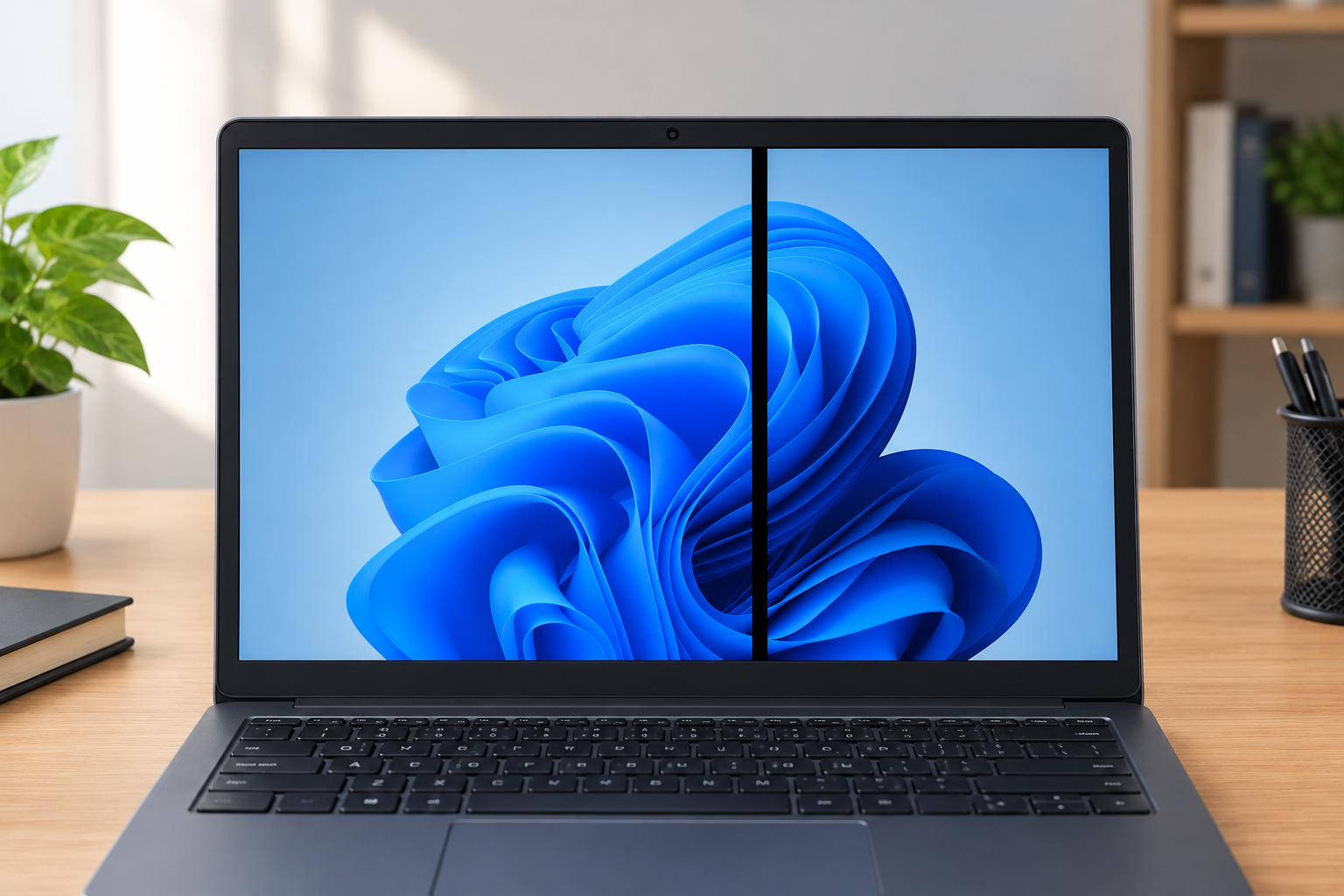
You open the lid and a thin, stark vertical black line cuts through the display from top to bottom. It was not there yesterday, and now every window, photo, and document has a stripe through it. A vertical black line on a laptop screen can come from a driver, a loose cable, or the panel itself, and a few free tests will tell you which one before you spend any money.
Quick Info: The 60-Second Display Isolation
- Restart the laptop and look at the line again on a plain white background and a plain dark one.
- Take a clear photo of the line. It helps you compare later and helps any support claim.
- Connect an external monitor or TV. If the external screen is clean and the laptop screen still shows the line, the problem is not your Windows desktop settings.
- Enter the BIOS setup screen (steps in section 1). A line that stays visible there does not come from Windows or a graphics driver.
- Open and close the lid slowly while watching the line. Note whether it flickers, changes color, or moves.
Key Takeaways
- A line that stays in the BIOS is not a Windows problem. Dell’s troubleshooting article says that if lines appear in its built-in screen test, the LCD screen itself is the likely cause.
- Software cannot repair a broken line. Reinstalling drivers or running “screen fixer” tools cannot restore a physical connection inside the panel.
- Lid movement points to a cable. A line that changes when you move the lid suggests a cable problem, although we found no manufacturer page that explains the hinge mechanism in detail.
- Dell lists vertical lines as damage. Dell’s “Types of Damages Not Covered by Dell Basic Support” page includes “Vertical Lines From LCD Damage,” so coverage depends on the cause.
- Replacement is often the end of the road. If the line survives every test, plan on a panel or cable service by an authorized provider.
How This Guide Was Verified
We verified every diagnostic route in this guide against the manufacturer documentation we could access, and we label anything else as general repair knowledge.
Specifically, we checked Dell’s laptop screen test article, Dell’s troubleshooting article for LCD image problems, Dell’s list of damage not covered by basic support, and Apple’s “If your Mac runs slowly” guide. We did not read VESA standards or any laptop repair manual, so the internal causes of a column line below are general display knowledge, not manufacturer statements.
This guide compiles documentation. It does not include results from our own panel testing, and we cannot diagnose your screen from a description. Following these steps keeps you away from destructive myths, such as pressing the bezel, flashing “pixel repair” tools, or heating the panel.
Laptop Screen Line Defects: Diagnostic Matrix
| Screen Line Visual Pattern | The Underlying Component Status | Recommended Resolution Path |
|---|---|---|
| A single vertical black line on a laptop screen | Often a fault in the panel’s column connections, which is a general display explanation | Run the BIOS and built-in screen tests. If the line stays, arrange panel service. |
| Multi-colored vertical or horizontal lines that flicker when the lid moves | Possible loose or worn display cable | Stop flexing the lid and have a technician inspect and reseat the cable. |
| Dark ink-like blots spreading across the panel | Likely cracked glass or internal panel damage | Stop using the laptop for important work and arrange panel replacement. Do not press the area. |
1. Display Layer Isolation Test via the UEFI/BIOS Menu
First, find out whether the line is a software problem. The BIOS screen is drawn by the laptop’s firmware before Windows loads, so it is one of the best free tests.
Why the Test Helps
If a driver or Windows setting caused the line, it should not appear in the BIOS. If it is still there, the cause sits in the display hardware or its connection. This is general diagnostic logic, and we found no manufacturer page that names it as an official test.
Enter the UEFI/BIOS Setup
- Shut the laptop down completely.
- Press the power button, then tap F2 or Del repeatedly. The key differs by brand.
- On many Lenovo laptops, press the Novo button, a small pinhole button, with the laptop off. Choose BIOS Setup from the menu.
- Wait for the UEFI/BIOS Setup screen.
Check your maker’s support page for the right key. We could not read Lenovo’s Novo button page in full, so confirm the steps for your model.
Read the Result
- Look at the screen from your normal viewing position.
- Check whether the vertical black line sits in the same spot as it did in Windows.
- Tilt the lid slightly and look again.
If the line is still visible: the cause points to the display hardware, such as the panel or the cable. The test does not tell you which part has failed.
If the line disappears: a driver or Windows setting becomes likely. Update your graphics driver and Windows, then test again.
Use the Maker’s Built-In Screen Test
Dell documents a built-in LCD test.
- Save your work, shut down, disconnect external devices, and connect the power adapter.
- Press and hold the D key, then press the Power button.
- Keep holding D until colors appear, then release it.
- Watch the screen cycle through black, white, red, green, and blue.
Dell says clean colors mean the screen hardware appears fine, so check the graphics driver and Windows settings next. Lines, dots, dark areas, or distortion mean the screen may need professional service.
Rule Out Software Problems
If the line vanishes in the BIOS, check for software causes. Our guide on Why Is My Laptop Slow? Causes and Fixes explains how to check Task Manager and update drivers, which are common first steps.
You can also read Microsoft’s official Windows performance support page for basic Windows health checks.
Try an External Monitor
Dell’s troubleshooting article uses an external display to separate software or video card problems from the laptop screen. Connect a monitor with an HDMI or USB-C cable. If the external image is clean and the built-in screen shows the line, the laptop panel or its cable is the likely cause.
Apple Laptops
A line that shows in every state, including on a Mac that has just started, points away from software. For general Mac health checks, see Apple’s official Mac optimization guidelines, which covers storage, memory use, and Disk Utility. Those steps help with slowness, not with a physical line.
2. Hardware Mechanical Strain and Hinge Flex Cable Testing
If the line changes when you move the lid, the display cable becomes a suspect. The cable carries the picture from the motherboard to the screen and passes through the hinge area on most laptops.
The Lid Movement Test
- Boot into Windows and display a plain white or light gray background.
- Open the lid slowly through a normal range of angles, then close it slowly to near-closed.
- Watch whether the line flickers, changes color, multiplies, or disappears.
- Stop immediately if you hear creaking, and do not twist the screen.
Use light pressure only. This test is a clue, not proof. We found no manufacturer page that gives a test angle range or explains the failure inside the hinge.
What a Positive Result Suggests
A line that reacts to lid movement suggests a loose, pinched, or worn cable or connector. Dell’s troubleshooting article lists the LCD cable as a possible culprit when the built-in test shows no lines, and it advises reseating cables with the service manual or help from support. If your laptop is still under warranty, opening it yourself may affect coverage, so check with your maker first.
Check the Lid Frame
- Look for gaps, bulges, or cracks along the screen frame.
- Note whether the lid feels loose or uneven near the hinges.
- Think back to any drops, twists, or heavy objects on the closed lid.
Pressure on a closed lid is a known cause of screen damage, and Dell lists “Pressure Mark on LCD” among damage that is not covered. Our article on White spot on Lenovo laptop screen explains how pressure patches look different from a clean line.
Check Heat as a Side Factor
Heat is a general stress factor for electronics. We found no manufacturer source that links heat directly to a single vertical line, so treat this as a precaution.
If your laptop also runs hot, read Why Is My Laptop Overheating? Common Causes and Permanent Fixes to reduce stress while you wait for service.
Do Not Flex It to Hold the Line Away
Some users leave the lid at an angle where the line disappears. That can work for a while, but repeated flexing can wear a cable further. Plan the repair instead of working around it.
3. Understanding Column Faults Inside the Panel
A permanent, thin vertical line that never changes in the BIOS is often a panel fault. This part is general display knowledge, not a manufacturer statement, and we could not verify the exact failure inside your model.
How a Column Line Can Form
An LCD is a grid of tiny pixels. Electronics along the panel edge send data down columns of sub-pixels, and a break in that path can leave a column dark. Industry explanations often point to the connections between the driver chips and the glass, but we found no source we could read that confirms this for laptops.
What This Means for You
- A black line that stays still and never changes color often means a fault at the panel level.
- The line usually does not move when you tilt the lid or tap the frame.
- It appears in the BIOS and in the built-in screen test.
If these match, panel replacement is the usual route. Repairing microscopic connections on the glass is not something a home tool or a software update can do.
What Not to Expect
No driver, BIOS update, or “pixel fixer” app can reconnect a broken physical path. Some tools flash colors to “exercise” pixels, and they can help with a stuck pixel, but we found no manufacturer source saying they repair a dead line.
Read Laptop Screen Lines: Causes and How to Fix Them to compare other line patterns, such as horizontal and colored lines.
When Ink-Like Blots Appear
Dark patches that spread like ink point to broken glass inside the panel rather than a single column. Dell lists “Cracked Glass,” “Internal Cracked Glass,” and “Black Spots (Broken Substrate)” as damage that is not covered by its basic support. If you see this, stop pressing on the area and arrange service.
Warranty and Support
Dell says its basic support does not cover several kinds of LCD damage, and accidental damage protection may help only if you bought it as an add-on. Without damage, a line may be treated differently, so ask your maker. Keep your proof of purchase and photos ready.
Before You Contact Support
- Note the model and serial number.
- Photograph the line in Windows, in the BIOS, and in the built-in test.
- Write down when it began and what happened beforehand.
- Back up your files.
- Describe any drops or pressure honestly. Technicians can usually tell.
Dangerous Mistakes That Can Ruin Your Display Panel Permanently
- Pressing or massaging the bottom bezel. Thumb pressure near the panel edge can crack glass and make a single line spread.
- Spraying cleaner into the frame edge. Liquid can run into the layers behind the glass. Use a dry microfiber cloth.
- Slamming the lid. Hard closes can strain the cable and the glass.
- Twisting the lid to hold the line away. Flexing the frame can wear the cable and widen the fault.
- Using a heat gun or hair dryer. Heat can warp layers and adhesives, and it will not reconnect a broken line.
- Prying at the screen frame. This can crack the glass and damage the cables.
- Trusting “line fixer” apps. Software cannot repair a physical connection, and some downloads carry malware.
- Opening a laptop under warranty without checking terms. A DIY repair may affect your coverage.
Frequently Asked Questions
Why is there a vertical black line on my laptop screen?
Common causes are a driver problem, a loose or worn display cable, or damage inside the panel. The BIOS test and an external monitor help you tell them apart.
Can a vertical black line go away on its own?
A line caused by software can disappear after a restart or driver update. A line caused by hardware usually stays or gets worse.
Can I fix a vertical black line myself?
Software steps can only fix a software cause. Replacing a cable or panel is work for an authorized service provider, especially while the laptop is under warranty.
Does warranty cover a vertical line?
It depends on the cause. Dell lists “Vertical Lines From LCD Damage” among damage not covered by its basic support, so check your brand’s terms and any accidental damage plan.
Is it worth replacing the screen?
Compare the repair quote with the age and value of the laptop. An external monitor can keep you working while you decide.
Disclaimer:
This article is for general educational and informational purposes only. It compiles official display diagnostic concepts from verified manufacturer service frameworks. Laptop display panels handle delicate microscopic ribbon electronics and matrix glass. Always prioritize contacting authorized manufacturer service centers or certified repair specialists to execute physical display assembly replacements.