
 By saman zahra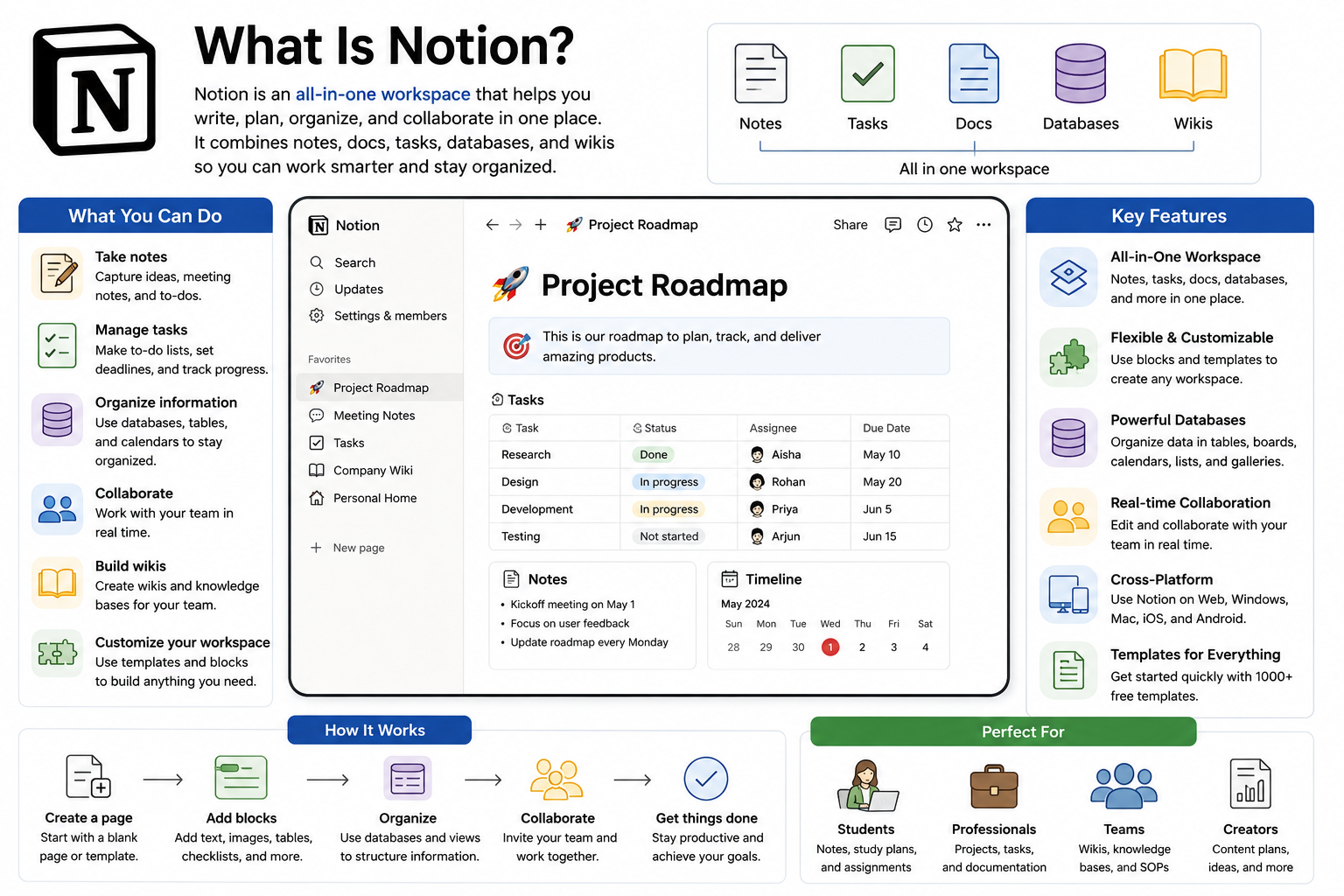
Introduction
If you have ever felt overwhelmed by scattered notes, disconnected project tools, and endless app switching just to stay organized, you are not alone. Millions of people face that exact problem every day, and that is precisely why Notion has grown into one of the most talked-about productivity tools in the world. What is Notion, exactly? It is an all-in-one workspace application that combines note-taking, project management, database creation, team collaboration, and knowledge management into a single beautifully designed platform.
Notion launched in 2016 and has since attracted millions of users ranging from solo students and freelancers to large teams at companies like Pixar, Amazon, and Figma. Its appeal lies in its extraordinary flexibility. Unlike traditional productivity apps that lock you into a fixed structure, Notion gives you a blank canvas and lets you build exactly the workspace your work actually requires.
In this complete beginner’s guide for 2026, we cover everything you need to know about Notion, including how it works, its standout features, real-world uses, setup steps, and how it compares to popular alternatives like Microsoft OneNote and Evernote.
Quick Answer (Featured Snippet)
Notion is an all-in-one productivity and workspace application that combines note-taking, project management, databases, wikis, and team collaboration in a single platform. It allows users to create flexible pages, organize information in databases, manage tasks with Kanban boards, and work with AI writing assistance. Notion is free for personal use and offers paid plans for teams and businesses.
What Is Notion?
Definition
Notion is a cloud-based productivity and workspace application developed by Notion Labs Inc. It provides users with a flexible environment where they can write notes, manage projects, build databases, create documentation, track habits, and collaborate with teams, all within a single application. Rather than forcing users into a rigid structure, Notion allows individuals and organizations to build a completely customized workspace that fits their exact workflow.
The fundamental building block of Notion is the page, which can contain almost any type of content including text, images, tables, task lists, embedded videos, code blocks, and more. Pages can be nested inside other pages, creating an organizational hierarchy as simple or as complex as you need.
A Brief History
Notion Labs Inc. was founded in 2013 by Ivan Zhao and Simon Last, though the product did not launch publicly until 2016. The early version of Notion struggled with performance issues that nearly ended the company. The founders rebuilt the entire application from scratch in 2018 using a new technical architecture, and the relaunched version gained immediate traction.
By 2020, Notion had reached unicorn status with a valuation exceeding one billion dollars, fueled by explosive growth during the remote work surge. In 2023, Notion introduced Notion AI, integrating powerful generative AI capabilities directly into the workspace. Today, Notion serves millions of users across personal, educational, and enterprise contexts worldwide.
Why Notion Is Popular
Notion’s popularity stems from one core advantage that competing tools struggle to replicate: it genuinely replaces multiple apps at once. Instead of using a separate note-taking app, project management tool, wiki builder, and spreadsheet, teams can consolidate everything into Notion. This consolidation reduces the cognitive overhead of switching between tools and keeps all information connected in one searchable place.
Additionally, Notion’s visual design is strikingly clean and pleasant to use. Users spend meaningful time inside their workspace every day, and the thoughtful interface makes that experience considerably more enjoyable than most productivity software alternatives.
How Notion Differs From Traditional Note-Taking Apps
Traditional note-taking apps like Apple Notes or Google Keep are designed primarily for capturing text quickly. They organize content in folders and lists but offer limited structural flexibility beyond that basic hierarchy. Notion, by contrast, treats each page as a fully customizable canvas. You can embed databases, Kanban boards, timelines, and calendars directly into any page alongside your written content.
This difference means Notion functions less like a digital notebook and more like a personal or team operating system that happens to also support excellent note-taking.
How Does Notion Work?
Understanding Notion’s core components makes everything else click into place. Here is how the fundamental building blocks fit together.
Pages
Pages are the primary containers for all content in Notion. Every document, note, database, project board, or wiki article exists as a page. You can create a page for anything, from a meeting agenda and a travel itinerary to a complete company handbook.
Pages can be nested inside each other to create a hierarchical structure. For example, you might have a top-level page called Projects, with individual pages inside it for each active project, and further sub-pages inside each project for meeting notes, task lists, and reference documents. This nested structure lets you organize complex information intuitively without losing track of anything.
Blocks
Inside every Notion page, content exists as individual blocks. A block can be a paragraph of text, a heading, a bulleted list item, an image, a table row, a to-do checkbox, a code snippet, a divider, an embedded video, or dozens of other content types. You add blocks by pressing the slash key and selecting from the content menu that appears.
The block-based structure gives Notion its flexibility. Because every piece of content is an independent block, you can rearrange, duplicate, move, or delete any element on a page without affecting surrounding content. This makes reorganizing information dramatically faster than working in a traditional word processor.
Databases
Databases are one of Notion’s most powerful and distinctive features. A Notion database is a collection of structured entries, similar to rows in a spreadsheet, where each entry is actually a full Notion page in its own right. You can add properties to each entry such as dates, status labels, tags, checkboxes, URLs, and assigned people.
The most impressive aspect of Notion databases is that you can view the same data in multiple ways simultaneously. Switch between Table view for a spreadsheet-style overview, Board view for a visual Kanban layout, Calendar view for a date-based schedule, Gallery view for a card-based visual layout, or Timeline view for project planning. Each view updates the same underlying data, so changes you make in one view appear instantly in all others.
Templates
Notion provides hundreds of pre-built templates for common use cases including project management, meeting notes, personal journals, habit trackers, content calendars, CRM systems, and more. Templates give you a professionally structured starting point that you can customize to match your specific workflow rather than building everything from scratch.
The Notion template gallery is publicly accessible and includes contributions from both the Notion team and the broader community. Many popular creators and productivity experts share their carefully designed Notion setups as templates that anyone can duplicate into their own workspace with one click.
Workspaces
A Notion workspace is the top-level environment that contains all your pages, databases, and settings. You can have multiple workspaces associated with your account, such as a personal workspace for private notes and a separate team workspace for collaborative work.
Within a workspace, you organize content through the sidebar, which displays your pages in a navigable tree structure. You can pin frequently accessed pages for quick access and organize less-used content into nested hierarchies that stay out of the way until you need them.
Collaboration
Notion supports real-time collaboration where multiple team members can edit the same page simultaneously and see each other’s changes appear live. You can invite team members to your workspace or to specific pages with granular permission controls, choosing between full editing access, comment-only access, or read-only viewing.
The comments feature allows team members to leave contextual feedback on specific blocks of content, tag colleagues using the at-mention function, and resolve comment threads when issues are addressed. This creates an organized, in-context conversation layer directly within your documents rather than scattered across separate email chains or chat messages.
Key Features of Notion
Notion packs an impressive range of capabilities that make it genuinely useful across a wide variety of workflows and user types.
Notion Features Table
| Feature | Description | Best For |
|---|---|---|
| Rich Text Editor | Format text with headings, bold, italic, code, and more | Notes, documentation |
| Databases | Structured data collections with multiple views | Project tracking, CRM |
| Kanban Boards | Visual task management in drag-and-drop card columns | Project management |
| Tables | Spreadsheet-style data organization | Data tracking, planning |
| Calendar View | Date-based visualization of database entries | Content scheduling |
| Timeline View | Gantt-style project planning with date ranges | Project management |
| Task Management | To-do lists with checkboxes and due dates | Personal and team tasks |
| Wiki Creation | Nested pages for organized knowledge bases | Team documentation |
| File Attachments | Upload images, PDFs, and other files to pages | Document management |
| Notion AI | AI writing assistance, summarization, and generation | Content creation |
| Web Clipper | Save web content directly to Notion pages | Research, inspiration |
| Cross-Device Sync | Real-time syncing across desktop, mobile, and web | Multi-device workflows |
| Full-Text Search | Search all content across your entire workspace | Information retrieval |
| Comments and Mentions | Contextual discussion directly on page content | Team collaboration |
| Version History | View and restore previous versions of pages | Document recovery |
| Templates | Pre-built workspace structures for common use cases | Quick setup |
| Linked Databases | Reference the same database in multiple pages | Complex workflows |
| Formulas | Calculate values within database properties | Data analysis |
| Permissions | Granular access control for pages and workspaces | Team management |
| Embeds | Embed Google Maps, Figma files, YouTube videos, and more | Rich content pages |
| Relation Properties | Link entries across different databases | Connected data systems |
| API Access | Connect Notion to external tools and automations | Developer integrations |
Benefits of Using Notion
Choosing Notion as your primary productivity workspace brings a wide range of meaningful advantages.
Notion Benefits Checklist
| Benefit | Description |
|---|---|
| All-in-One Platform | Replaces multiple separate tools with a single workspace |
| Extreme Flexibility | Build any structure that matches your actual workflow |
| Free Personal Plan | Full core functionality available at no cost |
| Beautiful Interface | Clean, distraction-free design improves focus |
| Real-Time Collaboration | Teams edit pages simultaneously without conflicts |
| Powerful Databases | Structured data with multiple view types in one tool |
| Template Library | Hundreds of ready-made setups for quick starts |
| AI Integration | Notion AI assists with writing, summaries, and ideas |
| Cross-Platform Access | Works on Windows, macOS, iOS, Android, and web |
| Easy Content Organization | Nested pages create intuitive information hierarchies |
| Contextual Comments | Team feedback stays attached to relevant content |
| Strong Search | Finds any content across your entire workspace instantly |
| Version History | Recovers earlier page drafts after accidental changes |
| Customizable Views | See the same data as a table, board, calendar, or timeline |
| Web Clipper | Saves online content directly into Notion for reference |
| Linked Databases | Connects related information across multiple pages |
| Markdown Support | Write content in Markdown for fast formatting |
| API and Integrations | Connects Notion to Zapier, Slack, GitHub, and others |
| Scalable | Works equally well for individuals and large organizations |
| Knowledge Centralization | Keeps all team knowledge searchable in one accessible place |
| Personal and Professional | Serves both private life organization and business workflows |
| Reduced App Fatigue | Eliminates the need to switch between multiple productivity tools |
Common Uses of Notion
Notion’s flexibility makes it genuinely useful across an impressive variety of personal and professional scenarios.
Note-Taking is the most straightforward use case for Notion. Users create pages for meeting notes, lecture summaries, book highlights, and daily journaling. Unlike basic note apps, Notion allows you to link notes to related databases, add task lists within notes, and organize everything in a searchable hierarchy.
Project Management becomes highly effective in Notion through database-powered Kanban boards and timeline views. A marketing team, for example, can track every campaign from ideation through publication using a Board view where task cards move through columns labeled To Do, In Progress, Review, and Complete.
Student Study Planner is one of Notion’s most popular personal use cases. Students create a master dashboard with linked databases for assignments, reading lists, class schedules, and exam dates. A student can track every assignment with its due date, course, status, and priority all in a single database with calendar and board views.
Personal Journal works beautifully in Notion because each journal entry becomes its own page with date properties, mood tags, and linked reflections. The gallery view transforms your journal archive into a visually appealing card layout that makes browsing past entries enjoyable.
Business Documentation is where Notion truly shines at an organizational level. Companies use Notion to create employee handbooks, onboarding guides, process documentation, meeting templates, and product requirement documents that the entire team can access, search, and update collaboratively.
Customer Relationship Management is possible in Notion through a contacts database with properties for company, deal stage, last contact date, and relationship notes. Small businesses and freelancers use this approach to track client relationships without paying for dedicated CRM software.
Content Calendar management is a common use case for creators and marketing teams. A content calendar database in Notion tracks every piece of content by platform, publish date, status, assigned writer, and content type, all visible in both table and calendar views.
Habit Tracking through Notion allows individuals to maintain a daily check-in database where they log habits, moods, water intake, exercise, and other personal metrics. Over time, this builds a searchable record of personal behavior patterns.
Knowledge Base and Team Wiki represent Notion’s most powerful organizational application. Teams build interconnected wiki systems where every process, policy, and piece of institutional knowledge lives in searchable, linkable pages that new employees can navigate immediately upon joining.
Notion AI Explained
Notion AI is an artificial intelligence assistant built directly into the Notion workspace, available as an add-on for all plan users. Rather than requiring users to switch to a separate AI tool, Notion AI works inline within your existing pages and databases.
Features of Notion AI
Notion AI can generate first drafts of documents, blog posts, meeting agendas, job descriptions, and other content based on a brief prompt. It can also summarize long pages or meeting notes into concise bullet points, translate content into other languages, fix grammar and spelling across selected text, change the tone of writing from formal to casual or vice versa, and explain complex technical content in simpler language.
Additionally, Notion AI includes an Ask AI feature that allows users to ask questions about the content in their workspace. You can ask it to find information across multiple pages, extract key decisions from meeting notes, or identify action items from a lengthy document.
Benefits of Notion AI
The most immediate benefit of Notion AI is time savings on writing tasks. Rather than staring at a blank page, users can generate a structured outline or complete first draft in seconds and then refine it to match their voice and needs. For teams, AI-generated meeting summaries eliminate the manual effort of writing up notes after every call.
Brainstorming also becomes faster with Notion AI. You can ask it to generate a list of marketing ideas, suggest names for a new project, or propose alternative approaches to a problem, giving you a useful starting point for creative thinking.
Limitations of Notion AI
Notion AI, like all current AI tools, produces content that requires human review and judgment before use. It occasionally generates inaccurate information, particularly for specific facts, statistics, and recent events. Users should treat AI-generated content as a helpful draft rather than a final product. Additionally, Notion AI requires an internet connection and is available as a paid add-on rather than included in the base free plan.
How to Get Started with Notion
Getting started with Notion is significantly easier than its feature depth might suggest. Follow these steps to build your first functional workspace.
Create an Account
Visit notion.so and click the Get Notion Free button. You can sign up using your Google account, Apple ID, or email address. After verifying your email, Notion will ask a few onboarding questions about your primary use case, such as personal use, student, or team. Based on your answers, Notion may suggest relevant templates to help you start quickly.
Create Your First Page
After signing in, you will see the Notion sidebar on the left. Click the plus icon next to the Private section in the sidebar to create your first page. Give it a descriptive title, then press Enter to begin adding content. Type a slash character to open the block menu and explore the different content types you can add, including text, headings, to-do lists, images, and databases.
Use Templates
Rather than building from scratch, explore Notion’s template gallery by clicking Templates in the sidebar. Browse templates organized by category including personal productivity, project management, education, business, and engineering. When you find a template that fits your needs, click Use this template to duplicate it directly into your workspace. Then customize the template’s content, properties, and structure to match your specific workflow.
Create Databases
To create your first database, type a slash on any page and select the database type you want, such as Table, Board, Calendar, or Gallery. Give your database a name and start adding entries. For each entry, click the open arrow to expand it into a full Notion page where you can add detailed notes alongside the database properties. Experiment with adding properties like dates, status labels, tags, and assigned people to make your database more useful.
Invite Team Members
To collaborate with others, click Settings in the sidebar and navigate to Members. Enter the email addresses of the colleagues you want to invite and select their permission level, such as full member or guest with limited access. Team members receive an email invitation and can join your workspace immediately. You can also share specific individual pages with people outside your workspace by clicking Share at the top of any page and generating a shareable link with the appropriate access settings.
Organize Your Workspace
As your Notion workspace grows, keep it organized using a few simple practices. Create a Home or Dashboard page that links to your most important databases and frequently visited pages. Use icons and cover images on pages to make them visually distinct and easier to identify in the sidebar. Archive pages you no longer actively use rather than deleting them, preserving the information while keeping your sidebar clean and manageable.
Notion vs OneNote
Microsoft OneNote and Notion both target productivity and note-taking users, but they take fundamentally different approaches to organizing information.
Notion vs OneNote Comparison Table
| Feature | Notion | Microsoft OneNote |
|---|---|---|
| Core Focus | All-in-one workspace, databases, and projects | Digital notebook for notes and sketches |
| Database Support | Yes, full relational databases | No |
| Kanban Boards | Yes | No |
| Templates | Hundreds available | Limited selection |
| AI Features | Notion AI (paid add-on) | Microsoft Copilot integration |
| Real-Time Collaboration | Yes | Yes |
| Handwriting Support | No | Yes (stylus and touch) |
| Offline Access | Limited (paid plans) | Full offline access |
| Free Plan | Yes, generous free tier | Free with Microsoft account |
| Platform Support | Windows, macOS, iOS, Android, Web | Windows, macOS, iOS, Android, Web |
| Microsoft Integration | Limited | Deep Microsoft 365 integration |
| Page Organization | Nested pages hierarchy | Notebooks, sections, pages |
| Ease of Use | Moderate learning curve | Very easy for beginners |
| Best For | Teams, project management, advanced users | Microsoft users, handwritten notes |
OneNote is the better choice for users who are deeply embedded in the Microsoft 365 ecosystem, need handwriting and stylus support, or want the simplest possible note-taking experience. Notion is the stronger choice for anyone who needs databases, project tracking, and a highly customizable workspace beyond basic note organization.
Notion vs Evernote
Evernote was once the dominant note-taking application before Notion’s rise reshaped user expectations. Here is how the two platforms compare today.
Notion vs Evernote Comparison Table
| Feature | Notion | Evernote |
|---|---|---|
| Core Focus | All-in-one workspace and databases | Note-taking and document capture |
| Database Support | Yes, full relational databases | No |
| Web Clipper | Yes | Yes (stronger clipper) |
| Templates | Hundreds available | Limited |
| AI Features | Notion AI (paid add-on) | Basic AI features |
| Real-Time Collaboration | Yes | Limited |
| Offline Access | Limited (paid plans) | Yes (paid plans) |
| Free Plan | Yes, generous personal free tier | Very limited free tier |
| OCR on Images | No | Yes |
| Email to Notes | No | Yes |
| Ease of Use | Moderate learning curve | Easy to start |
| Platform Support | Windows, macOS, iOS, Android, Web | Windows, macOS, iOS, Android, Web |
| Pricing | Competitive | Higher for equivalent features |
| Best For | Teams, structured work, power users | Quick capture, personal notes |
Evernote remains better for rapid content capture from the web, email forwarding into notes, and image OCR. Notion is superior for structured organization, team collaboration, and building connected information systems. For most new users evaluating both in 2026, Notion’s more generous free tier and broader capabilities make it the stronger starting point.
Tips to Use Notion More Efficiently
Getting more from Notion becomes much easier once you adopt the right habits and learn the most useful shortcuts.
Notion Productivity Tips Checklist
| Tip | How It Helps |
|---|---|
| Use the slash command menu constantly | Accesses any block type faster than navigating menus |
| Learn keyboard shortcuts (Ctrl+N for new page) | Speeds up common actions significantly |
| Build a personal dashboard as your home page | Creates a central hub that connects all your key pages |
| Use linked databases instead of duplicating | Keeps a single data source viewable in multiple contexts |
| Set up filtered views for each team member | Shows each person only their own assigned tasks |
| Use the @ symbol to mention pages and people | Creates clickable links and sends notifications in one step |
| Create a template for recurring page types | Eliminates repetitive formatting setup for regular documents |
| Use the sidebar favoriting feature | Pins most-accessed pages for instant navigation |
| Apply status properties to all project databases | Enables one-click Kanban and filtered views immediately |
| Use relation properties to connect databases | Builds a connected information system across your workspace |
| Enable dark mode for evening work | Reduces eye strain during long Notion sessions |
| Use the Table of Contents block in long pages | Generates automatic navigation links for lengthy documents |
| Create a Weekly Review template | Builds a consistent reflection habit with minimal setup |
| Use the toggle block for collapsible sections | Keeps pages tidy while preserving detailed content |
| Embed Google Calendar or Figma in pages | Brings external tools directly into your Notion workspace |
| Use Notion’s API with Zapier | Automates repetitive data entry from other applications |
| Use the web clipper browser extension | Saves articles and research directly to a reading list database |
| Organize workspace with emoji icons on pages | Makes pages visually distinct and faster to scan in the sidebar |
| Create a master tasks database with date filters | Generates automatic today, this week, and overdue views |
| Use Notion AI to summarize long documents | Gets quick overviews of lengthy pages before deep reading |
| Archive completed project pages | Keeps your active workspace clean without losing historical data |
| Set page permissions carefully before sharing | Prevents unintended editing access when sharing with clients |
Common Notion Problems and Solutions
Even experienced Notion users encounter occasional frustrations. Here are the most common issues and how to address them effectively.
Slow Loading
Notion can load slowly when pages contain very large databases, many embedded files, or complex formulas. To improve performance, split excessively large databases across multiple smaller ones and avoid embedding very large media files directly in pages. Using the Notion desktop app rather than the browser version also tends to provide faster loading times for content-heavy workspaces.
Sync Issues
If content fails to sync correctly across devices, first check your internet connection, as Notion requires connectivity to sync changes. If the connection is stable, try signing out and back into the Notion app on the affected device. Clearing the app cache on mobile devices resolves many persistent sync problems. Also check the Notion status page at notion.so/status to verify there are no ongoing service disruptions affecting syncing.
Offline Mode Limitations
Notion’s offline access is limited, particularly on the free plan. Pages you have recently viewed are often cached and accessible without internet, but creating new content or accessing unvisited pages requires connectivity. For users who frequently work without internet access, this is a genuine limitation. Plan ahead by opening important pages while connected so they cache for offline viewing. A paid plan provides more reliable offline functionality.
Lost or Accidentally Deleted Pages
If you accidentally delete a page in Notion, it moves to the Trash rather than being permanently removed immediately. Access the Trash from the bottom of the sidebar, find your deleted page, and click Restore to bring it back. Pages remain in Trash for 30 days on free plans before permanent deletion. Workspace owners on paid plans can access a longer recovery window through workspace settings.
Permission Problems
If a team member cannot access a shared page or database, check the sharing settings for that specific page. Remember that Notion applies permissions at the page level, so sharing a parent page does not automatically grant access to all child pages. Verify that the correct email address is listed in the page’s sharing settings and that the team member has accepted the workspace invitation if they are a new member.
Workspace Organization Becoming Overwhelming
As workspaces grow, the sidebar can quickly become cluttered and difficult to navigate. Resolve this by creating a clear top-level structure with a small number of main sections such as Work, Personal, Archive, and Resources. Move completed projects to an archive section rather than leaving them in the active sidebar. Use the Favorites feature to pin only your three to five most frequently accessed pages for instant access.
Frequently Asked Questions
What is Notion?
Notion is an all-in-one productivity workspace application that combines note-taking, project management, database creation, team collaboration, and knowledge base building in a single platform. It allows users to create flexible pages with virtually any type of content and organize everything in a fully customizable workspace.
Is Notion free?
Yes, Notion offers a genuinely useful free plan for personal use that includes unlimited pages, basic collaboration features, and access to the template gallery. Paid plans add unlimited file uploads, advanced collaboration features, longer version history, enhanced admin controls, and priority customer support. Notion AI is available as a paid add-on for all plan tiers.
Is Notion good for students?
Notion is excellent for students. It allows them to organize notes by subject, track assignments with due dates in a database, build a reading list, create study schedules, and manage group projects with teammates. Many students use Notion as their central academic hub, replacing multiple separate apps with a single organized workspace. Notion’s free plan covers virtually every student need at no cost.
Can businesses use Notion?
Absolutely, thousands of companies use Notion as their primary workspace for documentation, project management, meeting notes, product planning, and team wikis. Notion’s Business and Enterprise plans add advanced security, SAML single sign-on, audit logs, and dedicated customer support that larger organizations require. Many startups choose Notion specifically because it scales effectively from a small founding team to a growing organization.
What is Notion AI?
Notion AI is an integrated artificial intelligence assistant that works directly within your Notion workspace. It can generate written content, summarize long documents, translate text, fix grammar, change writing tone, brainstorm ideas, and answer questions about the content in your pages. Notion AI is available as a paid add-on for all plan users and requires an internet connection to function.
Can I use Notion offline?
Notion offers limited offline access. Recently viewed pages are cached and accessible without internet on mobile and desktop apps. However, creating new pages, accessing uncached content, and syncing changes requires an internet connection. Users who frequently work in areas without reliable connectivity should plan ahead by opening essential pages while connected to ensure they cache for offline reading.
Is Notion better than OneNote?
Notion and OneNote serve different primary needs. Notion is better for users who need databases, project management, structured workflows, and team collaboration beyond basic note-taking. OneNote is better for users deeply invested in Microsoft 365, those who need handwriting and stylus support, or anyone who wants the simplest possible note-taking experience without a learning curve. The best choice depends entirely on your specific workflow and existing tool ecosystem.
Is Notion better than Evernote?
For most users evaluating the two tools in 2026, Notion offers significantly more value through its database capabilities, real-time collaboration, extensive templates, and more generous free plan. Evernote excels at rapid web content capture, email forwarding into notes, and image OCR. However, Evernote’s pricing has increased substantially while its feature development has slowed, making Notion the stronger recommendation for most new users.
Can I collaborate with my team on Notion?
Yes, Notion supports robust real-time team collaboration. Multiple team members can edit the same page simultaneously, leave comments on specific content blocks, mention colleagues using the at-symbol, assign tasks within databases, and manage page permissions to control who can view or edit what. Team workspaces support member management, permission hierarchies, and shared databases that the entire team accesses from their individual accounts.
Does Notion have templates?
Yes, Notion provides an extensive template gallery with hundreds of pre-built workspace designs for personal productivity, project management, education, business operations, engineering, marketing, and more. Templates can be duplicated into your workspace with one click and then fully customized. The community template gallery also includes setups shared by popular creators and Notion power users.
Is Notion secure?
Notion takes security seriously and implements industry-standard measures including data encryption in transit using TLS and encryption at rest for stored data. Notion complies with SOC 2 Type 2 security standards and GDPR data privacy regulations. Enterprise plans add additional security features including SAML single sign-on, advanced audit logs, and custom data retention policies. You can also control page-level sharing permissions to manage exactly who accesses sensitive workspace content.
Can beginners use Notion?
Yes, although Notion has a reputation for complexity due to its extensive features, beginners can start very simply by using templates and gradually exploring more advanced capabilities as their comfort grows. Starting with a basic note page or a simple to-do list requires no technical knowledge whatsoever. The learning curve comes from mastering databases and advanced features, which beginners can approach at their own pace over time.
Is Notion available on mobile?
Yes, Notion is available as dedicated mobile apps for both iOS and Android devices. The mobile apps provide access to your complete workspace including all pages, databases, and collaborative features. The mobile experience is well-designed for reading, basic editing, and adding quick notes, though complex database management and heavy formatting work is more comfortable on a desktop or laptop.
Is Notion worth using?
For virtually any user who works with information, manages projects, or collaborates with others regularly, Notion is absolutely worth using. The free plan alone provides more genuine capability than many paid alternatives. Notion’s combination of flexibility, database power, AI integration, and collaborative features makes it one of the highest-value productivity tools available regardless of whether you choose the free or paid tier.
What are the best Notion alternatives?
The strongest alternatives to Notion include Microsoft OneNote for simple note-taking within the Microsoft ecosystem, Evernote for web content capture, Obsidian for privacy-focused local markdown note-taking, ClickUp for advanced project management, Confluence for enterprise team wikis, and Coda for spreadsheet-heavy collaborative documents. Each serves different specific needs, but none currently matches Notion’s all-around combination of note-taking, databases, and project management in one platform.
People Also Ask
What is Notion?
Notion is an all-in-one productivity workspace that combines notes, databases, project management, wikis, and team collaboration in a single flexible platform used by millions of individuals, students, and businesses worldwide.
Is Notion free?
Yes, Notion offers a free personal plan with unlimited pages and basic collaboration features. Paid plans add unlimited file storage, longer version history, advanced admin controls, and team features. Notion AI is available as a paid add-on for all plans.
What is Notion used for?
Notion is used for note-taking, project management, knowledge base creation, student study planning, personal journaling, content calendar management, team documentation, habit tracking, CRM, and building team wikis, among many other organizational purposes.
Is Notion good for students?
Yes, Notion is excellent for students, offering free access to tools for organizing course notes, tracking assignments with due dates, building reading lists, managing group projects, and creating a comprehensive study dashboard, all in one free workspace.
What is Notion AI?
Notion AI is an integrated AI assistant within Notion that helps users generate written content, summarize documents, translate text, brainstorm ideas, improve grammar, and answer questions about workspace content. It is available as a paid add-on for all Notion plan users.
Can I use Notion offline?
Notion offers limited offline access, primarily through cached pages viewed recently. Full offline creation and syncing requires an internet connection. Planning ahead by opening important pages while connected helps ensure they remain accessible without internet.
Notion vs OneNote?
Notion is better for databases, project management, and highly customizable workspaces. OneNote is better for simple note-taking, handwriting support, and deep Microsoft 365 integration. The right choice depends on your workflow and existing tool ecosystem.
Notion vs Evernote?
Notion offers more value for most users in 2026, with a more generous free plan, database capabilities, real-time collaboration, and extensive templates. Evernote remains stronger for web content capture and image OCR but has become significantly more expensive relative to its feature set.
Is Notion secure?
Yes, Notion uses TLS encryption in transit, encryption at rest, SOC 2 Type 2 compliance, and GDPR adherence. Enterprise plans add SAML single sign-on and advanced audit logs for organizations with heightened security requirements.
Is Notion worth using?
Yes, Notion delivers exceptional value at every plan level. Its free plan outperforms many paid alternatives, and its combination of note-taking, databases, project management, and AI assistance makes it one of the most versatile and high-value productivity tools available in 2026.
Final Thoughts
Notion has genuinely earned its place as one of the most versatile and valuable productivity platforms available in 2026. Its combination of flexible page creation, powerful relational databases, real-time collaboration, AI writing assistance, and an extensive template library gives users a single tool capable of replacing a half-dozen separate applications without compromise.
What is Notion at its core? It is not simply a note-taking app, a project manager, or a wiki builder. It is all three simultaneously, shaped entirely by how you choose to use it. That flexibility is both Notion’s greatest strength and the reason it resonates with such a wide audience, from a high school student organizing homework to a product team managing a complex software launch.
The free plan provides more than enough capability to discover whether Notion fits your workflow, and the gradual learning curve rewards the time you invest in exploring its features. Start with a simple note or a template, add a database when you are ready, and build outward from there at your own pace. Most users who give Notion a genuine two-week trial find it difficult to imagine returning to their previous scattered collection of apps.
If you are ready to consolidate your tools, organize your work more effectively, and build a workspace that actually reflects how you think and operate, Notion is one of the best places to start.
References
- Notion Labs Inc. (2026). Notion Official Website. https://www.notion.so
- Notion Labs Inc. (2026). Notion Help Center. https://www.notion.so/help
- Notion Labs Inc. (2026). Notion Guides and Tutorials. https://www.notion.so/guides
Technology Disclaimer
This article is for educational and informational purposes only. Notion, Notion AI, and all related product names and trademarks mentioned in this article belong to Notion Labs Inc. and their respective owners. All features, AI capabilities, pricing structures, plan details, and availability described in this article are based on information available at the time of writing and may change over time without notice. Always refer to the official Notion website at notion.so for the most current and accurate product information before making any purchasing or subscription decisions. TechOriginHub is not affiliated with or endorsed by Notion Labs Inc.