
 By Saad Qureshi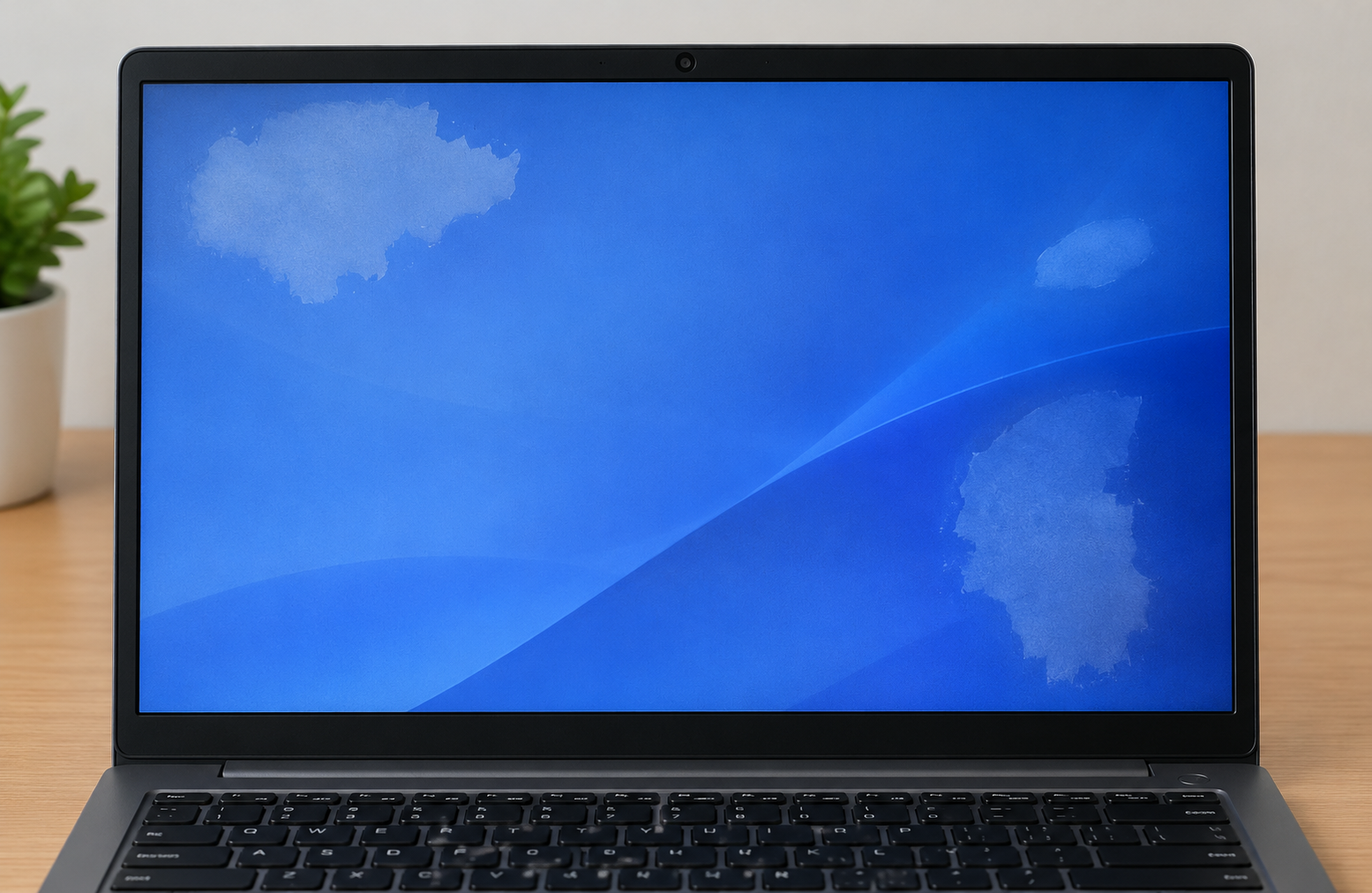
You open the lid and something is wrong: a dark shadow near the bottom, a cloudy area, or a glowing bright patch that was not there yesterday. Patches on a laptop screen can come from a driver, from pressure on the lid, from moisture, or from the panel itself. A few free tests will tell you which, before you touch the screen.
Quick Info: The 60-Second Display Patch Check
- Wipe the screen gently with a dry microfiber cloth so a smudge is not mistaken for a patch.
- Restart the laptop and look again on a plain white screen and a plain black one.
- Take a photo of the patch. A clear photo helps you compare later and helps any support claim.
- Enter the BIOS setup screen (steps in section 1). If the patch is still there, it is not caused by Windows or a graphics driver.
- Think back: was the laptop squeezed in a bag, dropped, or exposed to liquid? Write down what you remember.
Key Takeaways
- Bright patches often point to pressure. Repair guides commonly link glowing patches to pressure on the lid. Dell lists “Pressure Mark on LCD” among damage that is not covered by its basic support.
- Liquid can leave permanent marks. Dell lists liquid spillage among LCD damage that is not covered. We found no manufacturer page that explains the chemistry, so treat polarizer details as general display knowledge.
- Mura is a real panel phenomenon. An Elo Touch support article describes mura as a low-contrast, irregular pattern that causes uneven screen uniformity, and says it is not repairable.
- Hard black spots usually mean broken glass. Dell lists “Black Spots (Broken Substrate)” as physical damage. A software change will not fix it.
- Panel replacement is often the only fix. If patches stay in the BIOS and tests, plan on service by an authorized provider.
How This Guide Was Verified
We verified every diagnostic path and display concept in this guide against the manufacturer and display-industry documentation we could access, and we label anything else as general repair knowledge.
Specifically, we checked Dell’s laptop screen test article, Dell’s list of damage not covered by basic support, and an Elo Touch support article on mura. We did not read JEDEC or display standards, because JEDEC does not set display quality metrics, and we did not have repair manuals for every laptop model.
This guide compiles documentation. It does not include results from our own panel testing, and we cannot diagnose your screen from a description. Following these steps keeps you away from destructive screen myths, such as pressing, prying, or heating the panel.
Laptop Screen Patches: Visual Diagnostic Matrix
| Screen Patch Visual Pattern | The Underlying Component Status | Recommended Resolution Path |
|---|---|---|
| A localized glowing white patch | Often a pressure-damaged backlight or diffuser layer | Run the BIOS test, stop any pressure on the lid, and contact an authorized service provider. |
| Dark cloud-like shadows near the lower edges | Possible liquid ingress into the optical film layers, or edge mura | Power down, keep the laptop dry and flat, and have it inspected. Do not use heat. |
| Hard pitch-black spots with jagged borders | Likely broken glass inside the panel | Stop using the laptop for important work and arrange panel service. Do not press the area. |
1. Software Layer Isolation via the UEFI/BIOS Menu
First, find out whether the patch is a software problem. The BIOS screen is shown by the laptop’s firmware before Windows loads, so it is a useful test.
Why the Test Helps
If a graphics driver caused the patch, it should not show up in the BIOS. If the patch is still there, the cause is in the display hardware. This is general diagnostic logic, and we found no manufacturer page that names it as an official test.
Enter the UEFI/BIOS Setup
- Shut the laptop down completely.
- Press the power button, then tap F2 or Del repeatedly. The key differs by brand.
- On many Lenovo laptops, press the Novo button, a small pinhole button, with the laptop off. Choose BIOS Setup from the menu.
- Wait for the UEFI/BIOS Setup screen.
Check your maker’s support page for the right key. We could not read Lenovo’s Novo button page in full, so confirm the steps for your model.
Read the Result
- Look at the screen from your normal viewing position.
- Check whether the cloudy, dark, or bright area appears in the same place as in Windows.
- Tilt the lid slightly and look again.
If the patch is still visible: the cause points to the display hardware, such as the panel layers or backlight. The test does not tell you which part has failed.
If the patch disappears: a driver or Windows setting becomes likely. Update your graphics driver and Windows, then test again.
Use the Maker’s Built-In Screen Test
Dell documents a built-in LCD test.
- Save your work, shut down, disconnect external devices, and connect the power adapter.
- Press and hold the D key, then press the Power button.
- Keep holding D until colors appear, then release it.
- Watch the screen cycle through black, white, red, green, and blue.
Dell says clean colors mean the screen hardware is working correctly. Lines, dots, dark areas, or distortion mean the screen may need professional service.
Rule Out Software Problems
If the patch vanishes in the BIOS, check for software causes. Our guide on Why Is My Laptop Slow? Causes and Fixes explains how to check Task Manager and update drivers, which are common first steps.
Try an External Monitor
Connect an external monitor. If the external screen is clean and the built-in screen has the patch, the laptop panel is the likely cause.
2. Identifying Pressure Patches and Backlight Bleed
A laptop screen is made of several thin layers. A backlight sits behind them, and other layers spread the light evenly.
How Pressure Can Cause a Bright Patch
Pressure on the lid can press the layers against each other. Common causes include a laptop in a stuffed bag with heavy books, a squeeze during carrying, or an object on the keyboard when the lid closes. Dell lists “Pressure Mark on LCD” and “LCD Surface Abrasion (From External Pressure)” as damage that is not covered by its basic support.
The Difference Between Bleed and a Patch
Backlight bleed is light leaking at the edges or corners, usually seen on a dark screen. A pressure patch can sit anywhere, including the middle, and often looks like a soft glowing area. We explain more in White spot on Lenovo laptop screen.
The Tilt Test
- Open the laptop to a normal angle.
- Tilt the lid slowly forward and back by a small amount.
- Watch whether the patch grows, shrinks, or changes brightness.
A glow that changes with viewing angle suggests a layer or backlight problem. This is a clue, not proof.
Check Related Symptoms
Pressure can also cause other screen faults. If you see lines along with the patch, read Laptop Screen Lines: Causes and How to Fix Them to separate cable, driver, and panel causes.
What You Should Do
- Stop carrying the laptop in a tightly packed bag.
- Do not press on the area to test it.
- Photograph the patch on a white and a dark background.
- Contact support if it is new or growing.
3. Detecting Liquid Damage and Polarizer Stains
Moisture and screens do not mix. Even a small amount can leave a mark.
What Liquid Can Do
This is general display knowledge, not a manufacturer statement. Liquid that seeps in through the lower edge of the screen can reach the thin film layers behind the glass. Those layers can stain, and the stains show as gray or cloud-like patches.
Dell lists “Liquid Spillage” among LCD damage that is not covered by its basic support. We found no page that explains the optical details.
Signs of Liquid Damage
- Gray or brownish clouds near the bottom or sides of the screen.
- Patches that grow over days.
- A history of a spill, a damp bag, or cleaning with spray near the screen.
- Other signs of moisture, such as sticky keys or corrosion around ports.
What to Do Right Away
- Shut the laptop down and unplug it.
- Disconnect all cables and devices.
- Turn the laptop so liquid can drain away from the screen, and wipe the outside with a dry cloth.
- Do not turn it on to test.
- Take it to an authorized service center.
Do Not Use Heat
Do not use a hair dryer or heat gun to dry the screen. Heat can warp layers and adhesives, and it will not remove stains. A technician can check for corrosion on the board as well.
Check Whether Heat Is Also a Factor
Hot components can add stress to a laptop, although we found no official source linking heat to liquid stains. If the laptop also runs hot, read Why Is My Laptop Overheating? Common Causes and Permanent Fixes to reduce heat while you wait for repair.
4. Distinguishing Mura (Clouding) From Broken Glass
Some patches come from how the panel was made or how it ages. Others come from broken glass.
What Mura Is
An Elo Touch support article says mura is a Japanese term meaning unevenness. It describes it as a low-contrast, irregular pattern that causes uneven screen uniformity under certain conditions.
The article lists several causes, including uneven distribution of the LCD matrix during manufacturing, uneven backlight brightness, stress from panel assembly, and thermal stress from long periods of high-temperature operation. It also says mura is not repairable.
What Mura Looks Like
- Faint clouds or blotches, often visible on a solid gray or dark screen.
- Patches that do not change when you restart or boot into the BIOS.
- Uneven brightness that is more obvious at certain angles.
Because mura is part of the panel, a software change will not remove it.
What Broken Glass Looks Like
- Hard, pitch-black spots with sharp or jagged edges.
- Patches that appear after a drop or pressure.
- Marks that grow over time.
Dell lists “Black Spots (Broken Substrate)” as physical damage that is not covered by its basic support. The brief we received describes this as micro-fractures in the glass layer that carries the screen’s electronics. We cannot confirm that detail for your model, but a software fix will not repair broken glass.
Do Not Press or Pry
Do not press the dark area or pry at the screen frame. You can crack more glass and widen the damaged area.
Warranty and Support Coverage
Dell says damages resulting from accident, abuse, and misuse are not covered by its limited hardware warranty. Mura and manufacturing defects may be handled differently from damage, so ask the maker.
For a Lenovo laptop, start with Lenovo’s official technical support portal to check your warranty status.
Keep the Rest of the System Healthy
While you wait, keep Windows updated and avoid heavy tasks on a damaged screen. Microsoft’s official Windows performance support page lists basic steps for general system health.
Before You Contact Support
- Gather your proof of purchase and warranty details.
- Take photos of the patch in Windows and in the BIOS.
- Note when it started and what happened beforehand.
- Back up your files.
- Describe any liquid exposure honestly. Technicians can usually tell.
Dangerous Mistakes That Can Wreck Your Display Panel Permanently
- Pressing or massaging a dark spot. Thumb pressure can crack more glass and widen the damage.
- Cleaning with dripping liquids. Moisture can run into the lower edge and reach the film layers. Use a dry microfiber cloth.
- Using a heat gun or hair dryer on moisture patches. Heat can warp the panel layers and will not remove stains.
- Packing the laptop under heavy items. Pressure marks on the LCD are a common kind of damage.
- Closing the lid on objects. A pen, flash drive, or earbuds on the keyboard can press into the screen.
- Prying at the screen frame. This can crack the glass and damage the cables.
- Turning on a laptop that was just soaked. Power can short wet circuits. Shut it down and get service.
- Trusting “patch fixer” apps. Software cannot repair a physical layer, and some downloads carry malware.
Frequently Asked Questions
Why do I have patches on my laptop screen?
Common causes are pressure on the lid, liquid exposure, mura in the panel, or broken glass. A driver can cause patches too, which the BIOS test helps you rule out.
Can patches on a laptop screen go away on their own?
A software-related patch can disappear after a restart or driver update. Patches from pressure, liquid, or broken glass usually do not.
What is mura on a screen?
An Elo Touch support article describes it as a low-contrast, irregular pattern that causes uneven screen uniformity. It says mura is not repairable.
Does warranty cover patches on the screen?
It depends on the cause. Dell lists pressure marks, liquid spillage, and broken substrate among damage that is not covered by its basic support, so check your brand’s terms.
Should I try to fix the patch myself?
No. Pressing, prying, or heating the panel can make it worse. Contact an authorized service center.
Disclaimer:
This article is for general educational and informational purposes only. It compiles official display diagnostic concepts from verified manufacturer service frameworks. Laptop display panels handle delicate microscopic ribbon electronics and matrix glass. Always prioritize contacting authorized manufacturer service centers or certified repair specialists to execute physical display assembly replacements.