
 By Saad Qureshi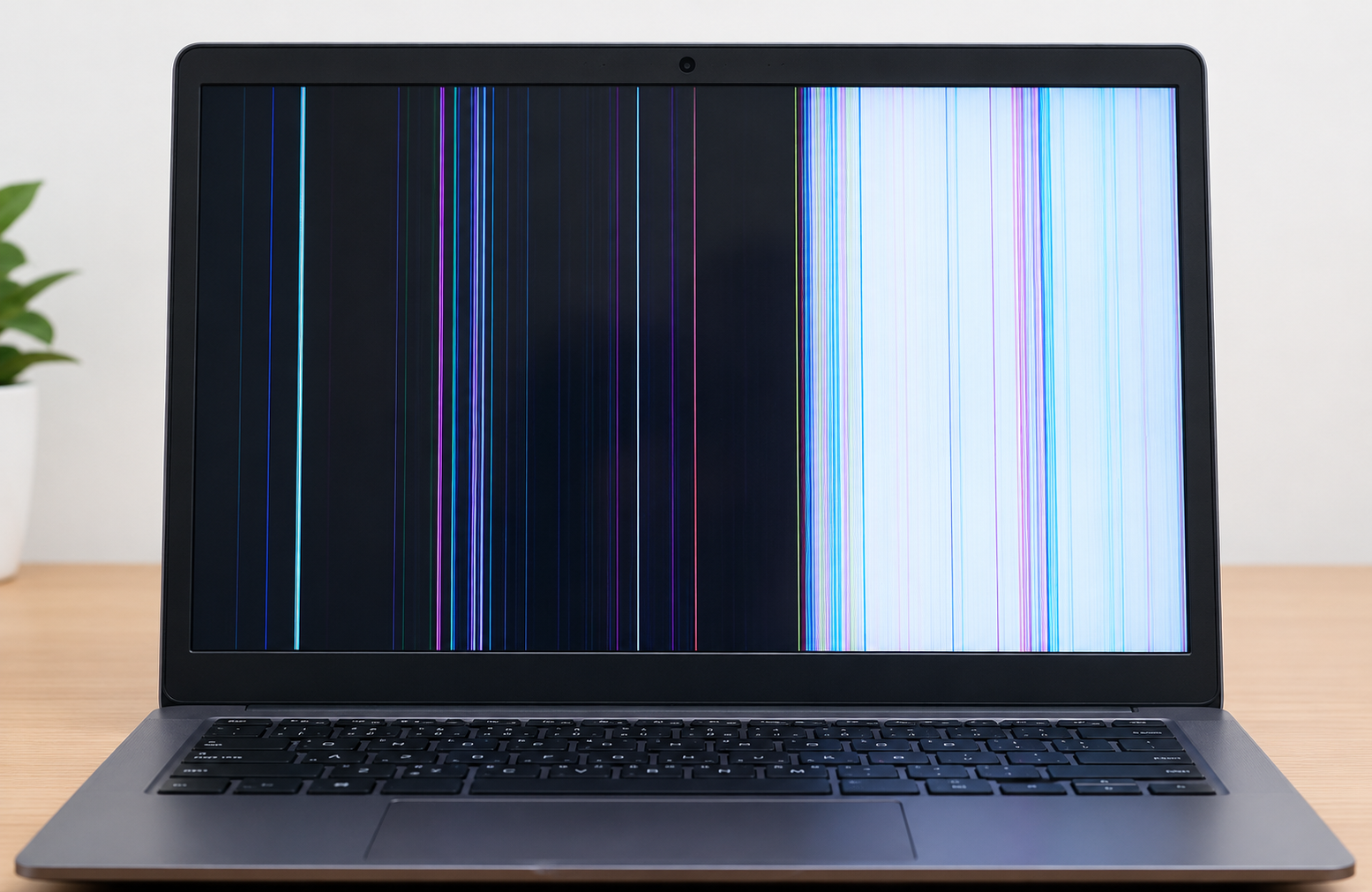
You boot up your laptop and thin colored or distorted lines slice across the desktop. It is distracting, and it is hard to tell whether the cause is a bad driver or a broken screen. A few free tests can separate the two before you spend any money.
Quick Info: The 60-Second Display Diagnosis
-
Restart the laptop and look at the lines again. A one-time glitch may disappear.
-
Take a photo of the lines on your screen. A photo helps with comparison and with any support claim.
-
Slowly open and close the lid a little. Note whether lines on a laptop screen change, flicker, or vanish as the lid moves.
-
Run your maker’s built-in screen test if it has one. Dell, for example, uses the D key at startup (details in section 1).
-
Plug in an external monitor if you have one. Lines on the laptop only, with a clean external display, point toward the laptop panel or its cable.
Key Takeaways
- Software cannot fix broken hardware lines. Dell says lines, dots, or dark areas during its built-in screen test mean the screen may need professional service. A driver reinstall will not repair damaged glass.
- The hinge area is a common suspect. Repair technicians often point to the display cable that passes through the hinge. We found no manufacturer page that confirms this for every model, so treat it as a likely cause, not a certainty.
- Heat may stress electronics. This is general engineering. We found no official source linking heat to line patterns on any specific model.
- Physical damage is usually not covered by a standard warranty. Dell states that physical damage to the screen is typically not covered under standard warranty.
- Panel replacement is often the end of the road. If lines persist in firmware screens and tests, a repair of the screen assembly is usually needed.
How This Guide Was Verified
We verified every diagnostic route and display concept in this guide against the manufacturer and platform documentation we could access, and we label anything else as general repair knowledge.
Specifically, we checked Dell’s laptop screen self-test article, Microsoft’s refresh rate page, and Intel’s guide to the Display Driver Uninstaller. We did not have access to the repair manual for every laptop model, and we did not read the VESA standards, so we cannot confirm board-level details.
This guide compiles documentation. It does not include results from our own bench testing, and we cannot diagnose your screen from a description. These steps keep you away from destructive screen myths, such as pressing or squeezing the panel.
Laptop Screen Line Variations: Diagnostic Matrix
| Screen Line Visual Pattern | The Underlying Component Status | Recommended Resolution Path |
|---|---|---|
| A single vertical black line on laptop screen | Often a panel or panel driver fault, especially if it stays in the BIOS or built-in test | Run the BIOS and built-in tests. If the line persists, contact an authorized service center for the panel. |
| Multiple Lenovo laptop screen flickering horizontal lines that shift when the lid moves | A likely loose or worn display cable at the hinge | Stop moving the lid, avoid pressure, and have a technician inspect the cable. |
| A thick block of multi-colored lines covering half the screen | Possible panel damage, a failing driver, or a graphics fault | Run the BIOS test and external monitor test. If it stays, plan for panel or board service. |
1. Display Layer Isolation Test via UEFI/BIOS Menu
Most advice about lines laptop screen owners report mixes up software and hardware causes. The first job is to find out whether the lines come from Windows or from the screen itself.
The BIOS screen is shown by the laptop’s firmware before Windows starts, so it makes a useful test.
Why This Test Helps
If laptop black lines on screen also appear in the BIOS, Windows and its graphics driver are very unlikely to be the cause. If they vanish in the BIOS, the cause may be software. This is general diagnostic logic, and we found no manufacturer page that spells out the BIOS test by name.
Enter the UEFI/BIOS Setup
- Shut the laptop down completely.
- Press the power button and tap F2 or Del repeatedly as it starts. The key varies by brand.
- On many Lenovo laptops, you can use the Novo button, a small pinhole button, with the laptop off. Press it and choose BIOS Setup.
- Wait for the UEFI/BIOS Setup screen to appear.
Check your laptop maker’s support page for the right key for your model, as we could not read Lenovo’s Novo button page in full.
Read the Result
- Look at the BIOS screen from your normal viewing position.
- Check whether lines on screen of laptop appear in the same place as in Windows.
- Tilt the lid slightly and look again.
If the lines stay: the cause is likely in the panel, its cable, or the display electronics. This points toward hardware, but it does not tell you which part.
If the lines disappear: a graphics driver or Windows setting becomes the likely cause. Move on to section 3.
Use the Maker’s Built-In Screen Test
Dell documents a built-in LCD test that runs without Windows.
- Save your work, shut down, disconnect external devices, and connect the power adapter.
- Press and hold the D key, then press the Power button.
- Keep holding D until colors appear, then release it.
- Watch the screen as it cycles through black, white, red, green, and blue.
- Press Esc to stop.
Dell says clean colors mean the screen hardware is working correctly. Lines, dots, dark areas, or distortion mean it may need professional service. Other brands have their own tools, so check your maker’s page.
Try an External Monitor
Connect an external monitor with an HDMI or USB-C cable. If the external screen is clean while the built-in screen shows lines, the laptop’s panel or cable is the likely cause. If both show lines, the graphics hardware or driver may be involved.
Check Cable and Port Connections
Make sure the display cable you use is firmly connected, and check the ports for bent pins. For basic Windows checks on a working system, see Microsoft’s official Windows performance support page.
2. Hardware Mechanical Strain and Hinge Flex Cable Testing
Every time you open the lid, a thin cable inside the hinge flexes. Over years, that cable can wear.
What the Cable Does
Many laptops send the picture to the screen through a thin flat cable that passes through or near the hinge. The brief we received calls this an eDP (embedded DisplayPort) ribbon cable, which is a standard way laptops connect to their panels. We could not confirm the cable type for your model.
The Lid Movement Test
- Boot into Windows and wait for the lines to appear.
- Slowly open the lid a little wider, then close it a little.
- Tilt the lid through a range of angles, such as roughly 45 to 130 degrees.
- Watch whether the lines flicker, change color, multiply, or disappear.
Do not force the lid past its normal stop, and do not twist the screen.
How to Read It
Laptop LCD lines that react to lid movement suggest a loose or worn cable or connector.
Lines that stay exactly the same at every angle point more toward the panel or its electronics. This is a diagnostic clue used by repair technicians. It is not proof.
Pressure and Impact Damage
A squeezed lid, a drop, or something stuck under a closed lid can damage a panel. Pressure may also cause bright patches, as we explain in White spot on Lenovo laptop screen. Dell says cracks, pressure marks, or spider-web patterns mean the glass is damaged and needs replacement.
Check Internal Power Delivery
A laptop that is not getting stable power can behave oddly, including screen glitches. If the laptop also struggles to charge or shuts off, read Why Is My Laptop Not Charging? Common Causes and Permanent Fixes to check the charger and battery before you blame the panel.
Do Not Open the Hinge
Do not take the hinge covers off yourself unless you are experienced. The cables are fragile, and opening the laptop may affect your warranty.
3. Software Refresh Rate and Graphics Driver Purge
If the lines disappear in the BIOS and the built-in test, the cause is probably software. Start with the simplest changes.
Change the Refresh Rate
Microsoft documents how to change the refresh rate on Windows 11.
- Open Start > Settings > System > Display > Advanced display.
- Next to Choose a refresh rate, select a different rate, such as 60 Hz.
- Check whether the lines change or stop.
Microsoft notes that rates marked with an asterisk do not support your current resolution, and choosing one will change your resolution. If the screen looks wrong, switch back.
Why Lower the Refresh Rate
A different refresh rate can change how the display and graphics chip communicate. The brief we received describes this as stabilizing the timing controller. We found no manufacturer page that confirms that detail, so treat it as a quick test, not a fix.
Update Windows and Drivers
- Open Start > Settings > Windows Update > Check for updates.
- Install updates, including optional driver updates if they appear.
- Check your laptop maker’s support site for the latest graphics driver.
If your laptop also runs slowly or crashes, our guide on Why Is My Laptop Slow? Causes and Fixes explains how to check for busy processes and driver problems in Task Manager.
Clean Driver Reinstall With DDU
The Display Driver Uninstaller (DDU) is a third-party tool. Intel documents it for removing a graphics driver, and describes this process.
- Download DDU from its developer’s site.
- Reboot into Windows safe mode, which Intel says is the first step.
- Run DDU, set the device type to GPU, and choose the device to remove.
- Choose Clean and restart.
- Install a fresh driver from your laptop maker or the chip maker’s site.
Intel’s page does not warn about third-party tools, but they carry risk. Use DDU only if simpler steps fail, create a restore point first, and download it only from its official page.
Use Built-In Windows Tools First
A safer alternative is to uninstall the display adapter in Device Manager, then restart so Windows reinstalls a basic driver. Menu names vary by version.
What Software Cannot Do
Software can fix a bad driver or a wrong setting. It cannot fix lines caused by a damaged panel, a worn cable, or a failed display chip.
4. Distinguishing Gate Driver Micro-Fractures and Panel Failure
Some lines are permanent. They do not change with the BIOS, the lid, or a driver.
What the Brief Describes
Display repair resources often explain that physical impact or squeezing can break tiny connections that drive the screen’s rows and columns. The brief we received names these as chip-on-glass (COG) gate drivers. We could not verify this level of detail from manufacturer pages, so it is general display knowledge.
Signs of Permanent Damage
- Lines stay at every lid angle.
- Lines appear in the BIOS and in the built-in screen test.
- The lines are fixed in the same place after restarts.
- The problem started after a drop, pressure, or impact.
Dell says lines, dots, dark areas, or distortion in its screen test mean the screen may need professional service.
Why You Cannot Massage It Out
Pressing on the screen will not repair a broken connection. It can crack the glass and enlarge the problem. A damaged panel needs replacement by a technician.
Heat and Display Electronics
Heat may add stress to display electronics. This is general engineering, not a manufacturer finding.
If the lines get worse when the laptop is hot, read Why Is My Laptop Overheating? Causes and Fixes to reduce temperatures, and let the laptop cool before testing again.
Warranty and Repair Coverage
Dell says physical damage to the screen is typically not covered under standard warranty. Coverage differs by brand and plan, so check yours. For a Lenovo laptop, start with Lenovo’s official technical support portal to look up your warranty status and repair options.
Before You Contact Support
- Gather your proof of purchase.
- Take photos of the lines on the screen and in the BIOS.
- Note when the lines started and whether the laptop was dropped or pressed.
- Note whether an external monitor works.
- Back up your files before you send the laptop in.
Dangerous Mistakes That Can Wreck Your Display Panel Permanently
- Pressing or massaging the panel. Applying thumb pressure to a black lines on laptop screen Lenovo defect can crack the glass and make the damage larger.
- Cleaning with dripping liquids. Moisture can run into the lower bezel and reach the electronics. Use a dry microfiber cloth.
- Closing the lid with objects on the keyboard. Flash drives, pens, or earbuds can press against the screen when the lid shuts.
- Forcing the lid past its stop. This can damage the hinge and the cable inside it.
- Twisting the screen frame. Flexing the case can strain the panel and its connections.
- Opening the laptop without checking your warranty. This may void coverage and risks damaging the cable.
- Downloading unknown “screen fixer” programs. Software cannot repair a physical fault. Some downloads contain malware.
- Ignoring a spreading pattern. If the lines grow or colors bleed, stop using the laptop and contact support.
Frequently Asked Questions
Why do I have lines on a laptop screen?
Common causes are a graphics driver problem, a worn display cable, or physical damage to the panel. Testing in the BIOS and with an external monitor helps you tell which.
Can I fix a vertical black line on a laptop screen myself?
If the line shows in the BIOS or the built-in test, software will not fix it. A damaged panel or its electronics usually needs professional replacement.
Why do the lines change when I move the lid?
A likely cause is a loose or worn display cable near the hinge. Stop moving the lid and have a technician inspect it.
Can a driver update remove screen lines?
Only if the lines are caused by software. If they appear in the BIOS or the maker’s built-in test, a driver update will not help.
Is a damaged screen covered by warranty?
Dell says physical damage to the screen is typically not covered under standard warranty. Check your brand’s terms and any accidental damage plan.
Disclaimer:
This article is for general educational and informational purposes only. It compiles official display diagnostic concepts from verified manufacturer service frameworks. Laptop display panels handle delicate microscopic ribbon electronics and matrix glass. Always prioritize contacting authorized manufacturer service centers or certified repair specialists to execute physical display assembly replacements.