
 By Saad Qureshi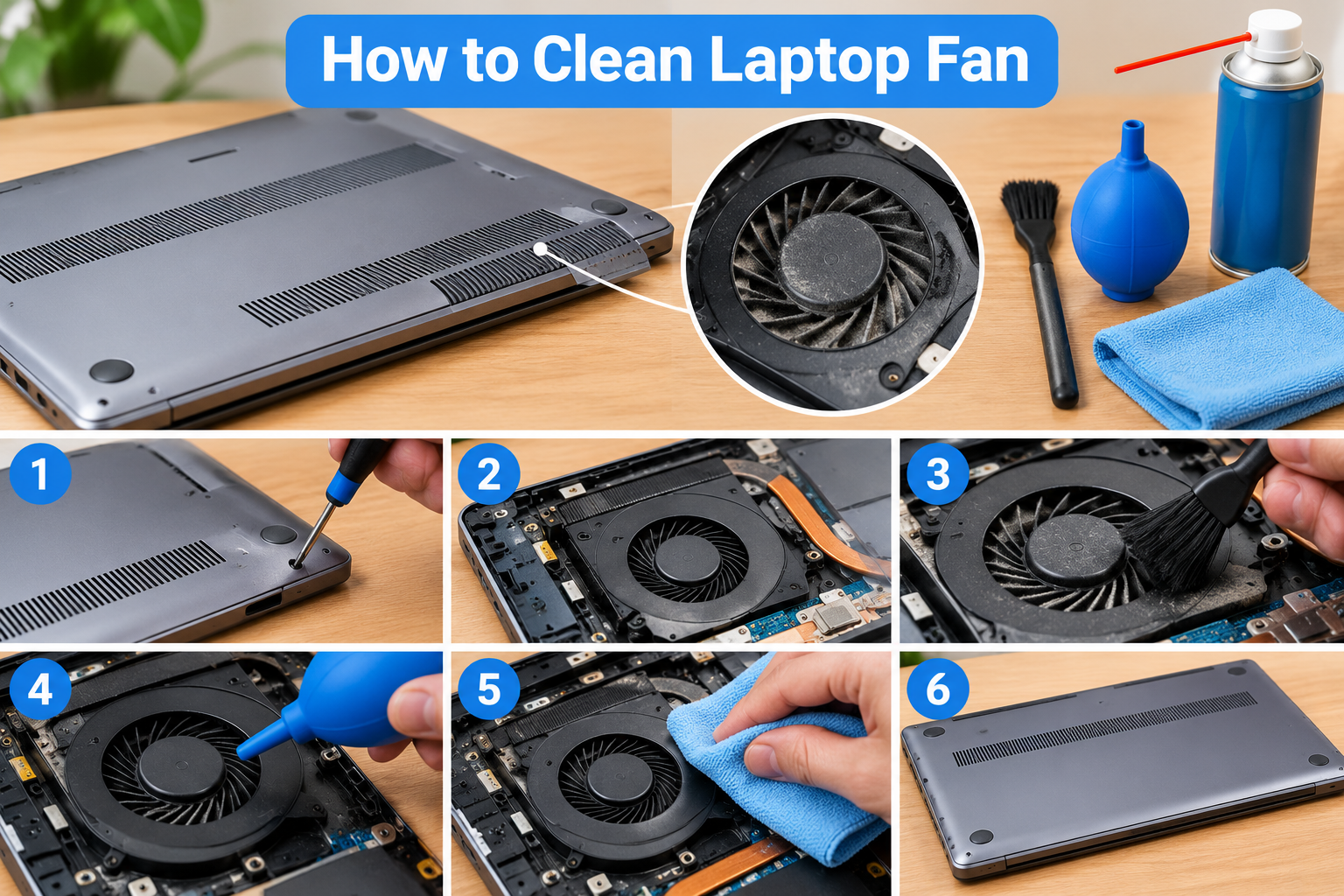
Your laptop fan roars the moment you open a few tabs, and the keyboard deck is hot enough to be uncomfortable. Dust is a common reason: lint and household dirt collect around the fan and heat sink over time. Cleaning it is a job you can often do at home, but only if you follow a few safety rules.
Quick Info: The 60-Second Cleaning Summary
This quick version cleans loose surface dust from the outside only. It does not open the laptop.
-
Shut the laptop down, unplug the AC adapter, and disconnect any cables and external devices.
-
Hold a can of compressed air upright, about 6 to 8 inches from the vents, as Dell describes in its air vent video.
-
Use short bursts of compressed air into the vents. HP advises short bursts for the same reason.
-
Wipe the outside of the case with a dry microfiber cloth. Avoid water, as HP says it is best to avoid water when cleaning a laptop.
-
Plug the laptop back in, restart it, and listen to the fan. If it is still loud, read the full steps below.
Key Takeaways
- A spinning fan can create voltage. iFixit warns against blowing compressed air near the fan without holding it still, because this can spin the blades at high speed and generate a damaging voltage.
- Static is a real hazard. A SlashGear guide warns that static from a vacuum can damage sensitive parts, and that strong suction can over-spin a fan.
- Dust can pack tightly into the heat sink. This is general hardware logic. When lint compacts between the metal fins, less air passes through, so the laptop runs hotter and louder.
- Internal cables are fragile. Ribbon cables and small connectors can tear if pulled at an angle. Lift a connector from the connector itself, not the socket, as iFixit says in its battery steps.
- Opening a laptop may affect your warranty. HP says some models may void the warranty if opened, and advises checking the manual first.
How This Guide Was Verified
We verified every maintenance pathway and hardware cleaning concept in this guide against the manufacturer support material we could access, and we label anything else as general repair knowledge.
Specifically, we checked HP’s laptop cleaning guide, Dell’s air vent cleaning video page, an iFixit cleaning guide, and a SlashGear article on laptop fans. We did not have access to the full service manual for every laptop model, so we cannot give model-specific screw locations or connector types.
This guide compiles documentation. It does not include results from our own teardown or lab testing.
Where manufacturers disagree, such as on vacuums, we show both views. Following these steps protects the board, fan, and cables from the most common causes of damage.
Laptop Fan Dust Levels: Diagnostic Matrix
| What Your Laptop Fans Are Doing | The Real Underlying Hardware Issue | Recommended Cleaning Path |
|---|---|---|
| Fans roaring immediately upon boot | Restricted airflow from dust, or a busy process creating heat | Check for a busy process first, then clean the vents. If it persists, open the laptop following the steps below. |
| Grinding or rattling noises from the casing | A worn fan bearing, debris touching the blades, or a loose part | Power down. Clean only if you can see debris, and have the fan inspected or replaced if the noise continues. |
| Weak but extremely hot air from the exhaust | Dust packed into the heat sink fins | Clean the heat sink and fan with the full 7-step process or ask a technician. |
Step 1: Pre-Cleaning Safety and Power Isolation
Before you touch a screwdriver, confirm that heat is the real problem. A busy app can make a fan loud even when the laptop is clean.
Rule Out Software First
- Press Ctrl + Shift + Esc to open Task Manager.
- Select the Processes tab and sort by CPU.
- If one app is using most of the processor, close it and listen to the fan.
If the laptop is slow as well as loud, see our guide on Why Is My Laptop Slow? Causes and Fixes to separate software causes from dust.
Power Isolation
- Save your work and shut the laptop down from the Start menu.
- Unplug the AC adapter and every cable and external device.
- Remove the battery if your laptop has an external, removable one. Dell’s air vent video includes removing the battery.
- Wait a few minutes for the laptop to cool down.
Most modern laptops have an internal battery that you cannot remove from outside. Do not try to remove a glued-in battery. If the laptop has an internal battery, follow your manufacturer’s service manual for disconnecting it before opening the case.
Reduce Static Risk
iFixit mentions wearing a grounded anti-static bracelet when working with dust. If you do not have one, a common practice is to touch a bare metal surface before you handle internal parts. That tip comes from general electronics practice, not from the sources above.
Check for Warning Signs
If the trackpad is lifting or the case is bulging, stop. Do not clean or open the laptop.
Read Surface Laptop trackpad popped out for the safety steps, because a swollen battery is a hazard no matter which brand you own.
Step 2: Preparing the Proper Hardware Service Workspace
A good workspace prevents lost screws, cracked parts, and static.
Set Up the Space
- Choose a clean, flat table with good lighting.
- Cover it with a soft, non-conductive mat or a clean cloth.
- Keep liquids, food, and drinks away.
- Work in a room with some airflow, or outdoors if the weather allows, because dust will blow out of the laptop.
Gather Your Tools
- A small screwdriver that matches your laptop’s screws, usually a Phillips head.
- A plastic spudger or pry tool.
- A can of compressed air.
- A wooden toothpick or plastic tool for holding the fan still.
- A soft brush, such as an anti-static brush.
- A small container for screws.
- Your laptop’s service manual, if the manufacturer publishes one.
Protect the Screen
Do not lean the lid against pressure, and do not stack items on the laptop. Pressure can damage an LCD panel and cause bright patches, as we explain in White spot on Lenovo laptop screen. Lay the laptop on its lid with a soft cloth underneath, and avoid pushing on the screen.
Check Your Manual
HP advises checking your laptop’s manual before opening it. If your manual or the manufacturer’s site shows how to open your model, follow that over any general guide.
Step 3: Removing the Lower Chassis Retention Screws
This step is where many people damage their laptop. Screws vary a lot by model.
Find the Screws
- Turn the laptop upside down on your work mat.
- Look for screws around the base plate. Some are under rubber feet or stickers.
- Take a photo of the layout before you remove anything.
Hidden screws under rubber feet are common, but they differ by model. Check your manual to see which ones apply.
Remove Screws Without Stripping
- Use a screwdriver that fits the screw exactly.
- Press down firmly and turn slowly.
- Place each screw in your container, or tape it to a labeled piece of paper by position.
- Note that some screws are different lengths.
Stripped screws are very hard to remove. If a screw will not turn, stop and ask a technician instead of forcing it.
Lift the Base Plate
- Slide a plastic spudger along the seam.
- Release the clips gently, a little at a time.
- Lift the plate slowly and check for any cable attached to it.
Do not use a metal screwdriver to pry the case. It can slip and cut a cable or scratch the board.
Warranty and Manuals
Before you open the case, read the warranty. HP warns that some models may void the warranty if opened. Our general performance steps in Microsoft’s official Windows performance support page can help you test whether software is the cause before you open anything.
Step 4: Immobilizing the Fan Blades Against Mechanical Strain
This step protects the fan motor. It is the most important safety step in the process.
Why the Fan Must Be Held Still
iFixit says not to blow compressed air near the fan assembly without holding the fan still, because it can spin the blades at high speed and generate a damaging voltage. A fan motor spinning from outside airflow can act like a small generator, which is the general principle behind that warning.
How to Hold the Blades
- Find the fan. It is usually a small round or squarish unit near a metal heat sink.
- Take a wooden toothpick or a plastic tool.
- Gently touch the edge of one blade so it cannot turn.
- Hold it steady while you clean.
The sources we checked do not specify a tool. A toothpick or plastic tool is a common choice because it will not short anything. Do not jam it between blades or press hard, because plastic blades can chip.
Check for Wear
While the fan is held still, look for broken blades, wobbling, or a gap around the housing. Grinding or rattling noises usually mean the fan is worn or damaged, and cleaning will not fix that. Ask a technician to replace it.
Heat and Airflow Context
Cleaning is only one part of keeping a laptop cool. If heat comes back after cleaning, see Why Is My Laptop Overheating? Causes and Fixes for other causes, such as power settings or soft surfaces.
Step 5: Dislodging Impacted Dust via Compressed Air Bursts
Compressed air is the standard tool for this job. The technique matters.
Hold the Can Correctly
- Keep the can upright. A SlashGear article warns that holding it upside down or shaking it can cause gas leaks. Dell’s video describes holding the can at a 90-degree angle.
- Follow the instructions printed on your can.
- Keep the nozzle about 3 to 4 inches from the target, as iFixit says, or farther away if your can instructs it.
An inverted can may spray cold liquid propellant onto the parts. That liquid can damage electronics, so keep the can upright.
Use Short Bursts
- Hold the fan blades still with your toothpick or plastic tool.
- Give a short burst of air toward the fan and heat sink fins.
- Pause, then repeat.
- Aim so that the dust blows out of the vent, not deeper into the laptop.
HP and iFixit both advise short bursts.
Be Careful Around Other Parts
SlashGear notes that you should only blow air into the vents, because pressure aimed elsewhere can damage parts such as speakers. Avoid aiming air directly at ribbon cables or small components.
Do Not Use a Household Vacuum
We advise against using a household vacuum inside the laptop. SlashGear warns about static and over-spinning the fan. HP lists a vacuum with a brush attachment on the lowest setting as an option for dust on outer vents and keyboards, which is a different task from cleaning internal parts.
Stop If Something Looks Wrong
If you see a bulging battery or a lifted keyboard deck, stop. Do not continue. The safety steps in Surface Laptop trackpad popped out apply to swollen batteries on any laptop.
Step 6: Purging Fine Dust Film and Detached Radiator Lint
After the compressed air, there will be loose dust and clumps to remove.
Remove Lint Safely
- Use a soft brush to loosen dust on the fins and around the fan. iFixit mentions an anti-static brush to loosen dust before blasting it away.
- Pick away larger clumps with plastic tweezers or a toothpick, but do not poke the fins.
- Blow any remaining dust out with another short burst.
Check the Heat Sink Fins
The heat sink is the metal block with thin fins. If lint is stuck between the fins, air cannot pass. Loosen it gently from the exhaust side so the air can push it out.
Clean the Surroundings
- Wipe dust from the inside of the base plate with a dry cloth.
- Clean the vent openings from the outside with a dry microfiber cloth.
- Avoid water, sprays, and alcohol near the board.
HP says it is best to avoid water when cleaning your laptop. Moisture in a bearing can cause damage.
Check for Loose Parts
Look for dust, screws, or debris that fell inside. Shake the base plate gently over a clean surface to make sure nothing is caught on it.
Step 7: Reassembling the Base Plate and Running Verification
Reassembly is the reverse of removal. Take your time.
Put It Back Together
- If you disconnected a battery connector, reconnect it by pressing straight down, and make sure it clicks into place.
- Place the base plate and press the clips in gently.
- Return the screws to their original positions, using your photo as a guide.
- Tighten each screw until snug. Do not overtighten.
If any screw feels unusually loose or tight, stop and check the position.
Power On and Test
- Reconnect the AC adapter and any removed battery.
- Turn the laptop on and listen to the fan.
- Open Task Manager and watch the CPU while the laptop runs for a few minutes.
- Check that the vents are warm, not hot.
Dell’s video also advises placing the computer on a flat surface after reassembly.
What to Expect
Cleaning may reduce fan noise and heat if dust was the problem. It will not fix a worn fan, dried thermal paste, or a busy process. Results vary by laptop.
If You Use a Mac
Mac steps differ, and opening a Mac may affect your warranty. Apple’s own page on slow performance focuses on free storage and busy apps. See Apple’s official Mac optimization guidelines and contact Apple Support if you suspect a hardware fault.
If It Does Not Help
If the fan still grinds, the laptop still runs hot, or it shuts down unexpectedly, have it checked by an authorized service center.
Dangerous Mistakes That Can Trash Your Motherboard
- Using a household vacuum inside the laptop. SlashGear warns about static and fan over-spin. Stay away from vacuuming internal parts.
- Holding the compressed air can upside down. The can may spray cold liquid propellant onto parts. Keep it upright.
- Blowing air at a free-spinning fan. iFixit says this can spin the blades at high speed and generate a damaging voltage.
- Spraying liquid cleaner into the vents. Moisture can reach the board and bearings. HP says to avoid water.
- Stripping the base plate screws. Use the right screwdriver and press down while turning.
- Prying with a metal tool. It can slip, cut cables, or scratch the board.
- Pulling ribbon cables or connectors at an angle. Lift the connector, not the socket, as iFixit advises.
- Cleaning a laptop with a bulging battery. Stop and get professional help.
Frequently Asked Questions
How often should I clean my laptop fan?
We found no manufacturer schedule. Clean the vents when the fan gets louder or the laptop runs hotter than usual, and have a technician check it if the problem continues.
Can I clean a laptop fan without opening it?
You can clear loose dust from outside the vents with short bursts of compressed air. Dell’s video shows this method. It will not clear dust packed deep in the heat sink.
Is it safe to use a vacuum on a laptop?
We advise against it for internal parts. SlashGear warns about static and over-spinning the fan. HP mentions a brush-attachment vacuum on the lowest setting for outer vents and keyboards only.
Why do I need to hold the fan still?
iFixit says air can spin the blades at high speed and generate a damaging voltage. Holding the blades still protects the motor and the board.
Will cleaning void my warranty?
It may. HP says some models may void the warranty if opened, so check your manual and warranty terms first.
Disclaimer:
This article is for general educational and informational purposes only. It compiles official hardware maintenance safety protocols from verified manufacturer service frameworks. Technical pathways may vary based on your specific laptop brand, internal cooling assembly design, or system build version. Always consult an authorized service center if you are uncomfortable handling delicate internal electronic components.