
 By saman zahra
That sinking feeling when you empty the Recycle Bin, format the wrong USB drive or watch a memory card full of photos suddenly show “0 bytes” is something almost everyone faces at least once. The good news is that deleted files are often not gone right away. With the right data recovery program, you can bring many of them back.
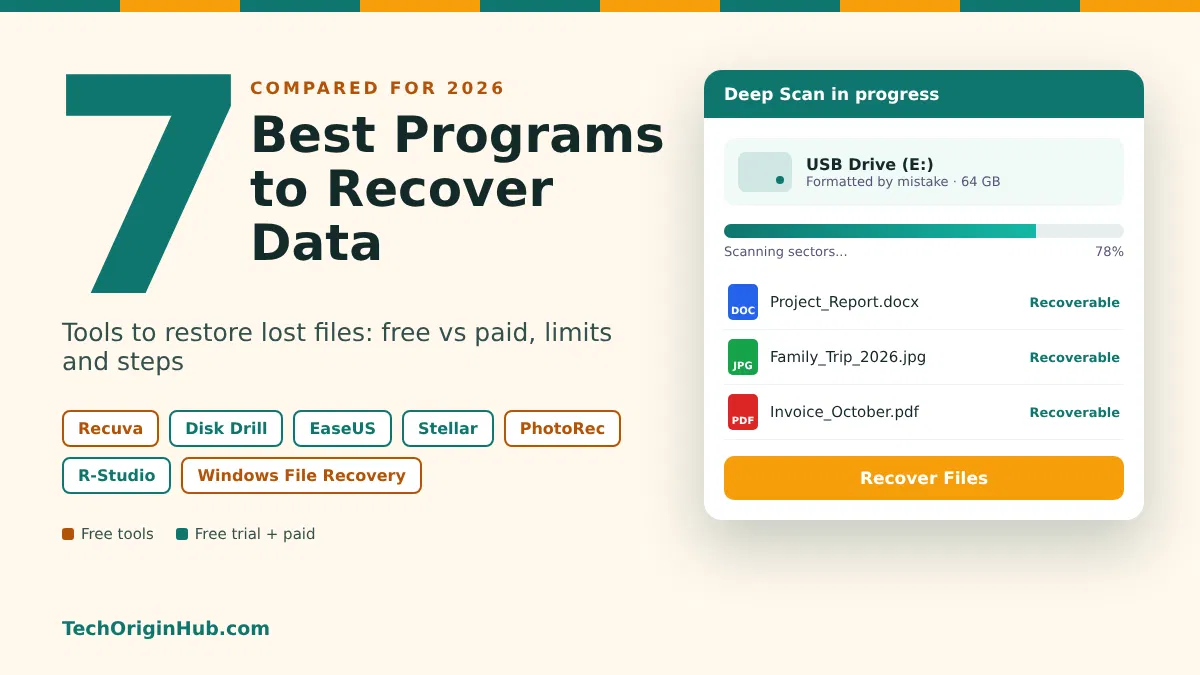
In this guide, we compare the 7 best programs to recover data: Recuva, Disk Drill, EaseUS Data Recovery Wizard, Stellar Data Recovery, PhotoRec, R-Studio and Windows File Recovery. We cover what each one does well, what the free versions really allow, their limitations, and the exact steps to follow so you do not make the problem worse. Prices and free limits were checked in October 2026.
Quick Info
| Detail | Information |
|---|---|
| Tools covered | 7 (4 with free trials or limits, 3 fully free options) |
| Best free tool overall | PhotoRec (unlimited, open source) |
| Easiest for beginners | Disk Drill, EaseUS, Stellar |
| Best built-in option | Windows File Recovery (free from Microsoft) |
| Best for professionals | R-Studio |
| Works on | Windows, macOS, Linux (depends on the tool) |
| Typical paid price | About $60 to $90 for a one-year or single license |
| Recovery success | Not guaranteed; depends on how much new data has overwritten the lost files |
Key Takeaways
- Stop using the drive right away. New data can overwrite deleted files and make them impossible to recover.
- Never install recovery software on the same drive you are trying to recover from.
- Always scan and preview first. Most paid tools let you see recoverable files for free before you pay.
- Free does not always mean unlimited. Disk Drill, EaseUS and Stellar cap free recovery at 100 MB to 2 GB.
- PhotoRec and Windows File Recovery are fully free, but they are harder to use.
- SSDs with TRIM are tough. Deleted files on modern SSDs are often wiped quickly, so recovery chances are lower.
- Physically damaged drives need a professional lab, not software.
Before You Start: Do These 4 Things First
- Stop saving anything to the affected drive. Do not download files, install apps or even browse the web if the lost files were on your main C: drive.
- Check the Recycle Bin (Windows) or Trash (Mac). It sounds obvious, but many “lost” files are still there.
- Check your backups and cloud storage. Look in File History, OneDrive, Google Drive, iCloud or Time Machine.
- Prepare a second drive. You will need an external hard drive or USB stick to save the recovered files to.
Quick Comparison: 7 Best Data Recovery Programs
| Tool | Free Version Limit | Paid Price (approx.) | Platforms | Ease of Use | Best For |
|---|---|---|---|---|---|
| Recuva | Free version has no recovery limit | Pro about $20 to $25 | Windows | Easy | Quick undelete on Windows |
| Disk Drill | 100 MB on Windows; scan and preview only on Mac | Pro $89 per year (up to 3 devices) | Windows, macOS | Very easy | Beginners and Mac users |
| EaseUS Data Recovery Wizard | 500 MB, up to 2 GB after sharing on social media | Pro from $69.95 | Windows, macOS | Very easy | Formatted drives and everyday users |
| Stellar Data Recovery | 1 GB on Windows and Mac | Standard from $59.99 per year | Windows, macOS (plus phone versions) | Easy | Corrupted photos and videos (higher editions) |
| PhotoRec | Completely free, no limit | Free (open source) | Windows, macOS, Linux | Hard (text-based) | Free deep recovery of photos and files |
| R-Studio | Demo recovers only small files (about 256 KB) | $49.99 to $899 (one-time) | Windows, macOS, Linux | Hard | RAID, network and professional recovery |
| Windows File Recovery | Completely free | Free | Windows 10 and 11 | Hard (command line) | Free official Microsoft option |
Note: Prices change often and can differ by country and promotion. Always check the official website before buying.
Free vs Paid: What Do You Really Get?
| Feature | Free Tools (PhotoRec, Windows File Recovery, Recuva Free) | Free Trials (Disk Drill, EaseUS, Stellar, R-Studio demo) | Paid Versions |
|---|---|---|---|
| Scan for deleted files | Yes | Yes | Yes |
| Preview before recovery | Limited or none | Yes | Yes |
| Amount you can recover | Unlimited | 100 MB to 2 GB, or small files only | Unlimited |
| Easy, modern interface | Recuva only | Yes | Yes |
| Deep scan of formatted drives | Yes (PhotoRec, Windows File Recovery extensive mode) | Yes | Yes |
| Repair corrupted photos or videos | No | No | Some (Stellar Premium, EaseUS add-ons) |
| RAID or network recovery | No | No | R-Studio and some pro editions |
| Bootable recovery media | No | No | Some editions |
| Customer support | Forums only | Limited | Email, chat or phone |
Simple rule: Start with a free scan. If the free tool shows your files and they are small, you may not need to pay. If you need to recover many gigabytes with an easy interface, a paid tool is usually worth it.
The 7 Best Programs to Recover Data (Detailed Reviews)
1. Recuva: Best Simple Free Tool for Windows
Recuva, from the makers of CCleaner, is one of the oldest and best-known free undelete tools for Windows. Its step-by-step wizard asks what kind of file you lost and where it was, then searches for it.
Free vs paid:
- Free: No recovery size limit, quick scan and deep scan, recovery from hard drives, USB drives and memory cards, and secure overwrite of files you want gone for good.
- Professional (about $20 to $25): Adds virtual hard drive support, automatic updates and premium email support. Recovery results are the same as the free version.
Best features:
- Very small and lightweight
- Color-coded results show whether a file is in excellent, poor or unrecoverable condition
- Portable version can run from a USB stick, so you do not install anything on the affected drive
Limitations:
- Windows only
- Recovery rate is average compared to newer tools, especially on formatted drives
- Development has been slow for years, and the interface looks dated
- Not built for corrupted or damaged partitions
Who should use it: Windows users who just deleted a few files by mistake and want a quick, free fix.
2. Disk Drill: Best for Beginners and Mac Users
Disk Drill by CleverFiles has one of the cleanest and friendliest interfaces in this list. You choose a drive, click Search for lost data, and then preview and recover files in a few clicks.
Free vs paid:
- Free (Basic): Up to 100 MB of recovery on Windows. On Mac, you can scan and preview for free, but recovering normal lost files needs Pro.
- Pro ($89 per year): Unlimited recovery for one user on up to three Windows or Mac devices. A lifetime license option is also offered.
Best features:
- Very easy, modern interface
- Recovers hundreds of file types from hard drives, SSDs, USB drives, SD cards and phones connected to a computer
- Free extras like byte-to-byte backups (disk imaging) and drive health monitoring
- Recovery Vault protection can make future recoveries easier
Limitations:
- The 100 MB free limit is small. It is enough for a few documents, but not for photo or video folders.
- Pro is a yearly subscription unless you choose the higher-priced lifetime plan
- Deep scans on large drives can take a long time
Who should use it: Beginners on Windows or Mac who want the simplest possible recovery experience and do not mind paying for larger recoveries.
3. EaseUS Data Recovery Wizard: Best for Formatted Drives
EaseUS Data Recovery Wizard is one of the most popular paid recovery programs. It works well for deleted files, formatted drives, lost partitions and files lost after a system crash or virus attack.
Free vs paid:
- Free: Recover up to 500 MB, or up to 2 GB after sharing the software on social media.
- Pro (from $69.95): Unlimited recovery. Monthly, yearly and lifetime options are usually offered, along with a higher-priced bootable edition and a Technician license for businesses.
Best features:
- Clean, three-step process: select, scan, recover
- Filters by file type, date and size make it easy to find what you need
- Good results on formatted and RAW drives
- Version 20.1 added a new SmartSector Rebuild recovery engine
- Free versions for both Windows and Mac
Limitations:
- 2 GB free limit requires sharing on social media
- Paid plans can feel expensive, and the monthly plan renews automatically
- Some features, like bootable media, cost extra
- Many “EaseUS reviews” online are published by EaseUS itself, so look for independent reviews too
Who should use it: Users who formatted a drive by mistake or lost a partition and want a guided, reliable tool.
4. Stellar Data Recovery: Best for Photos, Videos and Phones
Stellar Data Recovery offers a family of tools for Windows, Mac, iPhone and Android. Its higher editions can also repair corrupted photos and videos, which most other tools on this list cannot do.
Free vs paid:
- Free: Recover up to 1 GB on Windows and Mac. Phone versions allow up to 10 free files.
- Standard (from $59.99 per year): Unlimited recovery of deleted files.
- Professional and Premium: Cost more and add features like recovery from lost partitions, bootable media, and photo and video repair (Premium).
Best features:
- 1 GB free limit is one of the most generous among paid tools
- Clean interface with preview
- Photo and video repair in Premium
- Separate tools for iPhone and Android data
Limitations:
- Many useful features are locked behind the more expensive editions
- Mostly yearly subscriptions
- Scans can be slower than Disk Drill or EaseUS on large drives
Who should use it: Photographers, video creators and anyone dealing with corrupted media files or phone data.
5. PhotoRec: Best Completely Free Deep Recovery
PhotoRec is a free, open-source tool made by CGSecurity. It comes bundled with TestDisk, a companion tool that can repair lost partitions. Despite the name, PhotoRec recovers much more than photos, including documents, archives, videos and hundreds of other file formats.
Free vs paid:
- Completely free: No recovery limit, no ads and no upgrade. The latest version is 7.2.
Best features:
- Works on Windows, macOS and Linux
- Ignores the damaged file system and searches for file signatures directly, so it can recover files from badly formatted or corrupted drives
- Read-only approach, so it does not write to the drive you are scanning
- QPhotoRec offers a simple graphical version on Windows
Limitations:
- The main version is text-based and can feel scary for beginners
- Recovered files usually lose their original names and folders (you get names like f1234567.jpg)
- No proper preview before recovery
- Results can include many partial or duplicate files to sort through
Who should use it: Budget-conscious users who are comfortable following instructions and need to recover a large amount of data for free.
6. R-Studio: Best for Advanced Users and Professionals
R-Studio by R-Tools Technology is a powerful recovery suite trusted by IT technicians and data recovery specialists. It supports many file systems and can rebuild damaged RAID arrays.
Free vs paid:
- Demo: You can scan and see which files are recoverable, but you can only recover small files (about 256 KB each).
- Paid (one-time licenses): Editions range from about $49.99 (FAT/exFAT only) and $79.99 (standard edition for most file systems) up to $899 for the Technician edition.
Best features:
- Works on Windows, macOS and Linux
- Supports NTFS, ReFS, FAT, exFAT, APFS, HFS+, ext4 and more
- RAID reconstruction and network recovery (in higher editions)
- Hex editor, disk imaging and S.M.A.R.T. monitoring
- One-time payment instead of a subscription
Limitations:
- Complex interface designed for experts
- Scan results can be hard to understand for beginners
- The demo is too limited for normal photos or videos
Who should use it: IT professionals, technicians and advanced users dealing with RAID, servers or complicated drive problems.
7. Windows File Recovery: Best Free Tool From Microsoft
Windows File Recovery is Microsoft’s own free recovery tool for Windows 10 and Windows 11. You download it from the Microsoft Store. It runs from the command line, which means you type commands instead of clicking buttons.
Free vs paid:
- Completely free: No recovery limit and no paid version.
How it works:
- Regular mode: For recently deleted files on NTFS drives (most Windows computers).
- Extensive mode: For files deleted a while ago, formatted or corrupted drives, and FAT or exFAT drives like SD cards and small USB sticks.
Example command to recover all PDF and Word files from drive C: to drive E::
winfr C: E: /regular /n *.pdf /n *.docxBest features:
- Official, safe and free from Microsoft
- No file size limits
- Can filter by file name, folder and file type
Limitations:
- Command-line only, with no graphical interface or preview
- You must save recovered files to a different drive than the one you are scanning
- Does not support cloud storage or network shares
- Windows only
Who should use it: Windows users who do not want to install third-party software and are comfortable typing a few commands.
How to Recover Lost Files: Step-by-Step Guide
These steps work with almost every tool on this list. We use a typical graphical tool like Disk Drill, EaseUS or Stellar as the example.
- Stop using the affected drive. Every new file you save can overwrite the data you want back.
- Download the recovery tool on another device or drive. If your files were on the C: drive, install the program on a different drive or use a portable version. Our guide on software installation explains how to choose an install location.
- Connect a separate drive for saving. Use an external hard drive or a USB stick with enough free space.
- Open the program and select the drive. Choose the drive, partition, USB stick or memory card where the files were lost.
- Run a quick scan first. This finds recently deleted files in seconds or minutes.
- Run a deep scan if needed. If your files do not appear, use Deep Scan or Extensive mode. It takes longer but finds more.
- Filter and preview the results. Search by file type, name or date, and preview photos or documents to make sure they open correctly.
- Recover to a different drive. Select the files, click Recover, and save them to your external drive, never to the same drive you scanned.
- Check the recovered files. Open a few files to confirm they are not damaged.
- Set up backups. Use File History, Time Machine or a cloud service so you are not in this situation again.
Using PhotoRec (Free) in Short
- Download TestDisk and PhotoRec from the official CGSecurity website and unzip the folder.
- Run
qphotorec_win.exefor the simple window version, orphotorec_win.exefor the text version. - Select the drive or memory card to scan.
- Choose the file types you want, or leave all selected.
- Pick a destination folder on a different drive.
- Click Search and wait. Recovered files will appear in folders named
recup_dir.
Which Data Recovery Program Should You Choose?
| Your Situation | Best Choice | Why |
|---|---|---|
| Deleted a few files on Windows and want free | Recuva or Windows File Recovery | No cost and no recovery limit |
| Want the easiest experience | Disk Drill | Clean interface and quick results |
| Formatted a drive or lost a partition | EaseUS Data Recovery Wizard | Strong at formatted and RAW drives |
| Lost or corrupted photos and videos | Stellar Data Recovery (Premium) or PhotoRec | Media repair (Stellar) or free deep recovery (PhotoRec) |
| Need to recover lots of data for free | PhotoRec | Unlimited and open source |
| Use a Mac | Disk Drill, EaseUS, Stellar or PhotoRec | All support macOS |
| RAID, server or advanced recovery | R-Studio | Professional features and file system support |
| Do not want third-party software | Windows File Recovery | Official Microsoft tool |
Common Limitations of All Data Recovery Software
No recovery program is magic. Here are the situations where software often fails:
- Overwritten data: If new files were saved over the old ones, they usually cannot be recovered.
- SSDs with TRIM: Modern SSDs often erase deleted data in the background, so recovery chances drop quickly after deletion.
- Encrypted drives: If BitLocker or FileVault is on and you do not have the key, recovered data may be unreadable.
- Secure deletion: Files wiped with shredder tools or a full (not quick) format are generally gone.
- Malware and ransomware: Encrypted files from ransomware cannot be restored by normal recovery tools. Prevention with good antivirus software and backups is the best defense.
- Physical damage: Clicking, grinding or a drive that is not detected at all points to hardware failure.
When to Call a Professional Data Recovery Service
Stop using software and contact a professional lab if:
- The drive makes clicking, beeping or grinding noises
- The drive was dropped, burned or exposed to water
- The computer does not detect the drive at all
- The data is extremely valuable, like business records or irreplaceable family photos
Running repeated scans on a failing drive can cause more damage. Professional labs work in clean rooms and can often recover data that software cannot, though they are much more expensive.
Frequently Asked Questions
What is the best free data recovery software?
For completely free and unlimited recovery, PhotoRec is the strongest option, and it works on Windows, Mac and Linux. On Windows, Recuva is easier to use, and Windows File Recovery is Microsoft’s official free tool.
Can I recover permanently deleted files?
Often, yes. When you delete a file, the space is only marked as free. Until new data overwrites that space, recovery software can usually find the file. The sooner you try, the better your chances.
Is data recovery software safe to use?
Yes, if you download it from the official website. Recovery tools only read the drive during scanning. To stay safe, never install the program on the same drive you are recovering from and always save recovered files to another drive.
Can I recover files from a formatted drive?
Usually yes, if it was a quick format. Use a deep scan in EaseUS, Disk Drill, Stellar, PhotoRec or Windows File Recovery’s extensive mode. A full format or secure wipe makes recovery much harder or impossible.
Can these tools recover files from an SSD?
Sometimes. Most SSDs use TRIM, which clears deleted data quickly. If TRIM has already run, recovery is often not possible. Act fast and stop using the SSD.
Why are my recovered files corrupted?
Parts of the file may have been overwritten before recovery. Some tools, like Stellar Premium, can repair damaged photos and videos, but heavily overwritten files usually cannot be fixed.
Do I need to pay to recover my files?
Not always. Start with a free scan and preview. If you only need a few small files, a free tool or free limit may be enough. For large amounts of data with an easy interface, a paid license is usually needed.
Can data recovery software recover files from a dead hard drive?
No, not if the drive has physical damage or is not detected. In that case, contact a professional data recovery lab instead of running more scans.
Final Thoughts
Losing important files is stressful, but in many cases they can be recovered, as long as you act quickly and stop using the affected drive. The right program depends on your situation, budget and comfort level.
If you want a free solution, start with Recuva, Windows File Recovery or PhotoRec. If you prefer a simple, guided experience and need to recover a lot of data, Disk Drill, EaseUS or Stellar are worth paying for after a free scan shows your files. For complex cases like RAID or damaged partitions, R-Studio is the professional’s choice.
Most importantly, the best recovery plan is a good backup plan. Regular backups and keeping your system software healthy will save you from most data-loss emergencies.
References
- Microsoft Support, “Windows File Recovery”: https://support.microsoft.com/en-us/windows/experience/backup-recovery/windows-file-recovery
- Stellar, “Free Data Recovery Software”: https://www.stellarinfo.com/free-data-recovery.php
Disclaimer
This article is for general information only. Prices, free limits and features were checked on October 31, 2026, and may change at any time or differ by region. Data recovery is never guaranteed, and results depend on the condition of your drive and how much data has been overwritten. Always download software from official websites and confirm current pricing before buying. TechOriginHub is not affiliated with CCleaner (Recuva), CleverFiles (Disk Drill), EaseUS, Stellar, CGSecurity (PhotoRec), R-Tools Technology (R-Studio) or Microsoft, and this article contains no sponsored placements. For critical or physically damaged drives, consult a professional data recovery service.