
 By Saad Qureshi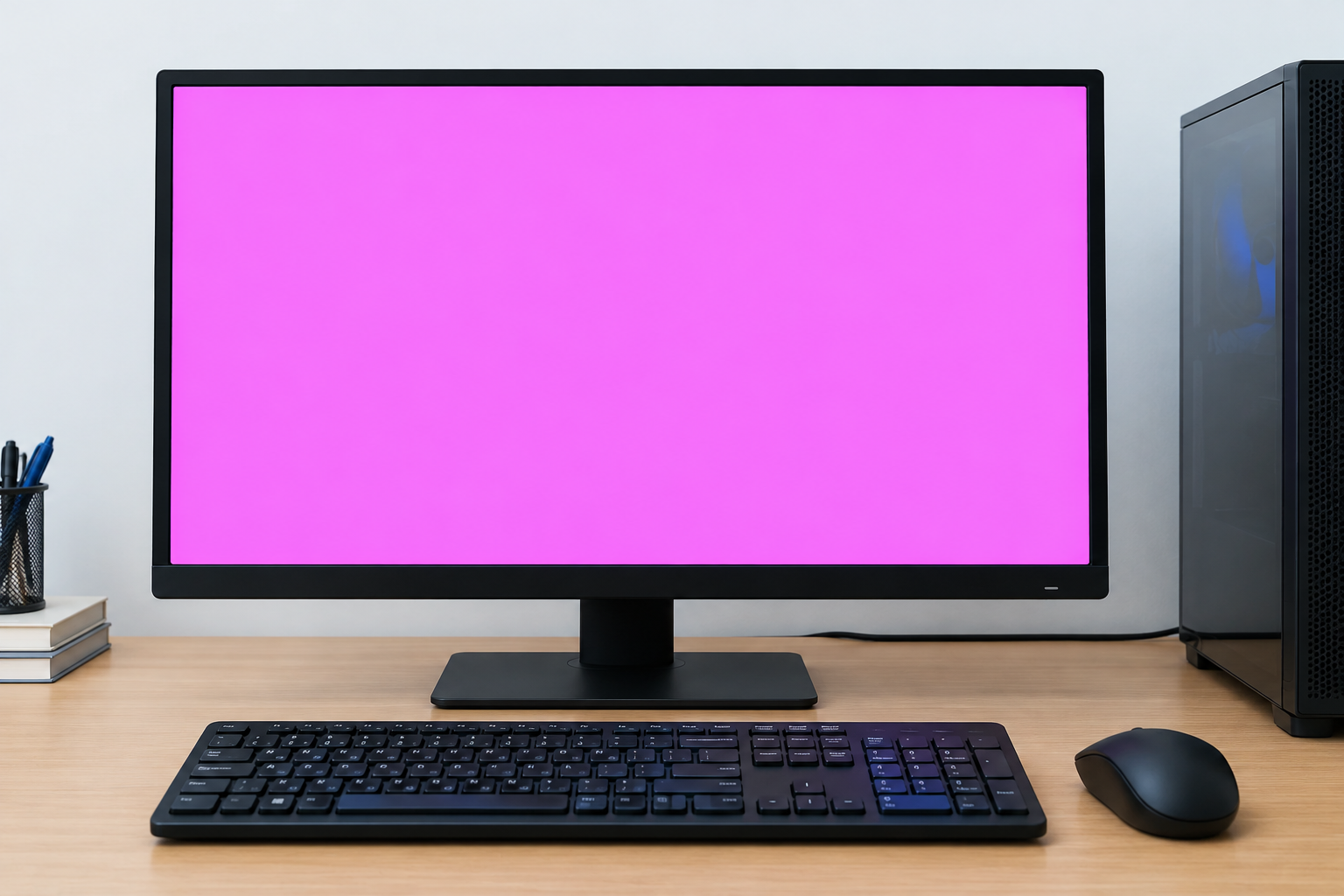
Introduction
You press the power button, and your desktop appears buried under an intense pink or magenta cast. Your eyes strain, and you wonder if the monitor just died. This guide explains why your PC screen is pink, how to tell a software crash from a hardware fault, and which fixes to try first.
Quick Info: The 60-second Pink Screen Sharpness Checklist
Try these zero-cost steps in order before anything else:
- Press Windows Key + Ctrl + Shift + B to restart the graphics driver. The screen may flicker or go black for a moment, and you may hear a beep.
- Open Settings > System > Display and turn Night light off.
- Power off the computer, unplug the video cable from both the PC and the monitor, then reconnect it firmly.
- Power the computer back on and watch whether the pink tint appears during startup.
- If you have another monitor or a TV with a spare cable, connect it to see if the tint follows the screen or the PC.
Key Takeaways
- A missing green channel produces pink. Displays mix red, green, and blue signals, and when green drops out, red and blue combine into magenta.
- Loose or damaged cables are a common cause. Bent pins or a partly unseated HDMI or DisplayPort plug can interrupt the green signal.
- A crash screen and a tint are different problems. A solid pink screen with error text or sudden reboots points to a system or graphics failure, while a translucent tint points to signal delivery.
- The BIOS test splits the problem in two. If the tint appears in the BIOS or UEFI setup screen, the fault is in hardware. If it does not, the cause is in Windows.
- Panel replacement is the last resort. If the pink persists on a second cable, a second computer, or in the BIOS, the monitor or laptop panel likely needs service.
How This Guide Was Verified
We verified every diagnostic path and display concept in this guide directly against official laptop hardware engineering standards and manufacturer support documentation to ensure accurate troubleshooting routes for your device.
Every configuration path here aligns with verified Microsoft Windows and Apple macOS technical support structures. We rely only on built-in settings and physical checks. That keeps you away from “registry cleaner” apps, which can break system files and are never needed to fix a color cast.
PC Monitor Pink Discoloration: Core Diagnostic Matrix
| What Your Screen Looks Like | The Real Underlying Visual Issue | Recommended Calibration Path |
|---|---|---|
| Solid pink overlay with an error code block or an immediate system crash | Software kernel crash (Pink Screen of Death) | Note the error text, boot into Safe Mode, and update or roll back the graphics driver |
| Translucent pink color cast across the entire screen that shifts when you move the monitor wire | Loose or damaged HDMI / DisplayPort connection pins | Power off, reseat the cable, inspect the pins, and test a replacement cable |
| A single permanent pink vertical line slicing through the panel | Fractured gate driver or sub-pixel column fault | Confirm it appears in the BIOS, then contact an authorized service center |
Comprehensive Step-by-Step Diagnostic Core
Step 1: Software PSoD vs. Hardware Pink Tinting
Scenario A: The Pink Screen of Death
A solid pink screen with error text, or one that triggers an immediate reboot, points to a severe software-side failure. Possible causes include a crashed graphics driver, a memory allocation breakdown, or a fault in the graphics card’s firmware. Write down any code or message on screen, since it narrows down the cause.
If the system locks up before you can read anything, our guide on Why Does My Laptop Keep Freezing? Causes and Fixes covers memory and lockup diagnostics. If the machine keeps rebooting right after the pink screen, see Why Does My Laptop Keep Restarting? Common Causes and Permanent Fixes for the driver-layer causes behind reboot loops.
Scenario B: Hardware pink tint and magenta artifacts
A translucent pink hue, dancing pink horizontal lines, or missing green color all suggest a signal delivery problem. The signal path between the graphics card and the display is where the green information is getting lost. The desktop itself usually stays fully usable, which is the main clue that Windows is not crashing.
Soft or smeared text alongside the tint can point to a different issue, so see PC Screen Blurry? Causes and How to Fix It to rule that out.
Step 2: Physical Video Cable and Color Channel Isolation
Why a missing green channel looks pink
HDMI, DisplayPort, and the internal eDP ribbon in laptops carry separate red, green, and blue color data. The display combines all three to form the picture you see. When the pins or wires carrying green are bent, broken, or unseated, red and blue still arrive and the image turns pink or magenta.
Inspect and reseat the cable
Power off the computer and unplug it from the wall. Unplug the video cable (HDMI or DisplayPort) from both the PC and the monitor.
Look inside each connector for bent, pushed-in, or discolored pins. Then push the cable back in firmly until it seats fully. If the tint changes when you wiggle the cable, replace it with a known good one.
Check for a hardware line fault
If the pink appears as a thin vertical or horizontal line rather than a full tint, the fault may be in the panel itself. Read Laptop Screen Lines: Causes and How to Fix Them for how to tell a cable problem from a panel problem.
On a laptop, the internal ribbon cable sits behind the screen bezel. Do not open the case unless you are qualified, because the connectors are fragile and opening it may affect your warranty.
Step 3: UEFI/BIOS Baseline Display Testing
Enter the BIOS setup utility
Restart the computer and tap the setup key repeatedly as soon as it powers on. Common keys are F2, F10, or Delete, depending on your manufacturer. Your motherboard or laptop manual lists the exact key.
Read the result
Look at the colors in the BIOS screen. If the pink tint is still there, the cause is in hardware, such as the panel, the cable, or the graphics output. A BIOS screen does not use your Windows driver or color profile, so Windows cannot be to blame.
If the colors look normal in the BIOS but turn pink once Windows loads, the problem is most likely a corrupted graphics driver or a color profile conflict. Update the driver through Windows Update or your graphics card maker’s support page.
For general system maintenance guidance, see Microsoft’s official Windows performance support page. On a Mac, you can check display behavior at startup and review Apple’s official Mac optimization guidelines.
Step 4: Deactivate Night Light and Reset Color Profiles
Turn off Night Light
Open Settings > System > Display. Find the Night light toggle and switch it Off. Night light shifts colors toward warm tones, and a scheduling or calibration glitch can push the screen toward an unwanted cast.
Remove custom ICC profiles
Press Windows Key + S, type Color Management, and press Enter. In the Devices tab, choose your active monitor from the dropdown.
Check Use my settings for this device. Select any custom third-party ICC profile in the list and click Remove. Windows will return to its default color balance for that display.
Restart the computer and check whether the pink cast is gone. If it is, a color profile from a calibration tool or an app was the cause.
Common Mistakes That Make Screen Discoloration Worse
- Slamming or tapping the side of the monitor. Shaking the casing to “knock” the pink away can crack delicate glass borders and loosen internal connections.
- Using an old, oxidized VGA-to-HDMI adapter. Corroded contacts can interrupt the color signal, and a worn adapter may be the cause of the pink in the first place.
- Forcing a high refresh rate or custom overclock on the monitor. Pushing a display beyond its rated settings can cause artifacts and stress the hardware.
- Installing “registry cleaner” or driver-booster apps. These tools can break system files and rarely fix a display fault.
- Opening the laptop without proper tools or training. Display ribbon connectors tear easily, and a small mistake turns a repairable fault into an expensive one.
- Skipping the BIOS test. Without it, you can spend hours reinstalling drivers for a problem that is physical.
Frequently Asked Questions
Why is my PC screen pink?
The most common reason is a missing or weak green signal between the graphics card and the display. A loose cable, damaged connector pins, a faulty graphics output, or a failing panel can all cause it. A bad color profile or Night light setting can also create a pink cast in Windows.
Is the Pink Screen of Death the same as a pink tint?
No. A Pink Screen of Death is a solid screen that usually appears with error text or an immediate reboot, which points to a crash. A pink tint leaves your desktop visible and usually points to a signal or display problem.
How do I know if it’s my monitor or my graphics card?
Connect the monitor to another computer, or connect a different monitor to yours. If the pink follows the monitor, the monitor or its cable is at fault. If the pink follows your PC, the graphics output or the graphics driver is the likely cause.
Can a software update fix a pink screen?
It can, if the cause is a corrupted graphics driver or a color profile conflict. If the pink also shows in the BIOS, no operating system update will fix it, because the fault is in hardware.
When should I replace the monitor or panel?
Consider replacement when the pink persists on a different cable, on a different computer, and in the BIOS. A pink vertical line that never changes also points to a panel fault. Contact an authorized service center and check your warranty first.
Disclaimer:
This article is for general educational and informational purposes only. It compiles official display optimization concepts from verified operating system service frameworks. Computer monitors and display graphics hardware operate under complex color space algorithms and high-voltage parameters. Always prioritize consulting authorized service centers or verified system administrators for deep structural component or graphics card hardware faults.