
 By Saad Qureshi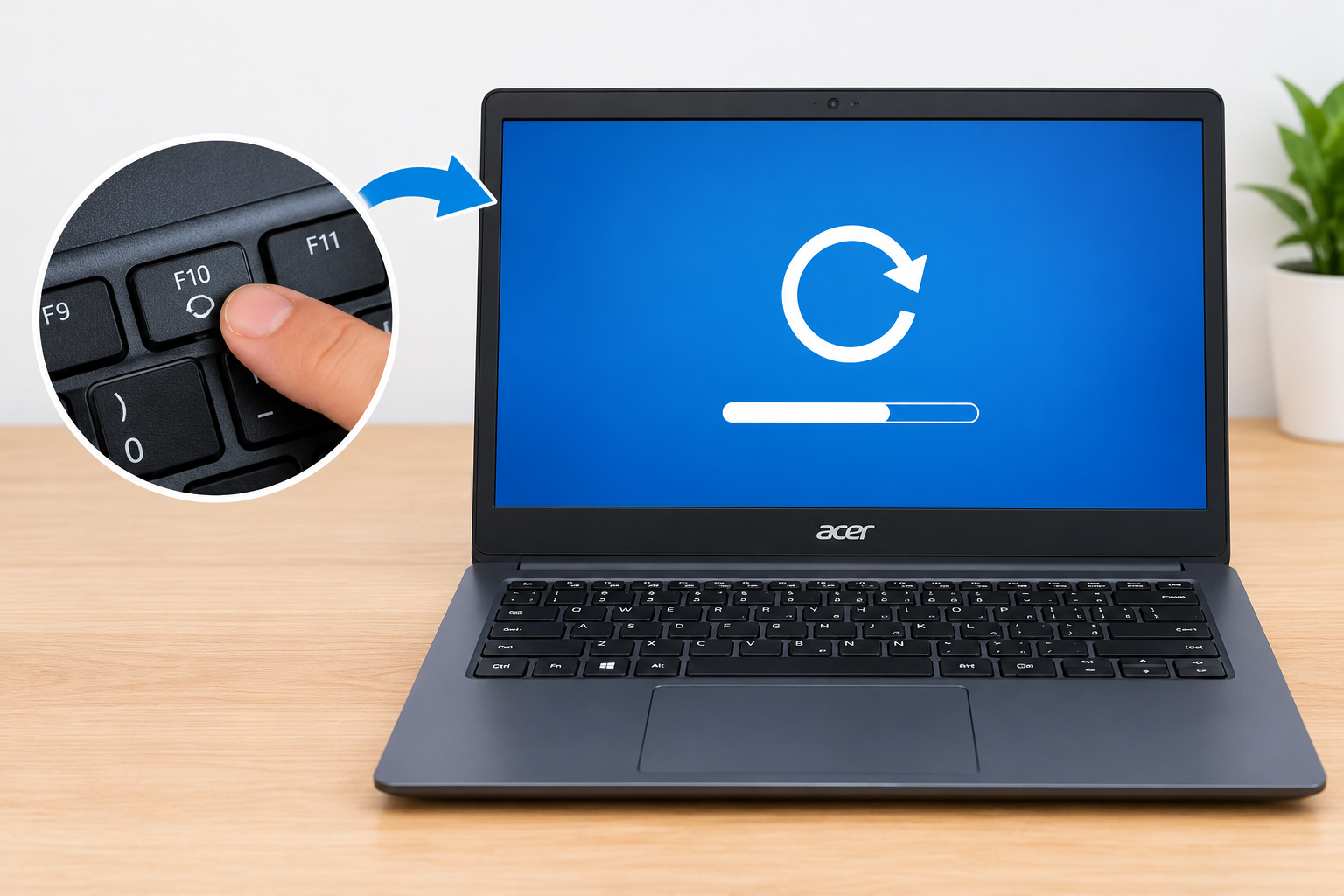
Introduction
Your laptop is choked with malware, stuck on a corrupted update, or so slow that every click feels like a gamble. At that point, a clean factory reset is often the only fix left. This guide shows you how to reset an Acer laptop using the Windows Settings app, the Acer Alt + F10 recovery shortcut, and the physical battery pinhole reset.
Quick Info: The 60-second Factory Reset Checklist
Pick the path that matches your laptop’s current state:
If your Acer boots into Windows:
- Back up your files to an external drive or cloud storage.
- Open Settings > System > Recovery and click Reset PC under “Reset this PC.”
- Choose Keep my files or Remove everything, then choose Cloud download or Local reinstall.
If your Acer is stuck on a black screen or boot loop:
- Shut the laptop down completely, then power it on.
- Press and hold Alt, then tap F10 repeatedly while the Acer logo appears.
- On the blue “Choose an option” screen, select Troubleshoot > Reset your PC and follow the prompts.
If the laptop is completely frozen and ignores the power button:
- Unplug the charger, then use the battery pinhole reset described in Step 3.
Key Takeaways
- Cloud download needs a stable internet connection. Windows pulls fresh system files from Microsoft’s servers, so a dropped connection can interrupt the process.
- Custom partitions are at risk. “Remove everything” can erase data on your drives, so back up anything stored outside your main user folders first.
- Alt + F10 works when Windows will not. It launches the recovery environment directly, bypassing a damaged Windows boot setup.
- “Keep my files” is not a backup. It removes apps and settings but keeps personal files, and a failed reset can still cause data loss.
- The pinhole reset fixes hardware-level hangs, not software problems. It resets the laptop’s power controller when a freeze prevents any software reset from loading, and it does not erase your data.
How This Guide Was Verified
We verified every recovery utility path, partition boot shortcut, and hardware reset mechanism in this guide directly against official Acer technical support documentation and Windows system deployment manuals to ensure accurate setup routes for your machine.
Every path here aligns with verified Microsoft Windows and Acer technical support structures. We use only built-in Windows tools, Acer’s own recovery shortcut, and a physical reset. That keeps you safe from third-party formatting utilities, which can carry malware or damage your drive.
Acer Factory Reset Solutions: Operational Matrix
| Recovery Tool Option | Target System State | Data Erasure Impact Level |
|---|---|---|
| Native Windows Settings Recovery | Laptop boots into the desktop smoothly | Your choice: keep personal files or wipe the entire user profile |
| Acer Alt + F10 eRecovery Environment | Laptop stuck on a boot loop or logo screen | Wipes the primary C: drive to restore factory image settings |
| Base Hardware Pinhole Reset | System completely frozen and unresponsive to the power button | Zero data loss; resets the physical power controller |
Comprehensive Step-by-Step Diagnostic Core
Step 1: Reset Through the Windows 11 Settings App
Decide whether a reset is really necessary
A reset is a last resort, not a first move. If your laptop is just sluggish, read Why Is My Laptop Slow? Causes and Fixes to identify resource problems and application delays before you wipe anything.
You can also try the tips in How to Speed Up a Laptop: Simple Ways to Improve Performance. Cleaning up startup apps and storage often solves the problem without a reset.
Back up your data first
Copy your documents, photos, and other personal files to an external drive or cloud storage. Do this even if you plan to choose “Keep my files.”
Note your software license keys and any apps you need to reinstall. A reset removes installed programs.
Open the recovery options
Click Start and open Settings. Go to System > Recovery. Find the Reset this PC option and click the Reset PC button.
Plug in your charger before continuing. A reset can take a long time, and a battery that dies mid-process can corrupt the installation.
Choose between “Keep my files” and “Remove everything”
Keep my files removes your apps and settings but preserves the personal files in your user account. Use this when the system is unstable but you want to avoid a full wipe.
Remove everything erases all personal files, apps, and settings from the drive. Choose this when you are fighting malware, selling the laptop, or giving it away.
Choose “Cloud download” or “Local reinstall”
Cloud download retrieves fresh system files over the internet and rebuilds Windows cleanly. It needs an active, stable connection.
Local reinstall rebuilds Windows from the files already on your laptop. It works offline, but it can fail if those local files are damaged.
Handle freezes during the reset
Wiping and reinstalling puts heavy demands on your drive and processor. If the process appears stuck, wait at least an hour before assuming it has failed.
If the screen stays frozen far longer than that, see Why Does My Laptop Keep Freezing? Causes and Fixes for what may be causing it. Forcing a shutdown mid-reset can leave Windows unbootable, so treat it as a last step.
Step 2: Use Acer eRecovery with Alt + F10
When to use this method
Use this path when Windows will not start, loops on the Acer logo, or restarts repeatedly. Boot failures can come from a damaged boot configuration, and our guide on Why Does My Laptop Keep Restarting? Common Causes and Permanent Fixes explains the most common triggers.
This method needs the laptop’s recovery data to be intact. If you or a technician previously replaced the drive or removed the recovery partition, the shortcut may not work.
Launch the recovery environment
Shut down the Acer laptop completely. Power it on, then press and hold Alt and tap F10 repeatedly, starting as soon as the laptop powers on and while the Acer logo appears.
Keep tapping until the blue Choose an option screen opens. If Windows starts loading instead, shut down and try again.
Start the reset
On the blue screen, select Troubleshoot, then Reset your PC. Depending on your model, you may see an option to restore the original factory image, or choices to keep or remove your files.
Menu wording varies by Acer model and Windows build. Follow the on-screen prompts, and keep the charger connected throughout.
Confirm what will be erased
Restoring the factory image wipes the primary C: drive and returns the laptop to its original manufacturer settings. Other drives or partitions may be affected depending on your selection, so read each prompt carefully.
For official Acer support resources and service information, you can visit the official Acer business partner portal.
Step 3: Use the Physical Battery Pinhole Reset
Know when this is the right tool
If an unrecoverable freeze keeps the laptop from responding to the power button, software resets cannot load. This hardware reset clears the power controller’s state. It does not erase your files or reinstall Windows.
Not every Acer model has this pinhole. Check your laptop’s manual to confirm yours does, especially on models with a removable battery, which use a different procedure.
Perform the reset
- Unplug the AC charging adapter.
- Flip the laptop over and locate the small battery icon pinhole on the bottom casing.
- Insert a straight, unbent paperclip gently into the pinhole until you feel the internal micro-switch.
- Hold it down for 15 seconds.
- Remove the paperclip and let the laptop rest for 5 minutes.
- Plug the charger back in and press the power button.
Use light, steady pressure. Do not force the paperclip.
What to do afterward
If the laptop boots normally, back up your data right away and investigate the cause of the freeze. A one-time hang may not require a reset, but repeated hangs point to a deeper problem.
If it still will not start, move to the Alt + F10 method in Step 2. For general guidance from the operating system maker, see Microsoft’s official Windows performance support page.
Dangerous Mistakes That Can Ruin Your Data Permanently
- Closing the lid or unplugging the charger mid-reset. Interrupting the process can corrupt drive partitions and leave Windows unbootable.
- Skipping the offline backup. A reset can permanently erase files, and “Keep my files” does not guarantee they survive a failed process.
- Using a sharp metal pin in the reset slot. A sharp or bent tool can damage the internal switch or surrounding components. Use a straight, unbent paperclip with light pressure.
- Running the reset on a low battery. A dead battery mid-process can corrupt the new installation, so keep the charger connected.
- Downloading third-party formatting tools. Unofficial utilities can carry malware or damage your drive, and you never need them for an Acer reset.
- Assuming the pinhole reset will fix Windows problems. It only resets the power controller, so a corrupted operating system still needs a software reset.
Frequently Asked Questions
Will resetting my Acer laptop delete everything?
It depends on the option you choose. “Keep my files” removes apps and settings but preserves personal files, while “Remove everything” erases all of it. Always back up first.
What is the Acer Alt + F10 shortcut?
It is a key combination that launches Acer’s recovery environment when Windows will not start. Press and hold Alt, then tap F10 repeatedly while the Acer logo appears. It opens the blue “Choose an option” screen where you can start a reset.
Should I choose Cloud download or Local reinstall?
Choose Cloud download if you have a stable internet connection and want fresh system files. Choose Local reinstall if you are offline or want to avoid a large download. Local reinstall can fail if the existing system files are damaged.
How long does a factory reset take?
It can take anywhere from under an hour to several hours, depending on your drive, your connection speed, and the options you choose. Keep the laptop plugged in and do not interrupt it.
Will the pinhole reset erase my files?
No. It resets the laptop’s power controller and does not touch your drive. It is meant for laptops that freeze so completely that they ignore the power button.
Disclaimer:
This article is for general educational and informational purposes only. It compiles official operating system custom deployment parameters and manufacturer hardware administration methods. Executing a factory reset permanently deletes un-saved local software profile settings, configurations, and administrative entries. Always back up your critical documents and system-wide files before initializing custom formatting scripts inside your environment terminal.