
 By saman zahra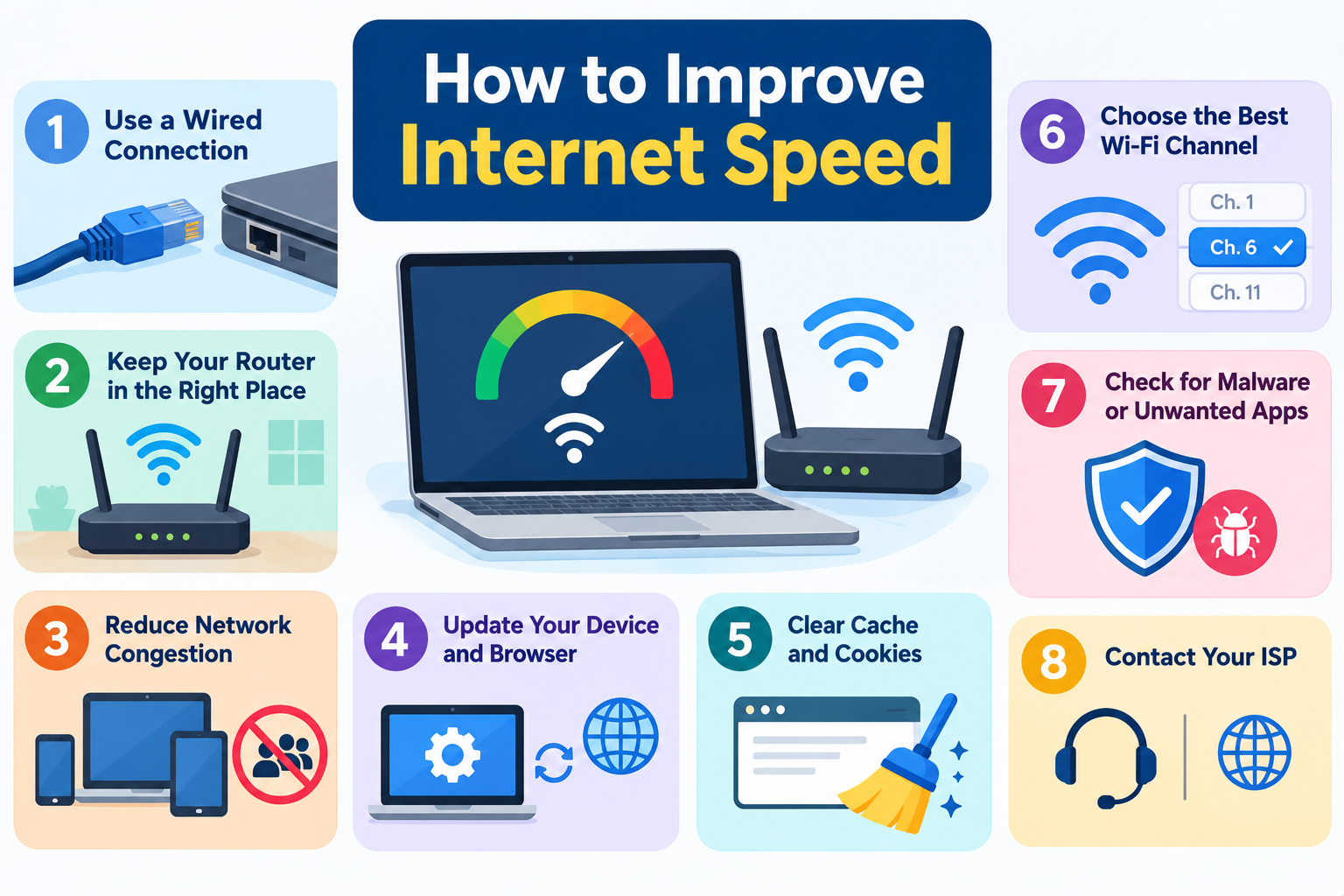
Slow internet is one of the most frustrating everyday tech problems. Videos buffer, games lag, video calls freeze, and simple websites take forever to load. The good news is that many slowdowns have nothing to do with your internet plan. They come from the router’s position, Wi-Fi interference, too many devices, outdated equipment, or simple settings that are easy to fix at home.
In this guide, we walk through proven ways to improve internet speed, starting with quick free fixes and moving to upgrades. Many tips follow advice from Ofcom, the UK communications regulator, which has published practical guidance on getting the most from home broadband and Wi-Fi.
Quick Info: Improving Internet Speed at a Glance
| Detail | Quick Answer |
|---|---|
| First step | Run a speed test to see what you are actually getting |
| Fastest free fix | Restart your modem and router |
| Biggest free improvement | Move your router to a central, raised, open spot |
| Most reliable connection | Use an Ethernet cable instead of Wi-Fi |
| Best for large homes | A mesh Wi-Fi system |
| Common hidden cause | Too many devices or background downloads |
| When to upgrade | If wired speeds match your plan but still feel too slow |
| When to call your provider | If wired speeds are far below your plan |
Key Takeaways
- Test first. Compare a wired speed test with a Wi-Fi test to find where the problem is.
- Restart and reposition your router. These two free steps fix many slowdowns.
- Wired beats wireless. An Ethernet cable gives faster, more stable speeds.
- Reduce interference and congestion from other electronics and unused devices.
- Update your router or upgrade old equipment.
- Wi-Fi can never be faster than your plan. If your plan is too slow for your household, you may need an upgrade.
Step 1: Find Out Where the Problem Is
Before changing anything, run a speed test. Ofcom’s practical tips recommend carrying out a speed test on your line as the first step, so you know the speed you are actually getting.
For the best diagnosis, test twice:
- Wired test: Connect a computer directly to your router with an Ethernet cable and run a speed test.
- Wi-Fi test: Run the same test over Wi-Fi in the room where the internet feels slow.
| What you find | What it means | Where to focus |
|---|---|---|
| Wired is fast, Wi-Fi is slow | Your internet is fine; Wi-Fi is the bottleneck | Router position, interference, Wi-Fi equipment |
| Both wired and Wi-Fi are slow | The problem is the line, modem, or plan | Equipment, provider, or plan upgrade |
| Slow only at certain times | Network congestion | Timing, usage, or provider |
| Only one device is slow | A device issue | That device’s settings, updates, or age |
Ofcom also notes an important limit: no matter how good your Wi-Fi is, it will never outperform your broadband service. Wi-Fi improvements help you get the speed you pay for, not more.
Quick Fixes (Free, Under 10 Minutes)
1. Restart your modem and router
Routers and modems run all day, every day, and can slow down or develop glitches.
- Unplug the modem and router from power.
- Wait about 30 seconds.
- Plug in the modem first and wait until its lights are stable.
- Plug in the router and wait a minute or two.
If your modem and router are separate boxes and you are not sure which is which, our guide on what a modem is explains the difference.
2. Move your router to a better spot
Router position is one of the biggest factors in Wi-Fi speed. Ofcom recommends placing the router on a table or shelf rather than the floor, keeping it switched on, and keeping it away from other electrical devices.
Good router placement:
- In a central part of your home
- Raised on a table or shelf
- In the open, not inside a cabinet or behind a TV
- Away from thick walls, mirrors, fish tanks, and large metal objects
Bad router placement:
- On the floor
- Inside a cupboard or TV unit
- Against an outside wall, where much of the signal goes outdoors
- Next to other electronics
3. Keep the router away from interference
Ofcom warns that some electrical devices can interfere with your router. It advises keeping the router away from other electrical devices and anything that sends wireless signals, such as cordless phones and baby monitors. Halogen lamps, dimmer switches, speakers, and decorative lights have also been known to cause problems.
Ofcom has even advised not using the microwave during important video calls or HD streaming, because microwaves can reduce Wi-Fi signals on the 2.4 GHz band.
4. Disconnect devices you are not using
Your internet speed is shared by every device connected to it. Ofcom points out that reducing the number of devices connected to your Wi-Fi improves speeds for the devices you are using, since even idle devices can use data in the background.
Check for:
- Old phones and tablets still connected
- Smart TVs and streaming boxes left on
- Games consoles downloading updates
- Computers running cloud backups
5. Pause big downloads and background activity
Large downloads, game updates, cloud backups, and streaming in 4K on another device can slow everything else down.
- Schedule updates for late at night.
- Pause cloud backups during important calls or games.
- Download videos in advance instead of streaming them during busy times, a tip Ofcom has also shared.
6. Spread out heavy usage
If several people in your home make video calls or stream HD video at the same time, speeds can drop. Try to schedule heavy activities so they do not all happen at once.
Wi-Fi Improvements
7. Use the right Wi-Fi band
Most routers offer more than one band:
| Band | Speed | Range | Best for |
|---|---|---|---|
| 2.4 GHz | Slower | Longer, passes walls better | Far rooms, smart home devices |
| 5 GHz | Faster | Shorter range | Streaming, gaming, laptops near the router |
| 6 GHz (Wi-Fi 6E and Wi-Fi 7) | Fastest | Shortest range | Newest devices close to the router |
If your router shows separate network names for each band, connect your main devices to 5 GHz (or 6 GHz) when they are reasonably close to the router.
Our guide on what Wi-Fi is explains how these bands and Wi-Fi standards work.
8. Secure your Wi-Fi with a strong password
Ofcom recommends password-protecting your broadband with a strong password that mixes numbers and upper and lower case letters. An unsecured network lets neighbors or strangers use your connection and slow it down.
Check your router’s app or settings page for any devices you do not recognize, and change the password if needed.
9. Change your Wi-Fi channel
In apartments and busy areas, many nearby networks can crowd the same channel. Most modern routers choose a channel automatically, but if speeds are poor, try restarting the router or switching to a less crowded channel in its settings.
10. Add a mesh system or extender for bigger homes
If some rooms always have weak Wi-Fi, a single router may not be enough.
- Mesh Wi-Fi systems use several units around the home to create one strong network. Ofcom notes mesh systems can improve Wi-Fi signal strength and coverage without reducing the performance of your broadband connection.
- Wi-Fi extenders or boosters repeat the signal to reach farther rooms. They are cheaper, but some can reduce speed.
- Powerline adapters send internet through your home’s electrical wiring and can be useful where Wi-Fi struggles.
Whatever you choose, make sure it supports the speed of your broadband plan, or it may limit performance.
Wired Connections and Equipment
11. Use an Ethernet cable
For desktop computers, smart TVs, and games consoles, an Ethernet cable is usually the fastest and most stable option. Ofcom recommends using a cable to connect your computer directly to your router rather than using Wi-Fi when you need the best speeds.
12. Update your router’s firmware
Router manufacturers release firmware updates that can fix bugs, improve performance, and patch security issues. Check your router’s app or admin page for updates, or ask your provider whether updates happen automatically.
13. Upgrade an old router
If your router is several years old, it may not support your plan’s full speed or handle many devices well. Ofcom suggests speaking to your provider if you have an older router or regular disconnections, as you may benefit from an upgrade.
Newer routers that support Wi-Fi 6, Wi-Fi 6E, or Wi-Fi 7 handle more devices at once and offer faster speeds on compatible devices.
14. Check cables and phone line connections
If your broadband comes through a phone line, Ofcom advises:
- Plugging the router directly into the main phone socket where possible
- Avoiding telephone extension leads, which can cause interference and lower speed
Also check that all cables are firmly plugged in and not damaged.
Settings and Software
15. Consider changing your DNS server
Every time you visit a website, your device uses DNS to look up the site’s address. Your provider usually supplies a default DNS server, but you can switch to a public DNS service such as Cloudflare (1.1.1.1) or Google (8.8.8.8).
Be realistic about the benefit:
- A faster DNS can make websites start loading slightly quicker, especially the first time you visit them.
- It does not increase your download or upload speed, so speed test results usually stay the same.
To learn how DNS works and why it affects browsing, read our beginner’s guide on what DNS is.
Other useful checks
- Update your browser and device software. Ofcom also recommends keeping your browser up to date.
- Clear browser clutter. Too many tabs and extensions can slow browsing.
- Scan for malware, which can secretly use your connection.
- Turn off VPNs when you do not need them, as they can slow your connection.
- Check for data caps or throttling on your plan.
When to Upgrade Your Internet Plan
If your wired speed tests match what you pay for, but the internet still feels slow, your plan may simply not be fast enough for your household.
Signs you may need a faster plan:
- Several people stream in HD or 4K at the same time
- You work from home with frequent video calls
- You upload large files or videos
- You have many smart home devices
- You play online games while others stream
Also check upload speed, which matters for video calls, content creators, and cloud backups. Fiber connections often offer much higher upload speeds than other types.
When to Contact Your Internet Provider
Contact your provider if:
- Wired speed tests are consistently far below your plan speed
- Your connection drops frequently, even after restarting equipment
- Speeds suddenly fell and stayed low
- Your router or modem is old or provided by them
Ofcom advises talking to your provider about speed problems, as they should be able to help work out the cause and how to fix it. Have your speed test results with dates and times ready when you call.
Internet Speed Fixes Ranked by Effort
| Fix | Cost | Effort | Typical impact |
|---|---|---|---|
| Restart modem and router | Free | Very easy | Can fix sudden slowdowns |
| Move router | Free | Easy | Often a noticeable Wi-Fi improvement |
| Reduce interference | Free | Easy | Better Wi-Fi stability |
| Disconnect unused devices | Free | Easy | More speed for active devices |
| Pause background downloads | Free | Easy | Faster during important tasks |
| Use 5 GHz band | Free | Easy | Faster near the router |
| Secure Wi-Fi | Free | Easy | Stops others using your connection |
| Update firmware | Free | Medium | Fixes bugs and performance issues |
| Change DNS | Free | Medium | Slightly faster page loading |
| Use Ethernet | Low | Easy | Fastest, most stable connection |
| Mesh Wi-Fi or extender | Medium | Medium | Better coverage in large homes |
| New router | Medium | Medium | Better speeds and device handling |
| Faster plan | Ongoing | Easy | More total speed for the household |
Frequently Asked Questions
How can I improve my internet speed for free?
Restart your modem and router, move the router to a central raised spot, keep it away from other electronics, disconnect unused devices, pause big downloads, and use the 5 GHz band near the router.
Why is my Wi-Fi slow but my internet fast?
If a wired speed test is fast but Wi-Fi is slow, the problem is your Wi-Fi setup. Router position, interference, distance, walls, and old equipment are common causes.
Does restarting the router really help?
Yes, often. Restarting clears temporary glitches and refreshes the connection. It is one of the quickest fixes for sudden slowdowns.
Where is the best place to put a Wi-Fi router?
In a central part of your home, raised on a shelf or table, out in the open, and away from thick walls and electronic devices.
Does changing DNS make the internet faster?
It can make websites start loading slightly faster, but it does not increase your download or upload speed.
Do Wi-Fi extenders improve speed?
They can improve coverage in weak areas, but some reduce speed. Mesh systems usually provide better coverage and more consistent performance.
Is Ethernet faster than Wi-Fi?
Usually yes. Ethernet gives a faster, more stable connection with less interference.
Why is my internet slow at night?
Evenings are peak times when many people in your area are online, which can cause congestion. Heavy use within your own home in the evening can also slow things down.
When should I upgrade my router?
If your router is several years old, cannot reach your plan speed on a wired connection, struggles with many devices, or disconnects often, it may be time to upgrade.
Final Thoughts
Improving internet speed usually starts with simple, free steps: run a speed test, restart your equipment, move your router, reduce interference, and cut back on background usage. For many homes, those changes alone make a clear difference.
If Wi-Fi is still weak, use Ethernet where you can, upgrade an old router, or add a mesh system. And if even wired speeds are far below what you pay for, gather your test results and contact your provider. Remember that Wi-Fi improvements help you get the most from your plan, but they cannot make your connection faster than the plan itself.
References
- Ofcom: Improving your wifi experience
- Ofcom: Practical tips for improving your broadband speed (PDF)
Disclaimer
This guide is for general information only. Results vary depending on your internet plan, provider, equipment, home layout, and local network conditions. Router settings and menus differ between brands and providers, so check your device’s manual or your provider’s support pages before changing advanced settings. TechOriginHub is not affiliated with Ofcom, Cloudflare, Google, or any internet provider, and this article is not sponsored.