
 By saman zahra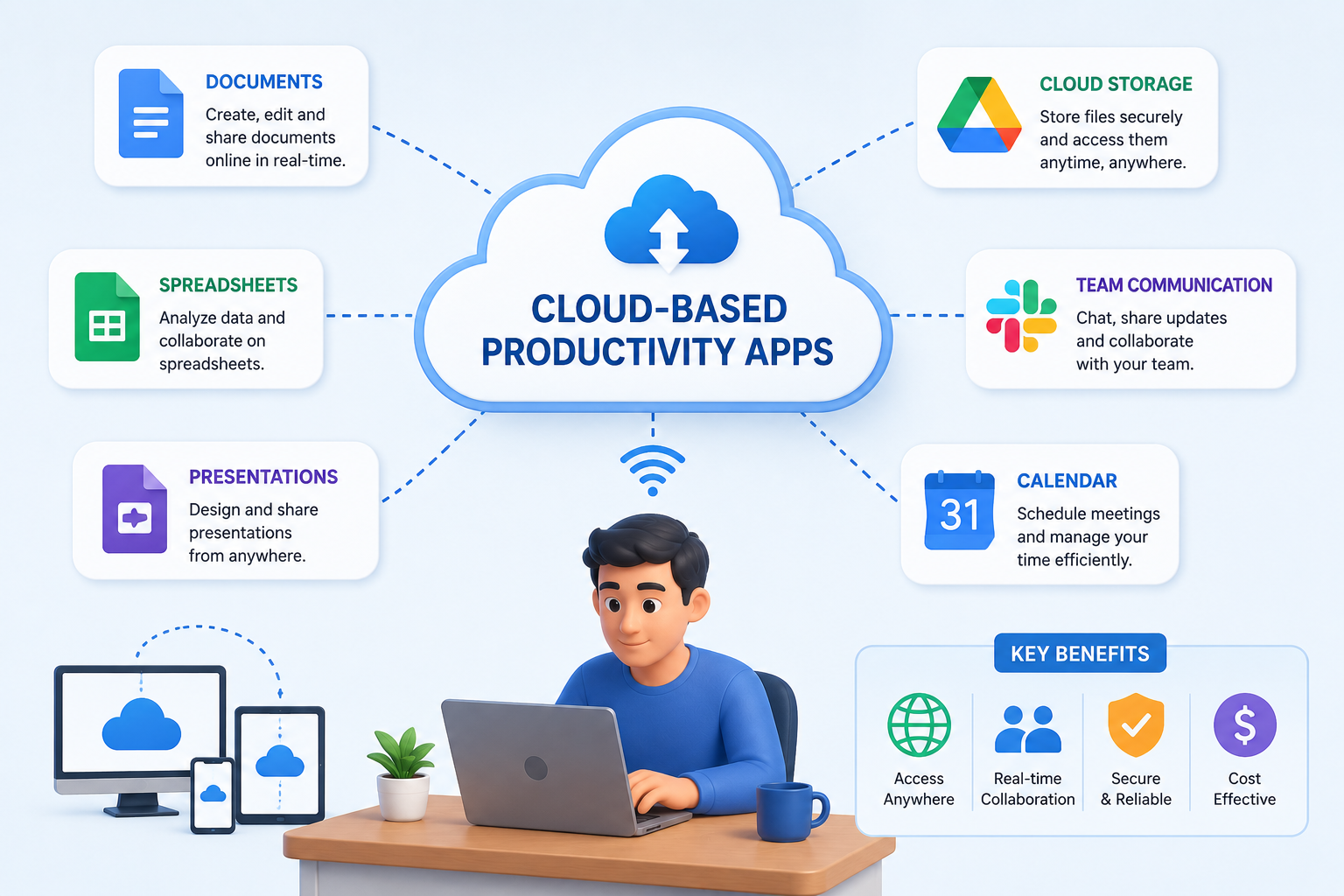
Introduction
Most people today do not work from a single device in a single location. A student might start an assignment on a laptop at home, continue it on a tablet at the library, and check it on a phone between classes. A professional might review a project plan from the office in the morning and update it remotely in the afternoon. This kind of flexible, multi-device working has become normal, and cloud based productivity apps are a large part of what makes it possible.
Cloud-based productivity apps are software tools delivered through cloud infrastructure that allow users to create documents, manage projects, communicate, collaborate, and organize information through internet-connected services. Unlike traditional software that typically runs only on the device where it is installed, these applications generally store data and deliver services through remote servers, making them accessible from a range of devices with compatible browsers or apps.
This guide covers what cloud-based productivity apps are, how they work, their key benefits and limitations, the main types available, and how to choose the right tools for your actual needs, whether you are a student, a remote worker, or part of a team.
Quick Answer: What Are Cloud-Based Productivity Apps?
Cloud-based productivity apps are software tools delivered through cloud infrastructure that allow users to perform tasks such as creating documents, managing projects, organizing information, communicating, and collaborating. Data and application services are generally hosted on remote servers rather than stored entirely on the user’s device, allowing access from multiple devices through a browser or dedicated app connected to the internet.
What Are Cloud-Based Productivity Apps?
A cloud-based productivity app is a software application that is hosted or substantially delivered through cloud infrastructure. Instead of running entirely from software installed on your device, the application connects to remote servers to process data, store files, or deliver its core features. Users access these services through a web browser, a dedicated app, or both.
The term “cloud-based” refers to the way the service is delivered. Cloud infrastructure means that computing resources, storage, and services are provided through networks of remote servers rather than through hardware directly owned or managed by the end user. The term “productivity app” refers broadly to software designed to help users accomplish tasks, manage information, create content, communicate, or work more efficiently.
Together, these concepts describe a wide range of tools. A cloud-based word processor that saves documents to remote servers, a team messaging platform where conversations are hosted on provider infrastructure, and a project management tool where tasks are tracked in a shared online workspace are all examples of cloud-based productivity apps.
These apps can be accessed across multiple devices because the data and services are not locked to a single machine. When a document is saved to the provider’s servers, any authorized device with a connection to that service can retrieve and display it. This is what makes the experience of picking up where you left off, across different devices and locations, feel seamless for many users.
How Do Cloud-Based Productivity Apps Work?
The basic process of how cloud-based productivity apps function can be broken into a series of steps, though the exact technical architecture varies significantly between applications.
First, the user opens the application. This might mean navigating to a website in a browser, or opening a dedicated app on a smartphone, tablet, or desktop computer. Either way, the interface the user sees is either loaded from or connected to the provider’s infrastructure.
Second, the application connects to cloud infrastructure. When a user starts typing a document, adding a task, or sending a message, those actions are typically sent to and processed on remote servers operated by the service provider.
Third, data is processed and often stored on remote systems. Depending on the application and the user’s settings, content may be saved automatically in near real time, or it may be staged locally and synchronized at intervals.
Fourth, changes synchronize across supported devices. When a document is updated in one location, those changes become available to other authorized devices the next time they connect to the service. This synchronization is what allows multiple users to collaborate on the same file or for an individual to move between devices without losing progress.
Fifth, users can access updated information from other locations, provided they have authorization and connectivity. Some applications also offer offline modes that allow certain functions to continue without an internet connection, with changes synchronizing once connectivity is restored.
It is worth noting that “cloud-based” does not mean every piece of data is always exclusively stored in the cloud. Many modern applications use a combination of local caching and remote storage, and the balance between the two can differ significantly from one tool to another.
What Are the Benefits of Cloud-Based Productivity Apps?
Cloud-based productivity apps offer a range of practical advantages that have made them widely adopted across personal, academic, and professional settings. Understanding these benefits helps clarify when and why these tools are genuinely useful.
Access from multiple devices is one of the most immediate benefits. Because data is generally stored on remote servers rather than a single local device, users can open their work on a laptop, a phone, or a tablet without having to transfer files manually. A sales team member can check a shared project update from a client site the same way they would from the office.
Collaboration is a defining feature of many cloud-based productivity tools. Multiple users can work on the same document, spreadsheet, or project at the same time, with changes visible to other participants in or near real time. This reduces the confusion that comes with emailing document versions back and forth.
Automatic synchronization means that saved changes are usually reflected across devices without the user needing to do anything beyond saving their work. For individuals working across devices, this reduces the risk of working from an outdated version.
Easier sharing is built into most cloud productivity tools. Sharing a document typically involves generating a link or entering a recipient’s email address, rather than attaching a file and managing version control manually.
Remote work support has become a significant practical consideration. Cloud-based tools allow distributed teams to communicate, share files, and track progress without needing to be in the same physical location.
Centralized information is another useful quality. When a team stores project documents, communications, and task lists in connected cloud tools, it reduces the chance of important information being spread across personal devices, local folders, and email inboxes simultaneously.
Automatic updates are generally managed by the service provider rather than the user. This means the application receives security patches and new features without the user needing to download and install updates manually.
Scalability is relevant especially for businesses. Cloud-based services can often be scaled up or down in terms of storage, users, or features without significant infrastructure changes on the user’s side.
Reduced dependence on a single device is a practical benefit for anyone who has experienced hardware failure. Because data is generally stored remotely, a broken or lost device does not mean losing access to important files, though this depends on the specific application’s data storage model.
Integration with other services is a feature many cloud productivity tools offer. A project management app might connect to a team communication tool, a calendar, or a cloud storage service, reducing the need to switch between disconnected systems manually.
Common Types of Cloud-Based Productivity Apps
Cloud-based productivity apps cover a wide range of functions. Understanding the main categories helps users identify which type of tool addresses their specific needs.
Cloud-Based Office Apps
Cloud-based office apps provide tools for creating and editing documents, spreadsheets, and presentations. These are digital equivalents of traditional office software, but with data stored and synchronized through cloud infrastructure. Multiple users can often collaborate on the same file simultaneously, and access is available through a browser or app from different devices. Google Docs, Google Sheets, and Google Slides, as well as the online versions of Microsoft Word, Excel, and PowerPoint, are widely used examples.
Project Management Apps
Project management apps help individuals and teams plan, organize, and track work. These tools typically include task creation, assignment, deadline setting, progress tracking, and visual workflow organization such as boards, lists, or timelines. They are used to manage everything from simple personal to-do lists to complex team projects with multiple contributors and dependencies. Examples in this category include Trello, Asana, and Monday.com.
Note-Taking Apps
Digital note-taking apps allow users to capture, organize, and retrieve information across devices. Notes can include text, images, links, checklists, or attachments depending on the application. Cloud synchronization means that a note created on a phone is immediately accessible on a laptop. Many note-taking apps include search features, tagging, and organizational structures such as notebooks or pages. Notion and Google Keep are examples in this category.
Cloud Storage and File Management Apps
Cloud storage services focus primarily on storing, organizing, and accessing files remotely. Users can upload documents, images, videos, and other file types, share them with others, and access them from different devices. While cloud storage overlaps with productivity in some ways, it is primarily a file management service rather than a tool for creating or working on content directly. Google Drive, Dropbox, and OneDrive are examples of cloud storage platforms.
Team Communication Apps
Team communication apps provide messaging, file sharing, voice, and video communication tools for groups working together. These platforms often organize conversations into channels or threads by topic or project, making it easier to keep discussions organized. They also typically support direct messaging between individuals. Slack and Microsoft Teams are two widely used examples in this category.
Calendar and Scheduling Apps
Calendar and scheduling apps help users manage appointments, deadlines, meetings, and reminders. Cloud-based calendar apps allow shared calendars, which are useful for teams coordinating schedules or families managing commitments. Events created on one device appear across all connected devices automatically. Google Calendar and the calendar features included in Microsoft 365 are common examples.
Time Management and Productivity Apps
This category includes task managers, habit trackers, focus tools, and personal organization apps. They are designed to help individuals manage their time, stay on top of commitments, and structure their day. Todoist is a widely used example for task management. These tools vary widely in complexity, from simple digital to-do lists to more structured personal productivity systems.
Popular Cloud-Based Productivity Apps
The following table presents a selection of widely used cloud-based productivity tools as examples. These are not universal rankings, and the right choice depends on the user’s specific needs, workflow, and budget. Features, pricing, and availability can change, so it is always worth checking official product documentation for current details.
| App / Platform | Category | Common Uses | Generally Suited For |
|---|---|---|---|
| Google Workspace | Office and collaboration | Documents, spreadsheets, presentations, email, video meetings | Individuals, students, teams |
| Microsoft 365 | Office and productivity | Documents, spreadsheets, presentations, email, collaboration | Individuals, businesses |
| Notion | Notes and workspace | Notes, databases, wikis, project organization | Individuals and teams |
| Trello | Project management | Boards, task cards, visual workflows | Simple project tracking |
| Asana | Project management | Tasks, projects, team workflows, timelines | Teams and businesses |
| Dropbox | Cloud storage and file sharing | File storage, synchronization, sharing | File management |
| Slack | Team communication | Messaging, channels, file sharing, integrations | Teams |
| Todoist | Task management | To-do lists, task organization, priorities | Personal productivity |
| Google Calendar | Scheduling | Appointments, reminders, shared calendars | Individuals and teams |
| Microsoft Teams | Communication and collaboration | Meetings, messaging, file sharing | Teams and businesses |
The tools listed above represent different categories and address different needs. Some users may find that one platform covers several requirements, while others may use a combination of specialized tools. No single app is the right fit for every person or every team.
Cloud-Based Productivity Apps for Students
Students often manage multiple courses, deadlines, group projects, and study commitments simultaneously, which makes organized, accessible tools particularly useful.
Cloud-based office apps make it straightforward to create and submit assignments, access files from a school or library computer, and collaborate on group documents without needing to share files by email. Google Docs, for instance, allows multiple students to work on the same document at the same time, with changes visible to everyone involved.
Note-taking apps help students capture and organize information from lectures, readings, and research sessions. Synchronization means notes taken on a phone during a commute are accessible on a laptop during a study session.
Calendar and scheduling apps help students keep track of assignment deadlines, exam dates, and study sessions. Shared calendars can also help study groups coordinate meeting times.
Project management tools can support group assignments by making task assignments, deadlines, and progress visible to all team members. This reduces the ambiguity that often comes with group projects coordinated only through messaging apps.
Cloud storage allows students to keep important files such as course materials, research references, and submitted work accessible across devices and backed up remotely, rather than relying solely on a single device’s local storage.
That said, no tool automatically improves academic performance. These apps provide structure and accessibility, but they work best when used consistently and in a way that fits the student’s actual workflow.
Cloud-Based Productivity Apps for Remote Workers
Remote work creates specific practical challenges around communication, coordination, and access to shared resources. Cloud-based productivity apps address many of these challenges directly.
Shared document platforms allow remote workers to collaborate on the same files without needing to be in the same location or even working at the same time. A team member in one time zone can leave comments or updates in a shared document, and a colleague in another time zone can continue the work when they start their day.
Team communication apps reduce the dependence on email for day-to-day coordination. Organized channels allow conversations to be sorted by project or topic, making it easier to find relevant discussions without scrolling through lengthy email threads.
Project management tools give distributed teams a shared view of what work is in progress, who is responsible for each task, and what deadlines are approaching. This shared visibility can reduce the need for status update meetings.
Calendar apps with shared scheduling features help remote teams coordinate meetings across time zones and avoid scheduling conflicts.
Cloud storage means that files important to a project are accessible to team members regardless of which device or location they are working from, without needing to manage file transfers manually.
Cross-device access is especially relevant for remote workers who may move between home office setups, personal devices, and occasionally shared or temporary workspaces.
Cloud-Based Productivity Apps for Businesses
Businesses face productivity and coordination challenges at a larger scale than individuals, and the tools they choose often need to support more complex requirements.
Team collaboration features become more important as the number of people involved in a project grows. Business-focused productivity platforms often include features such as user roles and permissions, which control who can view, edit, or administer shared documents and workspaces. This matters for both organizational clarity and information security.
Document management at a business scale involves not just creating and editing files, but also organizing them in consistent structures, managing version history, and ensuring that current documents are accessible to the right people while older versions are archived appropriately.
Communication tools need to support both structured channels for topic-based discussions and direct communication between individuals and small groups. Integration between communication and project management tools reduces the friction of switching between separate systems.
Administrative controls are an important consideration for businesses. IT administrators often need the ability to manage user accounts, enforce security policies such as requiring multi-factor authentication, and control data access. Business tiers of most major productivity platforms offer these administrative features, while free or personal tiers typically do not.
Integration with other business systems, such as customer relationship management software, accounting tools, or industry-specific platforms, is a practical requirement for many organizations. The depth of available integrations varies significantly between platforms.
Business requirements vary considerably depending on company size, industry, regulatory environment, and existing technology infrastructure. Choosing productivity tools based on a specific organization’s actual workflow and requirements, rather than general popularity, leads to better outcomes.
Cloud Productivity Apps vs Traditional Desktop Software
The distinction between cloud-based apps and traditional desktop software is real but increasingly blurred. Many modern applications combine local functionality with cloud features, making the boundary less absolute than it once was.
| Feature | Cloud-Based Productivity Apps | Traditional Desktop Software |
|---|---|---|
| Access | Often available across multiple devices | More closely tied to the installed device |
| Updates | Generally managed by the provider | May require user-managed installation |
| Collaboration | Usually built in | Depends significantly on the software |
| Data synchronization | Common across connected devices | May require separate services or manual transfer |
| Internet dependency | Often needed for full functionality | Many functions work offline by default |
| Installation | Often minimal or browser-based | Usually requires installation on each device |
| Data location | Generally on provider’s servers, sometimes with local caching | Generally on local device, sometimes with optional cloud backup |
Neither model is superior in every situation. Traditional desktop software may be preferable in environments with limited or unreliable internet connectivity, or where data must remain on local infrastructure for regulatory reasons. Cloud-based apps tend to be more practical for collaboration, multi-device access, and situations where remote access matters.
Many popular productivity platforms now offer hybrid experiences. Microsoft 365, for example, includes fully featured desktop applications that also connect to cloud storage and synchronization services. The lines between “desktop” and “cloud” software have become less distinct over time.
Are Cloud-Based Productivity Apps Secure?
Security is a legitimate and important consideration when choosing cloud-based productivity apps, and it deserves a measured, accurate discussion rather than either reassurance or alarm.
Cloud-based does not automatically mean secure, and it does not automatically mean insecure. Security depends on a combination of factors, including the provider’s infrastructure and practices, the features the application offers, and how users configure and use their accounts.
Encryption is a fundamental security measure. Reputable cloud productivity providers use encryption to protect data both in transit (while it is being sent between your device and the provider’s servers) and at rest (while it is stored on the provider’s systems). The specifics of how encryption is implemented vary between providers.
Authentication controls who can access an account. Strong, unique passwords reduce the risk of unauthorized access. Most major productivity platforms also support multi-factor authentication (MFA), which requires a second verification step beyond a password. Enabling MFA on any cloud account that contains important information is one of the most effective steps a user can take to protect their data.
Access controls and permissions determine who within a shared workspace or document can view, edit, or administer content. Using these controls appropriately, rather than granting broad access by default, reduces the risk of accidental or unauthorized data exposure.
Software updates managed by the provider mean that security patches are generally applied to the service without requiring user action, which is one area where cloud-based services can offer a practical security advantage over locally managed software.
Privacy policies describe how a provider collects, stores, and uses data. These documents are worth reading, particularly for applications used in professional or regulated contexts.
Account security remains a user responsibility regardless of how secure the provider’s infrastructure is. Using strong, unique passwords, enabling multi-factor authentication, reviewing which applications have access to your account, and being cautious about phishing attempts all contribute significantly to practical security.
No service can guarantee complete security. Users and organizations should review a provider’s security documentation and privacy policies, consider their own risk requirements, and apply appropriate access controls.
Limitations of Cloud-Based Productivity Apps
Presenting cloud-based productivity apps fairly means being clear about their limitations as well as their benefits.
Internet dependency is the most frequently encountered limitation. Many cloud-based apps require an active internet connection for full functionality. Some applications offer offline modes that allow basic work to continue without connectivity, with changes synchronizing when a connection is restored, but offline support varies considerably between apps and features.
Service outages can occur. Cloud services, including major enterprise platforms, experience unplanned downtime on occasion. When a service is unavailable, users may not be able to access their files or tools until the service is restored. Providers publish service status pages, but downtime remains an inherent risk.
Subscription costs are an ongoing expense rather than a one-time purchase. Free tiers often come with storage limits, user limits, or restricted features. For individuals or organizations using multiple paid tools, subscription costs can accumulate significantly.
Privacy concerns arise because data stored on a provider’s servers is subject to that provider’s policies, legal jurisdiction, and security practices. Organizations in regulated industries may face compliance requirements that limit which cloud services they can use and how data must be stored.
Vendor lock-in describes the situation where data, workflows, or integrations become so dependent on one platform that switching to an alternative becomes difficult, time-consuming, or expensive. Considering data portability before committing to a platform is a sensible precaution.
Account access issues are a practical risk. If a user loses access to the account, whether through a forgotten password, a security incident, or a payment lapse, they may also lose access to the data stored within it. Understanding account recovery options before they are needed is worth the time.
Changing features and pricing are a reality of cloud software. Providers update, restructure, and occasionally remove features. Pricing plans change. Capabilities that exist today may look different in future.
Data migration challenges can arise if an organization decides to move from one platform to another. Exporting data in usable formats and re-creating workflows in a new system takes time and planning.
Performance in poor connectivity can degrade significantly. Applications that rely heavily on cloud processing may become slow or unreliable in low-bandwidth environments.
How to Choose the Right Cloud-Based Productivity App
Choosing a cloud-based productivity app is a practical decision that should be based on your actual needs, workflow, and constraints rather than popularity or feature counts alone.
Your Main Goal
Start by identifying the specific problem you want to solve. Are you trying to organize personal tasks, collaborate on documents with a team, manage a project, store and share files, or communicate with colleagues? Different categories of apps address different needs, and clarity about your goal narrows the field considerably.
Features
Evaluate whether an app’s features match your requirements, not simply whether the feature list is long. A feature-rich platform is less useful if most of those features are irrelevant to your work and add complexity without benefit.
Ease of Use
A powerful tool that is difficult to navigate will not be used consistently. Consider whether the interface is clear enough for the people who will use it, especially if you are evaluating tools for a team with varied technical confidence.
Collaboration
If you need to work with others, check whether the app supports the kind of collaboration you need. Real-time co-editing, commenting, task assignment, and shared access are different capabilities, and not every app offers all of them.
Device Support
Confirm that the application supports the devices and operating systems used by you or your team. A tool that works well on Windows and Android but poorly on macOS or iOS may not suit a team with mixed devices.
Integrations
Consider whether the app connects to other tools you already use. Integration between a project management app and a team communication platform, or between a calendar and an email service, can reduce manual work and context-switching.
Security and Privacy
Review what authentication options the app offers, including multi-factor authentication. Check what permissions and access controls are available for shared content. Read the privacy policy, particularly if you are considering a tool for professional or sensitive use. For business contexts, review what administrative controls are available.
Pricing
Compare free, paid, and business plan features against your actual requirements. Free tiers are useful for individual use or small-scale needs, but they often include storage or user limits that become restrictive as needs grow. Factor in subscription costs across all tools you are considering.
Offline Access
Check whether the functions you rely on most will continue to work without an internet connection, and how synchronization works when connectivity is restored.
How to Use Cloud-Based Productivity Apps More Effectively
Getting genuine value from cloud productivity tools requires more than just signing up and opening files. A few consistent habits make a meaningful difference.
Keep files organized from the start. A well-structured folder or workspace system that is set up early is much easier to maintain than one created after files have accumulated without structure.
Use consistent naming conventions. Consistently named files and folders make search more effective and reduce time spent locating documents.
Enable multi-factor authentication on every account. This is one of the most effective steps you can take to protect cloud accounts containing important information.
Review account permissions regularly. Remove access from team members who no longer need it, and audit which third-party apps are connected to your account.
Manage notifications carefully. Productivity tools often default to high notification volumes. Configure alerts to surface what genuinely requires attention rather than creating a constant stream of interruptions.
Use integrations selectively. Integrations can reduce friction, but connecting too many tools creates complexity and potential security exposure. Add integrations only when they clearly save meaningful time or effort.
Keep important information backed up where appropriate. Cloud services provide a level of redundancy, but provider outages, accidental deletion, and account access issues can all result in data loss. For critical information, understand what backup options the service provides and whether additional backups are warranted.
Review apps regularly. Unused apps accumulate subscriptions and permissions. Periodically removing tools that are no longer in active use simplifies your workflow and reduces unnecessary costs and security exposure.
Learn the most useful shortcuts and features. Most productivity apps include keyboard shortcuts, templates, and time-saving features that users often discover only after months of use. Spending time on the official documentation or help center is usually worthwhile.
Use automation thoughtfully. Many productivity platforms offer automation features that can reduce repetitive manual tasks. Apply these where they genuinely save meaningful time, not simply because the capability exists.
Cloud-Based Productivity Apps vs Cloud Storage
Cloud storage and cloud-based productivity apps are related concepts that are frequently confused, but they serve distinct primary purposes.
Cloud storage is primarily a service for storing, synchronizing, and accessing files remotely. When you upload a document, image, or video to a cloud storage service, the service keeps a copy on remote servers that you can access from other devices, share with others, or sync with local folders on your computers. Google Drive, Dropbox, and OneDrive are cloud storage platforms. They allow you to store and share files, but they do not provide the tools for creating or working on content in the same way a dedicated productivity app does.
Cloud-based productivity apps provide tools for creating, managing, organizing, communicating, or collaborating. A cloud-based word processor lets you write and format documents. A cloud-based project management tool lets you create tasks, set deadlines, and track progress. A team communication platform lets you message colleagues and organize conversations by topic. These are active work tools, not file repositories.
In practice, many productivity platforms include storage as part of their service. Google Workspace, for example, includes Google Drive as its file storage component alongside its office and communication tools. Microsoft 365 includes OneDrive storage alongside its office applications. But the storage component and the productivity application layer remain distinct functions, even when they are bundled together in one platform.
The key distinction: if your primary need is to store and access files, cloud storage is the relevant category. If your need is to work on tasks, create content, manage projects, or communicate with others, a productivity application is the more relevant choice.
Frequently Asked Questions
What are cloud-based productivity apps?
Cloud-based productivity apps are software tools hosted and delivered through cloud infrastructure that allow users to perform tasks such as creating documents, managing projects, organizing information, communicating, and collaborating. Data and services are generally hosted on remote servers and accessed through browsers or dedicated apps.
How do cloud productivity apps work?
The user opens the application through a browser or app. The application connects to cloud infrastructure, where data is processed and stored. Changes synchronize across connected devices. The exact architecture differs between applications, and many combine remote storage with local caching.
Are cloud-based productivity apps free?
Many cloud productivity apps offer free tiers with basic functionality. Free plans often include storage limits, user limits, or restricted features. More advanced features, larger storage allowances, and team or business capabilities typically require paid subscriptions. Pricing and plan structures vary by provider and change over time.
Do cloud productivity apps require internet access?
Many cloud-based apps require an internet connection for full functionality. However, a number of applications offer offline modes that allow certain features to continue working without connectivity, with changes synchronizing once the connection is restored. The extent of offline support varies significantly between apps.
What is the difference between cloud apps and desktop apps?
Cloud apps are delivered through cloud infrastructure and are generally accessible from multiple devices. Desktop apps are installed on a specific device and often work more fully offline. Many modern applications combine both models, offering installed software that also connects to cloud services for synchronization, collaboration, and updates.
Are cloud-based productivity apps secure?
Cloud-based does not automatically mean secure or insecure. Security depends on the provider’s infrastructure and practices, the security features the app offers such as encryption and multi-factor authentication, and how users configure and manage their accounts. Enabling multi-factor authentication and using strong passwords are among the most effective steps users can take.
What are the best cloud-based productivity apps for students?
Useful categories for students include cloud-based office apps for documents, note-taking apps for organizing information, calendar apps for deadlines, and project management tools for group assignments. Google Workspace and Notion are examples in these categories. The right tool depends on the student’s specific workflow and the tools supported by their institution.
What are the best cloud productivity apps for teams?
Teams commonly benefit from project management tools, team communication platforms, and shared document apps. Examples include Asana or Trello for project management, Slack or Microsoft Teams for communication, and Google Workspace or Microsoft 365 for shared documents. The best choice depends on team size, workflow, budget, and existing tools.
Can cloud productivity apps work offline?
Some can, within limits. Many applications offer offline modes for specific features such as document editing, with changes synchronizing to the cloud when connectivity is restored. The scope of offline functionality varies by application and platform. It is worth checking the specific offline support offered by any app you rely on before assuming it is available.
What is the difference between cloud storage and productivity apps?
Cloud storage primarily focuses on storing, synchronizing, and providing access to files. Productivity apps provide tools for creating, managing, organizing, or collaborating on work. Many platforms bundle both together, but the functions are distinct. If you need to store and share files, cloud storage is the relevant category. If you need to work on tasks or content, a productivity application is more appropriate.
Conclusion
Cloud based productivity apps have become a practical part of how many people study, work, and collaborate. They offer genuine advantages in accessibility, collaboration, and flexibility that traditional locally installed software often cannot match as easily. At the same time, they come with real considerations around internet dependency, subscription costs, privacy, security, and vendor lock-in that deserve honest evaluation before committing to any particular platform.
Understanding what cloud-based productivity apps are, how they work, and what different categories of tools are designed to do puts you in a better position to make informed choices. The most effective approach is to choose tools based on your actual workflow, your collaboration needs, the devices you use, your security requirements, and your budget rather than simply following general popularity.
No single platform suits every person or every team. A student managing coursework has different needs from a remote sales team, which has different needs from a regulated business managing sensitive documents. Starting with a clear understanding of your own requirements, testing free tiers where they are available, and reading official documentation for current features and pricing will lead to better decisions than any ranked list alone can provide.
References
- Google. Google Workspace Documentation. Retrieved from https://workspace.google.com/
- Microsoft. Microsoft 365 Documentation and Features. Retrieved from https://www.microsoft.com/en-us/microsoft-365
- Microsoft Learn. Cloud Computing and SaaS Concepts. Retrieved from https://learn.microsoft.com/
- Notion. Notion Help and Documentation. Retrieved from https://www.notion.so/help
- Trello. Trello Guide and Documentation. Retrieved from https://trello.com/guide
- Asana. Asana Guide and Resources. Retrieved from https://asana.com/guide
- Dropbox. Dropbox Help Center. Retrieved from https://help.dropbox.com/
- Slack. Slack Help Center. Retrieved from https://slack.com/help
- Todoist. Todoist Help and Documentation. Retrieved from https://todoist.com/help
- Google Cloud. Cloud Computing Concepts Overview. Retrieved from https://cloud.google.com/docs
Technology Disclaimer
This article is for educational and informational purposes. Cloud applications, software features, pricing, security practices, and service availability can change over time. Always check the official documentation and current terms of service before choosing or implementing a productivity application.
 Saad Qureshi