
 By saman zahra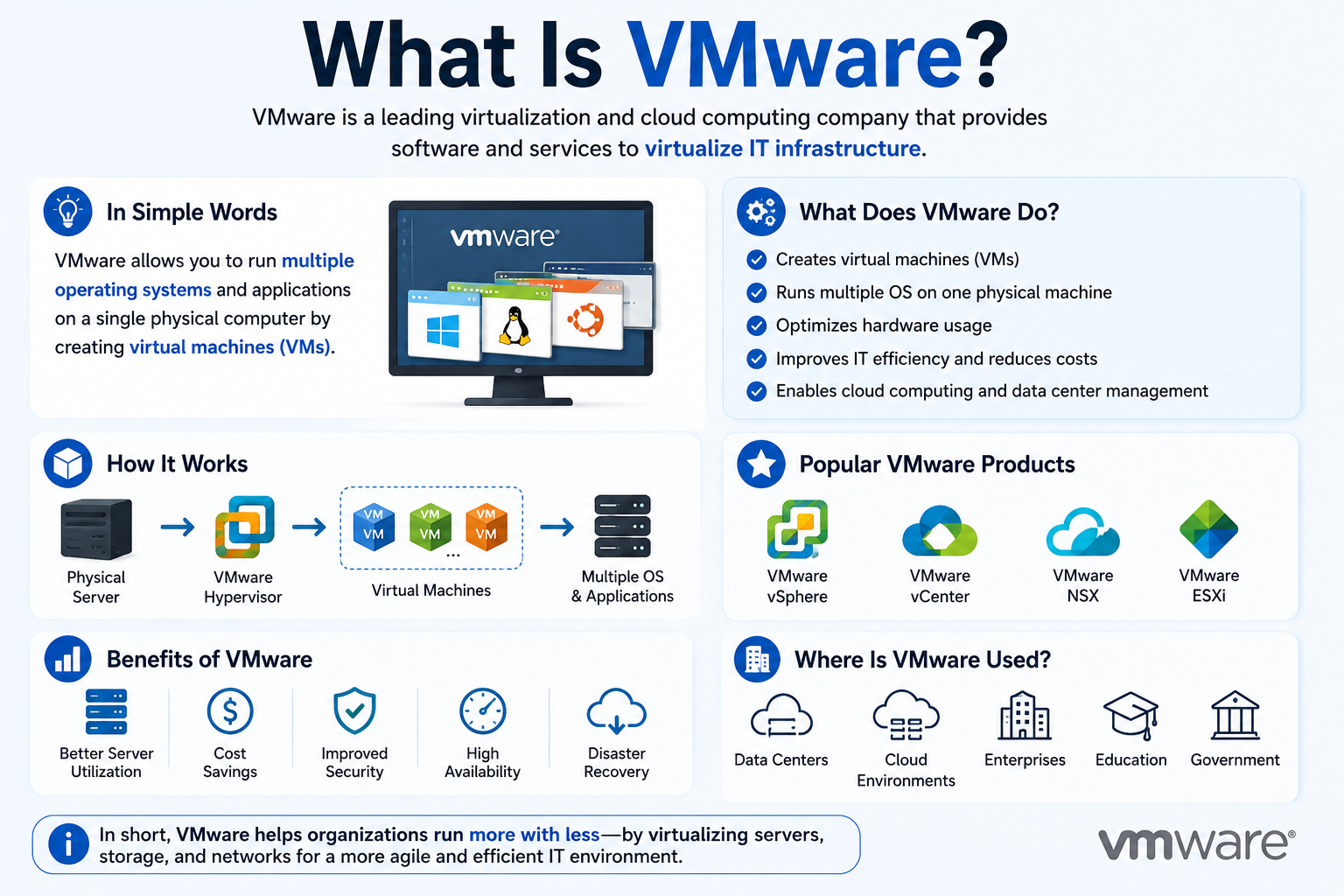
Introduction
If you have ever wondered how large companies run dozens of operating systems on a single physical server, the answer almost always involves virtualization. And when it comes to virtualization, one name consistently leads the conversation. VMware is the world’s most trusted virtualization platform, used by individuals, developers, IT professionals, and Fortune 500 enterprises alike. Understanding what VMware is can transform how you think about computing, infrastructure, and software testing in 2026.
Quick Answer
VMware is a virtualization software platform that allows users to run multiple operating systems simultaneously on a single physical computer. It creates isolated virtual machines, each behaving like a separate PC. VMware is widely used for software development, IT training, server management, cybersecurity labs, and enterprise data centers. It supports Windows, Linux, and macOS environments.
What Is VMware?
VMware is a software company and a virtualization platform that enables a single physical computer to run multiple operating systems at the same time. Each operating system runs inside an isolated environment called a virtual machine. VMware was founded in 1998 by Diane Greene, Mendel Rosenblum, Scott Devine, Edward Wang, and Edouard Bugnion in Palo Alto, California.
The company released its first product, VMware Workstation, in 1999. Since then, VMware has grown into one of the most influential technology companies in the world. Broadcom Inc. acquired VMware in November 2023, continuing its legacy as the dominant force in enterprise virtualization.
VMware offers a comprehensive portfolio of products. These include VMware Workstation Pro for desktop users, VMware ESXi for bare-metal server virtualization, VMware vSphere for enterprise cloud infrastructure, and VMware Fusion for macOS users. Each product serves a specific audience and purpose.
The reason VMware is so widely used comes down to reliability, performance, and depth of features. Businesses trust VMware to run critical workloads because it provides enterprise-grade stability. Developers love it because they can test software across different operating systems without needing multiple physical machines.
VMware Products Overview Table
| Product | Target Users | Platform | Primary Use |
|---|---|---|---|
| VMware Workstation Pro | Developers, IT pros | Windows, Linux | Desktop virtualization |
| VMware Fusion | Mac users | macOS | Run Windows/Linux on Mac |
| VMware ESXi | System administrators | Bare metal servers | Server virtualization |
| VMware vSphere | Enterprises | Data centers | Cloud infrastructure management |
| VMware Player (legacy) | Home users, beginners | Windows, Linux | Basic VM usage |
How Does VMware Work?
VMware works by creating a software layer between your physical hardware and the operating systems you want to run. This layer manages resources like CPU, RAM, storage, and networking. Think of it as a traffic manager directing computing power to multiple virtual environments at once.
Host Operating System
The host operating system is the primary OS installed on your physical computer. For example, if you run Windows 11 on your laptop, Windows 11 is your host OS. VMware installs and runs on top of the host operating system. The host OS manages the physical hardware resources directly.
Guest Operating System
The guest operating system is any OS you install inside a virtual machine. For example, you might run Ubuntu Linux as a guest OS while your host OS remains Windows 11. VMware allows multiple guest operating systems to run simultaneously. Each guest OS operates independently from the others.
Virtual Machine
A virtual machine is a software-based simulation of a physical computer. VMware creates a virtual machine by allocating a portion of your host computer’s CPU, RAM, and storage. The virtual machine behaves exactly like a real computer. You can install software, browse the internet, and configure settings inside it without affecting your host system.
Hypervisor
The hypervisor is the core engine that makes virtualization possible. VMware uses two types of hypervisors. A Type 1 hypervisor, like VMware ESXi, runs directly on bare-metal hardware without a host OS. A Type 2 hypervisor, like VMware Workstation Pro, runs on top of an existing host operating system. The hypervisor allocates hardware resources to each virtual machine efficiently.
Virtual Hardware
VMware provides each virtual machine with virtual hardware components. These include a virtual CPU, virtual RAM, virtual network adapters, and virtual storage drives. The guest operating system interacts with these virtual hardware components exactly as it would with physical hardware. This abstraction is what makes virtual machines so portable and flexible.
Virtual Networking
VMware creates virtual network adapters and virtual switches that allow virtual machines to communicate. You can configure three main network modes. Bridged networking connects the VM directly to your physical network. NAT networking shares the host computer’s IP address. Host-only networking creates a private network visible only between the host and guest machines.
VMware Products Explained
VMware offers several distinct products designed for different users and environments. Understanding each product helps you choose the right one for your needs.
VMware Workstation Pro
VMware Workstation Pro is the flagship desktop virtualization product for Windows and Linux users. It allows you to run multiple virtual machines simultaneously on a single PC. Workstation Pro is popular among software developers, IT professionals, security researchers, and advanced users. It supports a massive range of guest operating systems including Windows, Linux, FreeBSD, and Solaris.
As of 2024, Broadcom made VMware Workstation Pro free for personal use. This decision dramatically increased accessibility for students and home users. Commercial licenses are still available for businesses and enterprises.
VMware Fusion
VMware Fusion is designed specifically for macOS users. It allows Mac users to run Windows, Linux, and other operating systems alongside macOS. Fusion supports Apple Silicon chips, making it compatible with the latest MacBook Pro and MacBook Air models. Many Mac developers use Fusion to test their software on Windows environments without leaving their Mac.
VMware ESXi
VMware ESXi is a Type 1 bare-metal hypervisor. It installs directly onto a physical server without requiring an underlying operating system. ESXi is designed for enterprise data centers and server virtualization. System administrators use ESXi to host dozens or even hundreds of virtual machines on a single powerful server. It delivers maximum performance because no host OS overhead exists.
VMware vSphere
VMware vSphere is VMware’s flagship enterprise cloud infrastructure platform. It combines ESXi with vCenter Server to provide centralized management of entire virtualized environments. vSphere supports features like live migration of virtual machines, high availability, distributed resource scheduling, and enterprise-level security. Large corporations, universities, and government agencies rely on vSphere to manage their infrastructure.
VMware Player (Legacy Overview)
VMware Player was a free, simplified version of VMware Workstation designed for basic virtual machine usage. It allowed users to run pre-built virtual machines and create simple VMs without the advanced features of Workstation Pro. VMware Player has been effectively replaced by the free personal edition of VMware Workstation Pro. If you still see references to VMware Player, know that Workstation Pro now fulfills that role for free users.
Key Features of VMware
VMware Features Table
| Feature | Description |
|---|---|
| High-performance virtualization | Near-native performance for CPU and memory-intensive tasks |
| Snapshots | Save and restore VM states instantly |
| Cloning | Duplicate entire virtual machines quickly |
| Virtual networking | Bridged, NAT, and host-only network configurations |
| Shared folders | Share files seamlessly between host and guest OS |
| Multiple OS support | Run Windows, Linux, macOS, and more simultaneously |
| Drag and drop | Move files between host and guest with a simple drag |
| Shared clipboard | Copy and paste text between host and guest OS |
| USB device support | Connect USB devices directly to virtual machines |
| 3D graphics acceleration | DirectX and OpenGL support for graphics-intensive tasks |
| Encryption | AES-256 encryption for virtual machine files |
| Team collaboration | Share VM environments across development teams |
| VM templates | Create reusable VM templates for rapid deployment |
| Performance optimization | Fine-tune CPU, RAM, and disk allocation |
| Enterprise scalability | Scale from single VMs to thousands in data centers |
| Live migration | Move running VMs between hosts without downtime |
| High availability | Automatically restart VMs if a host fails |
| Distributed resource scheduling | Balance workloads automatically across servers |
| REST API support | Automate VM management with modern APIs |
| Cross-platform compatibility | Run on Windows, Linux, and macOS hosts |
| Thin provisioning | Allocate storage only as needed to save disk space |
| VM isolation | Keep guest environments completely separated from the host |
VMware’s snapshot feature deserves special attention. A snapshot captures the exact state of a virtual machine at a specific moment. If something goes wrong during software testing or system updates, you can instantly roll back to the saved snapshot. This feature saves enormous amounts of time for developers and system administrators.
The cloning feature is equally powerful. You can duplicate an entire virtual machine including its OS, applications, and configurations in minutes. This is incredibly useful for deploying identical testing environments or onboarding new team members quickly.
Benefits of VMware
VMware Benefits Checklist
- Run multiple operating systems on a single physical machine
- Eliminate the need for multiple physical computers
- Save significant hardware costs for businesses
- Test software safely without risking the host system
- Quickly recover from system failures using snapshots
- Deploy new virtual machines in minutes rather than hours
- Consolidate server infrastructure and reduce data center footprint
- Improve energy efficiency by reducing physical server count
- Simplify disaster recovery with VM backups and replication
- Enable remote work by providing access to virtual desktops
- Test cybersecurity scenarios without endangering real systems
- Support legacy software that no longer runs on modern hardware
- Reduce software licensing costs through server consolidation
- Speed up application development and testing cycles
- Provide consistent, reproducible development environments
- Enable IT training without needing dedicated physical hardware
- Scale infrastructure up or down based on demand
- Improve system uptime with high availability features
- Migrate workloads between servers without downtime
- Centralize management of complex IT environments
- Protect sensitive data with built-in VM encryption
- Support green IT initiatives by reducing power consumption
Common Uses of VMware
VMware serves an incredibly wide range of use cases across industries and skill levels.
Software Development: Developers use VMware to create isolated environments for writing, testing, and debugging applications. A developer can test an application on Windows 10, Windows 11, and Ubuntu Linux simultaneously without switching physical machines. This saves enormous time and reduces configuration headaches.
Operating System Testing: IT administrators and enthusiasts use VMware to test new operating systems safely. You can install a beta version of Windows or a new Linux distribution inside a VM without touching your main system. If something breaks, you simply delete the virtual machine.
Cybersecurity Labs: Security researchers and ethical hackers use VMware to build isolated lab environments. They can simulate attacks, test malware, and practice penetration testing techniques without risking real systems. The network isolation features make VMware ideal for this purpose.
IT Training: Organizations use VMware to train new IT staff. Trainees can practice configuring servers, managing networks, and troubleshooting issues inside virtual machines. Mistakes inside a VM carry no real-world consequences.
Cloud Infrastructure: VMware vSphere and ESXi power private cloud infrastructure for thousands of enterprises globally. Companies build their own cloud environments on VMware rather than relying entirely on public cloud providers.
Server Virtualization: Businesses consolidate multiple physical servers into virtual machines running on fewer, more powerful hosts. A single enterprise server might host 20 to 30 virtual machines simultaneously. This dramatically reduces hardware costs and energy consumption.
Education: Universities and technical schools use VMware to give students hands-on experience with different operating systems and network configurations. Students can experiment freely without damaging shared physical equipment.
Enterprise Data Centers: Large organizations run their entire IT infrastructure on VMware. Banks, hospitals, government agencies, and technology companies rely on VMware for mission-critical workloads every day.
Application Testing: Quality assurance teams use VMware to test applications across different OS versions and configurations. This ensures software works correctly in all supported environments before release.
Legacy Software Support: Some businesses still need software that only runs on older operating systems. VMware allows them to run legacy applications inside a Windows XP or Windows 7 virtual machine on modern hardware without security risks to their main infrastructure.
System Requirements for VMware
Hardware Requirements
VMware Workstation Pro requires a 64-bit x86 Intel or AMD processor manufactured after 2011. Your processor must support hardware virtualization technology. For Intel processors, this means Intel VT-x. For AMD processors, this means AMD-V. Most modern processors support these features, but you may need to enable them in your system BIOS settings.
Supported Operating Systems
VMware Workstation Pro supports the following host operating systems. On Windows, it supports Windows 10, Windows 11, and Windows Server 2016, 2019, and 2022. On Linux, it supports major distributions including Ubuntu, Debian, Fedora, Red Hat Enterprise Linux, and CentOS. As a guest OS, VMware supports over 200 operating systems including all major Windows versions, hundreds of Linux distributions, and various Unix systems.
RAM Recommendations
Your physical machine should have a minimum of 4 GB of RAM to run VMware, but 8 GB is the practical minimum for a comfortable experience. If you plan to run multiple virtual machines simultaneously, 16 GB or 32 GB of RAM is strongly recommended. Assign at least 2 GB of RAM per virtual machine for basic tasks, and 4 GB or more for development workloads.
Storage Requirements
VMware Workstation Pro itself requires approximately 1.5 GB of disk space for installation. Each virtual machine you create will require additional storage depending on the guest OS and installed applications. A basic Linux VM requires 20 to 40 GB. A Windows 11 VM needs at least 60 to 80 GB for comfortable operation. Always use fast SSD storage for the best virtual machine performance.
CPU Virtualization Support
Hardware virtualization must be enabled in your computer’s BIOS or UEFI settings. Look for settings labeled Intel VT-x, Intel Virtualization Technology, AMD-V, or AMD SVM. Enabling hardware virtualization dramatically improves virtual machine performance. Without it, VMware Workstation may refuse to start 64-bit virtual machines entirely.
How to Download and Install VMware
Download VMware
Visit the official VMware website at vmware.com to download VMware Workstation Pro. Navigate to the Products section and select Workstation Pro. Choose the correct version for your operating system, either Windows or Linux. As of 2024, personal use is free, so you can download and activate it without purchasing a license for non-commercial purposes.
Install on Windows
Run the downloaded installer file with administrator privileges. Accept the end-user license agreement. Choose your installation directory or use the default path. Select whether you want to check for product updates automatically. Complete the installation and restart your computer if prompted. After restarting, launch VMware Workstation Pro from your desktop or Start menu.
Install on Linux
On Linux, VMware Workstation Pro downloads as a .bundle file. Open your terminal and navigate to the download directory. Make the file executable by running the chmod +x command followed by the filename. Then run the installer with sudo privileges. Follow the on-screen prompts to complete the installation. You may need to install required kernel headers and build tools before installation succeeds on some Linux distributions.
Create Your First Virtual Machine
Open VMware Workstation Pro and click the “Create a New Virtual Machine” option. Choose the Typical configuration for most users. Select your guest OS installation media, either a physical disc or an ISO image file. Choose your guest operating system type from the list. Assign a name, storage location, RAM, and disk space to your VM. Click Finish and then power on your virtual machine to begin the OS installation process.
Install VMware Tools
After installing your guest OS, always install VMware Tools immediately. VMware Tools is a package of drivers and utilities that dramatically improves virtual machine performance. It enables features like shared folders, drag-and-drop file transfer, shared clipboard, improved graphics resolution, and better mouse integration. Inside your running VM, go to the VMware menu and select “Install VMware Tools,” then follow the prompts inside your guest OS.
VMware vs VirtualBox
Both VMware and VirtualBox are popular virtualization platforms, but they serve different audiences and excel in different areas.
VMware vs VirtualBox Comparison Table
| Feature | VMware Workstation Pro | Oracle VirtualBox |
|---|---|---|
| Price | Free (personal), paid (commercial) | Completely free, open-source |
| Performance | Excellent, near-native speed | Good, slightly lower performance |
| Ease of use | Polished, professional UI | Functional but less refined |
| Snapshots | Advanced, multiple snapshot trees | Available but more basic |
| 3D graphics support | Superior DirectX and OpenGL support | Limited 3D acceleration |
| Enterprise features | Extensive enterprise tools | Minimal enterprise features |
| USB 3.0 support | Built-in | Requires Extension Pack |
| Guest OS support | 200+ operating systems | 100+ operating systems |
| Shared folders | Seamless and reliable | Available, occasional sync issues |
| Host OS support | Windows and Linux | Windows, Linux, macOS, Solaris |
| API and automation | Full REST API, CLI support | Limited automation tools |
| Best for | Developers, IT pros, businesses | Students, beginners, home users |
| Community support | Professional support available | Large open-source community |
| Stability | Extremely stable | Generally stable |
For Students: VirtualBox is often the better starting point because it costs nothing and covers basic virtualization needs. However, VMware Workstation Pro is now free for personal use, which makes it a strong choice even for students.
For Developers: VMware Workstation Pro wins clearly. Its superior snapshot management, better 3D performance, and more reliable shared folder behavior make it the preferred tool for professional development environments.
For Businesses: VMware is the obvious choice. Its enterprise ecosystem, professional support, and integration with vSphere and vCenter make it purpose-built for corporate environments.
For IT Professionals: VMware is the industry standard. Learning VMware is a career-relevant skill because most enterprises run VMware infrastructure.
For Home Users: Either platform works well for casual use. VirtualBox’s completely free and open-source nature makes it attractive, but VMware Workstation Pro’s free personal license makes both equally accessible today.
VMware vs Microsoft Hyper-V
VMware vs Hyper-V Comparison Table
| Feature | VMware Workstation Pro / ESXi | Microsoft Hyper-V |
|---|---|---|
| Type | Type 2 (Workstation), Type 1 (ESXi) | Type 1 hypervisor |
| Price | Free (personal), licensed (enterprise) | Free with Windows Server |
| Performance | Excellent across all workloads | Excellent for Windows VMs |
| Linux VM support | Excellent | Good but less optimized |
| Management UI | VMware vCenter, Workstation UI | Hyper-V Manager, Windows Admin Center |
| Live migration | vMotion (VMware) | Live Migration (Hyper-V) |
| Snapshot support | Advanced | Available but more limited |
| Best host OS | Windows, Linux, bare metal | Windows only |
| Enterprise scale | Industry-leading | Strong Microsoft integration |
| Cloud integration | VMware Cloud on AWS, Azure | Azure Arc, Azure Stack |
| Licensing complexity | Complex but comprehensive | Simpler with Windows Server |
| Community knowledge | Extensive global community | Growing Microsoft ecosystem |
| Best for | Multi-platform enterprise environments | Microsoft-centric organizations |
VMware clearly outperforms Hyper-V in multi-platform and Linux-heavy environments. However, organizations already deeply invested in the Microsoft ecosystem may find Hyper-V simpler to manage and license. Both platforms deliver enterprise-grade reliability for their respective audiences.
Common VMware Problems and Solutions
VMware Not Starting: This issue usually occurs because hardware virtualization is disabled in the BIOS. Enter your system BIOS or UEFI settings during boot and enable Intel VT-x or AMD-V. Also check that no conflicting software like Microsoft Hyper-V or Windows Sandbox is running simultaneously, as these can conflict with VMware’s hypervisor.
Slow Virtual Machines: Sluggish VM performance typically results from insufficient RAM or CPU allocation. Increase the RAM and number of CPU cores assigned to the virtual machine through the VM settings. Also ensure you are using SSD storage rather than a traditional spinning hard drive, as disk speed significantly impacts VM performance.
Network Problems: If your virtual machine cannot connect to the internet, check the network adapter settings. Try switching between bridged, NAT, and host-only modes to find the one that works for your network setup. You can also use VMware’s Virtual Network Editor to reset and reconfigure virtual network settings.
USB Device Issues: If VMware does not recognize connected USB devices, ensure USB controller support is enabled in the VM’s hardware settings. Also confirm that the USB device is connected to the VM rather than the host by using the VM menu to reassign the device. Some USB 3.0 devices require USB 3.1 controller support enabled in VM settings.
Display Problems: Poor display quality or incorrect resolution usually resolves after installing VMware Tools. Without VMware Tools, the guest OS cannot communicate properly with VMware’s virtual graphics adapter. Install VMware Tools first, then adjust screen resolution settings inside the guest OS.
VMware Tools Installation Errors: If VMware Tools fails to install, first ensure the VM is running and that you have administrative privileges inside the guest OS. On Linux, check that required build dependencies like gcc, make, and kernel headers are installed. Alternatively, use the open-vm-tools package available in most Linux distribution repositories as a modern replacement.
Best Practices for Using VMware
VMware Best Practices Checklist
- Always enable hardware virtualization in BIOS before installing VMware
- Install VMware Tools in every guest OS immediately after OS installation
- Allocate no more than 50% of your total RAM to virtual machines
- Use SSD storage for virtual machine disk files whenever possible
- Take a snapshot before making any major changes to a virtual machine
- Organize snapshots with descriptive names and dates for easy navigation
- Delete old snapshots regularly to reclaim disk space
- Use linked clones for development environments to save storage
- Keep VMware Workstation Pro updated to the latest version
- Enable 3D acceleration only for VMs that need it to avoid overhead
- Use bridged networking when VMs need full network access
- Use host-only networking for isolated lab environments
- Back up virtual machine files to an external drive or network storage regularly
- Suspend VMs instead of shutting them down if you need to resume work quickly
- Assign dedicated CPU cores to high-performance virtual machines
- Monitor host system resources to prevent overcommitting CPU and RAM
- Use VM templates to deploy consistent environments rapidly
- Compress and archive VMs you no longer use actively
- Test applications in a clean snapshot state to ensure reproducible results
- Avoid running antivirus inside the VM while antivirus runs on the host simultaneously
- Use the VMware vSphere Client for managing ESXi hosts in enterprise environments
- Document your VM configurations so team members can replicate environments
Frequently Asked Questions
What is VMware?
VMware is a virtualization software platform that allows a single physical computer to run multiple operating systems simultaneously through isolated virtual machines. It was founded in 1998 and is now owned by Broadcom Inc. VMware products range from desktop tools like Workstation Pro to enterprise platforms like vSphere and ESXi.
Is VMware free?
VMware Workstation Pro became free for personal use in 2024 following Broadcom’s acquisition of VMware. Commercial use still requires a paid license. VMware ESXi has also offered free versions historically, though licensing terms have changed. Always check the official VMware website for current pricing and licensing information.
What is VMware Workstation?
VMware Workstation Pro is a Type 2 desktop hypervisor that runs on Windows and Linux host operating systems. It allows users to create and run multiple virtual machines with different guest operating systems. Workstation Pro is the most popular VMware product for developers, IT professionals, and power users.
VMware vs VirtualBox: Which is better?
VMware Workstation Pro generally delivers better performance, more reliable features, and a more polished user interface compared to VirtualBox. VirtualBox is completely open-source and supports more host operating systems. For professional use and development work, VMware is the stronger choice. For casual home use or learning on a budget, both are now equally free for personal use.
VMware vs Hyper-V: Which should I choose?
VMware offers superior cross-platform support and more advanced enterprise features. Hyper-V integrates seamlessly with Windows Server and Microsoft ecosystems. Choose VMware if you manage diverse workloads across Windows and Linux. Choose Hyper-V if your organization runs primarily Microsoft infrastructure and already holds Windows Server licenses.
Is VMware safe?
Yes, VMware is extremely safe when downloaded from the official VMware website. Virtual machines run in isolation from the host system. Malware executed inside a VM generally cannot escape to the host system. Security researchers specifically use VMware to analyze malware safely. Always keep VMware updated to benefit from the latest security patches.
Can VMware run Windows 11?
Yes, VMware Workstation Pro fully supports Windows 11 as a guest operating system. It provides a TPM 2.0 virtual chip that satisfies Windows 11’s security requirements. You can install and run Windows 11 inside a VM even on host machines that do not natively meet Windows 11 hardware requirements.
Can VMware run Linux?
Absolutely. VMware supports hundreds of Linux distributions as both host and guest operating systems. Ubuntu, Fedora, Debian, CentOS, Red Hat Enterprise Linux, and many others install and run excellently inside VMware virtual machines. Linux is one of the most commonly used guest operating systems in VMware environments.
What is VMware Tools?
VMware Tools is a package of drivers and utilities that installs inside a guest operating system to improve virtual machine performance and integration. It enables features like drag-and-drop file transfer, shared clipboard, automatic screen resizing, shared folders, and significantly improved graphics performance. You should always install VMware Tools after setting up any new virtual machine.
Can beginners use VMware?
Yes, beginners can absolutely use VMware. VMware Workstation Pro includes a guided virtual machine creation wizard that makes setup straightforward. The interface is intuitive, and extensive documentation and community resources are available. Starting with a simple Linux or Windows VM is an excellent way for beginners to learn virtualization concepts.
Does VMware slow down a PC?
VMware itself uses minimal resources when no virtual machines are running. Running active virtual machines does consume CPU, RAM, and disk resources from your host system. With sufficient hardware, the impact on your host system is minimal. Running VMware on a machine with less than 8 GB of RAM may result in noticeable slowdowns.
How much RAM should I assign to a virtual machine?
For a basic Linux VM, assign 2 GB of RAM. For a Windows 10 or Windows 11 VM, assign at least 4 GB. For development workloads or running applications inside a VM, 8 GB is more comfortable. Never assign more than 50 to 60 percent of your total physical RAM to virtual machines to keep the host system responsive.
What is a virtual machine?
A virtual machine is a software-based simulation of a physical computer. VMware creates virtual machines by allocating CPU, RAM, storage, and networking resources from the host system. The virtual machine runs a complete operating system and applications exactly like a physical computer. Multiple virtual machines can run simultaneously on a single host.
Is VMware good for businesses?
VMware is excellent for businesses of all sizes. Small businesses benefit from running multiple server workloads on fewer physical machines. Large enterprises use VMware vSphere to manage thousands of virtual machines across global data centers. VMware reduces hardware costs, improves resource efficiency, simplifies disaster recovery, and enables flexible IT infrastructure management.
Is VMware worth using in 2026?
VMware remains one of the most valuable tools in the IT industry in 2026. Its reliability, performance, and comprehensive feature set make it irreplaceable in enterprise environments. For developers and IT professionals, VMware skills are highly marketable. With Workstation Pro now free for personal use, there is virtually no barrier to getting started. VMware is absolutely worth using.
Final Thoughts
VMware stands as the most trusted and widely deployed virtualization platform in the world for good reason. It combines exceptional performance, a rich feature set, and enterprise-grade reliability into a platform that serves everyone from beginners installing their first virtual machine to architects managing thousands of VMs across global data centers. Understanding what VMware is and how it works gives you a significant advantage in today’s technology-driven world.
Whether you are a student learning about operating systems, a developer needing consistent testing environments, an IT professional managing server infrastructure, or a business looking to reduce hardware costs and improve flexibility, VMware delivers exactly what you need. The fact that VMware Workstation Pro is now free for personal use removes the last remaining barrier for individuals wanting to explore virtualization.
VMware continues to evolve under Broadcom’s ownership with new features, tighter cloud integrations, and improved automation capabilities. Its dominance in enterprise virtualization remains unchallenged, and its relevance in 2026 is stronger than ever. If you have not yet explored VMware, now is the perfect time to download it and create your first virtual machine.
References
- VMware by Broadcom. (2024). VMware Official Website. https://www.vmware.com
- VMware Documentation Center. (2024). VMware Product Documentation. https://docs.vmware.com
- VMware by Broadcom. (2024). VMware Workstation Pro. https://www.vmware.com/products/workstation-pro.html
Technology Disclaimer
This article is for educational and informational purposes only. VMware and related trademarks belong to Broadcom Inc. Features, licensing, compatibility, and system requirements may change over time. Always download VMware products from the official VMware website and consult the official documentation for the latest guidance.