
 By saman zahra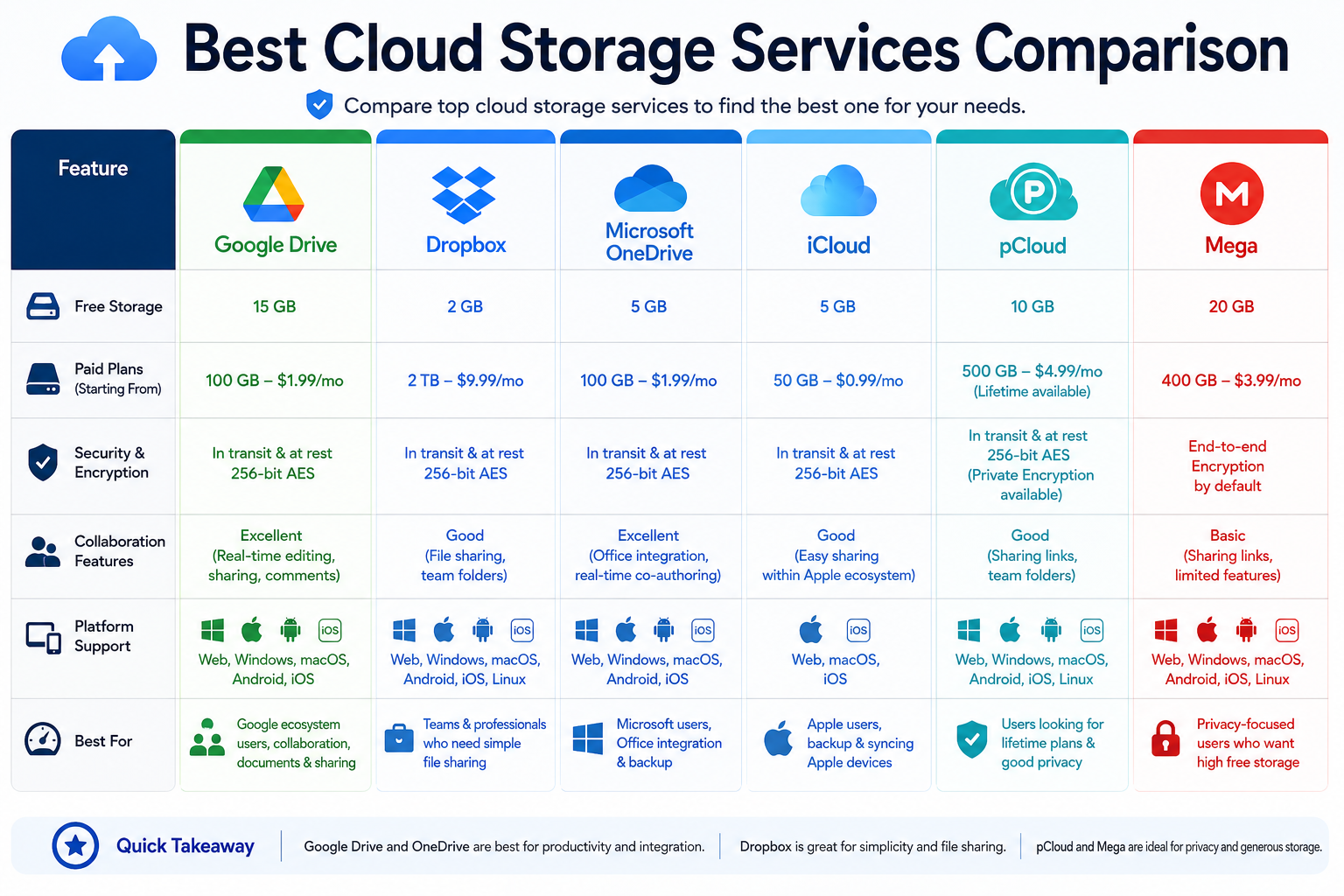
Introduction
Not long ago, people carried USB drives and external hard drives everywhere just to access their files. Today, the best cloud storage services have completely changed how we store, share, and protect our digital lives. Whether you are a student saving lecture notes, a photographer backing up thousands of images, or a business team collaborating on shared documents, cloud storage has become as essential as the devices we use every day.
The demand for reliable online file storage has exploded in recent years. With remote work, digital content creation, and cross-device workflows becoming the norm, people need secure and accessible storage solutions that follow them wherever they go. Choosing the wrong service, however, can cost you time, money, and in some cases, your most important data.
In this comprehensive comparison, we review the top cloud storage services available in 2026. We break down their features, security, pricing tiers, strengths, and weaknesses so you can confidently pick the right one for your specific needs.
Quick Answer (Featured Snippet)
The best cloud storage services in 2026 include Google Drive, Microsoft OneDrive, Dropbox, Apple iCloud Drive, MEGA, pCloud, and Sync.com. Google Drive suits most general users, OneDrive is ideal for Microsoft 365 users, and MEGA or Sync.com are best for privacy-focused individuals. The right choice depends on your storage needs, budget, security requirements, and preferred devices.
What Is Cloud Storage?
Definition
Cloud storage is a technology that allows you to save files, documents, photos, and videos on remote servers maintained by a third-party provider. Instead of storing data on your local device or a physical drive, you upload your files to the provider’s data centers over the internet. You can then access those files from any device with an internet connection and your login credentials.
Think of cloud storage as a massive digital warehouse that someone else builds, maintains, and secures for you. All you need is an account and a connection to retrieve your files from anywhere in the world.
How Cloud Storage Works
When you save a file to a cloud storage service, your device sends that file over an encrypted internet connection to a remote server. The provider stores redundant copies of your data across multiple data centers to prevent loss. When you need the file again, the service retrieves it and delivers it back to your device almost instantly.
Most cloud storage services provide a desktop app that syncs a local folder on your computer to the cloud automatically. This means any file you drop into that folder is uploaded and kept current across all your connected devices without any manual effort.
Benefits of Cloud Storage
Cloud storage offers several compelling advantages over traditional local storage. First, it protects your data from physical device failure, theft, or accidental damage since your files live on remote servers. Second, it enables seamless access from multiple devices including laptops, smartphones, and tablets simultaneously.
Additionally, most cloud storage platforms include file sharing features that allow you to send large files to others without email attachment size limits. Many services also provide version history, which lets you recover earlier versions of files after accidental edits or deletions.
Common Use Cases
Students use cloud storage to keep assignments, notes, and research materials accessible from their home computer and school laptop. Businesses use it to store shared project files, contracts, and financial records that teams access collaboratively. Photographers and video creators upload large media files to the cloud for backup and easy delivery to clients.
How We Compared These Cloud Storage Services
Choosing between cloud storage providers requires evaluating several important factors. Here is exactly how we assessed each service in this comparison.
Storage Capacity: We looked at how much free storage each provider offers and how generous their paid plan tiers are relative to their cost.
Security and Privacy: We evaluated whether each service uses end-to-end encryption, zero-knowledge architecture, two-factor authentication, and how they handle user data privacy policies.
File Sharing: We assessed how easy and flexible each service makes it to share individual files or entire folders with other users, both inside and outside the platform.
Collaboration Features: We considered whether the service supports real-time document editing, commenting, and team workspace features within the platform.
Cross-Platform Support: We checked whether each service works on Windows, macOS, iOS, Android, Linux, and web browsers without significant limitations.
Ease of Use: We evaluated the user interface quality, setup simplicity, and how quickly a first-time user can start uploading and organizing files.
Pricing: We compared free tier generosity and the value offered across each provider’s paid subscription tiers without citing specific prices that may change.
Customer Support: We considered the quality of available support channels including live chat, email, help center documentation, and community forums.
Best Cloud Storage Services in 2026
Google Drive
Google Drive is the most widely used cloud storage platform in the world, and it is easy to understand why. Every Google account comes with a generous 15 GB of free storage shared across Gmail, Google Photos, and Drive. For most casual users, this amount covers everyday storage needs comfortably without spending a penny.
Drive integrates seamlessly with Google Workspace apps including Google Docs, Sheets, Slides, and Forms. This makes it the natural choice for anyone already working within the Google ecosystem. Files created in Google Docs format do not even count against your storage limit, which adds further value to the free tier.
Google Drive supports real-time collaboration, allowing multiple users to edit the same document simultaneously. Its powerful search function, powered by Google’s own search technology, can find files by name, content, and even text within scanned images using optical character recognition.
Pros:
- Generous free storage tier
- Excellent collaboration tools through Google Workspace integration
- Powerful AI-powered search across all files
- Available on every major platform and browser
- Integrates with thousands of third-party apps
Cons:
- Free storage is shared with Gmail and Google Photos, which fills up quickly
- Standard Google Drive does not offer end-to-end encryption by default
- Privacy-conscious users may have concerns about Google’s data practices
Best For: Students, general users, teams using Google Workspace, and anyone who already has a Google account.
Microsoft OneDrive
Microsoft OneDrive is deeply embedded into the Windows operating system, making it the default cloud storage choice for hundreds of millions of Windows users worldwide. Every Microsoft account includes free storage, and subscribers to Microsoft 365 receive substantially more storage alongside full access to the Office application suite.
OneDrive’s tightest integration point is with Microsoft Office applications. When you save a Word document, Excel spreadsheet, or PowerPoint presentation directly to OneDrive, it enables real-time co-authoring, AutoSave, and version history automatically. For users who live and work inside the Microsoft ecosystem, this integration feels completely seamless.
OneDrive also offers a Personal Vault feature, which adds an extra layer of security to sensitive files using identity verification such as a fingerprint scan or authentication app. This makes it particularly appealing for users who store financial documents or personal identification files in the cloud.
Pros:
- Built directly into Windows 10 and Windows 11
- Excellent integration with Microsoft 365 and Office apps
- Personal Vault adds strong protection for sensitive files
- Real-time collaboration on Office documents
- Available across Windows, macOS, iOS, Android, and web
Cons:
- Free tier storage is relatively modest for heavy users
- Best value is only realized when paired with a Microsoft 365 subscription
- Desktop sync client can occasionally consume significant system resources
Best For: Windows users, Microsoft 365 subscribers, businesses already using Microsoft tools, and remote teams collaborating on Office documents.
Dropbox
Dropbox was one of the original pioneers of consumer cloud storage, and it remains one of the most polished and reliable services available today. Its desktop sync client is widely regarded as the gold standard for folder synchronization speed and reliability. Files sync almost instantly across devices, and the interface stays clean and intuitive even for first-time users.
Dropbox’s free tier is considerably smaller than Google Drive’s, which has pushed many individual users toward competitors over the years. However, Dropbox compensates with exceptional third-party app integrations, connecting with tools like Slack, Zoom, Adobe, and thousands of other business applications through its Dropbox Extensions feature.
Dropbox Paper, the platform’s built-in collaborative document tool, provides a clean writing environment where teams can collaborate on notes, meeting agendas, and project briefs. Additionally, Dropbox’s version history allows users to recover deleted files and previous file versions within a set window, depending on the plan.
Pros:
- Industry-leading sync speed and reliability
- Excellent third-party app integrations
- Clean, intuitive interface that is easy to learn
- Strong team collaboration features on business plans
- Available on all major platforms including Linux
Cons:
- Very limited free storage compared to competitors
- Pricing is higher than many alternatives for comparable storage
- Does not offer end-to-end encryption by default on standard plans
Best For: Business teams, professionals who value sync reliability, users of tools like Slack and Zoom, and organizations that need strong workflow integrations.
Apple iCloud Drive
Apple iCloud Drive is the default cloud storage solution for Apple device users, built directly into macOS, iOS, and iPadOS. Every Apple ID includes a small amount of free storage shared across iCloud Backup, iCloud Photos, and iCloud Drive. Users can upgrade their storage through iCloud+ subscription plans.
iCloud Drive works silently in the background, automatically backing up iPhone and iPad data, syncing the Desktop and Documents folders on Mac, and keeping app data consistent across all Apple devices. For users deeply invested in the Apple ecosystem, this level of integration is unmatched by any third-party service.
However, iCloud Drive’s appeal drops significantly outside of Apple devices. The Windows client exists but lacks the smooth experience of the Mac version. Android support is virtually nonexistent without workarounds. Users who regularly switch between Apple and non-Apple devices may find iCloud Drive limiting.
Pros:
- Seamless integration with all Apple devices and operating systems
- Automatic iPhone and iPad backup built in
- Easy to set up with no technical knowledge required
- iCloud+ includes privacy features like Hide My Email and Private Relay
Cons:
- Limited usability outside the Apple ecosystem
- Free storage tier is quite small
- Less suitable for cross-platform business environments
- Windows app experience is noticeably inferior to the Mac version
Best For: Apple device users, iPhone and iPad owners who want automatic backup, families using multiple Apple devices, and anyone fully invested in the Apple ecosystem.
MEGA
MEGA stands out from most cloud storage providers by offering an exceptionally generous free storage tier, making it one of the most attractive options for budget-conscious users. MEGA was founded with a strong emphasis on privacy and security, and it remains one of the few mainstream cloud storage services that provides true end-to-end encryption on all stored files by default.
This zero-knowledge encryption approach means that MEGA itself cannot see your files because only you hold the encryption keys. For users who store sensitive personal, medical, legal, or financial documents, this level of privacy is extremely valuable. MEGA also provides encrypted chat and file transfer features, further reinforcing its security-first approach.
On the collaboration side, MEGA is more limited than Google Drive or Dropbox. It lacks built-in document editing tools and has fewer third-party integrations. However, for users whose primary concern is storing and sharing files privately and securely, MEGA delivers excellent value at every price point.
Pros:
- End-to-end encryption on all files by default
- Very generous free storage tier
- Strong privacy and zero-knowledge architecture
- Available on Windows, macOS, Linux, iOS, and Android
- Encrypted chat and file transfer features
Cons:
- Limited collaboration and document editing tools
- Free storage can reduce over time based on account activity
- Fewer third-party integrations than competitors
- Interface feels less polished than Google Drive or Dropbox
Best For: Privacy-focused users, journalists, activists, healthcare professionals, and anyone who prioritizes end-to-end encrypted cloud storage above all else.
pCloud
pCloud is a Swiss-based cloud storage provider that has built a strong reputation for privacy, security, and flexible pricing. One of pCloud’s most distinctive offerings is its lifetime plan option, which allows users to pay a single one-time fee for permanent cloud storage. For users who dislike ongoing subscription costs, this is a genuinely compelling alternative to the monthly billing models of most competitors.
pCloud offers optional client-side encryption through an add-on called pCloud Crypto, which provides zero-knowledge encryption for a specific protected folder. Standard file storage uses server-side encryption, which is secure but means pCloud technically has access to your files unless you enable Crypto.
pCloud’s media playback features make it particularly well-suited for photographers and video creators. The platform includes a built-in media player that streams videos and audio directly from the cloud without downloading them first. It also provides extended version history on higher-tier plans, allowing users to recover older file versions over a longer period.
Pros:
- Lifetime plan option eliminates recurring subscription fees
- Built-in media player for videos and audio files
- Optional zero-knowledge encryption with pCloud Crypto
- Servers based in the United States and Europe for data residency choice
- Generous file version history on paid plans
Cons:
- Zero-knowledge encryption requires an additional paid add-on
- Free storage is moderate compared to MEGA’s free tier
- Fewer collaboration tools than Google Drive or OneDrive
- Less name recognition may concern enterprise users
Best For: Photographers, video creators, privacy-conscious individuals, and anyone who prefers a one-time payment over ongoing subscriptions.
Sync.com
Sync.com is a Canadian cloud storage provider that places privacy and security at the absolute center of its product. Like MEGA, Sync.com uses end-to-end encryption by default on all stored files. This zero-knowledge approach ensures that not even Sync.com employees can access your data. The platform also complies with PIPEDA, GDPR, and HIPAA, making it particularly suitable for regulated industries.
Sync.com offers a usable free tier and competitive paid plans that include file sharing, team collaboration features, and version history with deleted file recovery. Its Team and Business plans add admin controls, user management, and centralized billing for organizations.
The trade-off with Sync.com is that its collaboration and integration ecosystem is considerably smaller than Google Drive or OneDrive. It does not include built-in document editing tools, so users need separate software to create and edit files. However, for users who simply need a highly private, encrypted cloud vault for storing and sharing sensitive documents, Sync.com is one of the best options available.
Pros:
- End-to-end encryption with zero-knowledge architecture by default
- HIPAA, GDPR, and PIPEDA compliant
- Solid file sharing and team collaboration features
- Available on Windows, macOS, iOS, Android, and web
- Competitive pricing for privacy-first storage
Cons:
- No built-in document editing tools
- Smaller integration ecosystem than major competitors
- Collaboration features are less advanced than Google Drive or Dropbox
- Less well-known outside privacy-focused communities
Best For: Healthcare professionals, lawyers, accountants, privacy-focused businesses, and anyone handling sensitive or regulated data that requires zero-knowledge encryption.
Cloud Storage Services Comparison Table
| Service | Free Storage | End-to-End Encryption | Version History | Collaboration Tools | Platform Support | Best Use Case |
|---|---|---|---|---|---|---|
| Google Drive | 15 GB | No (by default) | 30 days | Excellent | All platforms | General use, teams, students |
| Microsoft OneDrive | Limited | No (by default) | 30 days | Excellent | All platforms | Microsoft 365 users, businesses |
| Dropbox | Very limited | No (by default) | 30–180 days | Good | All + Linux | Business teams, professionals |
| Apple iCloud Drive | Very limited | Partial | Limited | Limited | Apple-focused | Apple ecosystem users |
| MEGA | Very generous | Yes (default) | Limited | Limited | All platforms | Privacy-focused users |
| pCloud | Moderate | Optional (paid add-on) | Up to 365 days | Limited | All platforms | Photographers, video creators |
| Sync.com | Moderate | Yes (default) | Yes | Moderate | All platforms | Regulated industries, privacy users |
Which Cloud Storage Service Is Best?
The right cloud storage service depends entirely on your situation, priorities, and how you plan to use it. Here is a breakdown of the best choice for each type of user.
Best Cloud Storage by User Type
| User Type | Recommended Service | Why |
|---|---|---|
| Students | Google Drive | Free 15 GB, excellent collaboration, Google Classroom integration |
| Businesses | Microsoft OneDrive | Microsoft 365 integration, team collaboration, enterprise security |
| Freelancers | Dropbox or pCloud | Reliable sync, professional file sharing, client delivery |
| Photographers | pCloud | Built-in media viewer, generous storage, lifetime plan option |
| Video Creators | Google Drive or pCloud | Large file storage, easy sharing with clients |
| Families | Apple iCloud Drive or Google Drive | Easy device syncing, photo backup, simple interface |
| Privacy-Focused Users | MEGA or Sync.com | End-to-end encryption, zero-knowledge architecture |
| Remote Teams | Google Drive or Microsoft OneDrive | Real-time collaboration, strong admin controls |
| Healthcare and Legal | Sync.com | HIPAA compliance, zero-knowledge encryption |
Cloud Storage Security Tips
Keeping your cloud storage secure requires more than choosing a good provider. Here are more than 20 practical tips to protect your files effectively.
Cloud Storage Security Checklist
| Security Tip | Why It Matters |
|---|---|
| Use a strong, unique password for your account | Prevents brute force and credential stuffing attacks |
| Enable Multi-Factor Authentication (MFA) | Blocks unauthorized access even if your password is stolen |
| Choose services with end-to-end encryption | Ensures only you can read your stored files |
| Encrypt sensitive files before uploading | Adds protection on top of the provider’s security measures |
| Use a password manager to store credentials safely | Reduces the risk of weak or reused passwords |
| Review sharing permissions regularly | Prevents old shared links from exposing files unintentionally |
| Revoke access for apps you no longer use | Reduces third-party access to your cloud account |
| Never share your login credentials with anyone | Eliminates the most common source of account compromise |
| Avoid accessing cloud storage on public computers | Prevents session hijacking and credential theft |
| Always use a trusted VPN on public Wi-Fi | Encrypts your connection and prevents interception |
| Enable version history on your account | Allows recovery from ransomware attacks and accidental deletions |
| Monitor account activity and login logs | Detects suspicious sign-ins from unknown locations or devices |
| Log out of cloud accounts on shared devices | Prevents unauthorized access by the next person using the device |
| Keep your device operating system updated | Patches security vulnerabilities that attackers could exploit |
| Enable remote wipe on connected mobile devices | Protects cloud data if your phone or tablet is lost or stolen |
| Review your privacy settings quarterly | Ensures your data sharing preferences remain appropriate |
| Back up your cloud storage to a second service | Protects against provider outages or account suspension |
| Use a dedicated email address for cloud accounts | Reduces phishing risk from known cloud storage email addresses |
| Set expiry dates on shared file links | Automatically revokes public access after a specified period |
| Enable login notifications and alerts | Sends immediate warnings when someone accesses your account |
| Choose providers compliant with GDPR or HIPAA | Ensures your data is handled according to legal privacy standards |
| Avoid storing unencrypted passwords in cloud folders | Prevents credential exposure if your storage account is breached |
Cloud Storage vs Cloud Backup
Many people use the terms cloud storage and cloud backup interchangeably, but they serve distinctly different purposes. Understanding the difference helps you build a smarter data protection strategy.
Cloud Storage vs Cloud Backup Comparison Table
| Feature | Cloud Storage | Cloud Backup |
|---|---|---|
| Primary Purpose | Store and access files from any device | Protect and restore data after loss or damage |
| File Access | On-demand, real-time access | Restoration when needed, not daily access |
| Sync Behavior | Syncs changes across devices in real time | Automatically backs up data on a schedule |
| Deleted File Behavior | Deleting locally may delete from cloud | Keeps copies even after local deletion |
| Collaboration | Yes, designed for file sharing and teamwork | No, designed for recovery only |
| Version History | Limited, typically 30 to 365 days | Often extensive, with long retention periods |
| Examples | Google Drive, Dropbox, OneDrive | Backblaze, Acronis, IDrive |
| Best For | Active work files and team collaboration | Full system backup and disaster recovery |
| Cost Model | Per storage tier | Per device or per data volume |
In practice, the smartest approach is to use both. Keep your active working files in cloud storage for accessibility and collaboration, while running a separate cloud backup service to protect your entire system and ensure long-term data recovery options.
Cloud Storage vs External Hard Drive
Some users still prefer the control of a physical external hard drive over cloud-based solutions. Each option has genuine strengths, and the best choice depends on your priorities.
Cloud Storage vs External Hard Drive Comparison Table
| Feature | Cloud Storage | External Hard Drive |
|---|---|---|
| Accessibility | Anywhere with internet connection | Only where the drive is physically present |
| Initial Cost | Low or free to start | One-time hardware purchase required |
| Ongoing Cost | Monthly or annual subscription | No ongoing cost after purchase |
| Data Security | Provider-managed security infrastructure | User-managed, vulnerable to physical damage |
| Risk of Loss | Provider redundancy protects data | Can be lost, stolen, or physically damaged |
| Capacity | Scales easily with subscription | Fixed capacity, requires new hardware to expand |
| Collaboration | Easy sharing and real-time collaboration | Difficult to share without physical handoff |
| Speed | Depends on internet connection speed | Fast local transfer speeds |
| Privacy | Data stored on third-party servers | Data stored entirely under your control |
| Best For | Remote access, collaboration, backup | Large local files, offline use, sensitive data control |
The wisest strategy for most users combines both options. Use cloud storage for active files and collaboration, and keep an external hard drive for offline backups of your most critical data. This 3-2-1 backup approach, meaning three copies of data on two different media with one stored offsite, provides the strongest protection against data loss.
Common Mistakes to Avoid
Even experienced cloud storage users make avoidable errors that put their data and privacy at risk. Here are 15 important mistakes to watch out for.
Relying on a single storage service for everything. Using only one provider means a single point of failure. If your account gets locked, hacked, or the provider experiences an outage, you lose access to all your files at once.
Sharing files with Anyone with the link settings carelessly. Setting a file to public when you only need to share it with one person exposes your data to anyone who discovers or guesses the link.
Forgetting to review old shared links. Many users share a file, forget about it, and leave the link active indefinitely. Over time, this creates uncontrolled access to potentially sensitive documents.
Storing unencrypted sensitive documents. Uploading unencrypted tax returns, passports, or financial statements to a standard cloud account without additional protection creates unnecessary risk.
Using weak or reused passwords. A cloud account protected by a weak password is vulnerable to dictionary attacks and credential stuffing from data breaches on other platforms.
Skipping Multi-Factor Authentication. Even a strong password can be compromised. Skipping MFA removes the last line of defense against unauthorized account access.
Assuming free storage is enough long-term. Free tiers fill up faster than most users expect, particularly when cloud services share storage across email and photos. Planning ahead prevents sudden storage-full disruptions.
Not checking file sync status. Many users assume that because a file is in their sync folder, it is already backed up. Sync errors do occur, and checking sync status regularly prevents surprises.
Deleting files without checking for other users. Deleting a shared file removes it for everyone with access, not just yourself. Always verify who else relies on a file before deleting it.
Ignoring storage provider terms of service. Some providers reserve the right to scan stored files for policy violations. Reading the terms of service helps users understand what privacy protections they actually have.
Not using version history. Many users are unaware that their cloud service stores previous file versions. Not enabling or using version history means losing the ability to recover from accidental edits.
Storing everything online without an offline copy. Complete dependence on cloud storage without any local backup creates vulnerability during internet outages or account suspension events.
Using the same cloud account for personal and business files. Mixing personal and business data in one account creates privacy, legal, and compliance risks for both sides.
Downloading files to a shared or public device. Downloading cloud files to a public library computer or a colleague’s personal device leaves copies of your data outside your control.
Failing to update connected apps. Third-party apps connected to your cloud storage may develop security vulnerabilities over time. Regularly reviewing and updating connected applications reduces your attack surface significantly.
Frequently Asked Questions
What is cloud storage?
Cloud storage is a service that lets you save files, photos, and documents on remote servers maintained by a third-party provider. You can access your stored files from any device with an internet connection by signing into your account. Providers maintain multiple redundant copies of your data across different data centers to protect against hardware failure.
Which cloud storage is best?
The best cloud storage service depends on your specific needs. Google Drive is best for general users and collaborative work. Microsoft OneDrive suits users in the Microsoft 365 ecosystem. MEGA and Sync.com are best for privacy-focused users who need end-to-end encryption. Dropbox excels for business teams, while pCloud is great for photographers and those who prefer a lifetime plan.
Is cloud storage safe?
Reputable cloud storage services are generally very safe and use strong security measures including data encryption, secure data centers, and access controls. However, the safety of your account also depends on your own practices, including using strong passwords, enabling Multi-Factor Authentication, and being careful about what you share and with whom.
Which cloud storage offers the most free space?
MEGA consistently offers one of the most generous free storage tiers among major cloud storage providers, making it attractive for users who want maximum free space. Google Drive offers 15 GB of free storage shared across Gmail and Google Photos, which suits most everyday users well. Always check each provider’s current free tier offering as these amounts can change over time.
Google Drive vs OneDrive?
Google Drive is better for users who rely on Google Workspace apps, need strong real-time collaboration, or use Android devices. Microsoft OneDrive is the stronger choice for Windows users, Microsoft 365 subscribers, and anyone who works primarily with Word, Excel, and PowerPoint. Both services offer comparable security, but OneDrive integrates more deeply with Windows operating systems.
Dropbox vs Google Drive?
Google Drive offers significantly more free storage and better built-in document creation tools through Google Workspace. Dropbox offers superior sync speed and reliability, stronger third-party integrations, and a more polished desktop experience. For cost-conscious users, Google Drive provides better value at the free tier. For professional teams that prioritize sync performance and integrations, Dropbox justifies its higher cost.
Is iCloud Drive only for Apple users?
iCloud Drive works best for Apple users, but it does provide a Windows application and a web interface at iCloud.com. However, Android users have no dedicated iCloud app and face significant limitations. If you regularly switch between Apple and non-Apple devices, iCloud Drive is not the most practical cloud storage choice. Google Drive or OneDrive offer much better cross-platform experiences.
What is end-to-end encryption?
End-to-end encryption means your files are encrypted on your device before they are uploaded and can only be decrypted by you using your private key. Not even the cloud storage provider can read your files. MEGA and Sync.com offer end-to-end encryption by default. Services like Google Drive and OneDrive encrypt files during transfer and while stored but retain the ability to access them if legally required.
Can cloud storage replace external hard drives?
Cloud storage can replace external hard drives for most everyday use cases, including file access, collaboration, and general backup. However, external hard drives remain valuable for very large files, ultra-fast local transfers, complete system backups, and situations where internet access is unreliable. Using both together, following the 3-2-1 backup strategy, provides the strongest data protection available.
Which cloud storage is best for businesses?
Microsoft OneDrive with Microsoft 365 is the most comprehensive choice for businesses already using Windows and Office tools. Google Workspace with Google Drive suits businesses that prioritize collaboration and cloud-first workflows. Sync.com is the top choice for regulated industries requiring HIPAA or GDPR compliance. Dropbox Business serves teams that rely heavily on third-party app integrations and need reliable sync performance.
Which cloud storage is best for students?
Google Drive is the best cloud storage option for most students. It provides 15 GB of free storage, integrates with Google Classroom, supports real-time collaboration on Docs, Sheets, and Slides, and works on every device students use. Many educational institutions also provide Google Workspace for Education accounts with additional storage at no cost to students.
Is free cloud storage enough?
For casual users who mainly store documents and a moderate number of photos, free cloud storage tiers are often sufficient to start. However, free tiers fill up quickly when you store large media files, email attachments, or back up an entire device. Most users find that a modest paid subscription provides significantly more peace of mind and practical flexibility as their storage needs grow.
Can I access my cloud files offline?
Yes, most major cloud storage services offer offline access. Google Drive, OneDrive, and Dropbox all allow you to designate specific files or folders for offline availability. These files sync to your device and remain accessible without internet. Changes made offline sync automatically when your connection is restored. You must enable offline mode in advance before losing internet access.
How do I protect my cloud storage files?
The most effective ways to protect your cloud storage files include enabling Multi-Factor Authentication, using a strong and unique password, enabling end-to-end encryption where possible, reviewing sharing permissions regularly, and maintaining a separate backup of your most critical data. Choosing a provider with strong security certifications and a clear privacy policy also provides an important layer of protection.
Which cloud storage is best in 2026?
In 2026, Google Drive remains the best all-around cloud storage service for most users due to its generous free tier, excellent collaboration tools, AI-powered features, and broad platform support. Microsoft OneDrive is the top choice for business environments using Microsoft 365. For privacy-first users, MEGA and Sync.com lead the field with their zero-knowledge encryption architectures. pCloud stands out as the best option for users who prefer a one-time lifetime payment.
People Also Ask
What is the best cloud storage service?
Google Drive is the best cloud storage service for most general users in 2026, thanks to its 15 GB free tier, Google Workspace integration, and cross-platform availability. For privacy-focused users, MEGA and Sync.com are the top choices due to their end-to-end encryption by default.
Which cloud storage is most secure?
MEGA and Sync.com are the most secure cloud storage services for individual files because they use zero-knowledge end-to-end encryption by default. This means only you can decrypt your stored data, and not even the provider can access your files.
Google Drive vs OneDrive?
Google Drive is better for collaboration through Google Workspace and suits general users and students well. Microsoft OneDrive integrates more deeply with Windows and Microsoft 365 applications and is the preferred choice for business environments that run on Microsoft tools.
Dropbox vs Google Drive?
Google Drive wins on free storage, built-in document editing, and price. Dropbox wins on sync speed, reliability, and third-party integrations. For business professionals who rely on tool integrations, Dropbox is often worth the premium.
Is cloud storage safe?
Cloud storage from reputable providers is very safe, using encryption, redundant data centers, and strong access controls. Your personal security habits, such as using Multi-Factor Authentication and strong passwords, play an equally important role in keeping your account and files protected.
Which cloud storage gives the most free space?
MEGA offers one of the largest free storage tiers among mainstream cloud storage providers, making it ideal for budget-conscious users who need substantial space without paying. Google Drive’s 15 GB free tier is also among the more generous offerings from major providers.
What is end-to-end encryption?
End-to-end encryption protects files by encrypting them on your device before upload so that only you, using your private key, can decrypt them. The cloud provider cannot access or read your encrypted files, providing maximum privacy for sensitive data.
Can cloud storage replace an external hard drive?
Cloud storage can replace external hard drives for most everyday needs, including access, sharing, and backup. External drives still offer advantages for massive file collections, ultra-fast local speeds, and environments with unreliable internet. Most experts recommend using both for optimal data protection.
Which cloud storage is best for students?
Google Drive is the best cloud storage for students because of its generous free tier, seamless Google Classroom integration, real-time document collaboration, and availability across all devices students typically own.
Which cloud storage is best for businesses?
Microsoft OneDrive with Microsoft 365 is best for businesses using Windows and Office tools. Google Workspace with Google Drive suits collaborative cloud-first teams. Sync.com is the top choice for businesses in regulated industries that require HIPAA or GDPR compliance and zero-knowledge encryption.
Final Thoughts
Choosing among the best cloud storage services ultimately comes down to four key factors: how much storage you need, how important security and privacy are to you, how much collaboration your workflow requires, and how much you are willing to spend.
Google Drive continues to lead as the best overall choice for most everyday users in 2026, combining generous free storage, powerful collaboration tools, and AI-powered features into one highly accessible platform. Microsoft OneDrive is the strongest option for organizations running on the Microsoft 365 ecosystem. MEGA and Sync.com serve privacy-first users better than any other mainstream options available today.
No single service is perfect for everyone. A student managing group assignments has very different needs from a freelance photographer delivering client galleries or a healthcare provider storing sensitive patient records. The good news is that the market in 2026 offers excellent solutions at every price point and for every type of user.
Start by identifying your most important requirements, whether that is maximum free storage, zero-knowledge encryption, seamless collaboration, or cross-device access. Then use this comparison to match those priorities to the right service. Your files are among your most valuable digital assets, and choosing the right cloud storage ensures they stay secure, accessible, and well-protected for years to come.
References
- Google. (2026). Google Drive Official Website. https://workspace.google.com/products/drive/
- Microsoft. (2026). Microsoft OneDrive Official Website. https://www.microsoft.com/microsoft-365/onedrive
- Dropbox. (2026). Dropbox Official Website. https://www.dropbox.com
- Apple. (2026). iCloud Official Website. https://www.icloud.com
- MEGA. (2026). MEGA Official Website. https://mega.io
- pCloud. (2026). pCloud Official Website. https://www.pcloud.com
- Sync.com. (2026). Sync.com Official Website. https://www.sync.com
Technology Disclaimer
This article is for educational and informational purposes only. Google Drive, Microsoft OneDrive, Dropbox, Apple iCloud Drive, MEGA, pCloud, Sync.com, and all other product names, trademarks, features, storage limits, and pricing structures mentioned in this article belong to their respective owners and may change over time without notice. Free storage tiers, plan details, and features described in this article reflect information available at the time of writing. Always refer to the official websites of each cloud storage provider for the most current and accurate information before making a purchasing or subscription decision. TechOriginHub is not affiliated with or endorsed by any of the companies mentioned in this article.