
 By saman zahra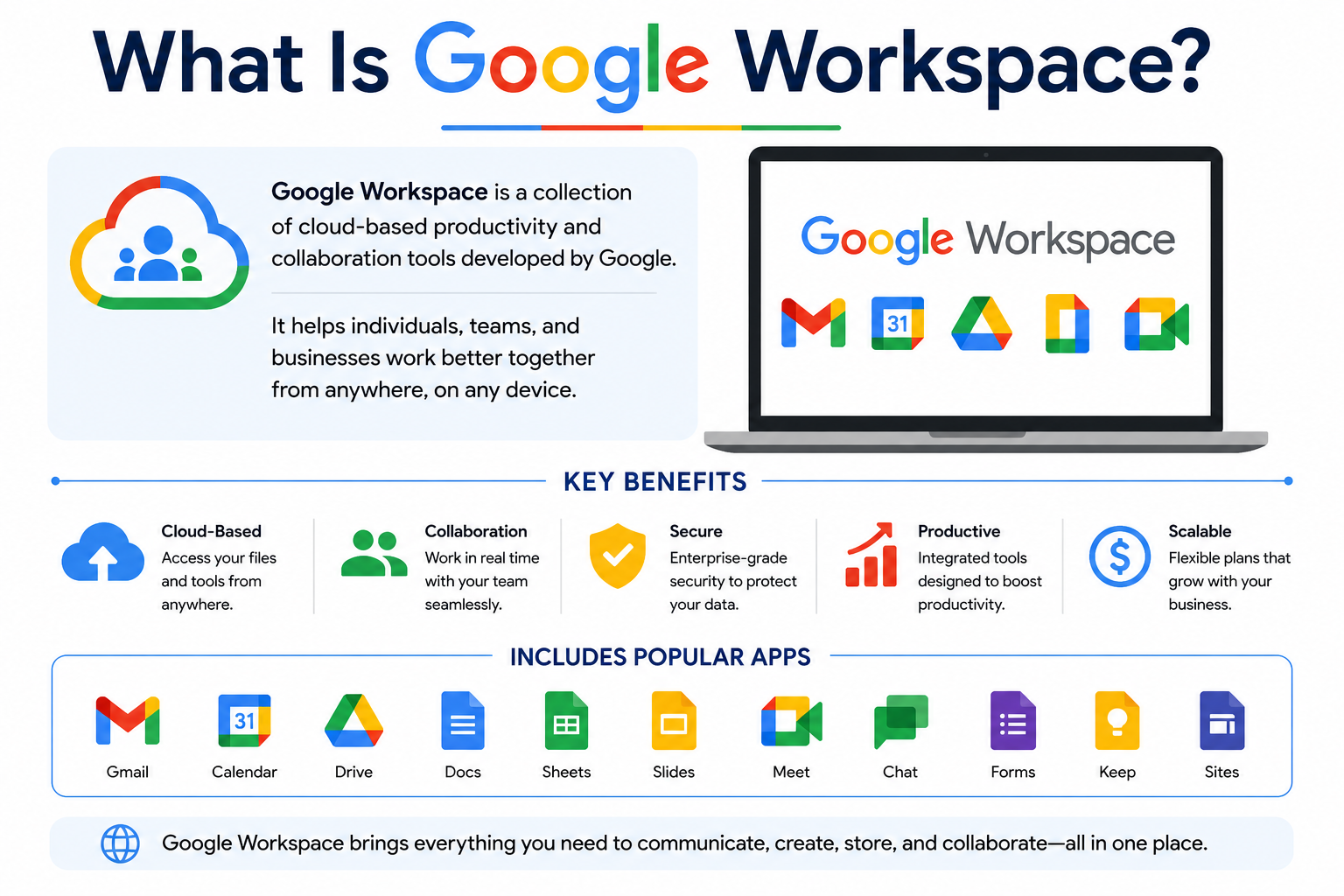
Introduction
If you have ever used Gmail to send an email, opened a shared Google Doc for a group project, or joined a video meeting through Google Meet, you have already experienced what Google Workspace has to offer. But what is Google Workspace exactly, and why are millions of businesses, schools, and remote teams choosing it as their primary productivity platform?
Google Workspace is a cloud-based suite of productivity and collaboration tools developed by Google LLC. It brings together some of the most widely used digital tools in the world under a single, unified platform. From email and document creation to video conferencing and secure file storage, Google Workspace covers virtually every communication and collaboration need that modern users face.
In 2026, Google Workspace continues to grow as one of the most popular office productivity suites on the planet. With powerful AI tools, seamless real-time collaboration, and flexible pricing plans, it serves everyone from solo freelancers and students to Fortune 500 companies and government agencies. This complete beginner’s guide covers everything you need to know about Google Workspace, including its apps, features, benefits, pricing, and much more.
Quick Answer (Featured Snippet)
Google Workspace is a cloud-based suite of productivity and collaboration applications developed by Google LLC. It includes Gmail, Google Drive, Google Docs, Google Sheets, Google Slides, Google Meet, Google Calendar, Google Chat, Google Forms, and Google Keep. Google Workspace helps individuals, businesses, and educational institutions communicate, collaborate, and manage work from any device, anywhere in the world.
What Is Google Workspace?
Definition
Google Workspace is a collection of cloud-based productivity tools and collaboration applications created by Google LLC. Unlike traditional software that requires local installation, Google Workspace runs primarily through a web browser. This means users can access their files, emails, and applications from any device with an internet connection.
The platform is designed to help individuals and organizations work more efficiently by centralizing communication, document creation, data management, and team collaboration in one integrated environment. Everything in Google Workspace connects and works together, so switching between tools feels natural and seamless.
A Brief History
Google launched Gmail in 2004, which became the foundation for what would eventually grow into a full productivity suite. In 2006, Google introduced Google Docs and Google Spreadsheets as browser-based alternatives to traditional desktop software. By 2007, Google had bundled these tools together under the name Google Apps for Your Domain.
In 2016, Google rebranded the platform as G Suite and began offering more structured business plans. Then in October 2020, Google made another significant change and officially renamed the platform Google Workspace. This rebrand was not just a name change but also a deeper integration of all apps into a unified experience, with Gmail, Chat, Meet, and Docs all accessible from within the same interface.
Why Google Workspace Is Popular
Google Workspace has earned its popularity for several compelling reasons. First, most of its core tools are free for personal users, which means billions of people already use Gmail and Google Drive before they even consider a paid plan. This familiarity makes the transition to a full Workspace subscription much easier.
Second, Google Workspace was built for the cloud from the very beginning. Unlike competitors that added cloud features to existing desktop applications, Google designed its tools to live entirely online. This gives Google Workspace a natural edge in real-time collaboration, automatic saving, and cross-device accessibility.
Evolution from G Suite to Google Workspace
The transition from G Suite to Google Workspace in 2020 brought meaningful changes beyond a simple rebrand. Google unified the user interface so that Gmail, Chat, Meet, Docs, and other apps work together within a single window. Users can now start a video call, open a shared document, and send a chat message without switching between multiple tabs or applications.
Google also introduced Google Workspace Individual for solopreneurs and added deeper AI integration throughout the platform. The addition of Duet AI, now known as Gemini for Google Workspace in 2026, brought powerful generative AI capabilities directly into Gmail, Docs, Sheets, and Meet.
What Apps Are Included in Google Workspace?
Google Workspace includes a rich collection of applications that cover every major productivity need. Below is a detailed overview of each core app.
Google Workspace Applications Comparison Table
| Application | Primary Use | Best For |
|---|---|---|
| Gmail | Professional email communication | All users, businesses |
| Google Drive | Cloud file storage and management | All users, teams |
| Google Docs | Word processing and document creation | Writers, students, professionals |
| Google Sheets | Spreadsheets and data analysis | Analysts, finance teams |
| Google Slides | Presentation creation | Students, marketers, educators |
| Google Meet | Video conferencing and online meetings | Remote teams, businesses |
| Google Calendar | Scheduling and time management | Professionals, teams |
| Google Forms | Surveys, quizzes, and data collection | Educators, researchers |
| Google Chat | Team messaging and collaboration | Business teams, remote workers |
| Google Keep | Quick notes and reminders | Students, individuals |
Gmail
Gmail is one of the most widely used email services in the world, with over 1.8 billion active users. Within Google Workspace, Gmail serves as the professional email client tied to a custom business or educational domain. For example, instead of using a personal @gmail.com address, a business user might send emails from @yourcompany.com.
Gmail’s standout features include Smart Compose, which uses AI to suggest sentence completions as you type, Smart Reply for quick one-click responses, powerful search functionality, and customizable email filters. Gmail also integrates directly with Google Meet and Google Chat, so users can start a video call or team conversation without leaving their inbox. Gmail is essential for anyone who relies on professional email communication as a core part of their daily workflow.
Google Drive
Google Drive is the cloud storage backbone of Google Workspace. It allows users to store, organize, and share files of any type, including documents, spreadsheets, presentations, images, videos, and PDFs. Every Google Workspace account comes with a generous amount of Drive storage shared across Gmail, Drive, and Google Photos.
Drive’s key features include real-time syncing across devices, granular sharing permissions, Priority Page for surfacing important files using AI, and direct integration with all other Workspace apps. Businesses use Drive to create shared team folders where everyone has access to important project files. Students use it to store and submit assignments. Anyone who needs secure, accessible cloud storage will benefit greatly from Google Drive.
Google Docs
Google Docs is a browser-based word processor that serves as Google’s answer to Microsoft Word. It allows users to create, edit, format, and collaborate on text documents without downloading any software. Docs automatically saves every change in real time, eliminating the risk of losing work due to a crash or forgotten save.
Its most powerful feature is real-time co-authoring, which lets multiple people edit the same document simultaneously while seeing each other’s cursor and changes live. Docs also includes a full version history so users can view and restore any previous draft. Gemini AI integration in 2026 helps users draft content, summarize long documents, and generate ideas directly within the editor. Writers, students, business teams, and content creators all find Google Docs to be an indispensable writing tool.
Google Sheets
Google Sheets is a cloud-based spreadsheet application designed for organizing data, performing calculations, and building visual charts. It functions similarly to Microsoft Excel but lives entirely in the browser and prioritizes collaboration over advanced data modeling.
Sheets supports hundreds of built-in formulas, pivot tables, conditional formatting, and data validation rules. It also connects to external data sources through tools like Google Apps Script and Looker Studio. Teams use Sheets to track project budgets, manage inventory, analyze survey responses, and build shared dashboards. Data analysts, project managers, educators, and small business owners rely on Google Sheets regularly for their data management needs.
Google Slides
Google Slides is a presentation tool comparable to Microsoft PowerPoint. It allows users to create, design, and deliver slide-based presentations entirely in the browser. Slides includes a library of pre-designed themes, layout options, animation effects, and the ability to embed videos, images, and charts from other Workspace apps.
The real-time collaboration feature makes Google Slides particularly valuable for team presentations, where multiple people can work on different slides simultaneously. Presenter View allows speakers to see their notes while the audience views only the clean slide. Students, educators, marketing professionals, and anyone who delivers presentations regularly will find Google Slides to be a capable and convenient tool.
Google Meet
Google Meet is Google’s professional video conferencing platform. It allows users to host and join video meetings directly from their browser or through mobile apps without requiring participants to download additional software. Google Meet supports high-definition video, screen sharing, real-time captions, meeting recording, and live translation.
For Google Workspace users, Meet integrates directly with Google Calendar so meetings can be scheduled and joined with a single click. Large organizations use Meet for all-hands company meetings, while schools use it for virtual classrooms. Remote teams and hybrid workplaces depend on Google Meet as their primary communication channel for face-to-face collaboration.
Google Calendar
Google Calendar is a powerful scheduling and time management application. It allows users to create events, set reminders, share calendars with teammates, and receive meeting invites directly from Gmail and Google Meet. Calendar’s intelligent suggestions help users find the best time for group meetings by checking the availability of all participants automatically.
Businesses use Google Calendar to manage team schedules, book meeting rooms, and coordinate project deadlines. Its integration with Google Meet means every calendar event can include a video meeting link automatically. Professionals, educators, and anyone managing a busy schedule will find Google Calendar an essential organizational tool.
Google Forms
Google Forms is a straightforward yet powerful tool for creating online surveys, quizzes, feedback forms, and event registrations. Forms are simple to build using a drag-and-drop interface and can be shared through a link or embedded on a website. All responses are automatically collected and can be exported directly to Google Sheets for deeper analysis.
Teachers use Google Forms to create graded quizzes with automatic scoring. Businesses use it to collect customer feedback or conduct employee surveys. Researchers use it to gather data from large groups quickly and efficiently. Google Forms is an excellent tool for anyone who needs to collect information from multiple people at scale.
Google Chat
Google Chat is Google’s team messaging application, designed to replace fragmented email threads with organized, real-time conversations. Chat allows users to send direct messages, create group spaces for specific projects or departments, and share files from Google Drive instantly. It also supports threaded conversations to keep discussions focused and easy to follow.
Google Chat integrates seamlessly with Gmail, Meet, and Docs, making it a central hub for workplace communication. Business teams use Chat spaces to manage ongoing projects, share updates, and collaborate on documents without switching between applications. Remote teams and distributed organizations particularly benefit from Chat’s ability to replace long email chains with quick, organized messages.
Google Keep
Google Keep is a lightweight note-taking and reminder application. It allows users to jot down quick ideas, create checklists, set location-based reminders, and clip content from the web. Notes in Keep can be color-coded, labeled, and pinned for easy access. Keep also supports voice memos and image notes for capturing information in different formats.
While Keep is simpler than dedicated note-taking apps, it integrates usefully with Google Docs, allowing users to drag Keep notes directly into a document. Students use Keep to capture lecture ideas and reading notes quickly. Professionals use it for quick to-do lists and meeting reminders. Anyone who needs a fast, frictionless way to capture information throughout the day will appreciate Google Keep.
Key Features of Google Workspace
Google Workspace packs an impressive range of features that set it apart from traditional office software. Here are more than 20 features that make it stand out.
- Real-Time Collaboration: Multiple users can edit the same document, sheet, or slide simultaneously and see each other’s changes live.
- Cloud Storage with Google Drive: All files are stored securely in the cloud and accessible from any device at any time.
- Gemini AI Integration: Google’s Gemini AI assistant helps users draft emails, summarize documents, generate content, and analyze data across Workspace apps.
- Smart Compose in Gmail: AI predicts and completes your sentences as you type, significantly speeding up email writing.
- Smart Reply: Gmail suggests short, context-aware replies so users can respond to messages with one click.
- Version History: Every Google Doc, Sheet, and Slide automatically stores a full version history so users can restore previous drafts.
- AutoSave: All changes are saved automatically in real time with no manual saving required.
- Cross-Device Access: Google Workspace works on any device with a browser, including Windows, Mac, iOS, Android, and Chromebooks.
- Offline Mode: Users can enable offline access for Docs, Sheets, Slides, and Gmail to work without an internet connection.
- Shared Drives: Teams can create shared storage spaces where all members have access to files regardless of individual ownership.
- Google Meet Integration: Video meetings can be launched directly from Gmail, Calendar, Docs, and Chat without leaving the current app.
- Advanced Admin Controls: Workspace administrators can manage user accounts, security policies, app permissions, and data access from a centralized Admin Console.
- Data Loss Prevention (DLP): Admins can set rules to prevent sensitive data from being shared outside the organization accidentally.
- Two-Step Verification: Google Workspace supports multi-factor authentication to protect accounts from unauthorized access.
- End-to-End Encryption: Sensitive emails and files can be encrypted to protect data in transit and at rest.
- Custom Domain Email: Businesses and organizations can send emails from their own domain through Gmail.
- Google Workspace Marketplace: Users can install thousands of third-party add-ons and integrations directly into Workspace apps.
- File Sharing with Permissions: Users can share files with view-only, comment, or edit access and revoke permissions at any time.
- Search Across Workspace: Google’s powerful search engine works across Gmail, Drive, Calendar, and Chat to find any file or message instantly.
- Accessibility Tools: Workspace includes screen reader support, voice typing, high contrast mode, and other accessibility features.
- Meeting Transcription in Meet: Google Meet can automatically generate live captions and post-meeting transcripts for participants.
- Looker Studio Integration: Google Sheets and Drive connect with Looker Studio for advanced data visualization and reporting dashboards.
Benefits of Google Workspace
Choosing Google Workspace brings a wide range of practical advantages for individuals and organizations of all sizes. Below is a comprehensive checklist of key benefits.
Google Workspace Benefits Checklist
| Benefit | Description |
|---|---|
| No Software Installation Required | Works entirely in the browser on any device |
| Always Up to Date | Google updates apps automatically with no user action needed |
| Real-Time Team Collaboration | Multiple people edit files simultaneously without version conflicts |
| Generous Cloud Storage | Paid plans include pooled storage shared across the organization |
| AI-Powered Productivity | Gemini AI helps users work faster across all Workspace apps |
| Professional Email | Custom domain email through Gmail builds brand credibility |
| Reduced IT Costs | Cloud-based management reduces hardware and maintenance expenses |
| Easy File Sharing | Share files with specific people or entire teams in seconds |
| Automatic Backups | Files stored in Drive are backed up and protected against local device failure |
| Scalable for Any Team Size | Works equally well for individuals, small teams, and large enterprises |
| Strong Security | Enterprise-grade security with two-step verification and encryption |
| Compliance Certifications | Meets major industry compliance standards including GDPR and HIPAA |
| Free for Personal Use | Gmail and basic Google apps are free for personal accounts |
| Education Plans | Google Workspace for Education offers free access to eligible institutions |
| Cross-Platform Compatibility | Works on Windows, Mac, iOS, Android, and Chromebook |
| Third-Party Integrations | Connects with thousands of popular business applications |
| Centralized Admin Control | IT teams manage the entire organization from one dashboard |
| Environmental Sustainability | Cloud infrastructure reduces energy consumption compared to local servers |
| Accessible From Anywhere | Remote work and travel never interrupt access to files or communication |
| Familiar Interface | Billions already use Gmail and Google apps, reducing the learning curve |
| Offline Functionality | Core apps work without internet when offline mode is enabled |
| Free Migration Tools | Google provides tools to migrate data from Microsoft Exchange and other platforms |
Google Workspace vs Microsoft 365
Both Google Workspace and Microsoft 365 are excellent productivity platforms, but they serve different types of users and workflows. Here is a detailed comparison to help you decide which one suits your needs better.
Google Workspace vs Microsoft 365 Comparison Table
| Feature | Google Workspace | Microsoft 365 |
|---|---|---|
| Core Applications | Docs, Sheets, Slides, Gmail, Meet, Drive, Chat | Word, Excel, PowerPoint, Outlook, Teams, OneDrive |
| Platform Type | Cloud-first, browser-based | Cloud and desktop-based |
| Real-Time Collaboration | Excellent, built from the ground up | Very good, added to existing desktop apps |
| Offline Support | Available with setup required | Excellent native offline support |
| Cloud Storage | Pooled storage per plan (Drive) | 1 TB OneDrive per user |
| AI Integration | Gemini AI across all apps | Microsoft Copilot across all apps |
| Gmail with custom domain | Outlook with custom domain | |
| Video Conferencing | Google Meet | Microsoft Teams |
| Desktop Apps | Limited (web-first) | Full desktop apps for Windows and Mac |
| Ease of Use | Very easy, minimal learning curve | Moderate, more feature-rich interface |
| Admin Console | Powerful and intuitive | Comprehensive but complex |
| Security | Enterprise-grade, Google-managed | Enterprise-grade, Microsoft-managed |
| File Format Compatibility | Good MS Office support | Native MS Office support |
| Pricing | Multiple tiers, competitive | Multiple tiers, comparable pricing |
| Best For | Cloud-first teams, startups, schools | Enterprises, power users, desktop-heavy workflows |
In practice, teams that prioritize ease of use, browser-based access, and seamless collaboration often prefer Google Workspace. Organizations that depend on advanced desktop features, complex Excel models, or deep Microsoft ecosystem integration typically favor Microsoft 365.
Who Should Use Google Workspace?
Google Workspace serves a wide variety of users effectively. Here is a closer look at who benefits the most from adopting it.
Students benefit from Google Workspace for Education, which provides free access to Docs, Sheets, Slides, Meet, Classroom, and Drive through their school or university. Students can collaborate on group assignments in real time, submit work digitally, and access their files from any device they own.
Teachers and Educators use Google Classroom to manage courses, distribute assignments, provide feedback, and communicate with students all in one place. Google Forms helps educators create graded quizzes with automatic scoring, saving significant time. Google Meet enables virtual classroom sessions with screen sharing and live captions.
Small Businesses choose Google Workspace because it provides professional email, file storage, and team communication tools at a manageable cost without requiring a dedicated IT team. The simple admin console makes it easy for a non-technical business owner to manage the entire organization’s accounts and settings.
Freelancers appreciate the professional Gmail address with a custom domain, the ability to share project files with clients through Drive, and the seamless video calling through Google Meet for client consultations. Google Workspace keeps all client communication and project work organized in one connected platform.
Startups love Google Workspace for its scalability and collaborative nature. A new team can be set up in minutes, start collaborating on documents immediately, and grow their Workspace plan as they hire more people. The low barrier to entry and flexible pricing make it ideal for fast-moving early-stage companies.
Remote Teams rely heavily on Google Meet for video calls, Google Chat for daily communication, and shared Drive folders for project files. Because everything lives in the cloud, remote team members in different time zones can access the same files and contribute to shared documents without coordination friction.
Google Workspace Pricing Plans
Google Workspace offers several pricing tiers to accommodate different types of users and organization sizes. While exact prices change over time, the general structure remains consistent. Always visit the official Google Workspace website at workspace.google.com for the most current pricing details.
Business Starter is the entry-level paid plan, designed for small businesses and growing teams. It includes a custom business email, Google Meet video calls with a generous participant limit, shared cloud storage per user, and standard security features.
Business Standard expands on the Starter plan with significantly more cloud storage per user, larger Google Meet meeting capacity, meeting recording capabilities, and additional administrative features. This plan suits mid-sized teams that collaborate heavily on video calls and need more storage.
Business Plus adds advanced security and compliance tools, enhanced eDiscovery features, and additional Meet functionality including attendance tracking and noise cancellation. It is well suited for businesses that operate in regulated industries or need stronger data governance.
Enterprise is the top-tier plan for large organizations, offering unlimited cloud storage, advanced security controls, data loss prevention, enhanced compliance tools, and dedicated customer support. Enterprise pricing is customized based on organizational needs.
Google Workspace for Education offers free and paid tiers specifically for accredited educational institutions. The free Education Fundamentals plan provides core Workspace apps at no cost. Education Standard and Plus plans add premium features for larger institutions needing advanced management tools.
Google Workspace Individual is designed for solo professionals who want a professional Gmail address, enhanced Meet features, and business tools without managing a full organizational account.
How to Set Up Google Workspace
Setting up Google Workspace for your business or organization is straightforward. Follow these steps to get started quickly and correctly.
Create an Account
Begin by visiting workspace.google.com and clicking the Get Started button. You will need to provide your business name, the number of employees or users, your country, and your contact information. If you already have a Google account, you can sign in to link your subscription to it. Choose the plan that best matches your organization’s size and needs.
Verify Your Domain
To use a custom domain email address like yourname@yourcompany.com, you need to verify that you own the domain. Google provides a verification code that you must add to your domain’s DNS settings through your domain registrar. This process typically takes a few minutes to a few hours depending on your registrar’s processing speed.
Add Users
Once your domain is verified, you can add users to your Google Workspace account through the Admin Console. Navigate to the Users section and click Add New User. Enter each team member’s name and desired email address. Google will send them a welcome email with instructions to sign in and set their password for the first time.
Configure Email
After adding users, configure your email settings so that messages sent to your custom domain arrive in the correct Gmail inboxes. This requires updating the MX records in your domain’s DNS settings to point to Google’s mail servers. Google provides specific MX record values and step-by-step instructions within the Admin Console setup wizard.
Install Apps
Google Workspace apps run in the browser, so no traditional software installation is required for most tools. However, users should install the Google Drive desktop application on their computers for easy local file syncing. Mobile users should download the Gmail, Drive, Docs, Sheets, Slides, Meet, and Calendar apps from the App Store or Google Play Store.
Manage Security Settings
Visit the Security section of the Admin Console to configure essential protections for your organization. Enable two-step verification for all users, set up login policies, configure data sharing restrictions, and review third-party app access permissions. Regularly reviewing these settings helps protect your organization from unauthorized access and data breaches.
Tips for Using Google Workspace More Efficiently
Getting more from Google Workspace is easier once you know the right strategies and shortcuts. Here are more than 20 actionable tips to boost your productivity immediately.
Google Workspace Productivity Tips Checklist
| Tip | How It Helps |
|---|---|
| Use Gmail keyboard shortcuts (press ? to see all) | Dramatically speeds up email management without using the mouse |
| Enable Smart Compose and Smart Reply | Reduces typing time with AI-powered email suggestions |
| Use @ mentions in Docs comments | Notifies the right person instantly without sending a separate email |
| Set up Gmail filters and labels | Automatically organizes incoming emails into relevant categories |
| Enable offline mode in Chrome | Allows you to work on Docs, Sheets, and Slides without internet |
| Use Google Drive shortcuts | Creates quick access links in Drive without duplicating files |
| Star important Drive files | Pins critical files for fast access from the Starred view |
| Use Explore in Google Sheets | Analyzes data and generates chart suggestions automatically using AI |
| Pin Google Chat spaces | Keeps your most active team conversations at the top of the list |
| Use Google Meet breakout rooms | Divides large meetings into smaller focused discussion groups |
| Create Google Forms for quick polls | Gathers team input or customer feedback in minutes |
| Use Google Calendar’s Find a time feature | Automatically identifies the best meeting slot for all attendees |
| Install Workspace add-ons from the Marketplace | Extends functionality with tools like DocuSign, Zoom, or Salesforce |
| Use voice typing in Google Docs | Dictates content hands-free for faster drafting |
| Create Shared Drives for team projects | Keeps project files accessible to all team members regardless of ownership |
| Use Doc templates from Google’s template gallery | Saves time by starting from professionally designed layouts |
| Link Google Forms responses to Sheets | Automatically populates survey data into a spreadsheet for analysis |
| Use Meet live captions | Improves accessibility and helps participants follow along clearly |
| Set working hours in Google Calendar | Prevents meeting invites outside of your available hours automatically |
| Use Google Keep notes within Docs | Drags quick notes directly into documents for seamless writing |
| Review version history regularly | Tracks changes and recovers earlier versions of important documents |
| Use Gemini AI in Gmail | Generates email drafts and summarizes long email threads in seconds |
Common Google Workspace Problems and Solutions
Even reliable platforms encounter occasional issues. Here are the most common Google Workspace problems and how to resolve them effectively.
Login Issues
If you cannot sign in to your Google Workspace account, first verify that your internet connection is working. Then confirm that you are entering the correct email address associated with your Workspace account rather than a personal Gmail account. If you have forgotten your password, use the account recovery option or contact your organization’s Workspace administrator to reset your credentials.
Sync Problems
If files in Google Drive are not syncing correctly between your devices, try signing out of the Drive desktop app and signing back in. Also check that your device has sufficient local storage for the sync cache. Restarting the Drive application often resolves minor sync conflicts quickly.
Storage Full
When your Google Workspace storage is full, new emails and file uploads will stop working. First, review and delete large unnecessary files in Drive and empty the trash. In Gmail, search for large attachments using the search operator “has:attachment larger:10MB” to find and delete space-consuming messages. If storage needs continue to grow, consider upgrading to a higher Workspace plan with more capacity.
Sharing Permission Errors
If a user cannot access a shared file or document, check the sharing settings by right-clicking the file in Drive and selecting Share. Confirm that the correct email address has been granted the appropriate level of access, whether viewer, commenter, or editor. Also verify that your organization’s admin has not restricted external sharing in the Admin Console settings.
Offline Mode Not Working
If Google Docs, Sheets, or Slides offline mode is not functioning, ensure you are using the Google Chrome browser with the Google Docs Offline extension installed and enabled. Also confirm that offline access is toggled on in Google Drive settings. Offline mode does not work in other browsers like Firefox or Safari without additional configuration.
File Recovery
If you accidentally delete a file in Google Drive, check the Trash folder first. Deleted files remain in Trash for 30 days before permanent deletion. If a file has already been permanently deleted, Google Workspace administrators can restore it within an additional 25-day window using the Admin Console’s Drive audit and restore tools.
Best Google Workspace Alternatives
While Google Workspace is an excellent platform, several strong alternatives exist depending on your specific needs and preferences.
Microsoft 365
Microsoft 365 is the most direct and capable competitor to Google Workspace. It offers Word, Excel, PowerPoint, Outlook, and Teams as its core applications and excels at desktop-based workflows. Organizations that need advanced spreadsheet capabilities or deep Windows integration often prefer Microsoft 365 over Google Workspace.
Zoho Workplace
Zoho Workplace is a comprehensive cloud productivity suite that includes email, documents, spreadsheets, presentations, video calls, and team chat. It offers very competitive pricing and is particularly popular among small and medium-sized businesses. Zoho also integrates with Zoho’s broader ecosystem of CRM, HR, and finance software.
ONLYOFFICE
ONLYOFFICE is an open-source office suite with strong Microsoft Office file format compatibility. It is available as a cloud service or a self-hosted solution, making it appealing for organizations that require data sovereignty. ONLYOFFICE offers real-time collaboration features and suits businesses with specific compliance or privacy requirements.
Dropbox
Dropbox started as a cloud storage service but has expanded into a broader collaboration platform. It now includes Dropbox Paper for document collaboration, Dropbox Spaces for team organization, and integrations with tools like Zoom and Slack. However, Dropbox lacks a full suite of productivity apps, making it better as a complement to other tools rather than a complete replacement.
Apple iWork
Apple iWork includes Pages, Numbers, and Keynote. It is free for all Mac and iOS users and delivers beautiful design capabilities. However, it lacks the depth of collaboration features, admin controls, and third-party integrations that Google Workspace provides. iWork is best suited for individual Apple ecosystem users rather than business teams.
Google Workspace Alternatives Comparison Table
| Platform | Key Strength | Best For | Pricing Model |
|---|---|---|---|
| Google Workspace | Cloud collaboration, Gmail, AI tools | Businesses, schools, remote teams | Subscription |
| Microsoft 365 | Desktop apps, advanced features | Enterprises, power users | Subscription |
| Zoho Workplace | Affordability, CRM integration | SMBs, growing businesses | Subscription |
| ONLYOFFICE | Self-hosting, MS Office compatibility | Privacy-focused organizations | Free / Paid |
| Dropbox | File storage and sharing | Teams using multiple tools | Subscription |
| Apple iWork | Design quality, Mac integration | Individual Apple users | Free |
Frequently Asked Questions
What is Google Workspace?
Google Workspace is a cloud-based suite of productivity and collaboration applications developed by Google LLC. It includes Gmail, Google Drive, Google Docs, Google Sheets, Google Slides, Google Meet, Google Calendar, Google Chat, Google Forms, and Google Keep. Organizations use Google Workspace to communicate, collaborate, and manage work from any device.
Is Google Workspace free?
Google Workspace as a paid business platform is not free, but Google offers free access through several channels. Personal Google accounts include free Gmail, Google Drive with 15 GB of storage, and basic Docs, Sheets, and Slides access. Google Workspace for Education provides free core apps to eligible educational institutions. Paid Workspace plans are required for custom domain email and advanced business features.
What apps are included in Google Workspace?
Google Workspace includes Gmail, Google Drive, Google Docs, Google Sheets, Google Slides, Google Meet, Google Calendar, Google Chat, Google Forms, Google Keep, Google Sites, and Google Classroom for education. Additional tools like Looker Studio and AppSheet are also available within the Workspace ecosystem for advanced users.
What is the difference between Google Workspace and Gmail?
Gmail is one application within the broader Google Workspace suite. Google Workspace includes Gmail plus many other tools such as Drive, Docs, Sheets, Meet, Calendar, and Chat. A personal Gmail account is free but lacks the custom domain email, admin controls, and business features that come with a paid Google Workspace subscription.
How does Google Workspace compare to Microsoft 365?
Google Workspace excels at real-time cloud collaboration, ease of use, and browser-based access with minimal setup. Microsoft 365 offers more powerful desktop applications, advanced Excel capabilities, and deeper integration with Windows environments. Both platforms are excellent, but the best choice depends on whether your team prioritizes cloud-first simplicity or desktop power and advanced features.
Can I use Google Workspace offline?
Yes, Google Workspace supports offline access for Docs, Sheets, Slides, and Gmail through the Google Chrome browser. Users must enable offline mode in their Drive settings and install the Google Docs Offline Chrome extension. Once set up, users can create and edit files without internet access, and all changes sync automatically when reconnected.
Is Google Workspace secure?
Google Workspace is one of the most secure cloud productivity platforms available. It includes two-step verification, data encryption in transit and at rest, advanced admin security controls, data loss prevention tools, and compliance with major regulations including GDPR, HIPAA, ISO 27001, and SOC 2. Google’s security infrastructure protects billions of users globally every day.
Can students use Google Workspace?
Yes, students can use Google Workspace through Google Workspace for Education, which Google provides free of charge to eligible K-12 schools and universities. Students access tools like Google Classroom, Docs, Sheets, Slides, Meet, and Drive through their institution’s educational account. These tools help students collaborate, submit assignments, attend virtual classes, and organize their coursework effectively.
Does Google Workspace include Google Drive?
Yes, Google Drive is a core component of Google Workspace. Every Workspace plan includes Drive as the primary cloud storage solution. Paid Workspace plans provide pooled storage shared across all users in the organization, ranging from a set amount per user on entry plans to expanded storage on higher tiers. Drive stores all files created in Docs, Sheets, and Slides automatically.
How much storage does Google Workspace provide?
Google Workspace paid plans include pooled cloud storage shared across all users in an organization, with the amount increasing at higher plan tiers. Business Starter plans include a set amount of pooled storage per user, while higher plans offer substantially more. Enterprise plans can provide large-scale storage tailored to organizational needs. Visit workspace.google.com for current storage details on each plan.
Can I use my own domain with Google Workspace?
Yes, one of the key features of a paid Google Workspace account is the ability to send and receive email using your own custom domain. For example, your team can use @yourcompany.com email addresses powered by Gmail’s interface and infrastructure. This requires verifying domain ownership and configuring DNS records to direct email through Google’s servers.
What is Google Meet?
Google Meet is Google’s professional video conferencing application included in every Google Workspace plan. It supports high-definition video calls, screen sharing, real-time captions, meeting recording, and live translation. Meet integrates directly with Google Calendar for one-click meeting access and with Gmail for easy video call initiation from the inbox.
Is Google Workspace worth it?
For businesses, remote teams, and educational organizations that prioritize cloud collaboration and easy access, Google Workspace is absolutely worth the investment. It eliminates the need for complex IT infrastructure, provides professional email, and enables seamless teamwork across documents and communication tools. The combination of reliability, security, AI features, and competitive pricing makes it a strong value proposition for most organizations.
Can small businesses use Google Workspace?
Yes, Google Workspace is particularly well-suited for small businesses. The Business Starter plan provides everything a small team needs to operate professionally, including custom domain email, cloud storage, video calls, and document collaboration. The simple admin console allows a non-technical business owner to manage the entire account without needing dedicated IT support.
What is the latest version of Google Workspace?
Google Workspace does not follow a traditional versioning model since it updates continuously and automatically in the cloud. As of 2026, the latest iteration includes deep Gemini AI integration across Gmail, Docs, Sheets, Meet, and other apps. Google regularly introduces new features and improvements without requiring users to download or install updates manually.
People Also Ask
What is Google Workspace?
Google Workspace is a cloud-based productivity and collaboration suite from Google that includes Gmail, Google Drive, Docs, Sheets, Slides, Meet, Calendar, Chat, Forms, and Keep. It helps businesses, schools, and individuals work and communicate effectively from any device.
Is Google Workspace free?
Personal Google apps like Gmail and Google Drive are free. Google Workspace for Education is free for eligible schools. Paid Workspace plans are required for custom domain email, advanced admin features, and expanded cloud storage for businesses and organizations.
What apps are included in Google Workspace?
Google Workspace includes Gmail, Google Drive, Google Docs, Google Sheets, Google Slides, Google Meet, Google Calendar, Google Chat, Google Forms, Google Keep, Google Sites, and Google Classroom for educational accounts.
What is the difference between Google Workspace and G Suite?
Google Workspace is the rebranded and enhanced version of G Suite, which Google renamed in October 2020. Beyond the name change, Google Workspace introduced a more unified interface where Gmail, Chat, Meet, and Docs all work together in a single window, along with deeper AI integration and new product tiers.
Google Workspace vs Microsoft 365?
Google Workspace is better for cloud-first collaboration, ease of use, and browser-based access. Microsoft 365 is stronger for desktop-heavy workflows, advanced Office applications, and deep Windows integration. Both offer competitive pricing and enterprise-grade security.
Can I use Google Workspace offline?
Yes, Google Workspace supports offline access for Docs, Sheets, Slides, and Gmail through the Chrome browser with the Google Docs Offline extension enabled. Changes made offline sync automatically when the device reconnects to the internet.
Is Google Workspace secure?
Yes, Google Workspace includes enterprise-grade security features such as two-step verification, data encryption, admin security controls, data loss prevention, and compliance with GDPR, HIPAA, ISO 27001, and other major standards.
Can students use Google Workspace?
Yes, students can access Google Workspace for Education free through their accredited school or university. It includes Docs, Sheets, Slides, Meet, Classroom, Drive, and other tools designed specifically for learning environments.
Does Google Workspace include Gmail?
Yes, Gmail is a core application within Google Workspace. Paid plans include Gmail configured with a custom business or educational domain, giving users a professional email address powered by Google’s infrastructure.
Is Google Workspace worth it?
For most businesses, remote teams, and educational institutions, Google Workspace delivers excellent value through professional email, cloud storage, real-time collaboration, AI tools, and enterprise security at a competitive subscription price.
Final Thoughts
Google Workspace has firmly established itself as one of the most powerful and accessible cloud productivity platforms available in 2026. From the moment you send your first professional email through Gmail to the moment your entire team collaborates on a shared presentation in Google Slides, every part of the experience feels connected, intuitive, and designed with real-world work in mind.
What is Google Workspace at its core? It is more than just a collection of applications. It is a complete ecosystem that brings communication, file management, data analysis, video collaboration, and AI-powered assistance together in one place that works from any device, anywhere, at any time.
Whether you are a student organizing your coursework, a freelancer managing client projects, a small business owner building your brand, or an enterprise IT administrator overseeing thousands of users, Google Workspace scales to meet your needs effectively. Its continuous updates, strong security, competitive pricing, and deep Gemini AI integration ensure that it will remain a leading choice for cloud productivity well beyond 2026.
If you are considering making the switch or just getting started, there has never been a better time to explore everything Google Workspace has to offer. Start with the free tier, explore the tools at your own pace, and discover why millions of organizations worldwide trust Google Workspace to power their most important work every single day.
References
- Google. (2026). Google Workspace Official Website. https://workspace.google.com
- Google Support. (2026). Google Workspace Help Center. https://support.google.com
- Google Workspace Admin Help. (2026). Google Workspace Administrator Documentation. https://support.google.com/a
Technology Disclaimer
This article is for educational and informational purposes only. Google Workspace, Gmail, Google Drive, Google Docs, Google Sheets, Google Slides, Google Meet, Google Calendar, and all other Google product names mentioned in this article are trademarks of Google LLC. All features, pricing, availability, and subscription details described in this article are based on information available at the time of writing and may change over time without notice. Always refer to Google’s official website at workspace.google.com for the most current and accurate information regarding their products and services. TechOriginHub is not affiliated with or endorsed by Google LLC.