
 By Saad Qureshi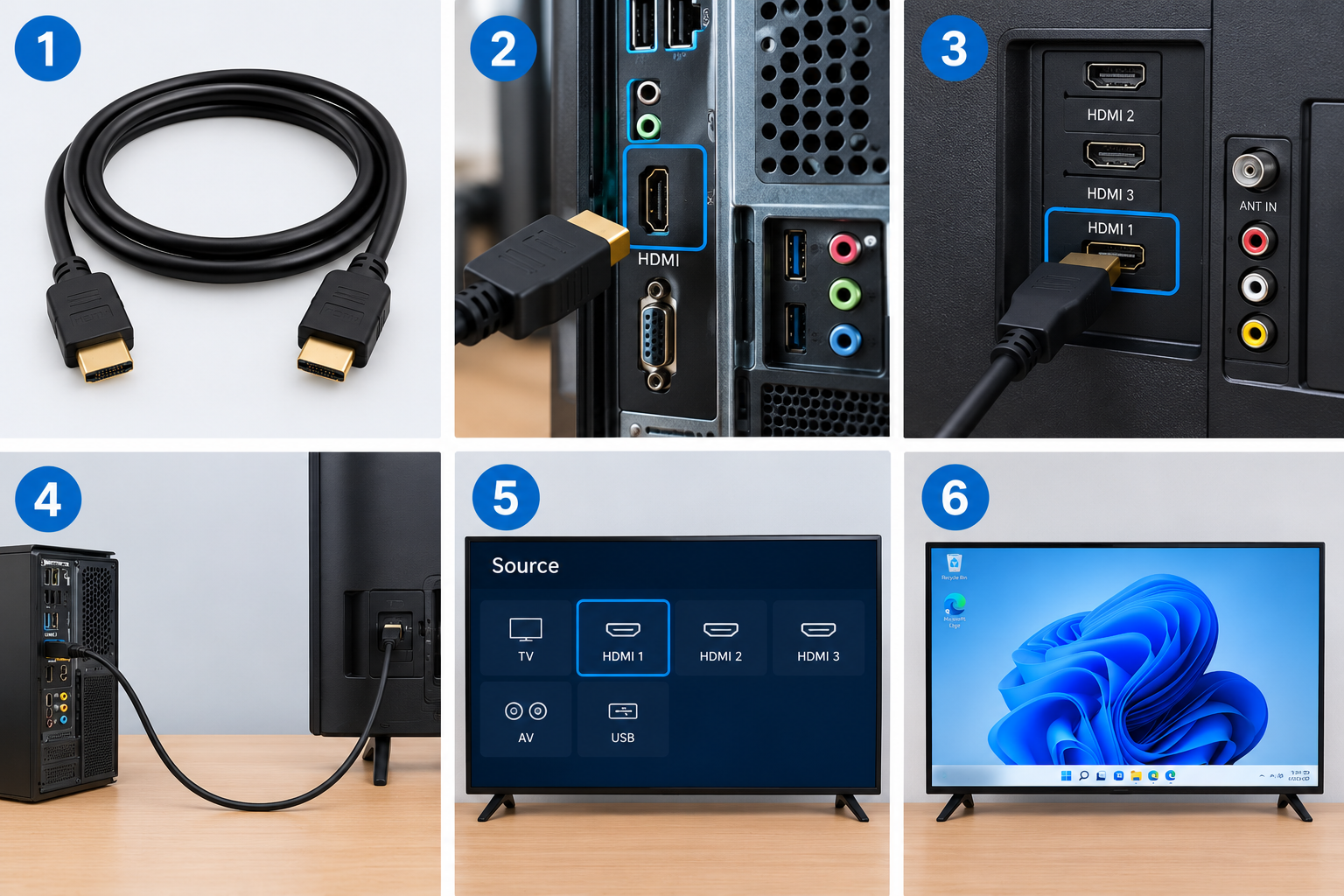
Watching a movie on a small laptop screen is fine when you are alone. But when the family wants to join, or you want to play a game, show photos, or give a presentation, that big TV on the wall suddenly looks very tempting.
The simplest, most reliable way to put your computer on a TV is an HDMI cable. It carries both picture and sound through one wire, it works with almost every modern TV and PC, and it does not depend on Wi-Fi.
In this guide, we will show you exactly how to connect a PC or laptop to a TV with HDMI, how to choose the right cable, how to set up the display and sound in Windows, and how to fix the most common problems like “No Signal,” no audio, or a picture that does not fit the screen.
Quick Info: Connecting a PC to a TV With HDMI
| Detail | Quick Answer |
|---|---|
| What you need | A PC or laptop, a TV with an HDMI port, and an HDMI cable |
| Does HDMI carry sound? | Yes, both video and audio |
| Best cable for 1080p TVs | High Speed HDMI cable |
| Best cable for 4K at 60Hz with HDR | Premium High Speed HDMI cable (or Ultra High Speed) |
| Best cable for 4K at 120Hz or 8K | Ultra High Speed HDMI cable |
| Quick Windows shortcut | Windows key + P to choose how the screen appears on the TV |
| No HDMI port on laptop? | Use a USB-C to HDMI adapter (if your USB-C port supports video) |
| Time needed | About 5 minutes |
Key Takeaways
- Plug one end of the HDMI cable into your PC and the other into your TV, then switch the TV to the matching HDMI input.
- Press Windows key + P to choose Duplicate (same screen on both) or Extend (TV becomes a second screen).
- If you hear sound from the PC instead of the TV, change the audio output to the TV in Windows sound settings.
- Your cable matters. For 4K at 60Hz with HDR, use at least a Premium High Speed HDMI cable.
- If the picture is cut off at the edges, adjust the TV’s picture size setting (often called Just Scan, Screen Fit, or similar).
- “No Signal” usually means the wrong input is selected or the cable is loose.
What You Need
| Item | Why you need it | Tips |
|---|---|---|
| PC or laptop | The source of the picture | Check which video ports it has (HDMI, USB-C, DisplayPort) |
| TV with HDMI port | The display | Most TVs have 2 to 4 HDMI ports, labeled HDMI 1, HDMI 2, and so on |
| HDMI cable | Carries video and sound | Choose a length that reaches comfortably without pulling tight |
| Adapter (only if needed) | For laptops without a full-size HDMI port | USB-C to HDMI, Mini HDMI to HDMI, or DisplayPort to HDMI |
| Wireless keyboard and mouse (optional) | Control the PC from the sofa | Very handy for movies and browsing |
Step 1: Check the Ports on Your PC and TV
Before buying anything, look at both devices.
On your PC or laptop
- Full-size HDMI port: Common on most laptops and desktop graphics cards. You can use a normal HDMI cable.
- Mini HDMI or Micro HDMI: Found on some small laptops and tablets. You need a cable or adapter with the matching small end.
- USB-C: Many thin laptops only have USB-C. A USB-C to HDMI adapter or cable works only if that USB-C port supports video output. Look for a small display symbol or a Thunderbolt logo next to the port, or check your laptop’s specs.
- DisplayPort: Common on desktop graphics cards. A DisplayPort to HDMI cable or adapter works well.
On a desktop PC
If your desktop has a separate graphics card, plug the HDMI cable into the graphics card’s port (usually lower down on the back), not into the motherboard’s port near the top. Otherwise, you may get a black screen.
On your TV
Find the HDMI ports on the back or side. Note the number of the port you use. Some ports may be labeled ARC or eARC. Those are for sending sound to soundbars, but they also work fine for connecting a PC.
Step 2: Choose the Right HDMI Cable
Not all HDMI cables are the same. According to HDMI.org, the official HDMI organization, the main cable types are:
| Cable type | Bandwidth | Good for |
|---|---|---|
| High Speed HDMI | Up to 10.2 Gbps | 1080p, and 4K at 30Hz |
| Premium High Speed HDMI | Up to 18 Gbps | 4K at 60Hz with HDR |
| Ultra High Speed HDMI | Up to 48 Gbps | 4K at 120Hz and 8K at 60Hz (HDMI 2.1 features) |
Simple advice:
- Full HD (1080p) TV: Any High Speed HDMI cable is enough.
- 4K TV for movies and everyday use: Get a Premium High Speed cable.
- 4K TV for gaming at 120Hz: Get an Ultra High Speed cable, and make sure both your graphics card and TV support HDMI 2.1.
Look for official certification labels on the box when buying Premium or Ultra High Speed cables. Expensive “gold-plated” marketing does not make a real difference. Certification does.
Step 3: Connect the Cable
- Turn on both the PC and the TV. You do not need to shut anything down for HDMI.
- Plug one end of the cable into your PC (or into your adapter).
- Plug the other end into an HDMI port on the TV.
- Make sure both ends are pushed in firmly. A loose connection is the number one cause of flickering and “No Signal.”
Step 4: Switch the TV to the Right HDMI Input
Your TV needs to know which port to show.
- Press the Input, Source, or Input/Source button on your TV remote (the button with an arrow going into a box on many remotes).
- Choose the HDMI port you used, such as HDMI 1 or HDMI 2.
After a few seconds, you should see your PC’s desktop on the TV. Many TVs switch automatically when they detect a new signal.
Step 5: Choose How the Screen Appears (Windows + P)
Windows gives you four display modes. The quickest way to pick one is the Windows key + P shortcut.
- Press Windows key + P.
- A panel appears with these options:
| Mode | What it does | Best for |
|---|---|---|
| PC screen only | Shows the picture only on your laptop or main monitor | Turning the TV off without unplugging |
| Duplicate | Shows the same picture on both screens | Presentations, showing photos, watching together |
| Extend | Makes the TV a second screen with separate space | Watching a movie on the TV while working on the laptop |
| Second screen only | Shows the picture only on the TV | Movies and gaming with the laptop screen off |
You can also change this in Settings > System > Display. Scroll to Multiple displays and pick Duplicate these displays or Extend these displays from the drop-down. Lenovo’s support guide for multiple monitors describes the same two methods.
Step 6: Set the Right Resolution and Scaling
Windows usually picks the best settings automatically, but it is worth checking.
- Open Settings > System > Display.
- Click the box representing your TV at the top. If you are not sure which is which, click Identify and a number will appear on each screen.
- Under Display resolution, choose the option marked (Recommended). For a 4K TV, this is usually 3840 x 2160. For a Full HD TV, 1920 x 1080.
- Under Scale, increase the size if text and icons look tiny from the sofa. 150% to 200% often works well on a 4K TV.
- Under Advanced display, you can check the refresh rate. Choose 60Hz or higher if your TV supports it.
If your graphics card software (from NVIDIA, AMD, or Intel) is installed, it may offer extra options like color format and full RGB range.
Step 7: Send the Sound to the TV
HDMI carries audio, but Windows does not always switch to it automatically.
- Click the speaker icon in the bottom-right corner of the taskbar.
- Click the small arrow next to the volume slider.
- Choose your TV from the list. It may show the TV brand name or something like “NVIDIA High Definition Audio” or “Intel Display Audio.”
Or go to Settings > System > Sound and choose the TV under Output.
If your TV is connected to a soundbar, the sound will usually pass through the TV to the soundbar.
How to Connect a Mac to a TV With HDMI
The process is very similar on a Mac:
- Connect the HDMI cable directly (if your Mac has an HDMI port) or with a USB-C or Thunderbolt to HDMI adapter.
- Switch the TV to the correct HDMI input.
- On your Mac, open System Settings > Displays to choose mirroring or extended display and adjust resolution.
- To send sound to the TV, open System Settings > Sound > Output and choose the TV.
Troubleshooting: Common Problems and Fixes
TV says “No Signal”
- Make sure the TV is on the same HDMI input you plugged into.
- Unplug and firmly reconnect both ends of the cable.
- Try a different HDMI port on the TV.
- Press Windows key + P and choose Duplicate or Second screen only.
- On a desktop, make sure the cable is in the graphics card port, not the motherboard port.
- Restart the PC with the cable already connected.
- Try another HDMI cable if you have one.
Picture appears but there is no sound from the TV
- Select the TV as the sound output device (see Step 7).
- Check that the TV is not muted and its volume is turned up.
- Update your graphics drivers, since HDMI audio drivers often come with them.
- If the TV still does not appear as an output, right-click the speaker icon, open the sound settings, and look for disabled devices.
Picture is cut off at the edges or has black borders
This is called overscan (cut off) or underscan (black borders).
- On the TV, open the picture size or aspect ratio settings. Look for an option like Just Scan, Screen Fit, Full Pixel, Original, or 1:1. The name depends on the TV brand.
- Some TVs also have a PC mode or Game mode that turns off overscan.
- If needed, use your graphics card software to adjust scaling.
Text looks blurry or fuzzy
- Set Windows to the recommended resolution for the TV.
- Turn on the TV’s PC mode or Game mode. On some TVs, you can rename the HDMI input to PC to get sharper text.
- Adjust Scale in Windows display settings instead of lowering the resolution.
Screen flickers or goes black now and then
- Use a better-quality, certified cable, especially for 4K.
- Try a shorter cable. Very long cheap cables often struggle with 4K.
- Lower the refresh rate to 60Hz to test.
- Update the graphics driver. Keeping drivers and Windows current fixes many display bugs. Our guide on why software needs updates explains why this matters.
Only 30Hz at 4K
- Your cable may only be High Speed. Upgrade to Premium High Speed or Ultra High Speed.
- Check whether your TV’s HDMI port needs an “enhanced” or “HDMI UHD Color” setting turned on for full 4K at 60Hz.
- Older laptops or adapters may only support 4K at 30Hz over HDMI.
USB-C to HDMI adapter does not work
- Not every USB-C port supports video. Check your laptop’s specs or look for a display or Thunderbolt symbol by the port.
- Try the adapter in a different USB-C port.
- Make sure the adapter supports the resolution you want, such as 4K at 60Hz.
If your laptop and adapter just will not work together no matter what, it may be a hardware or driver compatibility issue. Our guide on what software compatibility means explains why some devices and drivers do not play nicely.
Tips for the Best PC-to-TV Experience
- Use a wireless keyboard and mouse so you can control the PC from your sofa. If you use Logitech devices, our Logitech Unifying software setup guide shows how to pair several devices to one tiny receiver.
- Turn on Game mode on the TV when playing games. It reduces input lag.
- Keep your laptop plugged into power. Streaming video to a big screen uses more battery.
- Turn off notifications before a presentation or movie night. Focus mode or Do Not Disturb in Windows helps.
- Use Windows key + P to switch back quickly when you are done, so your laptop screen comes back on.
- Do not bend the cable sharply near the plugs. It can damage the connectors over time.
HDMI vs Wireless Screen Mirroring
You can also send your screen to a smart TV wirelessly using features like Miracast (built into many Windows PCs and TVs). Here is how they compare:
| Point | HDMI cable | Wireless mirroring |
|---|---|---|
| Picture quality | Excellent, up to 4K and beyond | Good, but can drop with weak Wi-Fi |
| Lag | Very low | Noticeable, not great for gaming |
| Setup | Plug in and pick input | Depends on device support |
| Reliability | Very reliable | Can disconnect or stutter |
| Needs a cable | Yes | No |
For movies, games, and presentations, HDMI is still the best choice.
Frequently Asked Questions
How do I connect my PC to my TV with HDMI?
Plug an HDMI cable into your PC and your TV, switch the TV to the matching HDMI input, and press Windows key + P to choose how the screen appears.
Does HDMI carry sound from PC to TV?
Yes. HDMI carries both video and audio. If the sound still comes from your PC, choose the TV as the output device in Windows sound settings.
Why does my TV say no signal when connected to my PC?
The TV is usually on the wrong input, or the cable is loose. Check the input, reconnect the cable, and press Windows key + P to make sure the PC is sending a picture.
What HDMI cable do I need for a 4K TV?
For 4K at 60Hz with HDR, use a Premium High Speed HDMI cable. For 4K at 120Hz gaming, use an Ultra High Speed HDMI cable.
Can I connect a laptop without an HDMI port to a TV?
Yes, if your laptop has a USB-C port that supports video output. Use a USB-C to HDMI adapter or cable.
How do I make my laptop screen turn off while using the TV?
Press Windows key + P and choose Second screen only.
Why is the picture on my TV cut off?
This is overscan. Change your TV’s picture size setting to an option like Just Scan, Screen Fit, or Full Pixel, or turn on PC mode.
Can I use my TV as a second monitor?
Yes. Press Windows key + P and choose Extend. You can then drag windows between your PC screen and the TV.
Is HDMI better than wireless screen mirroring?
For most people, yes. HDMI gives better picture quality, lower lag, and a more reliable connection.
Do I need to restart my PC after connecting the HDMI cable?
Usually not. Windows detects the TV automatically. Restarting can help if the TV is not detected.
Final Thoughts
Connecting a PC to a TV with HDMI is one of the easiest tech upgrades you can make. Plug in the cable, choose the right input on your TV, press Windows key + P, and set the sound to the TV. That is really all there is to it.
If something goes wrong, the fix is usually simple: check the input, reseat the cable, pick the right audio output, or use a better cable for 4K. Once it is set up, you have a giant screen for movies, games, photos, and presentations whenever you want it.
References
- HDMI.org: HDMI Cable Types and Certification
- Lenovo Support: How to set up and use multiple monitors in Windows
Disclaimer
This guide is for general information only. Menu names, buttons, and settings can vary between TV brands, PC makers, graphics cards, and versions of Windows or macOS. Always check your TV and computer manuals or manufacturer support pages if your screens look different. TechOriginHub is not affiliated with any brand mentioned, and this article is not sponsored. Handle cables and ports gently to avoid damage, and turn off devices before plugging in adapters if your manufacturer recommends it.