
 By Saad Qureshi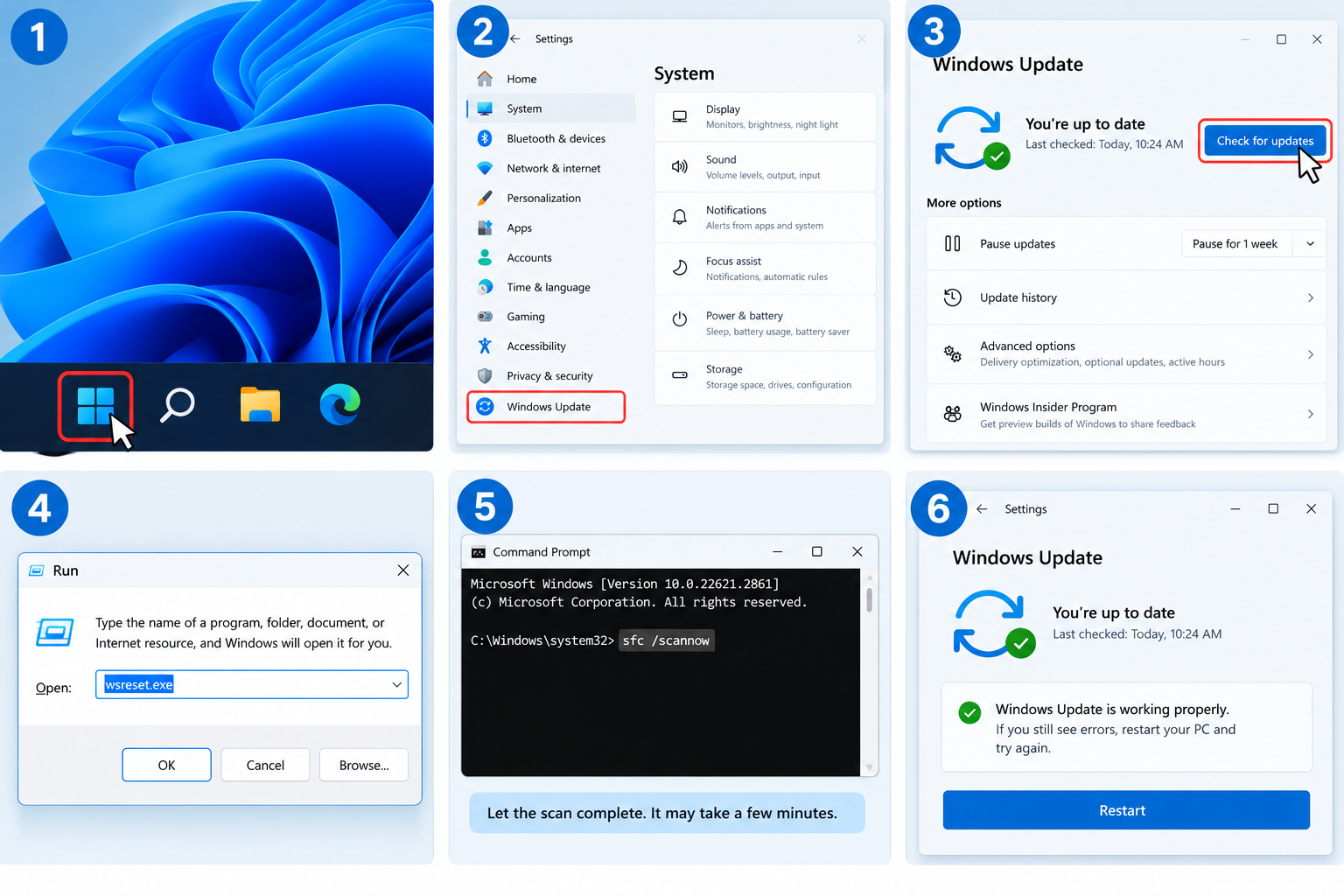
You click “Check for updates,” wait patiently, and then Windows hits you with a message like “There were problems installing some updates” followed by a strange code such as 0x80070002 or 0x800f0922. You try again. Same error.
Windows Update errors are frustrating, but they are also very common, and most of them can be fixed at home without any special skills. The key is to work through the fixes in the right order, starting with the quick and simple ones before moving to the more advanced tools.
In this guide, we will walk you through every proven fix for Windows Update errors, based on Microsoft’s own troubleshooting steps. We will also explain what the most common error codes usually mean, so you know where to start.
Quick Info: Fixing Windows Update Errors
| Detail | Quick Answer |
|---|---|
| Most common causes | Low disk space, internet issues, corrupted update files, damaged system files, stopped update services, antivirus conflicts |
| First thing to try | Restart your PC and try again |
| Built-in fix tool | Windows Update troubleshooter |
| Repair commands | DISM /Online /Cleanup-Image /RestoreHealth, then sfc /scannow |
| Advanced fix | Reset Windows Update components (clear the SoftwareDistribution folder) |
| Manual option | Download the update from the Microsoft Update Catalog |
| Last resort | Repair or reinstall Windows while keeping your files |
| Time needed | 5 minutes for simple fixes, up to an hour for repairs |
Key Takeaways
- Start simple: restart, check your internet, and free up disk space. These solve a surprising number of errors.
- Run the built-in Windows Update troubleshooter next. It can automatically fix many common problems.
- If errors continue, use DISM and SFC to repair damaged Windows files. Microsoft recommends DISM for update corruption problems.
- Resetting Windows Update components clears out broken downloads and gives Windows Update a fresh start.
- If one specific update keeps failing, you can install it manually from the Microsoft Update Catalog.
- Back up your important files before trying advanced fixes.
Why Do Windows Update Errors Happen?
Windows Update has a lot of moving parts. It needs to download files, check them, prepare them, and then install them, often across a restart. If anything goes wrong at any stage, you get an error.
The most common causes are:
- Not enough free storage space for the update to download and install
- Internet or network problems, including VPNs, proxies, or unstable Wi-Fi
- Corrupted update files that downloaded incorrectly
- Damaged Windows system files that the update depends on
- Windows Update services turned off or stuck
- Third-party antivirus or security software blocking update files
- Outdated drivers or connected devices that conflict with the update
- Wrong date and time settings, which can break secure connections
Updates matter a lot, because they fix security holes and bugs. If you want to understand why Microsoft pushes them so hard, our guide on why software needs updates explains it in simple terms.
Common Windows Update Error Codes and What They Usually Mean
Error codes can look scary, but they give you a useful clue. Here are some of the most common ones. Microsoft notes that its general troubleshooting steps help with most update errors, so even if your code is not listed, the fixes below still apply.
| Error code | What it usually means | Best fixes to try first |
|---|---|---|
| 0x80070002 | Windows cannot find a file it needs | Restart, run the troubleshooter, reset update components |
| 0x80070003 | A path or file is missing | Reset update components, run DISM and SFC |
| 0x8024402F | Problem connecting to the Windows Update servers | Check internet, turn off VPN or proxy, check date and time |
| 0x80070422 | Windows Update service is turned off | Start the Windows Update service |
| 0x80073712 | A file Windows Update needs is missing or damaged | Run DISM and SFC |
| 0x800F081F | Required source files are missing | Run DISM, then try again |
| 0x800F0922 | The update could not finish installing | Free up space, check internet, run DISM |
| 0x80070643 | An installation failure, often with specific updates | Run the troubleshooter, retry, check Microsoft’s notes for that update |
| 0x80070020 | Another program is using a file the update needs | Restart, temporarily disable third-party antivirus |
| 0x80004005 | Unspecified error | Work through all the fixes in order |
Tip: Search for your exact error code together with the update’s KB number (shown in Update history) on Microsoft’s support site. Sometimes Microsoft publishes a known issue and a specific fix.
Before You Start: Back Up and Check Your Update History
- Back up important files to an external drive or cloud storage. Most fixes are safe, but it is always smart to be prepared.
- Note the exact error and update. Go to Settings > Windows Update > Update history. You will see which update failed (it has a name like KB5xxxxxx) and the error code.
This information helps you choose the right fix and search for known issues.
Fix 1: Restart Your PC and Try Again
It sounds too simple, but many update errors happen because a previous update is waiting for a restart, or a file was temporarily in use.
- Save your work.
- Click Start > Power > Restart (not Shut down).
- After restarting, go to Settings > Windows Update and click Check for updates.
If you see a “Restart required” message, do that first.
Fix 2: Check Your Internet Connection
Windows Update needs a steady connection.
- Make sure you are connected to the internet and pages load normally.
- Turn off any VPN or proxy temporarily. These often cause connection errors like 0x8024402F.
- If you are on Wi-Fi, move closer to the router or try a wired connection.
- Avoid metered connections. If your connection is set as metered, Windows may delay downloads. Check under Settings > Network & internet.
Fix 3: Free Up Disk Space
Updates need room to download and unpack. Large feature updates need much more space than small monthly updates.
- Open Settings > System > Storage.
- Check how much free space your C: drive has.
- Use Cleanup recommendations or Temporary files to remove things you do not need.
- Empty the Recycle Bin and move large files like videos to an external drive.
Try to keep a healthy amount of free space, ideally 20 GB or more, before installing big updates.
Fix 4: Check the Date, Time, and Time Zone
If your PC’s clock is wrong, secure connections to Microsoft’s servers can fail.
- Open Settings > Time & language > Date & time.
- Turn on Set time automatically and Set time zone automatically.
- Click Sync now.
Fix 5: Run the Windows Update Troubleshooter
Windows has a built-in troubleshooter designed to find and fix common update problems automatically.
On Windows 11
- Open Settings > System > Troubleshoot.
- Click Other troubleshooters.
- Find Windows Update and click Run.
- Follow the on-screen steps. On newer versions, this may open the Get Help app, which runs the same checks.
On Windows 10
- Open Settings > Update & Security > Troubleshoot.
- Click Additional troubleshooters.
- Select Windows Update and click Run the troubleshooter.
When it finishes, restart your PC and try updating again.
Fix 6: Make Sure the Windows Update Service Is Running
If you see error 0x80070422, or updates never seem to start, the Windows Update service may be turned off.
- Press Windows key + R, type services.msc, and press Enter.
- Find Windows Update in the list.
- Double-click it.
- Set Startup type to Manual or Automatic.
- If the status says Stopped, click Start.
- Also check Background Intelligent Transfer Service (BITS) and Cryptographic Services are not disabled.
- Click OK and try updating again.
Fix 7: Temporarily Disable Third-Party Antivirus
Some third-party security programs can block Windows Update from accessing the files it needs. This can cause errors like 0x80070020.
- Open your antivirus program.
- Temporarily turn off real-time protection, or pause it for a short time.
- Try the update again.
- Turn your antivirus back on immediately afterwards.
Windows Security (Microsoft Defender) is built into Windows and works well with Windows Update, so you usually do not need to turn it off. If you are curious how antivirus works and why it sometimes interferes, see our guide on what antivirus software is.
Fix 8: Unplug Extra Devices and Update Drivers
USB drives, external hard drives, printers, docks, and other accessories can occasionally cause update problems.
- Unplug devices you do not need, especially external storage drives.
- Keep your keyboard, mouse, and internet connection.
- Visit your PC or laptop maker’s website to update key drivers like graphics, chipset, and storage drivers.
Then restart and try again.
Fix 9: Repair Windows Files With DISM and SFC
If system files are damaged, updates can fail again and again. Microsoft recommends using the DISM (Deployment Image Servicing and Management) tool to fix Windows Update corruption, then running SFC (System File Checker).
Step 1: Open Command Prompt as administrator
- Click Start and type cmd.
- Right-click Command Prompt and choose Run as administrator.
- Click Yes if asked.
Step 2: Run DISM
Type this command and press Enter:
DISM /Online /Cleanup-Image /RestoreHealthThis can take 10 to 30 minutes. The progress may seem stuck at times. That is normal, so let it finish. DISM works best when you are connected to the internet, because it can download clean copies of damaged files from Windows Update.
Step 3: Run SFC
When DISM finishes, type this command and press Enter:
sfc /scannowSFC checks your system files and repairs any problems it can. When it is done, it will tell you whether it found and fixed anything.
Step 4: Restart and update
Restart your PC, then go to Settings > Windows Update and click Check for updates.
Fix 10: Reset Windows Update Components
If the update files on your PC are corrupted, clearing them forces Windows to download fresh copies. This fixes many stubborn errors, including 0x80070002.
- Open Command Prompt as administrator (see Fix 9).
- Stop the update services by typing each command and pressing Enter after each one:
net stop wuauserv
net stop cryptSvc
net stop bits
net stop msiserver- Rename the folders that store update files:
ren C:\Windows\SoftwareDistribution SoftwareDistribution.old
ren C:\Windows\System32\catroot2 catroot2.old- Start the services again:
net start wuauserv
net start cryptSvc
net start bits
net start msiserver- Close Command Prompt, restart your PC, and check for updates.
Windows will create new, empty folders and download the updates again. Your personal files are not affected. Your Update history list may look empty afterwards, which is normal.
If a rename command says access is denied, make sure the services stopped successfully and that Command Prompt is running as administrator.
Fix 11: Install the Update Manually From the Microsoft Update Catalog
If one specific update keeps failing, you can download and install it yourself.
- Go to Settings > Windows Update > Update history and note the update’s KB number (for example, KB5xxxxxx).
- Open the official Microsoft Update Catalog website in your browser.
- Search for the KB number.
- Choose the version that matches your system, such as Windows 11 and x64. You can check your system type in Settings > System > About.
- Download the file and double-click it to install.
- Restart your PC.
Only download updates from Microsoft’s official websites.
Fix 12: Repair Windows Without Losing Your Files
If nothing else works, you can reinstall Windows over itself while keeping your files and apps.
Option A: Fix problems using Windows Update (Windows 11)
On recent versions of Windows 11:
- Open Settings > System > Recovery.
- Look for Fix problems using Windows Update.
- Click Reinstall now and follow the prompts.
This reinstalls your current version of Windows and is designed to keep your files, apps, and settings.
Option B: In-place upgrade with Microsoft’s tools
You can also use Microsoft’s official Windows 11 Installation Assistant or installation media from Microsoft’s download page, then choose to keep your personal files and apps during setup.
Option C: Reset this PC
As a final step, Settings > System > Recovery > Reset PC lets you reinstall Windows. You can choose Keep my files, but your installed apps will be removed. Back up everything before doing this.
What If Windows Update Is Stuck?
Sometimes the update does not show an error. It just sits at a percentage for a long time.
- Be patient first. Big updates can take an hour or more, especially on older PCs or slow hard drives.
- If downloading is stuck for a long time, pause updates, restart, and resume. If it still does not move, reset update components (Fix 10).
- If installing is stuck after a restart (on a “Working on updates” screen) with no change for several hours and no hard drive activity, you may need to hold the power button to restart. Windows will often undo the update automatically. Only do this as a last resort, since interrupting an update can cause problems.
How to Prevent Windows Update Errors in the Future
- Keep plenty of free storage space on your C: drive.
- Install updates regularly instead of letting many pile up.
- Restart your PC every few days so pending updates can finish.
- Keep drivers updated from your PC maker.
- Avoid shutting down during updates. Wait for the process to finish.
- Use reliable security software and keep it updated.
- Learn what different updates do. Our guide on what a software update means explains the difference between updates and upgrades.
Fix Order at a Glance
| Step | Fix | Difficulty |
|---|---|---|
| 1 | Restart and try again | Very easy |
| 2 | Check internet, turn off VPN | Very easy |
| 3 | Free up disk space | Easy |
| 4 | Fix date and time | Easy |
| 5 | Run Windows Update troubleshooter | Easy |
| 6 | Check Windows Update service | Easy |
| 7 | Pause third-party antivirus | Easy |
| 8 | Unplug devices, update drivers | Easy |
| 9 | Run DISM and SFC | Medium |
| 10 | Reset Windows Update components | Medium |
| 11 | Install update manually | Medium |
| 12 | Repair or reinstall Windows | Advanced |
Frequently Asked Questions
Why does Windows Update keep failing?
The most common reasons are low disk space, internet issues, corrupted update files, damaged system files, or software conflicts. Work through the fixes in this guide in order.
What is the fastest way to fix Windows Update errors?
Restart your PC, check your internet and free space, then run the Windows Update troubleshooter. These quick steps fix many errors.
Is it safe to delete the SoftwareDistribution folder?
It is generally safe to rename or clear it after stopping the Windows Update services. Windows recreates it and downloads updates again. Your personal files are not stored there.
How long does DISM take?
Usually 10 to 30 minutes, sometimes longer. It may appear stuck at certain percentages, so give it time to finish.
What does sfc /scannow do?
It scans Windows system files and repairs damaged or missing ones it finds.
Can I skip a Windows update?
You can pause updates for a while in Settings > Windows Update. However, skipping security updates for a long time leaves your PC less protected.
Will fixing Windows Update delete my files?
Most fixes in this guide do not touch your personal files. Only a full reset or clean install can remove data, so always back up before advanced repairs.
What does error 0x80070002 mean?
It usually means Windows could not find a file needed for the update. Restarting, running the troubleshooter, and resetting update components usually fix it.
What does error 0x800f0922 mean?
It usually means the update could not finish installing. Check free space and your internet connection, then run DISM and SFC.
Should I turn off my antivirus to install updates?
Only temporarily, and only for third-party antivirus programs. Turn it back on right after the update. Windows Security does not normally need to be turned off.
Final Thoughts
Windows Update errors look intimidating, but most of them come down to a few common problems: space, internet, damaged files, or a stuck service. Start with the simple fixes, then move to the troubleshooter, DISM and SFC, and a reset of the update components if needed.
Work through the steps in order and, in most cases, your PC will be fully updated again without needing a technician.
References
- Microsoft Learn: Fix Windows Update corruptions and installation failures
- Microsoft Support: Windows Update troubleshooter
Disclaimer
This guide is for general information only. Windows settings, menu names, and tools can change with new updates, and error codes can have different causes on different PCs. Always back up your important files before running repair commands, changing services, or reinstalling Windows. Download updates and tools only from Microsoft’s official websites. TechOriginHub is not affiliated with Microsoft, and this article is not sponsored. If you are unsure about any step, contact Microsoft Support or a qualified technician.