
 By Saad Qureshi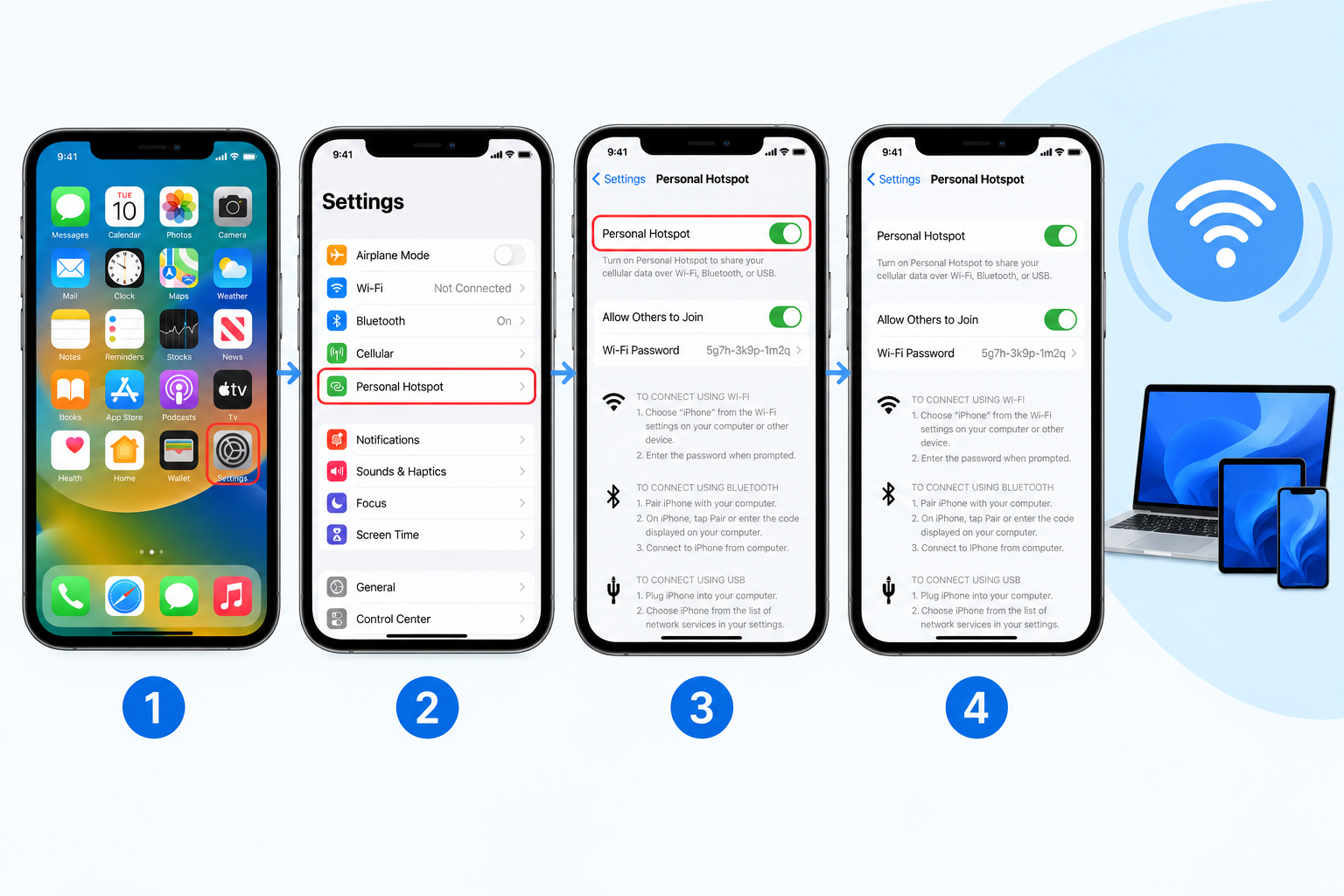
You are at a cafe and the Wi-Fi is not working. Or you are traveling, your laptop needs internet, and the only connection you have is the mobile data on your iPhone. The good news is that your iPhone can share that connection with other devices in just a few taps.
On iPhone, this feature is called Personal Hotspot. Other phones call it a mobile hotspot or tethering. Once it is on, your laptop, tablet, or a friend’s phone can connect to your iPhone like a normal Wi-Fi network.
In this guide, we will show you exactly how to turn on mobile hotspot on iPhone, how to connect other devices using Wi-Fi, Bluetooth, or USB, how to change your hotspot name and password, and what to do if Personal Hotspot is missing or not working. All steps follow Apple’s official instructions.
Quick Info: iPhone Personal Hotspot at a Glance
| Detail | Quick Answer |
|---|---|
| Feature name on iPhone | Personal Hotspot |
| Where to find it | Settings > Personal Hotspot (or Settings > Cellular > Personal Hotspot) |
| Switch to turn on | Allow Others to Join |
| Ways to connect | Wi-Fi, Bluetooth, or USB |
| What it shares | Your iPhone’s cellular (mobile) data |
| Hotspot name | Same as your iPhone’s name |
| Password | Set under Personal Hotspot > Wi-Fi Password |
| Connected icon | A green Personal Hotspot icon in the status bar |
| Missing option? | Usually means your carrier or plan does not support it |
| Time needed | Under a minute |
Key Takeaways
- Go to Settings > Personal Hotspot and turn on Allow Others to Join.
- Your hotspot needs a Wi-Fi password. You can set or change it on the same screen.
- Other devices see your hotspot using your iPhone’s name.
- You can connect by Wi-Fi, Bluetooth, or USB.
- If you do not see Personal Hotspot, contact your carrier. Your mobile plan must support it.
- Hotspot uses your mobile data and battery quickly, so keep an eye on both.
What Is Personal Hotspot on iPhone?
Personal Hotspot turns your iPhone into a small Wi-Fi router. It takes your iPhone’s cellular data connection (4G or 5G) and shares it with nearby devices, such as:
- A laptop or MacBook
- An iPad or Android tablet
- Another smartphone
- A smart TV or game console (with Wi-Fi)
One important detail from Apple: while other devices are connected to your hotspot over Wi-Fi, your iPhone itself can only use cellular data to get online. That is because its Wi-Fi is busy sharing the connection.
Before You Start: Quick Checklist
- Make sure mobile data is on. Go to Settings > Cellular (called Mobile Service or Mobile Data in some regions) and turn on Cellular Data.
- Check your mobile plan. Some carriers charge extra for hotspot use or limit hotspot data. Others block it on certain plans.
- Charge your iPhone or keep a charger nearby. Hotspot drains the battery faster than normal use.
- Know your data limit. Laptops can use much more data than phones, especially with videos, updates, and cloud backups.
How to Turn On Mobile Hotspot on iPhone
Apple’s support guide gives two ways to reach the setting. Use whichever one appears on your iPhone.
Method 1: From the main Settings screen
- Open the Settings app.
- Tap Personal Hotspot.
- Turn on Allow Others to Join.
Method 2: From Cellular settings
- Open Settings.
- Tap Cellular (or Mobile Service in some countries).
- Tap Personal Hotspot.
- Turn on Allow Others to Join.
Your hotspot is now on. Keep the Personal Hotspot screen open while you connect your first device. This helps other devices find your iPhone more easily.
If Wi-Fi or Bluetooth is off
If Wi-Fi or Bluetooth is turned off when you enable Personal Hotspot, your iPhone may ask whether to turn them on. Turning them on lets other devices connect wirelessly. If you only want to connect by USB, you can choose that option instead.
How to Turn On Hotspot From Control Center
Once Personal Hotspot is set up, you can switch it on more quickly:
- Open Control Center. On iPhones with Face ID, swipe down from the top-right corner. On iPhones with a Home button, swipe up from the bottom.
- Press and hold the connectivity group (the box with Airplane Mode, Wi-Fi, Cellular, and Bluetooth).
- Tap the Personal Hotspot icon to make your iPhone discoverable.
The exact layout can differ slightly between iOS versions, but the hotspot icon lives in that expanded connectivity panel.
How to Set or Change Your Hotspot Password
Apple requires a Wi-Fi password before you can use Personal Hotspot.
- Go to Settings > Personal Hotspot.
- Tap Wi-Fi Password.
- Delete the old password and type a new one. Use at least 8 characters.
- Tap Done.
Any devices already connected will be disconnected when you change the password, so they will need the new one to rejoin.
Tip: Use a strong password that mixes letters and numbers. Avoid easy ones like “12345678” or your name, especially in busy public places.
How to Change Your Hotspot Name
Your hotspot uses your iPhone’s name as its network name. To change it:
- Go to Settings > General > About.
- Tap Name.
- Type a new name and tap Done.
A clear, unique name makes it easier to find your hotspot in a list of networks and avoids sharing personal details, like your full name, with strangers nearby.
How to Connect Devices to Your iPhone Hotspot
Apple supports three ways to connect. When a device is connected, a green Personal Hotspot icon appears in your iPhone’s status bar or around the time display.
Option 1: Connect with Wi-Fi (most common)
On the device you want to connect (laptop, tablet, or another phone):
- Open its Wi-Fi settings.
- Look for your iPhone’s name in the list of networks.
- Select it and enter the Wi-Fi password shown in your iPhone’s Personal Hotspot settings.
Option 2: Connect with Bluetooth
Bluetooth uses less battery but is slower than Wi-Fi. It is handy for light browsing or email.
- On your iPhone, go to Settings > Bluetooth and keep that screen open so your iPhone stays discoverable.
- On your laptop or other device, open its Bluetooth settings and pair with your iPhone.
- After pairing, choose to connect to the internet through your iPhone (for example, on a Mac, select your iPhone in the Bluetooth menu and connect to its network).
Option 3: Connect with USB
USB is usually the most stable connection and charges your iPhone at the same time.
- Connect your iPhone to your computer with a USB or USB-C cable.
- If your iPhone asks Trust This Computer?, tap Trust and enter your passcode.
- Your computer should connect to the hotspot automatically. On a Mac, check that iPhone USB appears in your network settings. On a Windows PC, you may need Apple’s device support installed for USB tethering to work.
Which connection should you use?
| Connection | Speed | Battery use on iPhone | Best for |
|---|---|---|---|
| Wi-Fi | Fastest wireless option | Highest | Laptops, tablets, multiple devices |
| Bluetooth | Slower | Lower | Light browsing and email |
| USB | Fast and stable | Charges the iPhone | Long work sessions at a desk |
Instant Hotspot and Family Sharing (Apple Devices)
If you use other Apple devices signed in to the same Apple Account, you can connect even faster:
- Instant Hotspot: Your Mac or iPad can join your iPhone’s hotspot from its Wi-Fi menu without typing the password, as long as both devices are signed in to the same Apple Account with Wi-Fi and Bluetooth turned on.
- Family Sharing: You can let family members in your Family Sharing group join your hotspot automatically, or ask for approval first. Look for Family Sharing inside Settings > Personal Hotspot.
How Many Devices Can Connect?
Apple says the number of devices that can join your Personal Hotspot at the same time depends on your carrier and your iPhone model. Keep in mind that every extra device shares the same connection, so speeds drop as more devices join.
To see how many devices are connected, open Control Center and press and hold the connectivity group. The number of connected devices appears under Personal Hotspot.
How to Turn Off Personal Hotspot
When you are done, turn it off to save battery and data:
- Go to Settings > Personal Hotspot.
- Turn off Allow Others to Join.
You can also disconnect a device by turning off Wi-Fi on that device or choosing a different network on it.
Personal Hotspot Not Showing on iPhone?
If you cannot find Personal Hotspot in Settings, Apple’s advice is to contact your carrier. The most common reasons are:
- Your mobile plan does not include hotspot or tethering.
- Your carrier has not enabled the feature on your account.
- Cellular data is turned off. Turn it on in Settings > Cellular.
- Your carrier settings need an update. Go to Settings > General > About and wait a few seconds. If an update is available, you will see a prompt.
If you recently switched to a new iPhone, setting up things like your contacts and carrier plan first can help. Our guide on how to transfer contacts to a new phone walks through moving your contacts across smoothly.
iPhone Hotspot Not Working? Try These Fixes
Apple’s official troubleshooting guide recommends trying to connect again after each step.
1. Check that Personal Hotspot is on
Go to Settings > Personal Hotspot and make sure Allow Others to Join is turned on. If you cannot turn it on, check with your carrier that your plan supports it.
2. Restart both devices
Restart the iPhone sharing the hotspot and the device trying to connect. This clears many temporary glitches.
3. Turn on Maximize Compatibility
If a device cannot connect over Wi-Fi, go to Settings > Personal Hotspot and turn on Maximize Compatibility. This helps older laptops and devices connect, although it may reduce speed slightly.
4. Check the password
If you see a password error, open Settings > Personal Hotspot on your iPhone and check the exact Wi-Fi Password. Passwords are case-sensitive.
5. Stay on the Personal Hotspot screen
Keep the Personal Hotspot settings screen open on your iPhone while the other device searches for it. This keeps your iPhone discoverable.
6. Forget the network and rejoin
On the connecting device, open Wi-Fi settings, choose your iPhone’s network, select Forget, and then join again with the password.
7. Update iOS
Go to Settings > General > Software Update and install any available update.
8. Reset Network Settings
If nothing else works, go to Settings > General > Transfer or Reset iPhone > Reset, then tap Reset Network Settings.
This removes saved Wi-Fi networks and passwords, Bluetooth pairings, and VPN settings, so you will need to set them up again. It does not delete your photos, apps, or messages.
Quick troubleshooting table
| Problem | Likely cause | Fix |
|---|---|---|
| Personal Hotspot option is missing | Plan or carrier does not support it | Contact your carrier |
| Laptop cannot see the hotspot | iPhone not discoverable | Keep the Personal Hotspot screen open |
| Older device will not connect | Compatibility issue | Turn on Maximize Compatibility |
| Password error | Wrong or changed password | Check the Wi-Fi Password on iPhone |
| Connected but no internet | Mobile data weak or off | Check signal and Cellular Data |
| USB hotspot not working on Mac | iPhone USB not set up | Trust the computer; check network settings |
| Hotspot keeps turning off | No devices connected for a while | Reconnect; keep the device active |
Tips to Save Data and Battery
Hotspot use can eat through mobile data and battery quickly. These tips help:
- Turn on Low Data Mode on the connected device, or use your laptop’s metered connection setting so it downloads fewer updates in the background.
- Pause cloud backups and large downloads while using the hotspot.
- Lower video quality on streaming apps.
- Use USB when possible. It charges your iPhone while sharing data.
- Turn off the hotspot as soon as you are done.
- Keep your iPhone cool. Avoid direct sunlight and thick cases during long sessions.
If your iPhone’s battery drains quickly or will not charge properly after long hotspot sessions, our guide on how to fix a phone that is not charging covers the most common causes and fixes.
Is Using a Personal Hotspot Safe?
Personal Hotspot is generally safe, especially compared to open public Wi-Fi, because it is protected with a password and encryption. To keep it secure:
- Use a strong, unique password.
- Change the password if you have shared it with people you no longer want connected.
- Rename your iPhone so it does not show your full name.
- Turn off the hotspot when you are not using it.
- Check the number of connected devices in Control Center if speeds suddenly drop.
Frequently Asked Questions
How do I turn on mobile hotspot on my iPhone?
Go to Settings > Personal Hotspot and turn on Allow Others to Join. If you do not see it there, go to Settings > Cellular > Personal Hotspot.
Why is Personal Hotspot not showing on my iPhone?
Usually your carrier or mobile plan does not support it, or cellular data is off. Turn on cellular data, check for carrier settings updates, and contact your carrier if it is still missing.
How do I find my iPhone hotspot password?
Open Settings > Personal Hotspot. The password is shown next to Wi-Fi Password, where you can also change it.
Can I change my iPhone hotspot name?
Yes. The hotspot uses your iPhone’s name. Change it in Settings > General > About > Name.
How many devices can connect to an iPhone hotspot?
It depends on your carrier and iPhone model. Speeds drop as more devices connect.
Does using a hotspot use a lot of data?
It can, especially on laptops. Streaming, updates, and cloud backups can use several gigabytes quickly.
Can I use Wi-Fi on my iPhone while sharing a hotspot?
No. When other devices connect to your hotspot over Wi-Fi, your iPhone uses cellular data to get online.
Why does my laptop connect but have no internet?
Your iPhone’s mobile signal may be weak, cellular data may be off, or your plan’s hotspot data may be used up. Check your signal and plan.
Does Personal Hotspot drain the battery?
Yes, it uses more battery than normal use. Connecting by USB helps because it charges your iPhone at the same time.
Is it safe to use iPhone hotspot in public?
Yes, as long as you use a strong password and turn the hotspot off when you finish. It is usually safer than open public Wi-Fi.
Final Thoughts
Turning on mobile hotspot on iPhone takes less than a minute: open Settings, tap Personal Hotspot, and switch on Allow Others to Join. From there, you can connect your laptop or tablet over Wi-Fi, Bluetooth, or USB.
If Personal Hotspot is missing, the answer is usually your mobile plan, so check with your carrier. If it is there but not working, restart both devices, turn on Maximize Compatibility, and check the password. And remember to turn the hotspot off when you are done to save data and battery.
References
- Apple Support: How to set up a Personal Hotspot on your iPhone or iPad
- Apple Support: If Personal Hotspot is not working on your iPhone or iP
Disclaimer
This guide is for general information only. Menu names and steps can vary slightly depending on your iPhone model, iOS version, region, and carrier. Personal Hotspot availability, data limits, and extra charges depend on your mobile carrier and plan, so check with your carrier before heavy use. TechOriginHub is not affiliated with Apple or any mobile carrier, and this article is not sponsored.