
 By saman zahra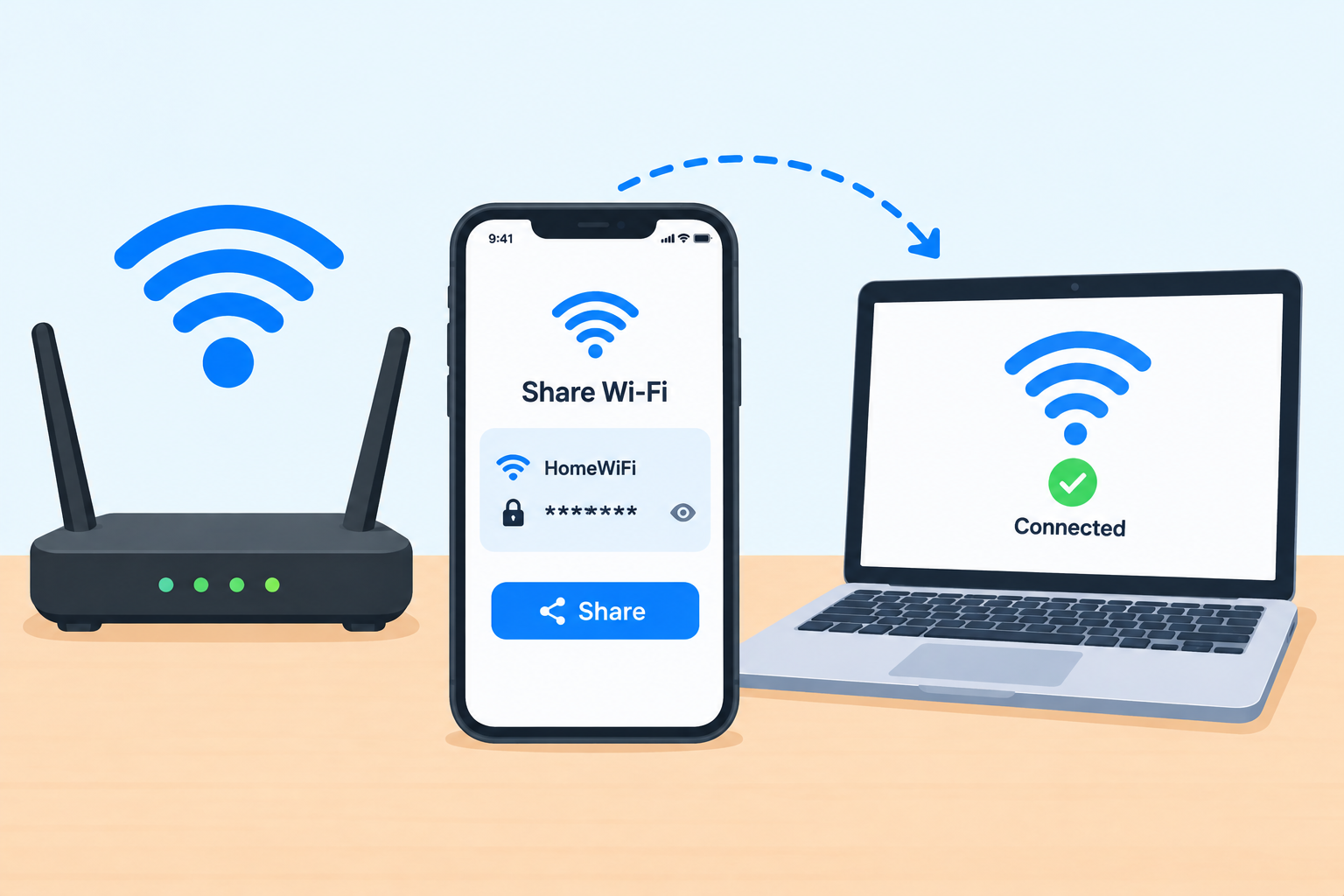
“What’s the Wi-Fi password?” is probably the first question every guest asks. And if your password is a long string of random letters and numbers printed on the back of the router, reading it out loud can quickly turn into a frustrating spelling contest.
The good news is that modern phones and computers can share Wi-Fi in seconds, often without anyone typing anything. iPhones can share with nearby Apple devices automatically, Android phones and Windows 11 PCs can show a QR code, and newer iPhones and Macs can create a QR code too.
In this guide, we show you every easy way to share your Wi-Fi password: Apple to Apple, Android to Android, iPhone to Android, Android to iPhone, from Windows and Mac, and from your router. We also cover how to see your saved password and how to share Wi-Fi safely with guests.
Quick Info: How to Share Wi-Fi Password at a Glance
| From | To | Easiest method |
|---|---|---|
| iPhone, iPad, or Mac | iPhone, iPad, or Mac | Automatic “Share Password” pop-up |
| iPhone (iOS 18 or later) | Any device | Passwords app > Wi-Fi > Show Network QR Code |
| Mac (macOS Sequoia or later) | Any device | Passwords app > Wi-Fi > Show Network QR Code |
| Android (Android 10 or later) | Any device | Wi-Fi settings > your network > Share (QR code) |
| Android | Nearby Android | Share > Nearby (Quick Share) |
| Windows 11 (version 24H2 or later) | Any device | Settings > Network & internet > Wi-Fi > Show (QR code) |
| Any router | Any device | Use the password on the router label or the router app |
Key Takeaways
- Apple to Apple: Nearby iPhones, iPads, and Macs can share Wi-Fi automatically with a single tap.
- QR codes work everywhere: Most phones can join Wi-Fi just by scanning a QR code with the camera.
- Android 10 and later can create a Wi-Fi QR code from Wi-Fi settings.
- iPhone with iOS 18 or later can create a Wi-Fi QR code in the Passwords app.
- Windows 11 version 24H2 and later can show a Wi-Fi QR code in Settings.
- For visitors, consider a guest network to keep your main network private.
Method 1: Share Wi-Fi From iPhone to iPhone (or Any Apple Device)
If both people use Apple devices, sharing is almost automatic.
Before you start
Make sure:
- Both devices have Wi-Fi and Bluetooth turned on.
- Both devices are running a recent version of iOS, iPadOS, or macOS.
- Your device is unlocked and connected to the Wi-Fi network.
- Both people are signed in with an Apple Account.
- The other person’s Apple Account email is saved in your Contacts (and ideally yours is in theirs).
- The devices are close together.
Steps
- On your friend’s device, open Settings > Wi-Fi and tap your network name.
- On your iPhone, a pop-up should appear asking if you want to share the Wi-Fi password.
- Tap Share Password.
- Tap Done.
Your friend’s device connects automatically, and they never see the actual password.
If the pop-up does not appear
- Move the devices closer together.
- Make sure your iPhone is unlocked.
- Turn Wi-Fi and Bluetooth off and on again on both devices.
- Check that you have each other saved in Contacts with the email used for the Apple Account.
- Restart both devices.
- Use the QR code method below instead.
Method 2: Share Wi-Fi From iPhone With a QR Code (iOS 18 and Later)
This method works for any device, including Android phones, because almost every phone can scan QR codes.
Apple added a Passwords app in iOS 18 and macOS Sequoia that stores your saved Wi-Fi passwords and can show a QR code for each network.
- Open the Passwords app on your iPhone. (If you cannot find it, search for “Passwords” or look in the Utilities folder of your App Library.)
- Tap Wi-Fi.
- Choose the network you want to share.
- Tap Show Network QR Code.
- Ask your friend to scan the code with their phone’s camera.
Using an older iPhone?
On iOS 16 and iOS 17, you can view and copy your Wi-Fi password:
- Go to Settings > Wi-Fi.
- Tap the (i) next to your network.
- Tap Password and unlock with Face ID, Touch ID, or your passcode.
- Tap Copy, then share it by message or read it out.
You can also use a Shortcuts automation to create a Wi-Fi QR code on older iOS versions.
Method 3: Share Wi-Fi From Android With a QR Code
Android has offered Wi-Fi QR codes since Android 10. Menu names vary slightly between phone brands, but the steps are similar.
On Google Pixel and most Android phones
- Open Settings.
- Tap Network & internet, then Internet (or Wi-Fi).
- Tap the gear icon next to your connected network.
- Tap Share.
- Confirm with your fingerprint, face, or PIN.
- A QR code appears, with the password usually shown underneath.
- Ask your friend to scan it with their camera.
Faster way on newer Android versions
On recent Android versions, you can also:
- Swipe down twice from the top of the screen to open Quick Settings.
- Tap Internet.
- Tap Share Wi-Fi to show the QR code.
On Samsung Galaxy phones
- Open Settings > Connections > Wi-Fi.
- Tap the gear icon next to your network.
- Tap QR code at the bottom of the screen.
- Show the code to your friend.
Share with Nearby Share (Quick Share)
On many Android phones, the Wi-Fi share screen also includes a Nearby or Quick Share button. Tap it to send the Wi-Fi details directly to a nearby Android device without scanning.
Method 4: Connect by Scanning a Wi-Fi QR Code
Once someone shows you a Wi-Fi QR code, joining is easy.
On iPhone
- Open the Camera app.
- Point it at the QR code.
- Tap the Join network notification that appears.
On Android
- Open the Camera app or Google Lens and point it at the code, then tap to join.
- Or go to Settings > Network & internet > Internet (or Wi-Fi), tap Add network, and tap the QR code icon to scan.
Method 5: Share Wi-Fi From a Windows 11 PC
Show a QR code (Windows 11 version 24H2 and later)
Starting with Windows 11 version 24H2, Settings can show a QR code for your Wi-Fi.
- Open Settings (press Windows + I).
- Click Network & internet.
- Click Wi-Fi, then click your connected network’s properties.
- Next to Wi-Fi network password, click Show.
- A QR code and the password appear. Ask your friend to scan the code.
View your Wi-Fi password
- Open Settings > Network & internet > Wi-Fi.
- Click Manage known networks and select your network.
- Click View next to View Wi-Fi security key.
You can also run this in Command Prompt, replacing the name with your network name:
netsh wlan show profile name="YourNetworkName" key=clearThe password appears next to Key Content.
On Windows 10
- Open Control Panel > Network and Sharing Center.
- Click your Wi-Fi network name, then Wireless Properties.
- Open the Security tab and tick Show characters.
Method 6: Share Wi-Fi From a Mac
Share with nearby Apple devices
Just like an iPhone, a Mac can show a Share Password prompt when a nearby friend’s Apple device tries to join your network. Make sure your Mac is unlocked and connected to the network.
Show a QR code (macOS Sequoia and later)
- Open the Passwords app.
- Click Wi-Fi.
- Select your network.
- Click Show Network QR Code.
On older macOS versions
- Open Keychain Access (in Applications > Utilities).
- Search for your Wi-Fi network name.
- Double-click it and tick Show password.
- Enter your Mac password when asked.
Method 7: Share From Your Router
If you cannot get the password from a device:
- Check the router label. Many routers print the default Wi-Fi name and password on a sticker on the bottom or back.
- Use the router app. Many routers and internet providers offer an app that shows your Wi-Fi password and sometimes a shareable QR code.
- Log in to the router settings page and look under Wireless or Wi-Fi settings.
If you have changed the password, the label will not show the new one. Our guide on what a router is explains how routers manage your network and settings.
Share Wi-Fi Safely: Use a Guest Network
Sharing your main Wi-Fi password gives guests access to the same network as your computers, printers, and smart home devices. A guest network is a safer option.
Why use a guest network
- Guests get internet access without seeing your personal devices.
- You can change the guest password without affecting your own devices.
- Some routers let you limit guest speed or set a time limit.
How to set one up
- Open your router’s app or settings page.
- Look for Guest Network or Guest Wi-Fi.
- Turn it on, give it a name, and set a password.
- Share the guest network using any of the methods above.
If you want to understand why separating devices matters, our guide on what a network is explains how devices on the same network can see each other.
Wi-Fi Sharing Security Tips
- Use a strong password with a mix of upper and lower case letters, numbers, and symbols.
- Change your password if you have shared it with many people you no longer want connected.
- Do not post Wi-Fi QR codes publicly, such as on social media. Anyone who scans one can join.
- Turn off guest access when you no longer need it.
- Check connected devices in your router app from time to time.
- Use WPA2 or WPA3 security in your router settings.
To learn more about Wi-Fi security standards and how wireless networks work, read our guide on what Wi-Fi is.
Troubleshooting: Wi-Fi Sharing Not Working
| Problem | Likely cause | Fix |
|---|---|---|
| iPhone “Share Password” pop-up does not appear | Devices too far apart, not in Contacts, or Bluetooth off | Move closer, check Contacts, turn on Bluetooth, unlock iPhone |
| No “Show Network QR Code” on iPhone | iPhone not on iOS 18 or later | Update iOS or view and copy the password in Settings |
| No Share button on Android | Android older than version 10 or network not saved | Update Android, or share the password manually |
| No QR code on Windows 11 | Windows 11 older than version 24H2 | Update Windows, or use View Wi-Fi security key |
| QR code scans but will not connect | Password changed or wrong network selected | Regenerate the QR code and try again |
| Guest still cannot connect | Device too far away or too many devices | Move closer, restart the router |
Frequently Asked Questions
How do I share my Wi-Fi password from iPhone to iPhone?
On your friend’s iPhone, tap your network in Settings > Wi-Fi. On your unlocked iPhone, tap Share Password when the pop-up appears. Both devices need Wi-Fi and Bluetooth on, and you should have each other in Contacts.
How do I share Wi-Fi from iPhone to Android?
On iOS 18 or later, open the Passwords app, tap Wi-Fi, choose your network, and tap Show Network QR Code. The Android user scans it with their camera.
How do I share Wi-Fi from Android to iPhone?
Open your Android Wi-Fi settings, tap the gear next to your network, tap Share, and show the QR code. The iPhone user scans it with the Camera app.
Can I share Wi-Fi without telling the password?
Yes. Apple’s automatic sharing and QR codes let people connect without you reading out the password. However, some devices may still let them view it later.
How do I see my Wi-Fi password on Android?
Go to your Wi-Fi settings, tap the gear next to your network, and tap Share. The password usually appears under the QR code.
How do I find my Wi-Fi password on Windows 11?
Open Settings > Network & internet > Wi-Fi > Manage known networks, select your network, and click View next to View Wi-Fi security key.
How do I share Wi-Fi from a Mac?
Nearby Apple devices can get a Share Password prompt on your Mac. On macOS Sequoia or later, you can also show a QR code in the Passwords app.
Is it safe to share my Wi-Fi password?
It is generally safe with people you trust. For visitors, a guest network is safer because it keeps them away from your personal devices.
Why is the Share Password option not showing on my iPhone?
Usually the devices are too far apart, Bluetooth is off, your iPhone is locked, or you are not saved in each other’s Contacts.
Final Thoughts
Sharing your Wi-Fi password no longer has to involve spelling out long codes. Apple devices can share automatically with one tap, and QR codes now work across iPhone, Android, Windows 11, and Mac, making it easy for anyone to connect in seconds.
For regular visitors, set up a guest network and share that instead. It is just as easy and keeps your main network and personal devices more private.
References
- AppleInsider: How to share a Wi-Fi QR code in iOS 18
- Pureinfotech: How to share Wi-Fi password with QR Code on Windows 11
Disclaimer
This guide is for general information only. Menu names and features vary depending on your device model, operating system version, phone brand, and router. Features such as Wi-Fi QR codes require recent software versions, including iOS 18, macOS Sequoia, Android 10, or Windows 11 version 24H2 or later. Only share your Wi-Fi with people you trust, and follow your internet provider’s terms of use. TechOriginHub is not affiliated with Apple, Google, Samsung, Microsoft, or any router maker, and this article is not sponsored.