
 By saman zahra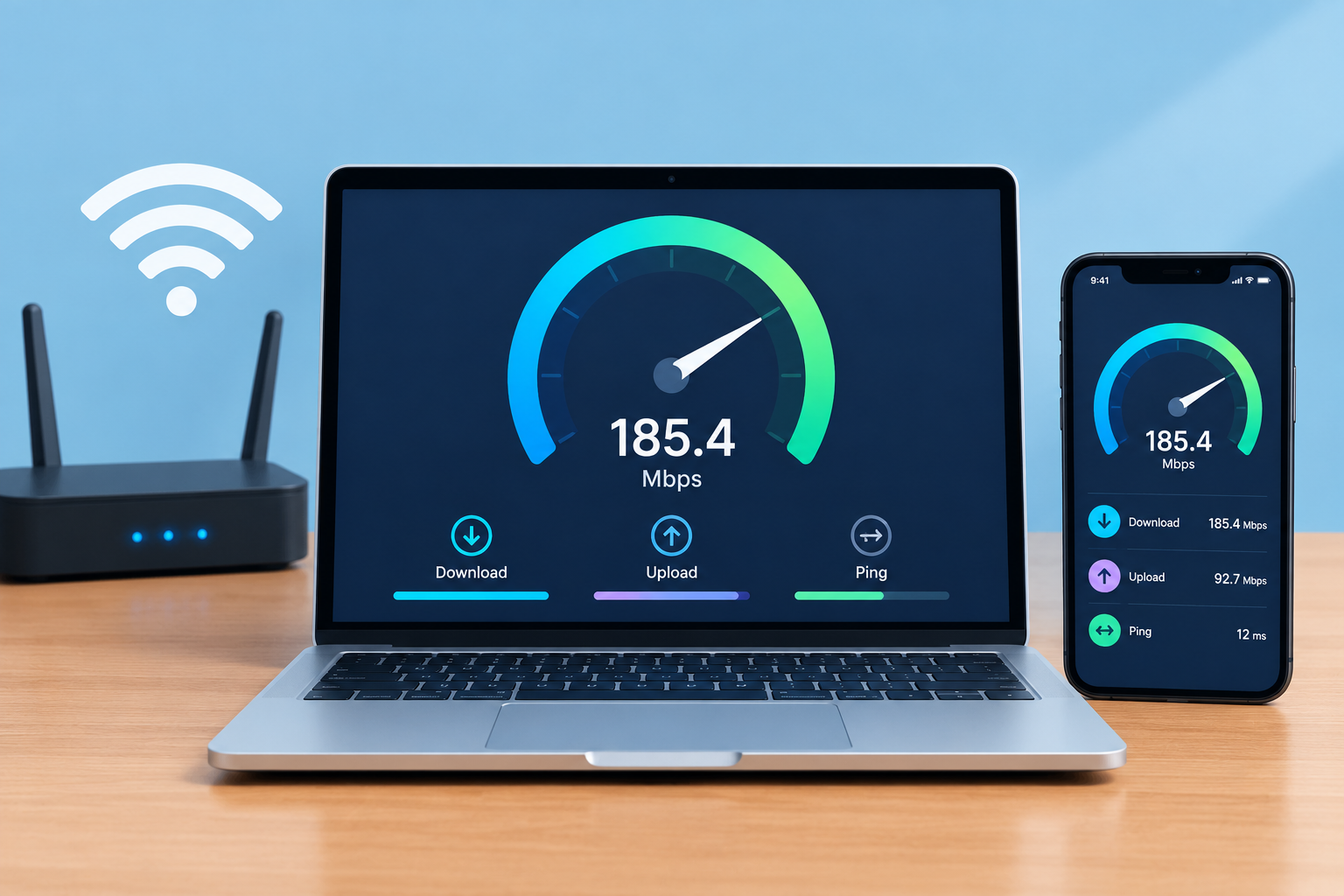
Your video call keeps freezing. Netflix drops to blurry quality in the middle of a movie. A game starts lagging just when it matters. The first question is always the same: is my internet actually slow, or is something else going on?
An internet speed test answers that in under a minute. It measures how fast data reaches you, how fast you can send it, and how responsive your connection is. With the right setup, it also tells you whether you are getting the speed you pay for.
In this guide, we show you how to test internet speed on any device, which free tools to use, how to get accurate results, what the numbers mean, what speed you really need, and what to do if your results are too low.
Quick Info: Internet Speed Test at a Glance
| Detail | Quick Answer |
|---|---|
| What it measures | Download speed, upload speed, ping (latency), and jitter |
| Popular free tools | Speedtest by Ookla, Fast.com, Google’s speed test (search “speed test”) |
| Time needed | Usually under a minute |
| Most accurate method | A computer connected to the router with an Ethernet cable |
| Unit for speed | Mbps (megabits per second) |
| Unit for ping and jitter | ms (milliseconds) |
| Good ping | Lower is better; under about 50 ms feels responsive |
| HD streaming needs | About 5 to 8 Mbps per stream (FCC guide) |
| 4K streaming needs | About 25 Mbps per stream (FCC guide) |
| Best practice | Test several times, at different times of day |
Key Takeaways
- A speed test checks download, upload, ping, and often jitter.
- Use a trusted free tool like Speedtest by Ookla or Fast.com.
- For the most accurate result, use a wired Ethernet connection and close other apps.
- Test at different times, since speeds often drop in the evening when more people are online.
- Compare your results to your plan, not to someone else’s.
- Slow results on Wi-Fi but good results on a cable usually mean a Wi-Fi problem, not an internet problem.
What Does an Internet Speed Test Measure?
| Measurement | What it means | Why it matters |
|---|---|---|
| Download speed | How fast data comes to your device, in Mbps | Streaming, browsing, downloading files and apps |
| Upload speed | How fast data leaves your device, in Mbps | Video calls, sending files, uploading videos, cloud backups |
| Ping (latency) | How long it takes for a signal to travel to a server and back, in ms | Gaming, video calls, and how “snappy” the internet feels |
| Jitter | How much ping changes from moment to moment, in ms | Smooth calls and games; high jitter causes stutters and robotic voices |
A simple way to think of it: download and upload are how wide the road is, while ping is how long the trip takes.
Mbps vs MBps
Internet speed is measured in megabits per second (Mbps). File sizes are usually shown in megabytes (MB). Since 1 byte equals 8 bits, a 100 Mbps connection downloads at roughly 12.5 megabytes per second in ideal conditions.
How to Test Your Internet Speed
Step 1: Pick a trusted speed test
These free tools are widely used and easy to run:
| Tool | What it shows | Best for |
|---|---|---|
| Speedtest by Ookla (speedtest.net or app) | Download, upload, ping, jitter, test history | The most complete everyday test |
| Fast.com (by Netflix) | Download first; click “Show more info” for upload and latency | Quick checks and streaming |
| Google speed test (search “speed test” on Google) | Download, upload, latency | A quick test without visiting another site |
| Your internet provider’s speed test | Download, upload, ping | Checking against your provider’s own servers |
Use the official website or the app from your phone’s official app store. Avoid unknown “speed booster” apps.
Step 2: Prepare your device and network
Before you click start:
- Pause downloads, updates, and streaming on all devices at home.
- Close other browser tabs and apps that use the internet.
- Turn off your VPN, since it can slow results or connect you to faraway servers.
- Restart your router if it has been running for weeks without a restart.
Step 3: Run the test
- Open the speed test website or app.
- Let it pick the nearest server, or choose one close to you.
- Click Go or Start.
- Wait for the download, upload, and ping tests to finish. Most take less than 30 seconds.
Step 4: Repeat for an accurate picture
One test is only a snapshot. Run the test three times in a row, and then repeat at different times, such as morning, afternoon, and evening. Note the results each time.
How to Test Internet Speed on Different Devices
On a computer (most accurate)
Connect your computer directly to your router with an Ethernet cable, then run the test in your browser. A wired test shows the true speed coming into your home, without Wi-Fi getting in the way. If you are unsure about cables and ports, our guide on what Ethernet is explains how wired connections work and why they are more stable.
On Wi-Fi with a laptop
Run the test in the same room as your router first, then in the rooms where you usually use the internet. Big drops in other rooms point to weak Wi-Fi coverage.
On a phone or tablet
Download the official Speedtest app, or open a speed test site in your browser.
- To test home internet, connect to your Wi-Fi first.
- To test mobile data (4G or 5G), turn off Wi-Fi.
Remember that a phone test on Wi-Fi measures your Wi-Fi as well as your internet connection, so results are often lower than a wired test.
On a smart TV or game console
Many smart TVs and consoles have a built-in network or connection test in their settings. Some also support speed test apps. These are useful for checking whether the device itself is getting a strong signal.
How to Get Accurate Speed Test Results
| Do this | Why |
|---|---|
| Use an Ethernet cable | Removes Wi-Fi interference and distance from the result |
| Close other apps and pause downloads | Other activity uses up speed during the test |
| Turn off VPN | VPNs add distance and processing |
| Test several times | Speeds change from minute to minute |
| Test at different times of day | Evening peak hours are often slower |
| Use a nearby server | Faraway servers increase ping and can lower speed |
| Use a modern device | Older phones and laptops may not reach high speeds on Wi-Fi |
| Check your router’s capabilities | Older routers may not support your full plan speed |
Understanding Your Results
Compare against your plan
The most important comparison is between your result and the speed your provider advertises. Check your bill or account for the exact download and upload speeds you pay for.
As a rough guide on a wired connection:
| Result vs your plan | What it likely means |
|---|---|
| Close to your plan speed | Your connection is working well |
| Noticeably lower, but only on Wi-Fi | Wi-Fi coverage, router, or device issue |
| Consistently much lower, even wired | Possible problem with the line, modem, or provider |
| Low only in the evening | Network congestion during busy hours |
Keep in mind that many plans are advertised as “up to” a certain speed, so small differences are normal.
What is a good ping and jitter?
| Ping | Experience |
|---|---|
| Under about 20 ms | Excellent, great for fast-paced gaming |
| About 20 to 50 ms | Very good for most uses |
| About 50 to 100 ms | Okay for browsing and streaming; noticeable in games |
| Over 100 ms | Lag may be noticeable in calls and games |
For jitter, lower is better. Low, steady jitter means smooth video calls and games. High jitter causes freezing, choppy voices, and rubber-banding in games.
How Much Internet Speed Do You Need?
The US Federal Communications Commission (FCC) publishes rough guidelines for the minimum download speed needed for common activities, one activity at a time:
| Activity | Minimum download speed (FCC guide) |
|---|---|
| Streaming online radio | Less than 0.5 Mbps |
| VoIP calls | Less than 0.5 Mbps |
| Standard personal video call | 1 Mbps |
| HD personal video call | 1.5 Mbps |
| Standard definition (SD) video streaming | 3 to 4 Mbps |
| HD video streaming | 5 to 8 Mbps |
| HD video teleconferencing | 6 Mbps |
| 4K Ultra HD video streaming | 25 Mbps |
The FCC notes these are rough guidelines and that additional speed may improve performance.
Add it up for your household
These numbers are for one activity at a time. If three people stream HD video while someone joins a video meeting and a console downloads a game, you need much more. The FCC’s household guide groups usage into basic service (about 3 to 8 Mbps), medium service (about 12 to 25 Mbps), and advanced service (more than 25 Mbps), depending on how many devices and how demanding the activities are.
In practice, many busy households with several devices, 4K streaming, and gaming feel more comfortable with 100 Mbps or more. Also check upload speed if you work from home, upload videos, or use cloud backups.
Why Is My Internet Speed Slow?
| Possible cause | Signs | What to try |
|---|---|---|
| Weak Wi-Fi signal | Fast near the router, slow in other rooms | Move closer, reposition the router, or add a mesh system or extender |
| Old or overloaded router | Slow on all devices, frequent drops | Restart or update the router; consider upgrading |
| Too many devices at once | Slower when everyone is online | Pause big downloads; schedule updates overnight |
| Peak-time congestion | Slow mostly in the evening | Test at different times; contact your provider if severe |
| Background apps or updates | Sudden slowdowns on one device | Check for downloads, cloud sync, and updates |
| VPN | Slower with VPN on | Choose a closer VPN server or test without it |
| Old device | One device much slower than others | Update the device or use a newer one |
| Line or modem issue | Slow even on a wired test | Restart the modem; contact your provider |
| Plan too slow | Results match your plan but still feel slow | Consider a faster plan |
How to Improve Your Internet Speed
- Restart your modem and router. Unplug them for about 30 seconds, then plug the modem in first and the router second.
- Move your router. Place it in a central, open, raised spot, away from walls, metal, and microwaves.
- Use the 5 GHz band (or 6 GHz on newer routers) for nearby devices. It is faster than 2.4 GHz over shorter distances.
- Use Ethernet for TVs, consoles, and desktop computers.
- Update router firmware and device software.
- Limit background usage like cloud backups and automatic updates during important tasks.
- Add a mesh Wi-Fi system for larger homes or homes with thick walls.
- Upgrade old equipment if your router is several years old. Our guide on what a router is explains what to look for and how routers affect your speed.
- Contact your provider if wired tests are consistently far below your plan speed.
If you want to understand why Wi-Fi often tests slower than a cable, our guide on what Wi-Fi is explains how wireless signals work and the common problems that slow them down.
When to Contact Your Internet Provider
Contact your provider if:
- Wired speed tests are consistently well below your plan speed at different times of day.
- Your connection drops often, even after restarting your equipment.
- Ping is very high on a wired connection to a nearby server.
- Speeds suddenly dropped and stayed low for several days.
When you call, have your test results with dates and times ready, and mention that you tested on a wired connection with other devices paused. This makes it much easier for them to help.
Frequently Asked Questions
How do I test my internet speed?
Open a trusted speed test like Speedtest by Ookla, Fast.com, or search “speed test” on Google, then click Go or Start. For the most accurate result, use a wired connection and close other apps first.
What is a good internet speed?
It depends on how you use the internet. The FCC suggests about 5 to 8 Mbps for HD streaming and 25 Mbps for 4K, per stream. Busy households with many devices often prefer 100 Mbps or more.
Why is my speed test slower than my plan?
Common reasons include testing over Wi-Fi, other devices using the connection, an old router, peak-time congestion, or a VPN. Test with an Ethernet cable to check the true speed.
What is ping in a speed test?
Ping, or latency, is how long it takes for data to travel to a server and back, measured in milliseconds. Lower ping means a more responsive connection.
What is jitter?
Jitter is how much your ping changes over time. Low jitter means a stable connection, which is important for calls and gaming.
Why is my upload speed much lower than my download speed?
Many internet plans, especially cable and DSL, offer much lower upload speeds than download speeds. Fiber plans often have similar upload and download speeds.
Is Wi-Fi speed the same as internet speed?
No. Your internet speed is what comes into your home. Wi-Fi speed is how well your router delivers it to your devices. Weak Wi-Fi can make a fast plan feel slow.
How often should I test my internet speed?
Test whenever you notice slowdowns, after changing your plan or router, and occasionally at different times of day to track your typical speed.
Is it safe to use online speed tests?
Yes, trusted tools like Speedtest by Ookla, Fast.com, and Google’s speed test are safe. Avoid unknown apps that promise to “boost” your speed.
Final Thoughts
Testing your internet speed takes less than a minute, but doing it the right way makes the results far more useful. Use a trusted tool, test on a wired connection when you can, close other apps, and repeat the test at different times of day. Then compare the results to your plan and to what your household really needs.
If wired results look good but Wi-Fi is slow, focus on your router and Wi-Fi setup. If even wired results are far below your plan, collect your test results and contact your provider.
References
Disclaimer
This guide is for general information only. Speed test results vary depending on your device, network, server, time of day, and testing method, and may not exactly match your provider’s measurements. FCC speed figures are rough US guidelines and may not reflect every service or country. TechOriginHub is not affiliated with Ookla, Netflix, Google, or any internet provider, and this article is not sponsored.