
 By Saad Qureshi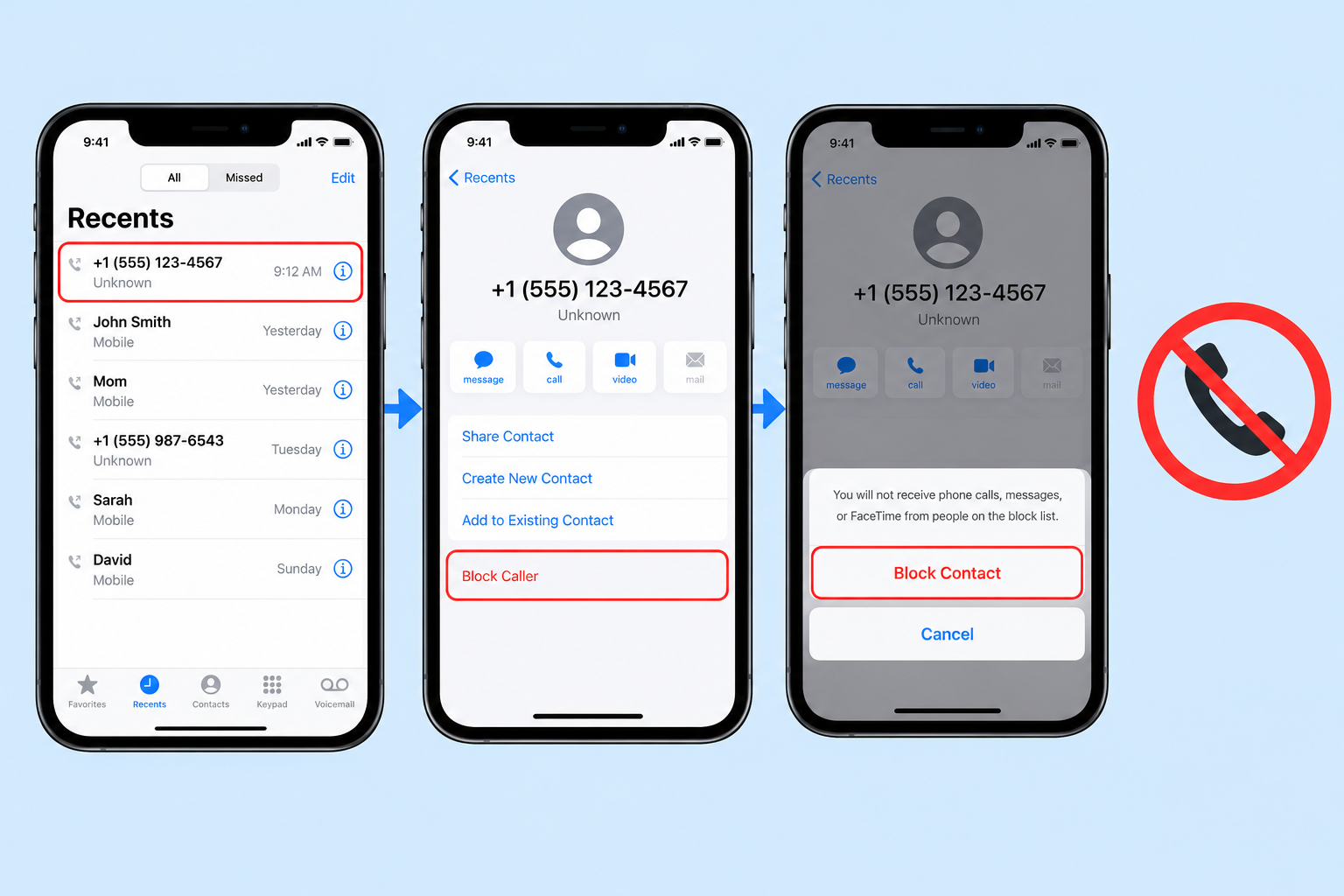
A number keeps calling you. Maybe it is a pushy telemarketer, a scam caller pretending to be your bank, an ex who will not take the hint, or someone sending you annoying text messages. Whatever the reason, you do not have to put up with it.
Your iPhone has a built-in block feature that stops a number from calling, texting, or FaceTiming you. It takes only a few seconds, it is free, and you do not need any extra app.
In this guide, we will show you every way to block a mobile number on iPhone, including from the Phone app, Messages, FaceTime, and Settings. We will also cover how to block unknown and spam callers, how to see and unblock blocked numbers, and what actually happens when you block someone. All steps follow Apple’s official instructions and include the updated menus in iOS 26.
Quick Info: Blocking Numbers on iPhone at a Glance
| Detail | Quick Answer |
|---|---|
| Fastest way | Phone app > Recents > tap the number > Block Caller |
| From a text | Messages > open chat > tap the name at the top > Block Caller |
| From Settings (iOS 26) | Settings > Apps > Phone > Blocked Contacts > Add Blocked Contact |
| Older iOS versions | Settings > Phone > Blocked Contacts > Add New |
| What gets blocked | Phone calls, messages, and FaceTime from that number |
| Can they leave voicemail? | Yes, but you will not get a notification |
| Do they get told? | No, iPhone does not notify them |
| Block unknown callers | Settings > Apps > Phone > Screen Unknown Callers |
| Unblock a number | Settings > Apps > Phone > Blocked Contacts > Edit |
| Cost | Free, built into iOS |
Key Takeaways
- The quickest way to block a number is from Recents in the Phone app.
- Blocking a number stops calls, messages, and FaceTime from that number on your iPhone.
- Blocked callers can still leave a voicemail, but your iPhone will not alert you about it.
- In iOS 26, Phone settings moved to Settings > Apps > Phone.
- To stop calls from numbers you do not know, use Screen Unknown Callers instead of blocking each number one by one.
- You can unblock a number at any time.
What Happens When You Block a Number on iPhone?
Before you block someone, it helps to know exactly what changes:
| What the blocked number tries | What happens |
|---|---|
| Calls you | Your iPhone does not ring. The call usually goes to voicemail. |
| Leaves a voicemail | It is saved in a separate Blocked Messages section with no notification. |
| Sends an iMessage | You will not receive it. |
| Sends an SMS text | You will not receive it on your iPhone. |
| FaceTime calls you | Your iPhone does not ring. |
| Emails you (if you block the email address in Mail) | The email goes to the Trash folder. |
Apple confirms that a blocked phone number or contact can still leave a voicemail, but you will not get a notification. Your iPhone also does not send the other person any message saying they were blocked.
Method 1: Block a Number From the Phone App (Recents)
This is the fastest method, especially for a number that just called you.
- Open the Phone app.
- Tap Recents (or Calls if you use the new unified Phone layout in iOS 26).
- Find the number you want to block.
- Tap the number or contact. If you use the Classic layout, tap the Info button (i) next to it instead.
- Scroll down and tap Block Caller.
- Confirm by tapping Block Contact.
That number can no longer call, text, or FaceTime you.
Method 2: Block a Number From Messages
If the person is sending you unwanted texts, block them straight from the conversation.
- Open the Messages app.
- Open the conversation with the number you want to block.
- Tap the name or number at the top of the conversation.
- Scroll down and tap Block Caller.
- Confirm when asked.
You may also see an option to Report Junk for messages that look like spam. Reporting helps Apple and your carrier spot scam senders.
Method 3: Block a Number From FaceTime
- Open the FaceTime app.
- Tap the phone number, contact, or email address you want to block. (Tap the Info button if needed.)
- Scroll down and tap Block Caller.
Method 4: Block a Number From Settings (iOS 26)
This method is useful when the number is not in your Recents, for example if you want to block a number someone warned you about.
- Open Settings.
- Scroll down and tap Apps.
- Tap Phone.
- Tap Blocked Contacts.
- Tap Add Blocked Contact.
- Enter or select the number or contact you want to block.
- Tap Block Contact.
On older iOS versions
If your iPhone is on iOS 17 or earlier, the path is a little different:
- Open Settings.
- Tap Phone.
- Tap Blocked Contacts.
- Tap Add New and choose the contact.
On older versions, you may need to save the number as a contact first before you can pick it from this list.
Method 5: Block a Contact From the Contacts App
If the person is saved in your contacts:
- Open the Contacts app (or the Contacts tab in the Phone app).
- Tap the person’s name.
- Scroll down and tap Block Caller.
- Confirm.
If you are setting up a new iPhone and want your contacts list in order first, our guide on how to transfer contacts to a new phone walks you through it.
How to Block Unknown and Spam Callers on iPhone
Blocking numbers one by one does not work well against spam callers, because they often use a different number every time. Your iPhone has better tools for that.
Option 1: Screen Unknown Callers (iOS 26)
iOS 26 added a feature called Screen Unknown Callers. As AP reported, it is available on iPhone 11 and newer running iOS 26.
- Open Settings.
- Tap Apps, then Phone.
- Find Screen Unknown Callers.
- Choose one of the options:
| Option | What it does | Best for |
|---|---|---|
| Never | Unknown numbers ring normally | People who often get important calls from new numbers |
| Ask Reason for Calling | Your iPhone asks the caller for their name and reason before ringing you | A balance between blocking spam and not missing real calls |
| Silence | Unknown numbers do not ring and go to voicemail | People who get lots of spam calls |
“Unknown” means numbers that are not in your contacts and that you have not called or texted recently.
Tip: If you choose Silence, you may miss calls from doctors, delivery drivers, or new contacts. Check your Recents and voicemail regularly. If a real caller gets filtered, open the Phone app, tap the Filter button, choose Unknown Callers, and mark the number as known.
If you do not see Screen Unknown Callers, make sure your iPhone is updated to iOS 26. On older iOS versions, look for Silence Unknown Callers in Settings > Phone instead.
Option 2: Filter unknown senders in Messages
To stop texts from unknown numbers from cluttering your inbox:
- Open Settings.
- Tap Apps, then Messages.
- Look for the unknown senders setting (called Screen Unknown Senders or Filter Unknown Senders, depending on your iOS version) and turn it on.
Messages from numbers not in your contacts move to a separate Unknown Senders list, and you will not get notifications for them.
Option 3: Use your carrier’s spam protection
Many mobile carriers offer free spam call blocking or labeling. Check your carrier’s app or website, since features and names vary by country and network.
Option 4: Third-party call blocking apps
Apps such as Truecaller or Hiya can identify and block spam numbers using large databases of reported numbers. iOS 26 can also show caller ID from supported third-party apps. To enable a call-blocking app after installing it, look for Call Blocking & Identification in Settings > Apps > Phone.
Be careful with these apps, since some ask for access to your contacts. Only install well-known apps from the official App Store and read their privacy policies. If you also use an Android phone, our guide to the call blocker apps for Android phones compares the options there.
How to See All Blocked Numbers on iPhone
- Open Settings.
- Tap Apps, then Phone (or just Phone on older iOS).
- Tap Blocked Contacts.
You will see every number, contact, and email address you have blocked.
How to Unblock a Number on iPhone
Changed your mind? Unblocking is just as easy.
From Settings
- Go to Settings > Apps > Phone > Blocked Contacts.
- Tap Edit in the top corner.
- Tap the red minus next to the number.
- Tap Unblock.
- Tap Done.
From the Phone app
- Find the number in Recents or Contacts.
- Tap it (or the Info button).
- Scroll down and tap Unblock this Caller.
After unblocking, the person can call and message you again. Calls and messages they sent while blocked will not be delivered to you after you unblock them.
How to Listen to Voicemails From Blocked Numbers
Sometimes you need to check whether a blocked caller left an important message.
- Open the Phone app.
- Go to Voicemail.
- Scroll to the bottom and look for Blocked Messages.
Availability of visual voicemail and this section depends on your carrier.
Block Numbers on iPhone: Method Comparison
| Method | Best for | Time needed |
|---|---|---|
| Phone app (Recents) | A number that just called | 5 seconds |
| Messages | Annoying texts | 5 seconds |
| FaceTime | Unwanted FaceTime calls | 5 seconds |
| Settings > Blocked Contacts | Numbers not in your call history | 30 seconds |
| Contacts app | Saved contacts | 10 seconds |
| Screen Unknown Callers | Spam from many different numbers | 30 seconds, once |
| Carrier or third-party apps | Heavy spam and scam calls | A few minutes |
Blocking Not Working? Common Problems and Fixes
| Problem | Likely cause | Fix |
|---|---|---|
| Blocked number still sends texts | The person uses a different number or email | Block the new number or email too; use unknown sender filtering |
| Spam calls keep coming | Spammers rotate numbers | Turn on Screen Unknown Callers and carrier spam protection |
| Can’t find Blocked Contacts in Settings | Menu moved in iOS 26 | Go to Settings > Apps > Phone |
| Screen Unknown Callers missing | iPhone not on iOS 26 or older model | Update iOS; check model support |
| Important calls being silenced | Silence option is on | Switch to Ask Reason for Calling, or mark the number as known |
| Blocked caller still reaches you on WhatsApp | iPhone blocking only covers Phone, Messages, FaceTime | Block them inside WhatsApp or other apps too |
Important: blocking does not cover other apps
Blocking a number on your iPhone stops phone calls, SMS, iMessage, and FaceTime. It does not block that person in apps like WhatsApp, Instagram, Telegram, or Snapchat. You need to block them separately inside each app.
Privacy and Safety Tips
- Never call back unknown numbers that hang up after one ring. Some are scams designed to charge you.
- Do not share codes or passwords with anyone who calls claiming to be your bank, carrier, or Apple.
- Report spam texts using Report Junk in Messages.
- Keep evidence if someone is harassing or threatening you. Take screenshots before blocking, and contact your carrier or local police if needed.
- Keep your private apps private too. If you share your phone often, our guide on how to hide apps on iPhone shows how to keep certain apps out of sight.
Frequently Asked Questions
How do I block a number on my iPhone?
Open the Phone app, tap Recents, tap the number (or the Info button), scroll down, and tap Block Caller.
Does blocking a number on iPhone block texts too?
Yes. Blocking a number stops calls, messages, and FaceTime from that number on your iPhone.
Will the person know I blocked them?
Your iPhone does not send them any notice. However, they may guess if their calls always go to voicemail or their messages never show as delivered.
Can a blocked number leave a voicemail?
Yes. Apple says blocked callers can still leave a voicemail, but you will not be notified. You can find these under Blocked Messages in Voicemail, depending on your carrier.
Where are blocked numbers on iPhone in iOS 26?
Go to Settings > Apps > Phone > Blocked Contacts.
How do I block a number that is not saved in my contacts?
Open Recents in the Phone app, tap the number or the Info button, and choose Block Caller. Or use Settings > Apps > Phone > Blocked Contacts > Add Blocked Contact.
How do I stop spam calls on iPhone?
Turn on Screen Unknown Callers in Settings > Apps > Phone, use your carrier’s spam protection, and report spam texts with Report Junk.
How do I unblock a number on iPhone?
Go to Settings > Apps > Phone > Blocked Contacts, tap Edit, tap the red minus next to the number, and tap Unblock.
Does blocking on iPhone block WhatsApp calls?
No. You need to block the person separately inside WhatsApp.
Is there a limit to how many numbers I can block?
Apple does not publish a specific limit for most users. You can block many numbers through the Blocked Contacts list.
Final Thoughts
Blocking a mobile number on iPhone takes just a few taps. The fastest way is from Recents in the Phone app, but you can also block from Messages, FaceTime, Contacts, or Settings. If you are dealing with endless spam from different numbers, turn on Screen Unknown Callers in iOS 26 and filter unknown senders in Messages.
And remember, you can always check your blocked list or unblock someone later in Settings > Apps > Phone > Blocked Contacts.
References
- Apple Support: Block phone numbers, contacts and emails on your iPhone or iPad
- AP News: Try the new iOS 26 call screen feature
Disclaimer
This guide is for general information only. Menu names and steps may vary slightly depending on your iPhone model, iOS version, region, and carrier. Features like Screen Unknown Callers and visual voicemail for blocked messages depend on your iOS version and carrier support. TechOriginHub is not affiliated with Apple or any app mentioned, and this article is not sponsored. If you are being harassed or threatened, contact your mobile carrier and local authorities for help.