
 By Saad Qureshi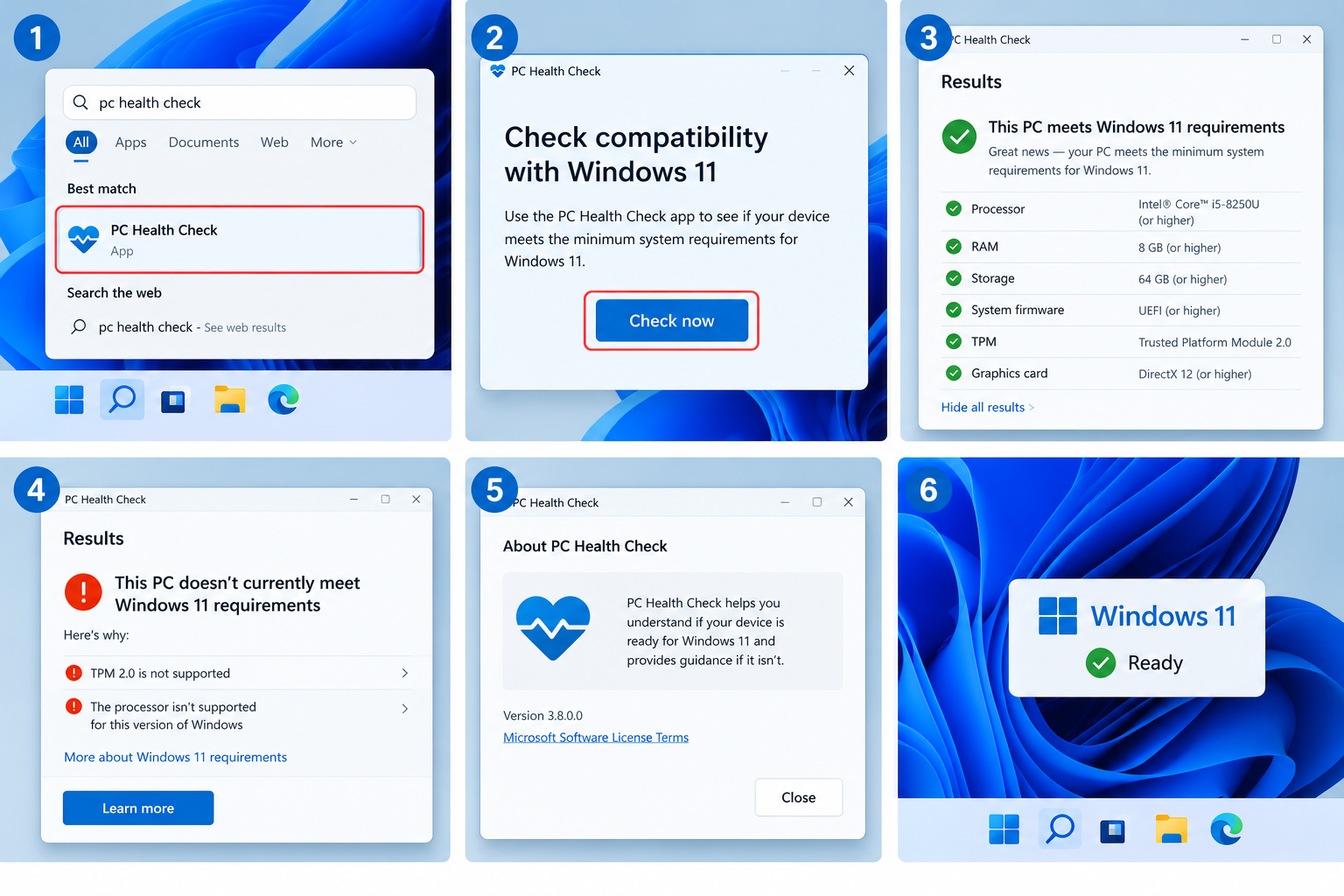
Your Windows 10 PC still turns on, still opens your files, and still runs your favorite apps. So why does everyone keep telling you to upgrade?
The reason is simple. Microsoft ended support for Windows 10 on October 14, 2025. Your PC will keep working, but it no longer gets the regular free security fixes that protect it from new threats. Moving to Windows 11 is the safest way forward, but only if your computer can actually run it.
Windows 11 has stricter hardware requirements than any version of Windows before it. Some PCs that run Windows 10 perfectly will still fail the check, usually because of something called TPM 2.0, Secure Boot, or an older processor.
In this guide, we will show you how to use Microsoft’s official Windows 11 compatibility checker, how to check each requirement yourself, and what to do if your PC does not pass.
Quick Info: Windows 11 Compatibility at a Glance
| Detail | Quick Answer |
|---|---|
| Official checker tool | PC Health Check app by Microsoft (free) |
| Where to get it | Already on many Windows 10 PCs, or download from Microsoft’s Windows 11 specifications page |
| Processor | 1 GHz or faster, 2 or more cores, on a compatible 64-bit processor |
| RAM | 4 GB or more |
| Storage | 64 GB or more |
| Firmware | UEFI, Secure Boot capable |
| Security chip | TPM version 2.0 |
| Graphics | DirectX 12 compatible with WDDM 2.0 driver |
| Display | Larger than 9 inches, HD (720p) |
| Windows 11 Home setup | Needs internet and a Microsoft account |
| Time to check | About 2 to 5 minutes |
Key Takeaways
- The easiest way to check is Microsoft’s free PC Health Check app. Open it and click Check now.
- The most common reasons a PC fails are TPM 2.0 turned off, Secure Boot turned off, or an unsupported processor.
- TPM and Secure Boot are often already in your PC but switched off. You may be able to turn them on in your BIOS or UEFI settings.
- You can check every requirement manually using built-in Windows tools like Settings, System Information, and tpm.msc.
- If your processor is not supported, there is usually no simple fix. Microsoft recommends a supported PC for the safest, fully updated experience.
- Always back up your files before making firmware changes or upgrading.
What Is the Windows 11 Compatibility Checker?
The Windows 11 compatibility checker is Microsoft’s PC Health Check app. It looks at your hardware and tells you whether your PC meets the minimum system requirements for Windows 11.
Microsoft’s support page describes it as a tool that gives you a full eligibility check if you are running Windows 10. It also does a few other handy things, like showing your Windows Update status, storage use, startup time, and battery capacity on laptops.
The app is free and made by Microsoft, so there is no need to download third-party “Windows 11 checker” tools from unknown websites.
Windows 11 Minimum System Requirements
Before running the checker, it helps to know what it is looking for. These are Microsoft’s minimum requirements for Windows 11:
| Component | Minimum Requirement | What it means in plain words |
|---|---|---|
| Processor (CPU) | 1 GHz or faster with 2 or more cores on a compatible 64-bit processor or System on a Chip | Your CPU must be on Microsoft’s supported list, not just fast enough |
| RAM | 4 GB | The short-term memory your PC uses while running apps |
| Storage | 64 GB or larger | Space on your drive for Windows and apps |
| System firmware | UEFI, Secure Boot capable | The modern startup system that replaced old BIOS |
| TPM | Trusted Platform Module version 2.0 | A security chip that protects encryption keys and sign-ins |
| Graphics card | DirectX 12 compatible with WDDM 2.0 driver | Your graphics must support modern Windows display features |
| Display | Over 9 inches, HD (720p), 8 bits per color channel | Basically any normal laptop or monitor |
| Internet and account | Required for Windows 11 Home setup | You need to be online and sign in with a Microsoft account |
Meeting the minimum means Windows 11 will run. For a smooth experience with many browser tabs and apps, 8 GB of RAM and an SSD make a big difference.
Method 1: Use the PC Health Check App
This is the fastest and most reliable method.
Step 1: Open or download PC Health Check
- Click the Search box on your taskbar.
- Type PC Health Check.
- If it appears, open it.
If it does not appear, download it from Microsoft. Go to Microsoft’s official Windows 11 specifications page, find the compatibility section, and download the PC Health Check app. Run the installer and follow the prompts.
If the app asks you to update itself, install the update first so it checks against the latest requirements.
Step 2: Run the Windows 11 check
- At the top of the app, find the Introducing Windows 11 section.
- Click Check now.
- Wait a few seconds while it scans your hardware.
Step 3: Read your result
You will see one of two messages:
- “This PC meets Windows 11 requirements.” Great news. You can usually upgrade for free through Windows Update.
- “This PC doesn’t currently meet Windows 11 system requirements.” The app will list what failed, such as TPM, Secure Boot, or processor.
Click See all results to view each requirement and whether it passed. Write down anything marked with a red cross. That tells you exactly what to look into.
Method 2: Check Through Windows Update
On many Windows 10 PCs, Windows Update also tells you about Windows 11.
- Open Settings.
- Go to Update & Security > Windows Update.
- Look at the right side or top of the page.
You may see a message saying your PC is ready for Windows 11 with an option to download it, or a note that your PC does not meet requirements. This is a quick check, but PC Health Check gives more detail.
Method 3: Check Each Requirement Manually
If you want to understand your PC better, or PC Health Check gives an unclear result, you can check each part yourself using tools already built into Windows.
Check your processor, RAM, and 64-bit system
- Open Settings > System > About.
- Look at:
- Processor: the name and speed of your CPU
- Installed RAM: should be 4 GB or more
- System type: should say 64-bit operating system, x64-based processor
If it says 32-bit, your PC cannot run Windows 11.
To see whether your processor is supported, compare its exact model name with Microsoft’s supported processor lists for Intel, AMD, and Qualcomm. As a rough guide, most Intel processors from 8th generation onward and most AMD Ryzen processors from the 2000 series onward are supported, but always confirm your exact model.
Check your storage
- Open File Explorer.
- Click This PC.
- Look at your main drive (usually C:).
The total size should be at least 64 GB. You will also need enough free space for the upgrade itself, so clear some room if the drive is nearly full.
Check TPM 2.0
- Press Windows key + R to open the Run box.
- Type tpm.msc and press Enter.
- Look at the Status and TPM Manufacturer Information sections.
What you might see:
- “The TPM is ready for use” and Specification Version: 2.0. You pass.
- Specification Version: 1.2. Your PC has an older TPM that does not meet the requirement.
- “Compatible TPM cannot be found.” Your TPM may be turned off in firmware settings, or your PC may not have one.
Check UEFI and Secure Boot
- Press Windows key + R.
- Type msinfo32 and press Enter to open System Information.
- In System Summary, look for:
- BIOS Mode: should say UEFI. If it says Legacy, your PC is using the older startup mode.
- Secure Boot State: should say On. If it says Off, Secure Boot is supported but disabled. If it says Unsupported, your PC is in Legacy mode or does not support it.
Check graphics (DirectX 12 and WDDM)
- Press Windows key + R.
- Type dxdiag and press Enter.
- On the System tab, check DirectX Version.
- On the Display tab, look for Driver Model in the Drivers section. It should say WDDM 2.0 or higher.
Most PCs from the last several years pass this easily.
Quick Manual Checklist
| Requirement | Where to check | What you want to see |
|---|---|---|
| 64-bit system | Settings > System > About | 64-bit operating system |
| RAM | Settings > System > About | 4 GB or more |
| Processor | Settings > System > About, then Microsoft’s CPU list | Your exact model is on the list |
| Storage | File Explorer > This PC | 64 GB or larger drive |
| TPM | tpm.msc | Ready for use, version 2.0 |
| UEFI | msinfo32 | BIOS Mode: UEFI |
| Secure Boot | msinfo32 | Secure Boot State: On |
| Graphics | dxdiag | DirectX 12, WDDM 2.0 or higher |
What to Do If Your PC Fails the Check
Do not panic. Some failures are easy to fix. Others are not.
If TPM 2.0 is not detected
Many PCs built in the last several years have TPM 2.0 built into the processor, but it may be turned off. It often goes by a different name in firmware settings:
- Intel PCs: Intel PTT (Platform Trust Technology)
- AMD PCs: AMD fTPM
- Sometimes just TPM, Security Device, or Security Chip
To turn it on:
- Back up your important files first.
- Open Settings > Update & Security > Recovery.
- Under Advanced startup, click Restart now.
- Choose Troubleshoot > Advanced options > UEFI Firmware Settings > Restart.
- In the firmware menu, look under tabs like Security, Advanced, or Trusted Computing.
- Enable the TPM option, save changes, and exit.
Every manufacturer’s menu looks different, so check your PC or motherboard maker’s support site for exact steps. Then run PC Health Check again.
If Secure Boot is off
If msinfo32 shows Secure Boot State Off and BIOS Mode UEFI, you can usually turn it on in the same firmware settings, often under the Boot or Security tab.
If BIOS Mode shows Legacy, be careful. Switching from Legacy to UEFI may stop Windows from starting unless your drive uses the right partition style (GPT). This is a more advanced change. If you are not comfortable with it, ask a technician or check your PC maker’s guidance.
If your processor is not supported
This is the hardest one. A processor cannot be upgraded with a setting, and on laptops it usually cannot be replaced at all.
Your options are:
- Keep using Windows 10, understanding that it no longer gets regular free security updates. Be extra careful online and keep your browser and antivirus updated.
- Buy a new PC that comes with Windows 11.
- Consider another operating system like a Linux distribution or ChromeOS Flex for older hardware, if your needs are basic.
You may find guides online that show how to force Windows 11 onto unsupported hardware. Microsoft does not recommend this. Unsupported devices may not be guaranteed updates or support, and you could run into stability or compatibility problems. If you choose that path, it is at your own risk.
If RAM or storage is too low
On desktops and some laptops, you can add more RAM or a larger SSD. Check your PC’s manual or manufacturer website to see what upgrades are possible. A storage upgrade to an SSD is one of the best ways to make an older PC feel faster, even before Windows 11.
Why Windows 11 Has These Requirements
It can feel frustrating when a PC that works fine is told it is “not compatible.” Microsoft’s reasoning is mainly about security and reliability.
- TPM 2.0 helps protect encryption keys, passwords, and Windows Hello sign-ins.
- Secure Boot helps stop harmful software from loading before Windows starts.
- Supported processors have modern security features and have been tested for drivers and stability.
It also connects to a bigger idea: an operating system, apps, and hardware all have to work well together. If you want to understand that better, our guide on what software compatibility is explains it in simple terms, and our article on what system software is explains the role Windows itself plays.
Before You Upgrade: A Short Checklist
If your PC passed, prepare before you click upgrade:
- Back up your files to an external drive or cloud storage.
- Install all pending Windows 10 updates first.
- Free up storage space on your main drive.
- Check your important apps and devices (printers, scanners, special software) work with Windows 11 on the maker’s website.
- Keep your charger plugged in if you are using a laptop.
- Note your Microsoft account login if you use Windows 11 Home.
After the upgrade, keep Windows updated. Our guide on why software needs updates explains why those updates matter for security and stability.
Common PC Health Check Results Explained
| Message or result | What it usually means | What to do |
|---|---|---|
| TPM 2.0 must be supported and enabled | TPM is off or missing | Check tpm.msc, then enable TPM in firmware settings |
| The PC must support Secure Boot | Secure Boot is off or PC is in Legacy mode | Check msinfo32 and enable Secure Boot if BIOS Mode is UEFI |
| The processor isn’t currently supported | Your CPU is not on Microsoft’s list | No simple fix; consider staying on Windows 10 carefully or a new PC |
| The system disk needs to be 64 GB or larger | Your main drive is too small | Upgrade storage if possible |
| This PC meets Windows 11 requirements | All good | Back up, then upgrade through Windows Update |
Frequently Asked Questions
What is the official Windows 11 compatibility checker?
The official tool is Microsoft’s free PC Health Check app. Open it and click Check now to see if your PC meets Windows 11 requirements.
Is the PC Health Check app safe?
Yes. It is made by Microsoft. Only download it from Microsoft’s own website, not from third-party download sites.
Why does my PC fail the Windows 11 check?
The most common reasons are TPM 2.0 being disabled, Secure Boot being off, or an unsupported processor. PC Health Check lists the exact reason when you click See all results.
How do I know if my PC has TPM 2.0?
Press Windows key + R, type tpm.msc, and press Enter. If the status says the TPM is ready and the Specification Version is 2.0, you have it.
Can I enable TPM 2.0 on my PC?
Often yes. Many PCs have TPM built into the processor but turned off. Look for Intel PTT, AMD fTPM, or TPM in your UEFI firmware settings.
Can I upgrade to Windows 11 for free?
If your Windows 10 PC meets the requirements, the upgrade is generally free through Windows Update.
What happens if I keep using Windows 10?
Your PC will keep working, but Windows 10 no longer receives regular free security updates after October 14, 2025. This makes it more vulnerable over time.
Can I install Windows 11 on an unsupported PC?
There are workarounds online, but Microsoft does not recommend it. Unsupported devices may not receive guaranteed updates, and you may face problems.
How much RAM do I need for Windows 11?
The minimum is 4 GB, but 8 GB or more gives a much smoother experience.
Do I need the internet to install Windows 11?
Windows 11 Home requires an internet connection and a Microsoft account to complete setup.
Final Thoughts
Checking whether your PC can run Windows 11 only takes a few minutes. Start with Microsoft’s PC Health Check app. If it passes, back up your files and upgrade. If it fails, look at the exact reason. TPM and Secure Boot problems can often be fixed with a quick settings change, while an unsupported processor usually means it is time to plan for a new PC.
Either way, now you know exactly where your computer stands, and you can make the right choice without guessing.
References
- Microsoft: Windows 11 specifications and system requirements
- Microsoft Support: How to use the PC Health Check app
Disclaimer
This guide is for general information only. Windows 11 requirements, menu names, and tools may change as Microsoft releases updates. Changing UEFI or BIOS settings can affect how your PC starts, so always back up your data first and follow your PC or motherboard manufacturer’s instructions. TechOriginHub is not affiliated with Microsoft, and this article is not sponsored. We do not recommend bypassing Microsoft’s hardware requirements, and any changes you make are at your own risk.