
 By Saad Qureshi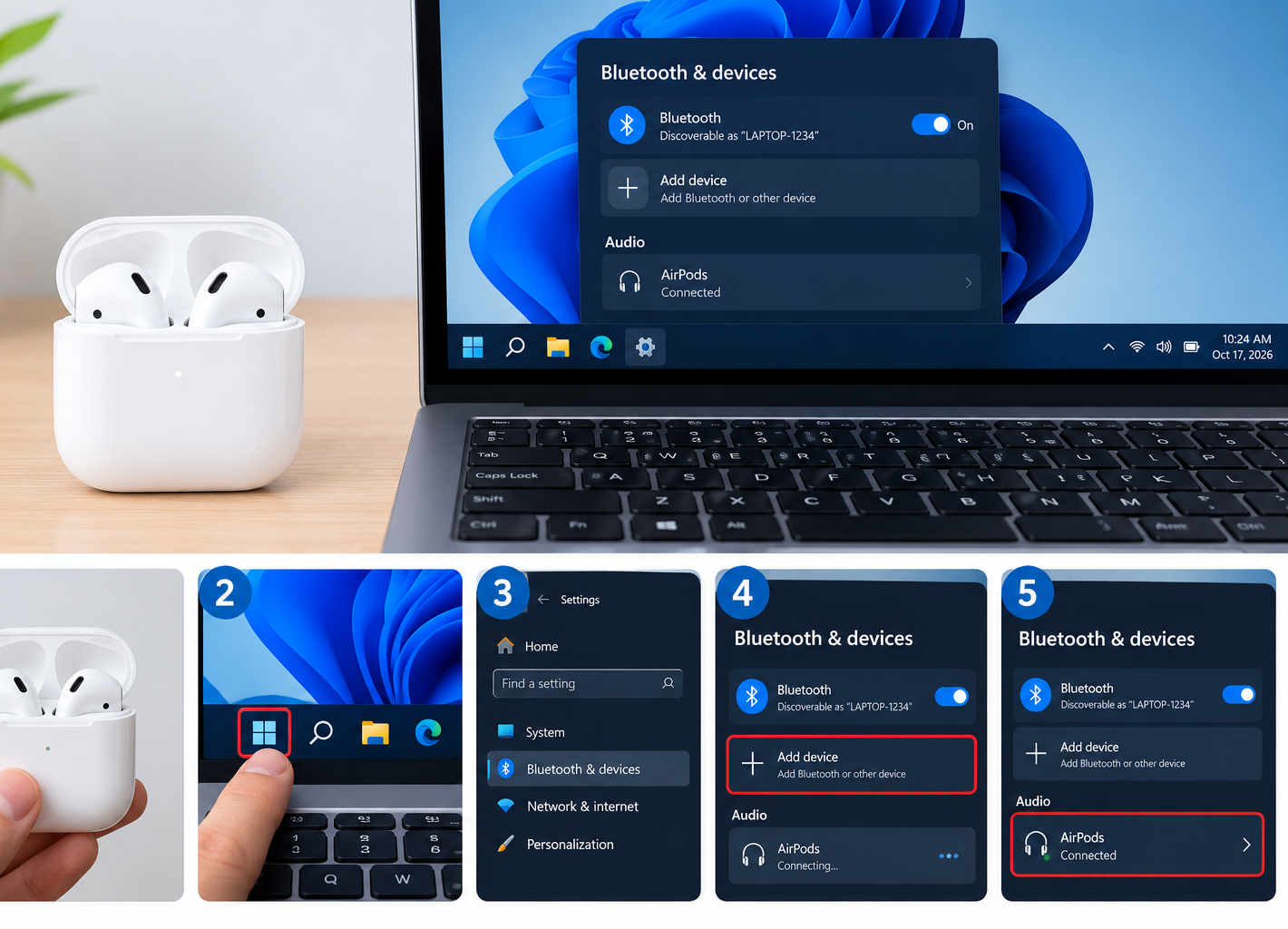
You have a pair of AirPods that connect to your iPhone like magic. You open the case, a little card pops up, and that is it. Then you sit down at your laptop for a video call, open the case again, and nothing happens.
That is because the “magic” pairing only works with Apple devices signed in to the same Apple Account. With any other laptop, AirPods act like normal Bluetooth earbuds. They work very well, but you have to pair them yourself the first time.
The good news is that it only takes a minute or two. In this guide, we will show you exactly how to connect AirPods to a Windows laptop, a MacBook, and a Chromebook, plus how to fix the most common problems when they will not connect or the sound keeps coming from the laptop speakers.
Quick Info: Connecting AirPods to a Laptop
| Detail | Quick Answer |
|---|---|
| Do AirPods work with non-Apple laptops? | Yes, as standard Bluetooth earbuds |
| What you need | AirPods in their charging case, and a laptop with Bluetooth turned on |
| Need an Apple Account, iTunes, or special drivers? | No, not for Windows or Chromebook pairing |
| Windows 11 path | Settings > Bluetooth & devices > Add device > Bluetooth |
| Mac path | System Settings > Bluetooth (or automatic if already set up on your iPhone with the same Apple Account) |
| How to enter pairing mode | Open the case lid, then press and hold the setup button until the light flashes white (method varies by model) |
| Time needed | About 1 to 2 minutes |
| Most common problem | Sound still plays from laptop speakers. Fix it by choosing AirPods as the output device. |
Key Takeaways
- On Windows and Chromebook, AirPods pair like any Bluetooth headphones. No Apple software is needed.
- On a Mac signed in to the same Apple Account as your iPhone, AirPods are often ready to use without pairing again.
- Always put AirPods in pairing mode first. The status light should flash white.
- After pairing, make sure the laptop is actually sending sound to the AirPods.
- If AirPods will not connect, remove them from the laptop’s Bluetooth list, put them back in pairing mode, and try again.
- Some features like automatic switching, Siri, and spatial audio settings work best on Apple devices.
Before You Start: Quick Checklist
A few seconds of preparation saves a lot of frustration:
- Charge your AirPods. Put both earbuds in the case and make sure the case has some battery.
- Check your laptop has Bluetooth. Almost every modern laptop does. If yours does not, a small USB Bluetooth adapter can add it, as Microsoft also points out in its pairing guide.
- Turn on Bluetooth on the laptop. We cover where to find this below.
- Disconnect the AirPods from your phone if needed. If the AirPods are actively connected to a nearby iPhone or iPad, they may not show up for the laptop. Turning off Bluetooth on your phone for a minute makes pairing easier.
- Keep them close. Hold the case near the laptop during pairing.
How to Put AirPods in Pairing Mode
This is the step most people get stuck on. Your laptop cannot find the AirPods until they are “discoverable.”
| AirPods model | How to enter pairing mode |
|---|---|
| AirPods (1st, 2nd, 3rd generation) and AirPods Pro | Put both AirPods in the case, open the lid, then press and hold the small setup button on the back of the case until the status light flashes white |
| AirPods 4 (no setup button) | With the AirPods in the open case, double-tap the front of the case near the light until it flashes white |
| AirPods Max | Press and hold the noise control button until the status light flashes white |
If your case looks different or the light does not flash white, check Apple’s instructions for your exact model. Apple sometimes changes the controls on newer generations.
The flashing white light means the AirPods are ready to be found. Keep the lid open while you finish the steps on your laptop.
How to Connect AirPods to a Windows 11 Laptop
Microsoft’s own guide to pairing Bluetooth devices follows the same steps below.
Step 1: Turn on Bluetooth
- Click Start, then open Settings.
- Click Bluetooth & devices.
- Make sure the Bluetooth switch is turned On.
You can also turn Bluetooth on quickly by clicking the network, sound, and battery icons in the bottom-right corner of the taskbar and selecting the Bluetooth tile.
Step 2: Add the AirPods
- In Bluetooth & devices, click Add device.
- Choose Bluetooth from the list.
- Put your AirPods in pairing mode (see the table above).
- Wait for your AirPods to appear in the list. They usually show up with the name you gave them, such as “Saad’s AirPods.”
- Click the AirPods.
- When Windows says your device is ready to go, click Done.
Step 3: Make sure sound goes to the AirPods
Pairing does not always mean Windows will start playing audio through them.
- Click the speaker icon in the taskbar.
- Click the small arrow next to the volume slider.
- Choose your AirPods as the output device.
For calls, also check that your video calling app (Zoom, Teams, Google Meet, and so on) has the AirPods selected as both the speaker and microphone in its audio settings.
How to Connect AirPods to a Windows 10 Laptop
The steps are almost the same, but the menu names are a little different:
- Open Settings > Devices > Bluetooth & other devices.
- Turn Bluetooth on.
- Click Add Bluetooth or other device, then choose Bluetooth.
- Put your AirPods in pairing mode.
- Select your AirPods from the list and wait until they connect.
One important note: Microsoft ended standard support for Windows 10 on October 14, 2025. Bluetooth pairing still works, but if you run into strange connection problems, an older operating system with old drivers may be part of the reason. Our guide on why software needs updates explains why staying updated helps with issues like this.
How to Connect AirPods to a MacBook
Macs make this easier, especially if you already use the AirPods with an iPhone.
If your AirPods are already set up on your iPhone
If your Mac is signed in to the same Apple Account as your iPhone, your AirPods are usually ready to use already. Apple’s Mac User Guide explains that in this case you do not need to pair them again.
- Put the AirPods in your ears or open the case near your Mac.
- Click the Control Center or Volume icon in the menu bar.
- Choose your AirPods from the output list.
If your AirPods have never been used with your Apple Account
- Put the AirPods in their case and open the lid.
- Put them in pairing mode (the light should flash white).
- On your Mac, click the Apple menu and open System Settings (called System Preferences on older versions of macOS).
- Click Bluetooth and make sure it is turned on.
- Find your AirPods in the list of nearby devices and click Connect.
Once they are connected, you can change AirPods settings like noise control and ear detection by clicking their name in System Settings.
How to Connect AirPods to a Chromebook
Chromebooks use standard Bluetooth too.
- Click the time in the bottom-right corner to open Quick Settings.
- Make sure Bluetooth is turned on, then click it to see devices.
- Click Pair new device.
- Put your AirPods in pairing mode.
- Select your AirPods from the list.
After pairing, check the audio output in Quick Settings if the sound still comes from the laptop speakers.
How to Reconnect AirPods to Your Laptop Later
You only need to pair once. After that:
- On Windows: Go to Settings > Bluetooth & devices, find your AirPods, and click Connect. You can also connect from the Bluetooth tile in Quick Settings.
- On Mac: Choose the AirPods from Control Center or the Bluetooth menu.
- On Chromebook: Open Quick Settings > Bluetooth and click your AirPods.
If you also use the AirPods with your phone, you may need to connect them manually on the laptop each time you switch, because automatic switching between devices is an Apple-only feature.
What Works and What Does Not on a Non-Apple Laptop
AirPods are still great on Windows and Chromebooks, but some features are limited.
| Feature | On a Mac (same Apple Account) | On Windows or Chromebook |
|---|---|---|
| Listening to music and video | Yes | Yes |
| Microphone for calls | Yes | Yes |
| Play and pause controls | Yes | Usually yes |
| Automatic pairing popup | Yes | No, manual pairing |
| Automatic switching between your devices | Yes | No |
| Siri | Yes | No |
| Battery level shown in system | Yes | Often limited or not shown |
| Changing noise control and ear detection settings in the system | Yes | Limited (use the controls on the AirPods themselves) |
Troubleshooting: AirPods Will Not Connect to Laptop
If something is not working, go through these fixes in order.
1. AirPods do not appear in the Bluetooth list
- Make sure the case lid is open and the light is flashing white.
- Turn off Bluetooth on your phone or tablet so the AirPods are not busy with another device.
- Move the case closer to the laptop.
- Turn the laptop’s Bluetooth off and on again.
2. AirPods are paired but not connected
- In your Bluetooth settings, click the AirPods and select Connect.
- If that fails, remove the AirPods from the list (Windows: click the three dots next to them and choose Remove device; Mac: click the info button and choose Forget This Device).
- Put the AirPods back in pairing mode and pair again from the start.
3. Sound is still coming from the laptop speakers
This is the most common issue. Pairing and output are two separate things.
- On Windows, click the speaker icon in the taskbar and select the AirPods as the output.
- In calling apps, choose the AirPods in the app’s own audio settings.
- On Mac, choose the AirPods from Control Center or the Volume menu.
If you are still getting sound problems after that, many of the same checks we use for phones apply here too. Our guide on how Bluetooth output and settings affect sound covers it in our article on fixing phone speaker problems.
4. Audio is choppy or cutting out
- Move closer to the laptop. Walls and other devices can weaken Bluetooth.
- Turn off other Bluetooth devices you are not using.
- Avoid placing the laptop near a microwave or busy Wi-Fi router.
- Update your laptop’s Bluetooth drivers or operating system.
5. Sound quality gets worse during calls
This is normal on many Windows laptops. When the AirPods microphone is turned on, standard Bluetooth often switches to a “hands-free” mode that uses lower audio quality so it can send your voice too. Music sounds better when the microphone is not in use. Some people use the laptop’s built-in microphone for calls and keep the AirPods for listening only, which keeps sound quality higher.
6. Only one AirPod is working
- Put both AirPods back in the case, close the lid for about 30 seconds, then try again.
- Check that both AirPods are charged.
- Remove the AirPods from your laptop’s Bluetooth list and pair again.
7. Still not working: reset your AirPods
Resetting clears all pairings, so you will need to set them up again on your phone and laptop afterwards.
- Put the AirPods in the case and close the lid for about 30 seconds.
- Open the lid.
- Press and hold the setup button (or follow the reset method for your model) for about 15 seconds, until the light flashes amber and then white.
- Pair the AirPods again using the steps above.
If you have an older laptop with an old Bluetooth version, some connection problems may simply be a compatibility limit. Our guide to what software compatibility means explains how older hardware and software can struggle to work with newer devices.
Tips for a Better AirPods Experience on a Laptop
- Give your AirPods a clear name in your phone’s settings so they are easy to find in long Bluetooth lists.
- Keep your laptop updated. Bluetooth driver and system updates often fix pairing bugs.
- Use the right output every time before an important call. A quick test recording can save embarrassment.
- Disconnect from the laptop when you are done if you want your phone to grab the AirPods automatically later.
- Keep the case charged. Low battery can cause random disconnections.
Frequently Asked Questions
Can I connect AirPods to a Windows laptop?
Yes. AirPods work with Windows laptops as regular Bluetooth headphones. Put them in pairing mode and add them through Settings > Bluetooth & devices > Add device > Bluetooth.
Do I need iTunes or an Apple Account to use AirPods on Windows?
No. You do not need iTunes, iCloud, an Apple Account, or any special drivers for basic Bluetooth pairing on Windows.
Why can’t my laptop find my AirPods?
Usually the AirPods are not in pairing mode, or they are still connected to your phone. Open the case, hold the setup button until the light flashes white, and turn off Bluetooth on your phone for a moment.
Can I use the AirPods microphone on my laptop?
Yes. Select the AirPods as the microphone in your system sound settings or in your calling app. On many Windows laptops, audio quality drops a bit while the microphone is active.
Do AirPods connect automatically to my laptop?
On a Mac signed in to the same Apple Account, they connect very easily. On Windows, AirPods can reconnect automatically when Bluetooth is on and they are in range, but if you also use them with your phone, you may need to connect manually.
Can AirPods connect to my phone and laptop at the same time?
AirPods can be paired with many devices, but they play audio from one device at a time. Automatic switching only works between Apple devices using the same Apple Account.
Why does the sound still come from my laptop speakers?
Your laptop has paired the AirPods but is still using the speakers as the output. Click the volume icon and choose the AirPods as the output device.
Can I see AirPods battery level on Windows?
Windows sometimes shows a battery level for Bluetooth devices, but it is often not shown or not accurate for AirPods. Check the battery on your iPhone or on the case light instead.
Do AirPods work with Chromebooks?
Yes. Open Quick Settings, turn on Bluetooth, choose Pair new device, put the AirPods in pairing mode, and select them.
How do I unpair AirPods from my laptop?
On Windows, go to Settings > Bluetooth & devices, click the three dots next to the AirPods, and choose Remove device. On a Mac, open System Settings > Bluetooth, click the info button next to the AirPods, and choose Forget This Device.
Final Thoughts
Connecting AirPods to a laptop is simple once you know the one trick that matters: put them in pairing mode first. After that, it is just a few clicks in your Bluetooth settings, followed by choosing the AirPods as your sound output.
On a Mac with the same Apple Account, it is even easier. On Windows and Chromebooks, AirPods act like any good pair of Bluetooth earbuds. You lose a few Apple-only extras, but music, videos, and calls all work well.
If they will not connect, remove them from the list, reset if needed, and try again. That fixes the large majority of problems.
References
Disclaimer
This guide is for general information only. Menu names, button layouts, and pairing steps can change with new versions of Windows, macOS, ChromeOS, and new AirPods models. Always follow the official instructions from Apple and your laptop maker if your screens look different. TechOriginHub is not affiliated with Apple, Microsoft, or Google, and this article is not sponsored. If your AirPods or laptop have a hardware fault, contact the manufacturer or an authorized service provider.