
 By saman zahra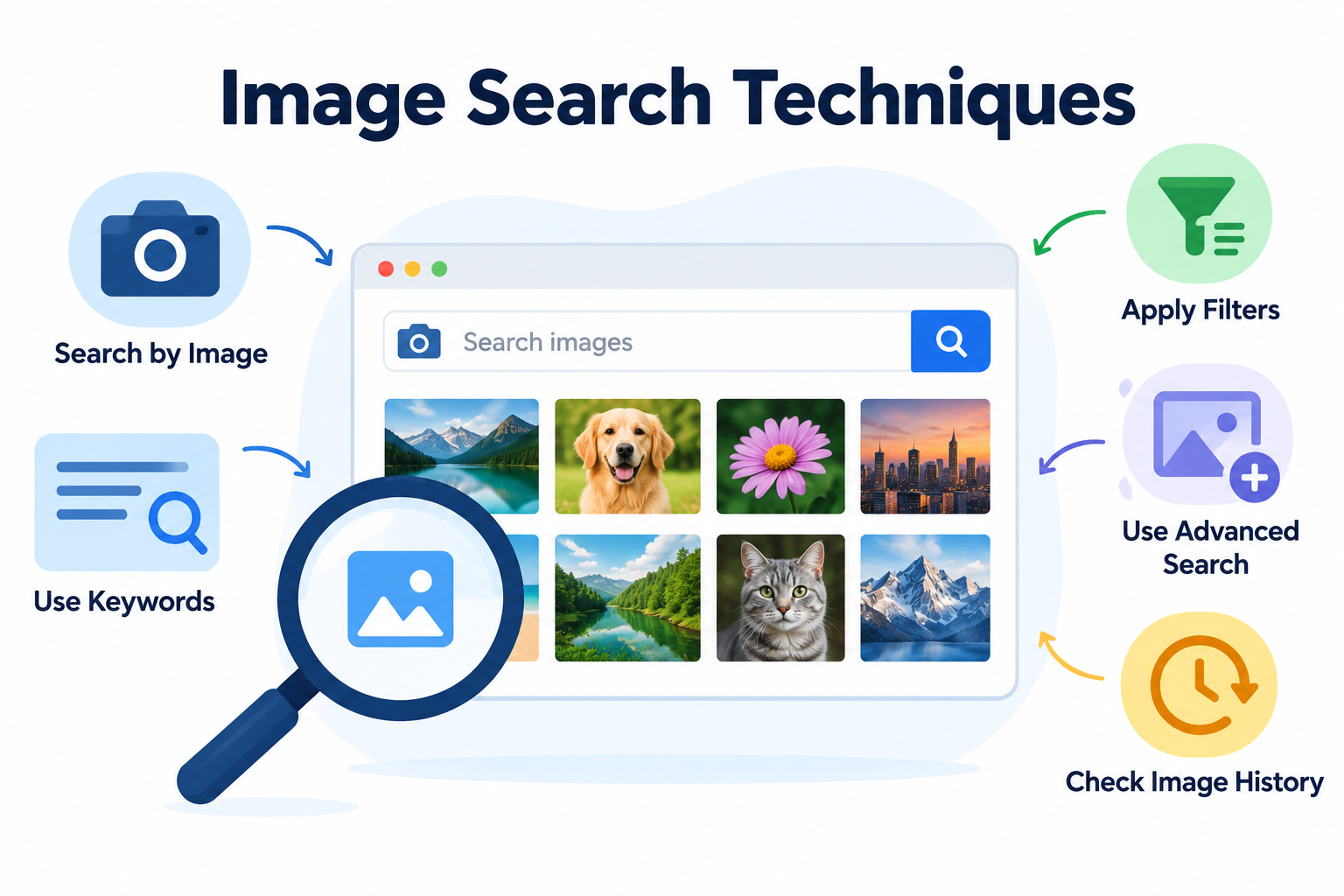
You have a photo on your phone. Maybe it is a plant you saw on a walk, a pair of shoes from someone’s Instagram story, or a picture someone forwarded on WhatsApp with a shocking caption. You want to know what it is, where it came from, or whether it is real.
Typing words into a search box will not help much here. You need image search.
Most people only know one trick: type a few words into Google Images and scroll. But there is a lot more you can do. You can search using the picture itself, find the original source of a photo, get a higher quality version, check if an image was edited, and even shop for things you only have a picture of.
In this guide, we will walk you through the image search techniques that actually work in 2026, step by step, on both phone and computer. No technical background needed.
Quick Info: Image Search at a Glance
| Detail | Quick Answer |
|---|---|
| What is image search? | Finding pictures online, either by typing words or by using a picture as your search |
| What is reverse image search? | Searching with an image instead of text to find matches, sources, or info |
| Best all-round tool | Google Lens (built into Google Search, Chrome, and the Google app) |
| Best for finding where an image first appeared | TinEye |
| Other useful tools | Bing Visual Search, Yandex Images |
| Works on phone? | Yes, through the Google app, Chrome, or mobile browsers |
| Cost | Free for personal use |
| Main uses | Identify objects, find sources, spot fake photos, find better quality versions, shop |
| Time needed | Usually under a minute per search |
Key Takeaways
- There are two main kinds of image search: text-based (typing words) and reverse (searching with a picture).
- Google Lens is the easiest starting point. You can upload a file, drag and drop an image, paste an image link, or right-click any picture in your browser.
- TinEye is great for tracking where an image came from, because you can sort results to see older copies.
- Cropping your image to the important part often gives much better results.
- Always try more than one tool. Each one has its own index, so one may find what another misses.
- Finding an image online does not mean you are allowed to use it. Always check the license or ask the owner.
What Is Image Search?
Image search simply means finding pictures on the internet. There are two very different ways to do it.
1. Text-based image search. You type words like “blue mountain bike” and the search engine shows pictures that match. It works by looking at file names, captions, alt text, and the words on the pages where the images appear.
2. Reverse image search. You give the search engine a picture instead of words. The tool looks at the image itself, such as its shapes, colors, and objects, and finds matching or similar images, plus pages that use them.
Think of it like this. Text search answers “show me pictures of this thing.” Reverse search answers “tell me about this picture.”
Both are useful, and the best results usually come from mixing them.
Why Image Search Techniques Matter
Knowing a few good techniques can save you time and protect you from being fooled. Here are some everyday situations where image search helps:
- Identifying things. A plant, a bird, a landmark, a car model, or a dish at a restaurant.
- Checking fake news. An old photo shared as if it happened today.
- Spotting fake profiles. A dating or social media profile using someone else’s photos.
- Finding the original creator. So you can credit or contact them.
- Getting a better version. A sharper, larger copy of a blurry image.
- Shopping. Finding where to buy a product you only have a photo of.
- Protecting your own work. Seeing if someone copied your photos or designs.
Technique 1: Search With an Image Using Google Lens
Google Lens is the image search tool built into Google. According to Google’s own help page, your results can include information about objects in the image, similar images, and websites that use the same or a similar image.
On a computer
You have four easy options:
Upload an image
- Go to google.com.
- Click the camera icon (Search by image) in the search bar.
- Choose Upload a file and select your picture.
Drag and drop
- Open google.com.
- Drag your image file from your computer straight into the search box.
Paste an image link
- On the website with the picture, right-click the image and click Copy image address.
- Go to google.com and click the camera icon.
- Paste the link into the “Paste image link” box and search.
Right-click any image in Chrome
- Right-click a picture on any web page.
- Click Search with Google Lens.
- Results open in a sidebar, so you do not lose your place.
On a phone
- Open the Google app or Chrome.
- Tap the Lens icon (the small camera) in the search bar.
- Take a new photo or pick one from your gallery.
- Drag the corners of the box to focus on the part you care about.
Pro tip: add words to your image search
After you upload an image, Google lets you type extra words in an “Add to your search” box. For example, upload a photo of a dress and add “in green,” or upload a photo of a plant and add “how to care for it.” This mix of picture and text often gives much better answers than either one alone.
Technique 2: Use TinEye to Find Where an Image Came From
Google is great at telling you what is in a picture. TinEye is better at telling you where that exact picture has appeared online.
TinEye describes itself as the original reverse image search engine, and it focuses on finding copies of the same image, including edited, cropped, or resized versions.
How to use it
- Go to tineye.com.
- Upload your image, drag and drop it, or paste the image link.
- Look through the matches.
Why it is useful
- Sort by oldest. You can sort results to see the earliest copies. This often points you toward the original source.
- Sort by biggest image. Helpful when you want the highest quality version.
- Compare tool. You can compare your image with a result side by side to see what was changed.
- Privacy. TinEye says it does not save the images you search with, and they are not added to its index.
TinEye also offers a browser extension, so you can right-click any picture and search it instantly. It is free for non-commercial use.
One honest limitation: if TinEye shows no results, it only means the image is not in TinEye’s index. It does not prove the image is original. Try another tool before deciding.
Technique 3: Try Bing Visual Search and Yandex
Every search engine has its own collection of images, so one tool may find something another completely misses.
- Bing Visual Search. On bing.com, click the camera icon in the search bar and upload or paste an image. Bing is often good with products and shopping results.
- Yandex Images. Yandex has its own reverse image search, also through a camera icon on its image search page. Many researchers use it as a second opinion, especially for faces and places.
A good habit: if Google does not find what you need, run the same image through TinEye and Bing before giving up.
Technique 4: Crop Before You Search
This is the most underrated trick in image search.
If your picture has a lot going on, such as a person standing in front of a building with a car beside them, the search engine has to guess what you care about. Often it guesses wrong.
Crop the image so only the important thing is left. Want the shoes? Crop to the shoes. Want the building? Crop out the people.
On a phone, Lens lets you drag the selection box. On a computer, you can crop in any basic photo editor before uploading. If you do not have one, our list of the best free drawing software includes free tools that can crop and edit images easily.
Other quick fixes that help:
- Remove borders, text, or stickers added on top of the photo.
- Flip the image if you suspect someone mirrored it to avoid detection.
- Use the clearest version you have. Screenshots of screenshots lose detail.
- Search a few key frames if you are checking a video. Take screenshots at different moments and search each one.
Technique 5: Smarter Text-Based Image Search
Sometimes you do not have an image at all, just an idea of what you want. Typing better words makes a big difference.
Be specific
Instead of “chair,” try “wooden mid-century dining chair with arms.” More detail means fewer random results.
Use Google Images filters
After you search on Google Images, click Tools under the search bar. You can filter by:
| Filter | What it does | When to use it |
|---|---|---|
| Size | Shows large, medium, or icon-sized images | When you need a high-quality picture |
| Color | Shows images with a main color, black and white, or transparent | When you need a matching design or a logo with no background |
| Type | Clip art, line drawings, animated GIFs | When you need a specific style |
| Time | Shows images from a recent time period | When you want current photos, not old ones |
| Usage rights | Shows images with Creative Commons or commercial licenses | When you plan to reuse an image |
Use search operators
A few simple shortcuts work in image search too:
- site: to search inside one website, for example
solar panels site:nasa.gov - Quotation marks to search an exact phrase, for example
"red panda" - A minus sign to remove words, for example
jaguar -carto get the animal, not the car - filetype: to find a specific format, for example
logo filetype:png
Technique 6: Use Image Search to Spot Fake Photos
This is one of the most useful skills you can have today, especially with so many forwarded pictures and AI-generated images going around.
When you see a suspicious photo, follow these steps:
- Reverse search it on Google Lens and TinEye.
- Sort TinEye results by oldest. If the photo appeared years ago, it is not from today’s event.
- Compare captions. Does the original page describe the same place, date, and story?
- Look for edits. Use TinEye’s compare tool or look closely for changes in the background, faces, or text.
- Check trusted sources. If a major event is real, reliable news outlets will usually have their own photos.
- Watch for AI signs. Odd hands, warped text, strange reflections, or backgrounds that do not make sense can be clues, though AI images are getting better and harder to spot.
Technique 7: Check a Social Media Profile Photo
If you are talking to someone new online, whether for business, dating, or buying something, it is smart to check their photos.
- Save or screenshot the profile picture.
- Run it through Google Lens and TinEye.
- If the same photo appears under different names, on stock photo sites, or on a model’s page, be careful.
This simple check can help you avoid scams. It is not proof on its own, but it is a strong warning sign when the photo clearly belongs to someone else.
Technique 8: Use Image Search for Shopping
Saw a lamp in a cafe or a jacket in a photo? Lens is made for this.
- Take a photo or upload a screenshot.
- Crop to the product.
- Look through the shopping results to find the same or similar items and compare prices.
Add words like “under 5000” or “near me” in the “Add to your search” box to narrow things down.
Comparison: Which Image Search Tool Should You Use?
| Tool | Best for | Search methods | Works on phone | Cost |
|---|---|---|---|---|
| Google Lens | Identifying objects, text, products, places | Upload, drag and drop, image link, right-click, camera | Yes | Free |
| TinEye | Finding the original source and edited copies | Upload, drag and drop, image link, browser extension | Yes, through a browser | Free for non-commercial use |
| Bing Visual Search | Products and shopping | Upload, image link, camera | Yes | Free |
| Yandex Images | Second opinion, places, faces | Upload, image link | Yes, through a browser | Free |
Common Mistakes to Avoid
- Using only one tool. Different tools find different things.
- Searching the whole messy photo. Crop first.
- Trusting the first result. The top match is not always the original.
- Thinking “no results” means “original.” It may just not be indexed yet.
- Downloading random “reverse image search” apps. Many free apps on unofficial sites are full of ads or worse. Stick to the official tools above. If you do install software, keep antivirus software running on your device.
- Reusing images without permission. Finding a picture is not the same as having the right to use it.
Privacy and Safety Tips
Image search is powerful, so use it responsibly.
- Think before uploading private photos. Avoid uploading personal documents, ID cards, or private family pictures to any online tool.
- Read each tool’s privacy policy. TinEye, for example, says it does not save your search images. Other tools may handle uploads differently.
- Respect other people. Do not use image search to track down or harass someone.
- Respect copyright. TinEye itself points out that it can show where an image appears but cannot give you permission to use it. You still need to check the license or contact the owner.
Image Search Apps vs Browser Tools
You do not need special software for most image searches. Google Lens, TinEye, and Bing all work right in your browser. On phones, the Google app has Lens built in.
If you are curious about how these apps fit into the bigger picture of the programs on your devices, our guide on what application software is explains it in simple terms.
The main thing to remember: use official apps from your phone’s app store or the tool’s own website, not random download links.
Frequently Asked Questions
What is the best image search technique?
For most people, the best technique is to crop the image to the important part, search it on Google Lens, and then double-check on TinEye.
What is reverse image search?
Reverse image search means using a picture as your search instead of words. The tool finds matching or similar images and the websites that use them.
Is reverse image search free?
Yes. Google Lens, Bing Visual Search, and Yandex are free. TinEye is free for non-commercial use.
Can I do a reverse image search on my phone?
Yes. Open the Google app or Chrome and tap the Lens icon, or open tineye.com in your mobile browser.
How do I find the original source of an image?
Search it on TinEye and sort the results by oldest. Then check those early pages for the creator’s name or the first post.
Can image search tell me if a photo is fake?
It can give you strong clues, such as showing that a photo is old or that it was edited. It cannot always prove a photo is fake on its own, so check trusted sources too.
Why does my reverse image search show no results?
The image may not be in that tool’s index, may be too small or blurry, or may be heavily edited. Try cropping it, using a clearer version, or another search engine.
Can I use any image I find through image search?
No. Most images are protected by copyright. Use the Usage rights filter on Google Images or check the license on the original website before using an image.
Does TinEye save my images?
TinEye says it does not save the images you search with and does not add them to its index.
Can I search with a screenshot?
Yes. Screenshots work fine. Just crop out phone status bars, captions, and anything else that is not part of the picture you care about.
Final Thoughts
Image search is one of those skills that seems small until you actually need it. Once you know a few good techniques, you can identify almost anything, check whether a viral photo is real, find better versions of images, and protect yourself from fake profiles.
Start simple. Crop your image, try Google Lens, and if you need to find the source, run it through TinEye. Use text filters when you are looking for something specific, and always respect the rights of the people who created the images you find.
With a little practice, you will be finding things in seconds that used to take hours.
References
Disclaimer
This guide is for general information and educational purposes only. Features, buttons, and menus in image search tools can change at any time, so some steps may look slightly different on your device. TechOriginHub has no business relationship with Google, TinEye, Microsoft, or Yandex, and this article is not sponsored. Always respect copyright, privacy, and the terms of use of each tool. Do not use image search to identify, track, or harass private individuals.