
 By Saad Qureshi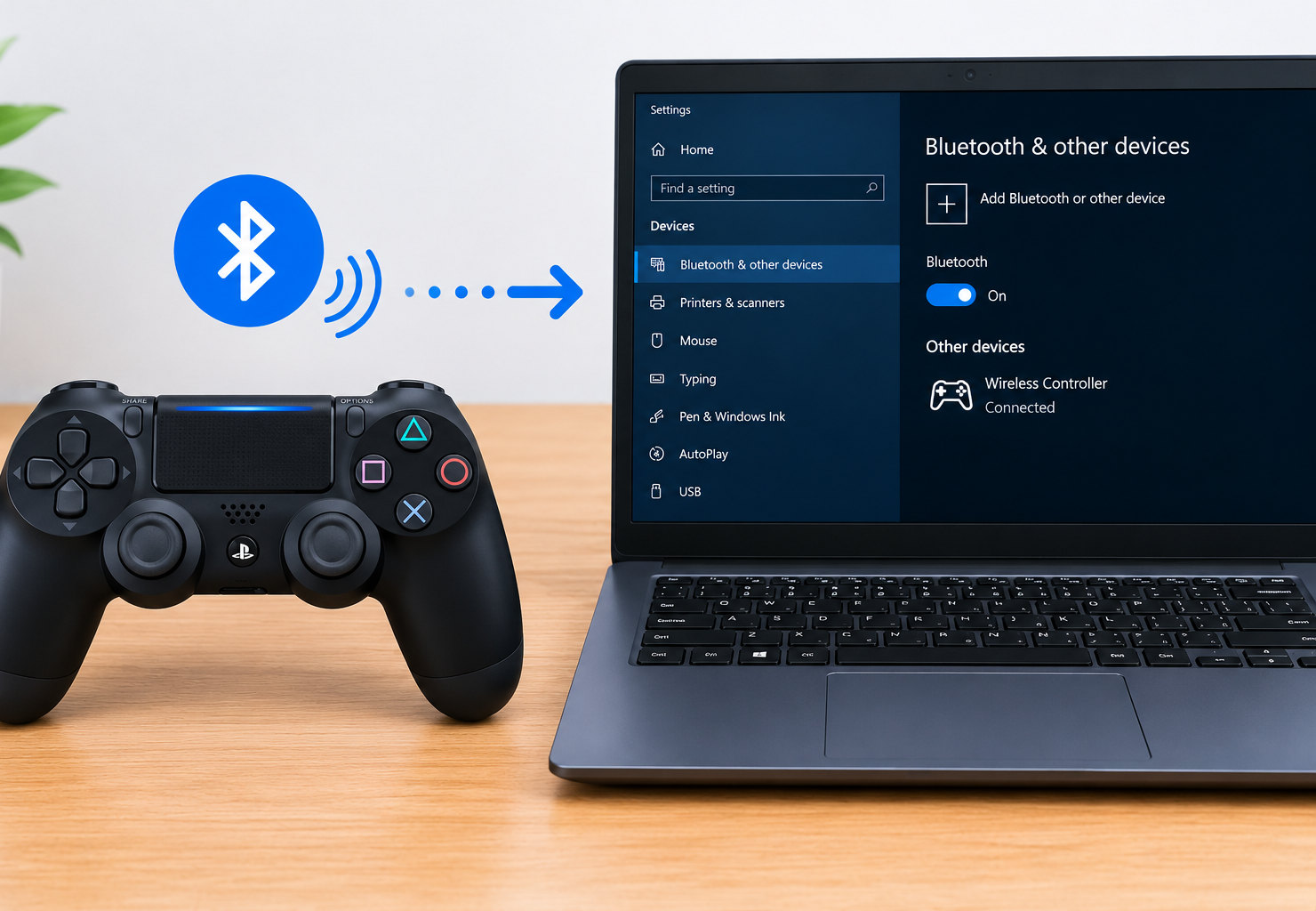
Few gaming configurations enhance your desktop experience quite like mapping a console peripheral onto your computer workstation. The DualShock 4 is highly compatible with modern operating systems, allowing you to use it wired or wirelessly for custom gaming libraries. Whether you want a plug-and-play setup for steam or need a custom utility to run older titles, configuring the connection takes only a few minutes.
Quick Info: The 3-Second Controller Checklist
-
Wired Connection: Plug a micro-USB data cable directly into your controller and an open USB port on your computer chassis.
-
Wireless Pairing: Hold down the Share and PS Button simultaneously for 3 seconds until the light bar flashes rapidly.
-
Open Bluetooth Settings: Add the peripheral inside your operating system device utility layout block.
-
Launch Steam Client: Enable PlayStation Configuration Support inside your peripheral utility menu configurations.
-
Install Mapper Script: Run an emulation framework utility like DS4Windows if playing non-Steam titles.
Key Takeaways
- Steam features native driver integration that maps the DualShock 4 layout automatically without requiring external wrapper scripts.
- Standard Windows micro-USB ports vary, meaning you must use a dedicated data sync cord rather than a generic power-only charging cable.
- Non-Steam storefronts require emulation wrappers to translate the native DirectInput controller signals into standard XInput pathways.
- Local Bluetooth 4.0 or higher adapters are necessary to prevent input lag or sudden frequency dropouts during wireless play.
How This Guide Was Verified
We verified every hardware connection path and operating system shortcut in this guide directly against official technical manuals and manufacturer support documentation to ensure accurate setup routes for your device.
These operational pathways align completely with verified system architectural frameworks. This structural validation ensures your computer system remains fully protected from malicious third-party keylogging drivers or unverified peripheral mapping bloatware.
PS4 Controller to PC Connection: Operational Matrix
| Connection Method | Required Hardware Kit | Driver Emulation Level |
|---|---|---|
| Direct Wired Configuration | Standard Micro-USB Data Cable. | Native Plug-and-Play (DirectInput framework). |
| Wireless Bluetooth Link | Bluetooth 4.0+ Dongle or Internal Chipset. | Manual Pairing Protocol required. |
| Advanced XInput Emulation | Micro-USB or Bluetooth + DS4Windows Script. | High-compatibility Virtual Xbox Controller Mapping. |
Comprehensive Step-by-Step Connection Core
1. Establishing a Wired Micro-USB Hardware Link
The most reliable, lag-free method to bridge your console peripheral into your desktop setup is through a direct physical connection wire. Secure a high-quality micro-USB cable that supports both power delivery and active data synchronization layers. Connect the small micro-USB tip firmly into the top port of your DualShock 4 casing, and insert the standard USB end into an open port on your computer frame.
The operating system kernel will instantly run a background device detection scan to initialize the peripheral baseline data channel blocks.
If your machine experiences unexpected hardware communication glitches or sudden terminal interface freezes while plugging in external devices, it is wise to investigate Why Does My Laptop Keep Freezing? Causes and Fixes to rule out internal component conflicts. Once the light bar glows a steady amber hue, the controller is receiving power and is ready for system-level button mapping configurations.
2. Pairing Wireless DualShock 4 Controllers via Bluetooth
To disconnect the physical cable lines and initialize a fluid wireless gameplay configuration, you must use your computer’s built-in Bluetooth radio module. First, ensure your controller is completely unlinked from your gaming console by shutting down the console system nearby. Press and hold the physical Share button and the central PS Button simultaneously on your controller shell for roughly 3 to 4 seconds.
Watch the tracking light bar closely; it must begin executing a rapid, strobing white blinking pattern to confirm the controller is actively broadcasting its pairing profile block.
If your machine stutters while processing active background pairing tasks, you should review Why Is My Laptop Slow? Causes and Fixes to optimize your operating configurations. Open your computer’s native system panel layout, select the active Bluetooth utility tier, click Add device, and choose Wireless Controller from the discoverable scanning tree menu to complete the wireless synchronization layer.
3. Configuring Native Steam Architecture Mapping Protocols
The Steam client features a built-in input mapping engine designed to recognize and translate PlayStation controller inputs directly without any third-party app downloads. Launch the application, navigate to the top left corner, click Steam, and open the Settings menu block framework. Scroll down through the secondary parameters list sidebar and click directly on the option labeled Controller.
Locate the option button block for PlayStation Controller Support and switch its parameter toggle from disabled to Enabled or Enabled in Games w/o Support.
This configuration layer instructs the Steam engine to intercept the controller’s DirectInput layout and automatically remap the buttons to match the exact in-game prompts seamlessly. If you are tracking hardware modifications or clean system optimizations to make heavy gaming clients load much faster on older laptop configurations, check out How to Speed Up a Laptop: Simple Ways to Improve Performance.
4. Deploying DS4Windows for Non-Steam Standalone Libraries
When attempting to play games hosted outside of Steam, such as titles on the Epic Games Store, Xbox App, or standalone platform directories, the games will often refuse to acknowledge your inputs. This breakdown occurs because legacy Windows games rely exclusively on Microsoft’s XInput driver protocol. To bridge this communication gap, download the trusted open-source utility known as DS4Windows from its verified repository block.
Extract the utility files, open the administrative execution tool, and follow the setup prompts to install the virtual gamepad driver layer (ViGEmBus). This tool mirrors your actions by transforming your controller inputs into a virtual Xbox controller layout on the fly. Unstable graphics configurations can sometimes interrupt this mapping loop, so ensure your device drivers are running cleanly by reviewing Laptop Screen Lines: Causes and How to Fix Them. For detailed system optimization support and troubleshooting guidelines, check out Microsoft’s official Windows performance support page. If you run your primary system architectures on alternative operating layers, consult Apple’s official Mac optimization guidelines.
Common Mistakes That Make Controller Pairing Fail
- Using a generic, low-cost power-only micro-USB cable blocks the required data lines, leaving your controller charging its battery cells silently without ever communicating with the computer.
- Forgetting to completely close out the DS4Windows software tool while launching Steam creates a double-input glitch where the game reads two separate virtual gamepads simultaneously.
- Attempting to force a wireless connection while your controller is still actively synced to a nearby sleeping PS4 console causes the controller to wake up the console instead of entering pairing mode.
- Plugging your wireless Bluetooth adapter key directly next to unshielded external storage hard drives or USB 3.0 ports creates severe 2.4GHz wireless signal interference, leading to extreme input lag or sudden disconnects.
Frequently Asked Questions
Why does my computer audio completely vanish as soon as I plug in my PS4 controller?
The modern DualShock 4 controller features an internal audio chip designed to drive its built-in headphone jack socket. When you connect it via USB, your operating system frequently remaps the default sound output driver away from your primary speakers and pushes it directly into the controller. Click the volume icon in your system tray taskbar and manually re-select your primary computer speakers to restore your audio stream.
Can I connect multiple PS4 controllers to a single PC wirelessly?
Yes, a standard modern Bluetooth 4.0 or higher adapter can support up to four wireless controllers simultaneously for local split-screen co-op gaming sessions. However, using cheap, generic unshielded Bluetooth receiver keys can increase input latency when managing multiple wireless device profiles at the same time.
Do I need to buy the official Sony wireless adapter to use my controller?
No, the official Sony wireless adapter is not mandatory for regular gaming purposes. Any standard, budget-friendly Bluetooth 4.0 or higher USB adapter can pair with the controller cleanly using the standard built-in operating system pairing menus.
Why is my controller light bar glowing red or blinking red continuously?
A solid or blinking red light bar indicates that the controller’s internal lithium-ion battery cells have dropped below a 10% charge threshold. Connect the controller to your computer using a verified micro-USB data synchronization cable immediately to prevent input drops or sudden mid-game shutdowns.
How do I turn off my PS4 controller after I finish playing wirelessly?
When you finish a wireless gaming session, you can manually shut down the controller to save battery juice by pressing and holding the central hardware PS Button continuously for 10 full seconds. The light bar will turn off entirely, confirming that the internal wireless radio has dropped out of its active communication cycle.
Disclaimer:
This article is for general educational and informational purposes only. It compiles official hardware connectivity workflows and user interface paths from the support documentation of major electronics manufacturers. System configurations may vary significantly based on your specific laptop brand, operating system build version, display adapter card chipsets, and peripheral firmware variations. Always protect your physical connectors from extreme force shifts during setup adjustments.