
 By Saad Qureshi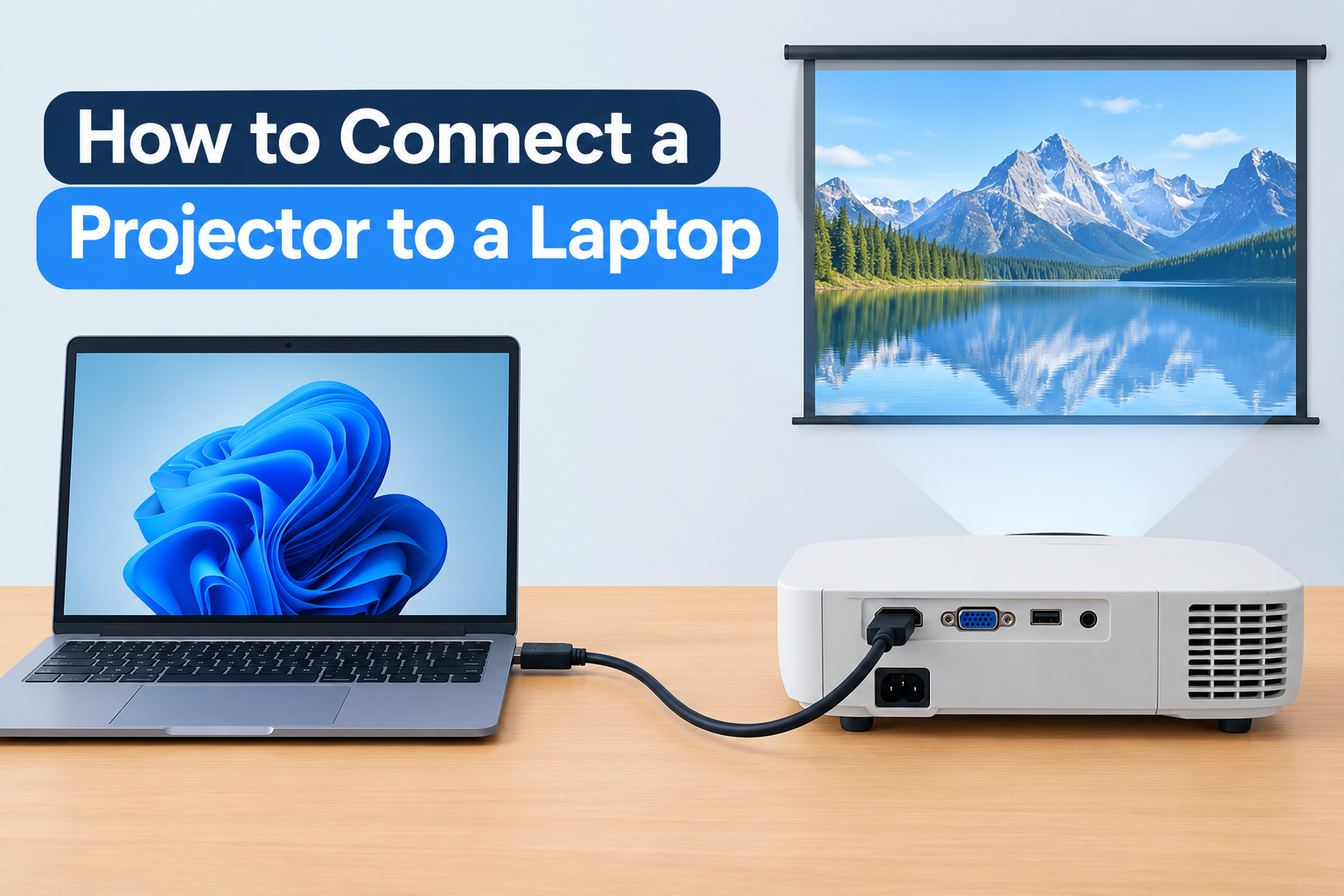
Introduction
You walk into the conference room, plug in the projector, and the screen stays dark with a blunt “No Signal Detected” message. The meeting starts in five minutes, and everyone is watching you. This guide shows you how to connect a projector to a laptop correctly the first time, and how to fix it fast when something goes wrong.
Quick Info: The 3-Second Projection Shortcut
Follow these steps to get your laptop display onto the projector in under a minute:
- Power off both devices, then connect the video cable to your laptop’s video-out port and the projector’s input port.
- Power on the projector first, then the laptop.
- Select the matching input (such as HDMI-1) with the projector’s remote or control panel.
- On Windows 11, press Windows Key + P to open the projection menu.
- Choose Duplicate to mirror your screen, or Extend to use the projector as a second display.
Key Takeaways
- Native ports are the most reliable choice. A full-sized HDMI port or a USB-C port with DisplayPort Alternate Mode avoids the adapter chains that cause most signal failures.
- Connect cables while both devices are powered off. Many manufacturer manuals recommend this as a precaution against static discharge and connection glitches.
- Multi-monitor projection modes serve different jobs. Duplicate mirrors your screen for simple presentations, while Extend lets you keep speaker notes private on the laptop.
- Resolution mismatch is the top cause of soft images. If your laptop outputs a different resolution than the projector’s native one, the projector must rescale the image, which blurs text.
- Audio does not always follow video. Windows may keep sending sound to your laptop speakers until you change the output device manually.
How This Guide Was Verified
We verified every hardware connection path and operating system shortcut in this guide directly against official technical manuals and manufacturer support documentation to ensure accurate setup routes for your device.
Every configuration path here aligns with verified Microsoft Windows and Apple macOS technical support structures. We rely only on built-in operating system features and standard cables. That keeps you away from third-party presentation casting apps, which can carry malware and are unnecessary for a wired connection.
Laptop-to-Projector Interfaces: Operational Matrix
| Physical Interface Port Type | Required Cable Setup | Ideal Signal Quality Factor |
|---|---|---|
| Native HDMI Port | Standard male-to-male high-speed HDMI cable | High-definition video and audio metadata transmission |
| USB-C / Thunderbolt 3 or 4 Port | USB-C to HDMI adapter or dedicated Alt-Mode wire line | Excellent crisp signal processing |
| Legacy VGA Port | 15-pin analog D-sub cable plus a standalone auxiliary audio cable line | Standard soft visual output, with a high analog interference risk |
Comprehensive Step-by-Step Diagnostic Core
Step 1: Physical Connection and Port Isolation
Identify the video ports on your laptop
Start by looking at the sides and back of your laptop. A full-sized HDMI port is a wide, flat connector with a slightly angled bottom edge. A USB-C port is a small, oval connector.
Not every USB-C port carries video. Look for a small DisplayPort or Thunderbolt symbol next to it, or check your laptop’s manual to confirm it supports DisplayPort Alternate Mode.
Compare HDMI, USB-C, and VGA
A native HDMI port is the simplest option because one cable carries both video and audio. USB-C with DisplayPort Alternate Mode can deliver a similarly clean digital signal, but it usually requires a USB-C to HDMI adapter or a dedicated cable. Legacy VGA is a 15-pin analog connector that carries video only, so you need a separate audio cable.
VGA is more prone to interference and soft image quality than the digital options. Use it only when the projector or laptop has no better port.
Verify adapter requirements before plugging anything in
Check the projector’s input panel and match it to your laptop’s output port. If the two do not match, buy the correct adapter before the meeting rather than during it.
Adapters should be rated for the resolution you need, such as 1080p or 4K. Your projector’s manual lists the supported input types and maximum resolutions.
Connect the cable with both devices off
Power off the laptop and the projector. Push one end of the cable firmly into the laptop’s video-out port and the other into the projector’s matching video input.
Many manufacturer manuals recommend connecting while powered down as a precaution. Once the cable is seated, power on the projector first, then the laptop, and select the correct input (for example, HDMI-1) with the projector’s remote.
If the laptop stalls or the display hangs while detecting the projector, see our guide on Why Does My Laptop Keep Freezing? Causes and Fixes for deeper troubleshooting.
Step 2: Use the Windows 11 Projection Menu (Windows + P)
Open the projection sidebar
Press Windows Key + P at the same time. A sidebar appears on the right side of your screen with four projection options. Use your mouse or the arrow keys to select one.
Understand the four projection states
- PC screen only: Disables the projector output. Your laptop screen works alone, and the projector shows nothing.
- Duplicate: Mirrors identical content on both screens. This is the best choice for most presentations.
- Extend: Stretches your workspace across both screens. The projector becomes a secondary display, so you can show slides while keeping notes on the laptop.
- Second screen only: Blanks the laptop display and sends everything to the projector. Use it when you want the laptop screen off during a presentation.
If you see “No Signal Detected” and the cable is firmly connected, “PC screen only” is often the culprit. Switch to Duplicate or Extend.
A note for Mac users
On a Mac, open System Settings > Displays after connecting the projector. Click your projector’s display, then choose whether to mirror your Mac’s display or use it as an extended display.
For general Mac performance and display tips, see Apple’s official Mac optimization guidelines.
Step 3: Calibrate Resolution, Scaling, and Refresh Rate
Open the display settings
Go to Settings > System > Display. You will see a multi-monitor grid showing numbered boxes for each screen. Click Identify if you are unsure which box is the projector.
Match the projector’s native resolution
Click the box that represents the projector. Scroll to Display resolution and select the setting that matches the projector’s native resolution, such as 1920 x 1080 for a 1080p unit or 3840 x 2160 for a 4K unit.
Your projector’s manual or spec sheet lists its native resolution. Running a different resolution forces the projector to rescale the image, which creates jagged, soft, or fuzzy text.
Fix blurry or soft text
If text still looks soft after matching the resolution, check the scaling percentage under the same Display settings. Also confirm the projector’s focus ring is adjusted and the lens is clean.
For a full walkthrough of display sharpness problems, read PC Screen Blurry? Causes and How to Fix It.
Keep presentations running smoothly
Older laptops can lag when driving a second display, especially with video clips or animated slides. Close background apps before you present.
For general performance tuning, see How to Speed Up a Laptop: Simple Ways to Improve Performance. You can also review Microsoft’s official Windows performance support page for guidance straight from the operating system maker.
Handle video dropouts and driver crashes
If the projector image cuts out mid-presentation or the laptop crashes during projection, a faulty display driver may be responsible. Update your graphics driver through Windows Update or your laptop manufacturer’s support page.
If the machine reboots on its own during a session, our guide on Why Does My Laptop Keep Restarting? Common Causes and Permanent Fixes explains the most common triggers and permanent solutions.
Step 4: Route Audio to the Projector
Open the sound output menu
Click the Sound/Volume icon in the system tray at the bottom right of your screen. Next to the volume slider, click the small arrow to open the Select a sound output list.
Switch the default output device
Choose your projector’s HDMI audio device or your external speaker system from the list. The projector often appears under its brand or model name, or as a generic HDMI output.
Windows may keep playing audio through the laptop’s internal speakers until you change this setting. If you connected through VGA, plug a separate audio cable into the laptop’s headphone jack and feed it to the projector’s audio-in port or an external speaker.
Test before the meeting
Play a short video clip and confirm the sound comes from the right place. A thirty-second test saves you from presenting a silent video to a full room.
Common Mistakes That Make Projector Signals Fail
- Leaving the lens cap on. It sounds obvious, but it is a frequent cause of a “black screen” while people debug cables and settings.
- Selecting “PC screen only” in the Windows + P menu. This mode disables the projector output entirely, so the projector shows no signal.
- Using a cheap 25-foot unshielded cable. Long, low-quality copper cables can lose signal integrity and cause flickering, dropouts, or no image at all. Use a certified high-speed HDMI cable or a shorter run.
- Forgetting to select the correct input source. Projectors have several inputs, such as HDMI-1, HDMI-2, and VGA. Use the remote or control panel to choose the one your cable is plugged into.
- Assuming every USB-C port outputs video. Some USB-C ports only handle data or charging, so check for the DisplayPort or Thunderbolt symbol.
- Ignoring the native resolution. A mismatch causes soft text and distorted edges even when the connection works perfectly.
Frequently Asked Questions
Why does my projector say “No Signal” when my laptop is connected?
The most common causes are the wrong input source selected on the projector, a loose cable, or Windows set to “PC screen only.” Select the correct input with the remote, reseat the cable at both ends, and press Windows Key + P to choose Duplicate or Extend.
Can I connect a projector to a laptop without HDMI?
Yes. Use a USB-C port with DisplayPort Alternate Mode and a USB-C to HDMI adapter, or use a VGA connection if both devices have the port. VGA carries video only, so you will need a separate audio cable.
Why is the projector image blurry?
Blurriness usually comes from a resolution mismatch or an unfocused lens. Set your laptop’s resolution to the projector’s native resolution under Settings > System > Display, then adjust the focus ring on the projector.
Why is there no sound from the projector?
Windows may still be sending audio to your laptop speakers. Click the sound icon in the system tray, open the “Select a sound output” list, and choose the projector’s HDMI audio or your external speaker system.
What is the difference between Duplicate and Extend?
Duplicate shows the same content on your laptop and the projector. Extend treats the projector as a second screen with its own workspace, so you can display slides on it while keeping notes or other windows on your laptop.
Disclaimer:
This article is for general educational and informational purposes only. It compiles official hardware connectivity workflows and user interface paths from the support documentation of major electronics manufacturers. System configurations may vary significantly based on your specific laptop brand, operating system build version, display adapter card chipsets, and projector firmware variations. Always protect your physical connectors from extreme force shifts during setup adjustments.