
 By Saad Qureshi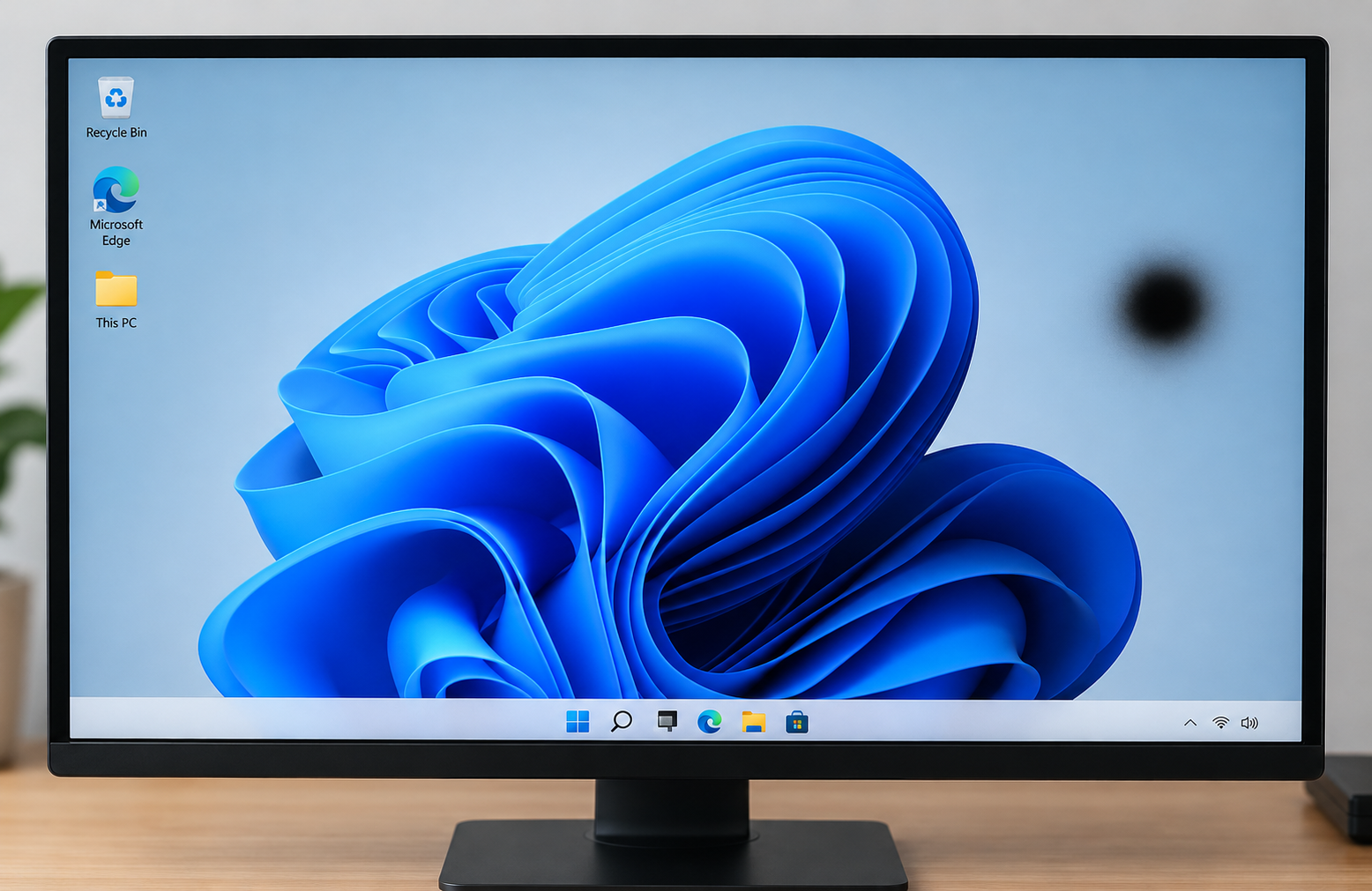
You glance at your monitor and there it is: a dark dot, or an ink-like smudge sitting right on top of your work. A black spot on a PC screen can be a single dead pixel, damage inside the panel, or just a speck of dust. A few free checks will tell you which one you are dealing with before you touch anything.
Quick Info: The 60-Second Display Spot Check
- Wipe the screen gently with a dry microfiber cloth. Dust and smudges can look like spots, and Dell says dots that disappear after cleaning are dust.
- Fill the screen with a plain white color, then a plain black one, and look at the spot on each. Dell says a dark pixel shows as a black dot on white or colored backgrounds but not on black.
- Take a clear photo of the spot. You will need it to compare later and for any support claim.
- Enter the UEFI/BIOS setup screen (steps in section 1). If the spot is still there, Windows and your graphics driver are not the cause.
- Think back: was the screen hit, pressed, squeezed in a bag, or exposed to liquid? Write down what you remember.
Key Takeaways
- A dead pixel and a damaged panel are different problems. Dell describes a dead pixel as one where all three subpixels are permanently off. Dell says patches larger than a pixel are not pixel defects.
- The BIOS test separates software from hardware. If the spot shows in the BIOS, the cause is in the display hardware, not in Windows. This is general diagnostic logic, not a named manufacturer test.
- Software cannot repair physical damage. Dell says a dead pixel cannot be fixed and the only solution is replacing the display panel. Pressing, rubbing, or flashing tools will not repair a broken panel.
- Spreading dark patches deserve quick attention. Dell lists “Black Spots (Broken Substrate)” as physical damage that is not covered by its basic support. Stop using the screen for important work and arrange service.
- A full panel swap is the usual end point. When the spot stays in the BIOS and in a built-in screen test, plan on service by an authorized provider.
How This Guide Was Verified
We verified every diagnostic path and display concept in this guide against the manufacturer support documentation we could access, and we label anything else as general repair knowledge.
Specifically, we checked Dell’s Display Pixel Guidelines and Dell’s lists of screen damage that basic support does not cover, plus Dell’s built-in LCD screen test article. We did not read VESA standards or laptop service manuals, so we could not confirm every internal detail for your model.
This guide compiles documentation. It does not include results from our own panel testing, and we cannot diagnose your screen from a description. Following these steps keeps you away from destructive screen-repair myths, such as pressing on the panel or heating it.
PC Screen Defects: Visual Diagnostic Matrix
| Screen Spot Visual Pattern | The Underlying Component Status | Recommended Resolution Path |
|---|---|---|
| A single microscopic black dot | Likely a dead pixel, which Dell describes as all three subpixels permanently off | Check it on white and black backgrounds, count the dots, and compare with your maker’s pixel policy. |
| An expanding dark smudge with trailing fracture lines | Likely physical damage to the panel, such as broken glass from impact, which Dell lists as “Black Spots (Broken Substrate)” | Stop pressing on it, power down if it is growing, and contact an authorized service provider. |
| Large, cloudy, faded gray shadows | Possibly pressure on the layers behind the glass, or another panel-layer problem | Run the BIOS test, remove any pressure from the lid or screen, and have the panel inspected. |
1. The BIOS Layer Test: Is It Software or Hardware?
The first job is to find out whether the spot is a software problem. The BIOS screen is drawn by your computer’s firmware before Windows loads, so it is a clean test.
Why the Test Helps
A graphics driver or a Windows setting cannot draw anything on a screen that has not started Windows yet. If a spot appears in both places, the cause sits in the display hardware. We found no manufacturer page that names this as an official test, so treat it as sound general logic.
Enter the UEFI/BIOS Setup
- Shut the computer down completely.
- Press the power button, then tap F2 or Del repeatedly. The key differs by brand.
- On many Lenovo laptops, press the Novo button, a small pinhole button, with the laptop off. Then choose BIOS Setup from the menu.
- Wait for the UEFI/BIOS Setup screen to appear.
Check your maker’s support page for the right key. We could not confirm the Novo button steps for every model.
Read the Result
- Look at the screen from your normal viewing position.
- Check whether the spot is in the same place as it was in Windows.
- Look again against a darker part of the screen.
If the spot is still visible: the cause points to the display panel or its layers. The test does not tell you which part has failed.
If the spot disappears completely: a graphics driver or an isolated software glitch becomes likely. Update your graphics driver and Windows, then test again.
Use a Built-In Screen Test
Dell documents a built-in LCD test for its laptops.
- Save your work, shut down, and connect the power adapter.
- Press and hold the D key, then press the Power button.
- Keep holding D until colors appear, then release it.
- Watch the screen cycle through solid colors.
Dell says lines, dots, dark areas, or distortion mean the screen may need professional service. Other brands have their own tests, so search your maker’s support site.
Rule Out Software Problems
If the spot vanishes in the BIOS, look at software next. A screen that glitches while the whole system stalls can point to a driver problem, and our guide Why Does My Laptop Keep Freezing? Causes and Fixes shows how to check Event Viewer and update drivers.
For basic Windows health checks, see Microsoft’s official Windows performance support page. Mac owners can read Apple’s official Mac optimization guidelines.
Try an External Monitor
Connect a second monitor if you can. If the second screen is clean and your main screen shows the spot, the panel is the likely cause.
2. Dead Pixel Mapping: Is It a Single Dot?
A very small, sharp black dot is often a dead pixel. Here is how to tell.
What Dell Says
Dell describes a dark pixel, also called a dead pixel, as one where all three subpixels are permanently turned off. It shows as black because it is completely turned off. Dell also says partial subpixels are a normal part of LCD manufacturing.
What Causes It
The brief we received explains this as a thin-film transistor that has permanently lost electrical current. Dell does not state the cause, and we cannot confirm that detail for your model. What matters for you is that Dell says a dead pixel cannot be fixed.
Map the Dot
- Display a solid white screen and look closely at the dot.
- Display a solid black screen. A dead pixel should disappear against black, as Dell notes.
- Count the dots and note where each one sits.
- Photograph the dot next to a ruler or a known object so you can show its size.
A dot that stays the same color and shape in every test fits the dead pixel pattern. A dark area that has width, ragged edges, or lines coming off it does not.
Check the Warranty Rules
Dell says only stuck pixels and subpixels visible at normal viewing distance count toward warranty evaluation. It also says pixel defects are covered only during the warranty period, and that the allowed number varies by model. Check your own maker’s policy, because rules differ.
Do Not Use Pixel Flashing Tools
Do not expect a flashing tool to bring back a dead pixel. Dell says a dead pixel cannot be fixed, and that pressing on the screen can crack it.
When Lines Appear Too
Sometimes a spot arrives with a line or a strip of distortion. If you see lines along with the dark area, read Laptop Screen Lines: Causes and How to Fix Them to separate cable, driver, and panel causes. Lines and spots together make physical damage more likely.
3. Liquid Bleed and Cracks: When the Spot Is Spreading
A large, irregular patch that keeps growing points to damage inside the panel, not a single failed pixel.
What It Looks Like
- A dark smudge, often described as ink-like, with jagged or spider-web-like edges.
- Lines or cracks leading away from the patch.
- A spot that appeared after a drop, a hit, or a squeeze.
- A patch that grows over hours or days.
Dell says cracks, pressure marks, or spider-web patterns mean the glass is damaged and the panel needs replacement.
What Is Happening Inside
The brief we received says the inner glass has fractured and the liquid crystal material bleeds out between the glass sheets, blocking light. It also says the patch can expand over time with air pressure changes. We found no manufacturer page that explains this chemistry or the growth cause, so treat it as general display knowledge.
What we can state from Dell is that “Black Spots (Broken Substrate)” is listed as physical damage that its basic support does not cover. That means the glass itself is broken, and a software change cannot repair it.
What to Do Right Away
- Stop touching or pressing the area.
- Photograph the spot with the screen on, and again after a day if it seems to grow.
- Shut the device down if the patch is spreading quickly.
- Contact an authorized service provider.
Do Not Massage the Spot
Pressing a dark patch to push it back is a common myth. Dell warns that pressure can crack the screen or damage internal components, so leave the area alone.
Check Your Warranty and Support Options
Dell says damage from accident, abuse, and misuse is not covered by its limited hardware warranty. Ask your maker whether your case counts as damage or as a defect, and describe what happened honestly.
4. Pressure Marks vs. Trapped Debris
Not every dark mark is a crack. Pressure and debris can also cause marks, and they look different from a dead pixel.
Pressure Marks
Heavy objects can press on a closed laptop lid and push against the layers behind the glass. The brief we received says this can squeeze the backlight diffuser sheets out of alignment and leave dark, cloudy patches. We found no manufacturer page that explains that mechanism, but Dell lists “Pressure Mark on LCD” as damage that its basic support does not cover.
How Pressure Patches Look
- Soft, cloudy, or faded gray shadows, not sharp dots.
- Patches that sit near where something pressed on the lid.
- Marks that do not change when you restart or enter the BIOS.
Pressure can also cause bright patches, and we explain more in White spot on Lenovo laptop screen.
Trapped Debris
Hard, round black specks can come from a speck of dirt inside the display. The brief we received attributes these to factory assembly flaws or debris that gets past the outer display seals. We found no manufacturer page that confirms either cause, so we treat them as general possibilities.
Dell says dots that disappear after cleaning are dust on the surface. If your speck does not wipe off, it is not on the surface, and you should have the screen inspected.
Look at the Wider Pattern
If the cloudy area spreads across a large part of the screen, see Patches on Laptop Screen: Causes and Safe Solutions for how to tell pressure patches, liquid stains, and mura apart. Mura is the uneven brightness some panels show, and it comes from the panel itself.
Prevent More Pressure
- Do not stack heavy items on a closed laptop.
- Use a padded sleeve in a bag, and avoid overstuffing it.
- Do not close the lid on pens, cables, or a webcam cover that is too thick.
- Hold a monitor by its frame when you move it, not by the screen.
Before You Contact Support
- Gather proof of purchase and warranty details.
- Take photos of the spot in Windows and in the BIOS.
- Note when it started and what happened beforehand.
- Back up your files.
- Describe any liquid exposure or impact honestly.
Dangerous Mistakes That Can Wreck Your Display Panel Permanently
- Pressing or massaging a dark spot. Thumb pressure can crack more glass and widen the damage.
- Cleaning with dripping liquids. Moisture can run into the lower edge of the screen and reach the electronics behind it. Use a dry microfiber cloth, or one barely damp.
- Using a heat gun or hair dryer on moisture patches. Heat can warp the panel layers and will not remove stains.
- Trusting pixel flashing tools to fix a damaged panel. Dell says a dead pixel cannot be fixed, and software cannot repair broken glass.
- Prying at the screen frame. You can crack the glass or tear the ribbon cable.
- Packing the device under heavy items. Pressure marks on the LCD are a common kind of damage.
- Ignoring a spreading patch. A growing dark area needs inspection, not waiting.
- Opening the display yourself. Dell warns that DIY fixes may void your warranty.
Frequently Asked Questions
What causes a black spot on a PC screen?
Common causes are a dead pixel, physical damage to the panel, pressure on the lid, or dust on the surface. The BIOS test and a white and black background test help you narrow it down.
Can a black spot on a screen be fixed?
Dell says a dead pixel cannot be fixed, and the only solution is replacing the display panel. Software tools cannot repair broken glass or damaged panel layers.
Why is the black spot getting bigger?
A growing dark patch with jagged edges or lines usually points to physical damage inside the panel. Stop pressing on it and contact an authorized service provider.
How do I know if it is a software problem?
Enter the UEFI/BIOS setup and look at the screen. If the spot is gone there, a driver or Windows setting is likely the cause, and if it is still there, the panel is the likely cause.
Will my warranty cover a black spot?
It depends on the cause and your maker’s policy. Dell says pixel defects are covered only during the warranty period, and damage from accident or misuse is not covered by its limited hardware warranty.
Disclaimer:
This article is for general educational and informational purposes only. It compiles official display diagnostic concepts from verified manufacturer service frameworks. Laptop and PC display panels handle delicate microscopic ribbon electronics and matrix glass. Always prioritize contacting authorized manufacturer service centers or certified repair specialists to execute physical display assembly replacements.