
 By Saad Qureshi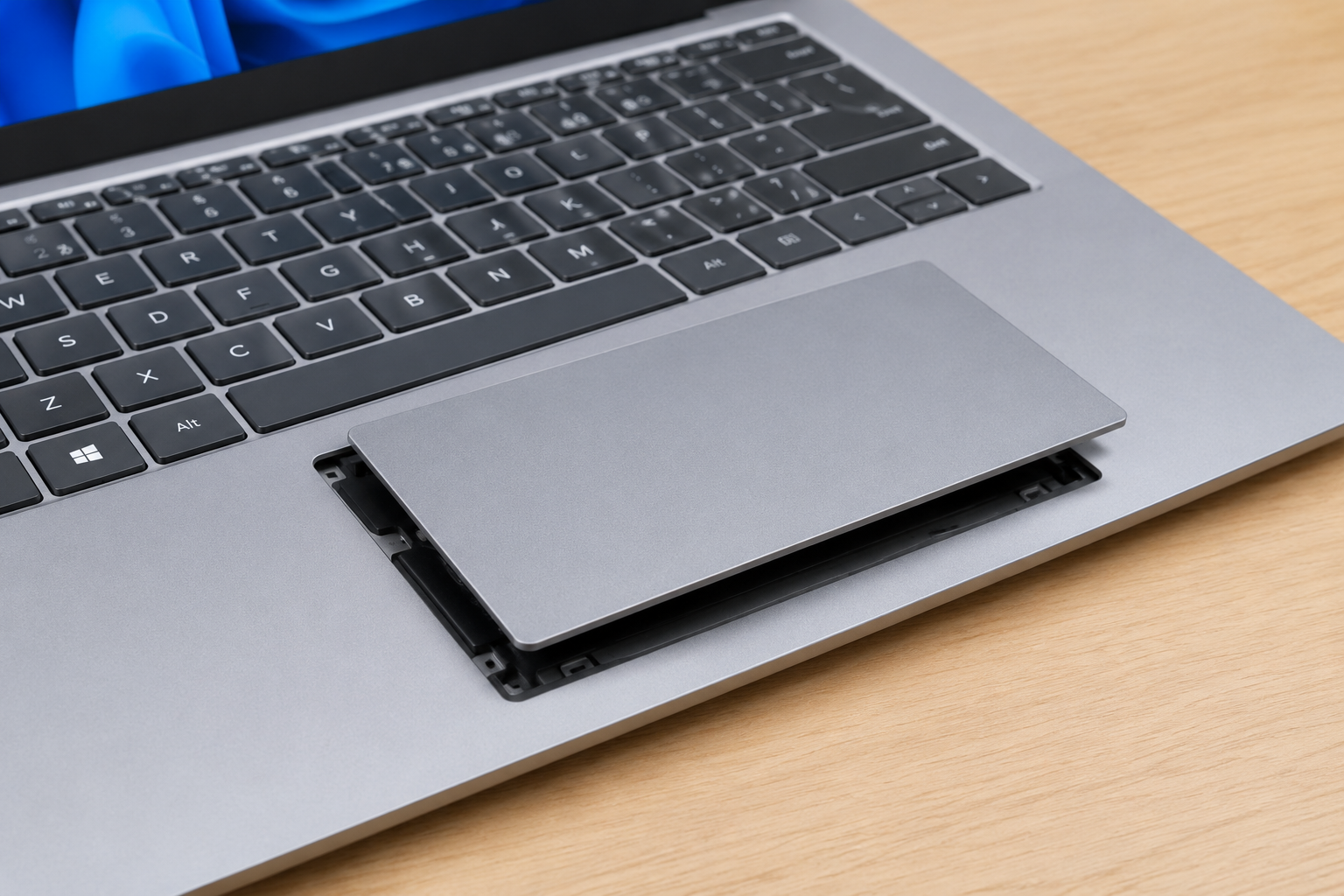
You go to use your Surface Laptop and the glass trackpad is lifting at one edge, warped, or sitting out of its aluminum frame. It looks like a cosmetic flaw, but it can be a warning sign. Do not push it back in until you know what is underneath.
Quick Info: The 60-Second Emergency Protocol
- Stop using the laptop. Save your work if you can do so quickly, then shut it down.
- Unplug the charger and move the laptop away from the wall outlet. Do not charge it again.
- Do not press, tap, or push the trackpad back into place. Pressure near a swollen battery can puncture it.
- Move the laptop to a hard, non-flammable surface such as a tile floor or a metal tray, away from curtains, paper, and bedding, in a room with fresh air.
- If you see smoke, hear hissing, smell chemicals, or feel the case getting hot, step away and call your local emergency number.
Key Takeaways
- A lifting trackpad is rarely just cosmetic. Repair guides commonly link it to a swollen battery pushing up from underneath, though a mechanical fault is also possible. Treat it as a battery problem until a technician says otherwise.
- Microsoft says to stop using a device with a visibly expanded battery. A Microsoft Community answer advises stopping use if the battery has expanded beyond the enclosure, and handling the device carefully to avoid pressure or puncture.
- Puncturing a lithium-ion battery is dangerous. Dell warns not to puncture, bend, or compress a swollen battery, and says burning, puncturing, or crushing one can cause fire or toxic release.
- We found no official battery lifespan figure for Surface laptops. Battery wear depends on use, charging, and heat. Microsoft’s service page lists paid battery replacement for several models.
- Do not attempt repairs yourself. Microsoft’s service page says damage caused during self-repair is not covered under its Limited Hardware Warranty or a purchased protection plan.
How This Guide Was Verified
We checked this guide against Microsoft’s Surface service options page and a Microsoft Community answer on battery expansion, plus Dell’s swollen battery guidance and a Tom’s Hardware safety guide for general lithium-ion handling. We did not have access to Microsoft’s internal Surface service manuals, so we cannot confirm exactly how any specific model is assembled.
This guide compiles documentation. It does not include results from our own teardown or lab testing, and we cannot diagnose your device from a description. Where we describe how a battery or trackpad is built, we say that it comes from general repair knowledge and not from Microsoft.
Staying with these steps keeps you away from the riskiest mistakes, such as prying, pressing, or opening a laptop that may have a damaged battery.
Surface Trackpad Displacement: Diagnostic Matrix
| What the Trackpad Looks Like | The Real Underlying Hardware Issue | Recommended Safety Path |
|---|---|---|
| Lifted on several sides, with the keyboard deck or case bulging | A likely swollen battery pushing up from below | Stop using the laptop, unplug it, do not press on it, and contact Microsoft Support or an authorized service provider. |
| Loose or clicking on one corner after a drop | Possible mechanical damage from impact, but a battery cause cannot be ruled out without inspection | Do not press it back. Power down and have it inspected by a professional. |
| Flat, but unresponsive | Often a software or driver issue, though a hardware fault is possible | Restart, update Windows, and check touchpad settings. Contact support if it still fails. |
1. Identifying a Swollen Battery Before It Becomes Dangerous
Most laptop batteries use lithium-ion cells. When a cell degrades or is damaged, gas can build up inside and make it swell.
What We Know and Do Not Know
Many repair guides say that on slim laptops the battery sits under the keyboard deck and trackpad, so swelling can push the trackpad up. We could not find Microsoft documentation that confirms the internal layout of your specific Surface Laptop. Treat that description as common repair knowledge, not as a Microsoft statement.
Signs of a Swollen Battery
- The trackpad lifts, clicks oddly, or no longer sits flush with the palm rest.
- The keyboard deck bulges, or keys feel raised.
- The case seams are splitting or the bottom panel no longer sits flat.
- The laptop rocks on a flat table when it did not before.
- The case feels unusually warm while idle or charging.
Tom’s Hardware lists a case “coming apart at the seams” and a trackpad or bottom keys “lifting when you type” as signs.
What Microsoft Says
A Microsoft Community answer says battery expansion from deterioration is most often caused by the formation of non-flammable carbon dioxide gas. It also says that if the battery has visibly expanded beyond the enclosure, the device should be handled with caution to avoid pressure or puncture, and that users should stop using it.
That is a community answer, not a service manual, and other manufacturers take a more cautious tone. Dell calls a swollen battery a safety concern. The safest approach is to stop using the laptop and have it checked.
Do Not Test It
- Do not press on the trackpad to see if it moves.
- Do not charge the laptop to see if the problem improves.
- Do not power it on for diagnostics if it is visibly bulging.
If the trackpad is not lifted at all and the laptop only seems sluggish, our guide on Why Is My Laptop Slow? Causes and Fixes covers software causes, such as busy processes in Task Manager.
Back Up Your Data
If the laptop still starts and nothing is visibly bulging, you may want to save your files. If it is bulging, skip this. Your files are not worth the risk, and a service provider may be able to recover data later.
2. Inspecting Mechanical Strain and Retaining Clip Failures
Not every lifted trackpad is a battery problem. A drop or heavy impact can also damage the parts that hold it in place.
Possible Mechanical Causes
These are general possibilities. We found no Microsoft documentation that lists the exact retaining parts in a Surface Laptop trackpad.
- A broken plastic clip or bracket after a drop.
- A loose internal screw.
- Debris trapped under the glass after an impact.
- Frame damage from the laptop being squeezed or carried under pressure.
Look, Do Not Touch
- Place the laptop on a flat, hard surface with the lid open.
- Look at the trackpad edges from the side at eye level.
- Check whether the lift is even on several sides, which can point to something pushing from below, or only at one corner, which is more consistent with impact damage.
- Look at the keyboard deck and the bottom of the laptop for bulging, gaps, or cracks.
You can only guess at the cause from outside. A technician has to open the laptop to tell.
Check for Other Pressure Damage
Pressure on a laptop can affect more than the trackpad. A squeezed lid can also leave marks on the display, and our guide on White spot on Lenovo laptop screen explains how pressure may cause bright patches on LCD panels.
The Flat but Unresponsive Case
If the trackpad sits flush and the case looks normal, the problem may be software.
- Restart the laptop.
- Open Start > Settings > Windows Update and check for updates.
- Open Settings > Bluetooth & devices > Touchpad and make sure the touchpad is turned on.
- Try an external mouse to see whether the cursor works.
Menu names can vary by Windows version. If none of this helps, contact Microsoft Support.
Do Not Pry or Reseat
Do not use a screwdriver, a pick, or your fingers to push or pry the trackpad. If a swollen battery is behind it, pressure or a sharp tool could puncture the cell.
3. Safe Temperature Cooldown and Hazard Handling
If you think the battery is swollen, your goal is to keep the laptop away from heat, flammable material, and pressure until a professional can take it.
Power Down and Unplug
- Shut the laptop down from the Start menu if it is safe to do so.
- If it will not shut down, hold the power button until it turns off.
- Unplug the charger and any cables.
- Do not plug it back in.
Tom’s Hardware advises powering down and unplugging, and waiting for the laptop to cool before any handling.
Where to Put It
- Place the laptop on a hard, non-flammable surface such as tile, concrete, or a metal tray.
- Keep it away from curtains, paper, sofas, beds, and other flammable material.
- Use a room with fresh air, and do not leave it in a closed bag or drawer.
- Keep it dry and out of direct sunlight.
Dell advises keeping a swollen battery away from flammable materials and in a non-flammable container such as metal or ceramic. Tom’s Hardware suggests a well-ventilated area, ideally outdoors, with a fire extinguisher nearby as a precaution.
What Cooling Does and Does Not Do
Letting the laptop cool down makes it safer to handle. We found no manufacturer source saying that cooling reverses or stops swelling, so do not expect the bulge to go down. Do not put the laptop in a freezer or on ice, because moisture and temperature shocks can cause other problems.
Heat Makes Things Worse
Heat is a stress factor for batteries.
If your laptop was running hot before this happened, see Why Is My Laptop Overheating? Causes and Fixes for common causes, and avoid using the laptop for heavy tasks in the meantime. Do not power it on for troubleshooting if it is bulging.
Keep Windows Updated When It Is Safe
If the laptop is not showing any sign of swelling, Microsoft lists updates among its basic steps in Microsoft’s official Windows performance support page. Do not run updates or long tasks on a device that is visibly deformed.
Warning Signs That Mean Get Away
- Smoke or a burning smell.
- Hissing or popping sounds.
- A sweet or chemical odor.
- A case that is too hot to touch.
Move away from the laptop, keep others away, and call your local emergency number.
4. Professional Service Routing and Replacement Guidelines
A swollen battery is not a home repair. Microsoft’s service page lists the routes you can take.
Choose Your Service Route
Microsoft’s page says that for devices covered by a Limited Hardware Warranty or a Protection Plan, you can open a service request through a self-serve portal. For personal devices, it says to go to account.microsoft.com/devices, choose your device, and select Start order.
For devices out of warranty, the page lists three options: customer self repair, Microsoft in-region repair, and authorized service providers. It also lists battery replacement as available for several Surface models, such as Surface Laptop 3 and 4, although it is not available in every region.
Steps to Follow
- Power the laptop down, unplug it, and move it to a safe spot.
- Take clear photos of the trackpad, keyboard deck, and case seams.
- Find your proof of purchase and warranty or Protection Plan details.
- Open your service request using Microsoft’s official Surface service and repair portal.
- Tell the service team that you suspect a swollen battery so they can handle shipping and handling correctly.
Do Not Self Repair
Microsoft says that damage caused by self repair is not covered under its Limited Hardware Warranty or a purchased protection plan. That is another reason to avoid opening the laptop.
Disposal and Recycling
Do not throw a swollen battery in household trash or a regular recycling bin. Dell says swollen batteries generally should not be mailed, and should be taken to a local drop-off location or authorized recycling center.
If a service provider replaces your battery, ask them how they will recycle the old one. If you need to deal with it yourself, contact your local hazardous waste or electronics recycling program first.
Warranty Notes
Microsoft’s page says commercial devices include at least a one-year Limited Hardware Warranty, and that Protection Plans offer extended coverage. It does not say how a swollen battery would be classified for your device, so ask support directly.
Dangerous Mistakes That Can Trigger a Battery Fire
- Pressing the trackpad back into place. Pressure on a swollen cell can puncture it. Dell warns that puncturing or crushing a battery can cause fire or toxic release.
- Taping the trackpad down to hide the bulge. This hides a warning sign and adds pressure.
- Prying the case open with a screwdriver. Metal tools can puncture the battery or short its connections.
- Charging the laptop to see if it still works. A damaged battery should not be charged.
- Running heavy apps on a bulging laptop. Heavy loads generate heat, which stresses a damaged battery.
- Leaving the laptop on a bed or sofa. Soft surfaces trap heat and burn easily.
- Throwing the battery or laptop in regular trash. Use an authorized recycling program.
- Mailing a swollen battery. Dell says to take swollen batteries to a drop-off location or authorized recycling center instead.
Frequently Asked Questions
Why did my Surface Laptop trackpad pop out?
A swollen battery is a common explanation in repair guides, but we found no Microsoft documentation that says so for every model. A drop or impact can also damage the parts that hold the trackpad. Stop using the laptop and have it inspected.
Is a swollen Surface battery dangerous?
It can be. A Microsoft Community answer says that deterioration swelling is most often non-flammable carbon dioxide gas, but it still advises stopping use and avoiding pressure. Dell calls a swollen battery a safety concern, so treat it carefully.
Can I push the trackpad back in?
No. Pressure can puncture a swollen battery cell. Leave it alone and contact Microsoft Support.
Can I keep using the laptop?
Microsoft’s community guidance says to stop using a device whose battery has visibly expanded beyond the enclosure. Power it down, unplug it, and keep it away from flammable items.
How do I get it repaired?
Use Microsoft’s Surface service options. In warranty, open a service request through the portal. For a personal device, you can go to account.microsoft.com/devices and select Start order.
Disclaimer:
This article is for general educational and informational purposes only. It compiles official hardware safety protocols from verified manufacturer service frameworks. Swollen lithium-ion batteries represent a severe thermal and chemical hazard. Always contact authorized service centers or recycling experts to handle expanded battery hardware.