
 By Saad Qureshi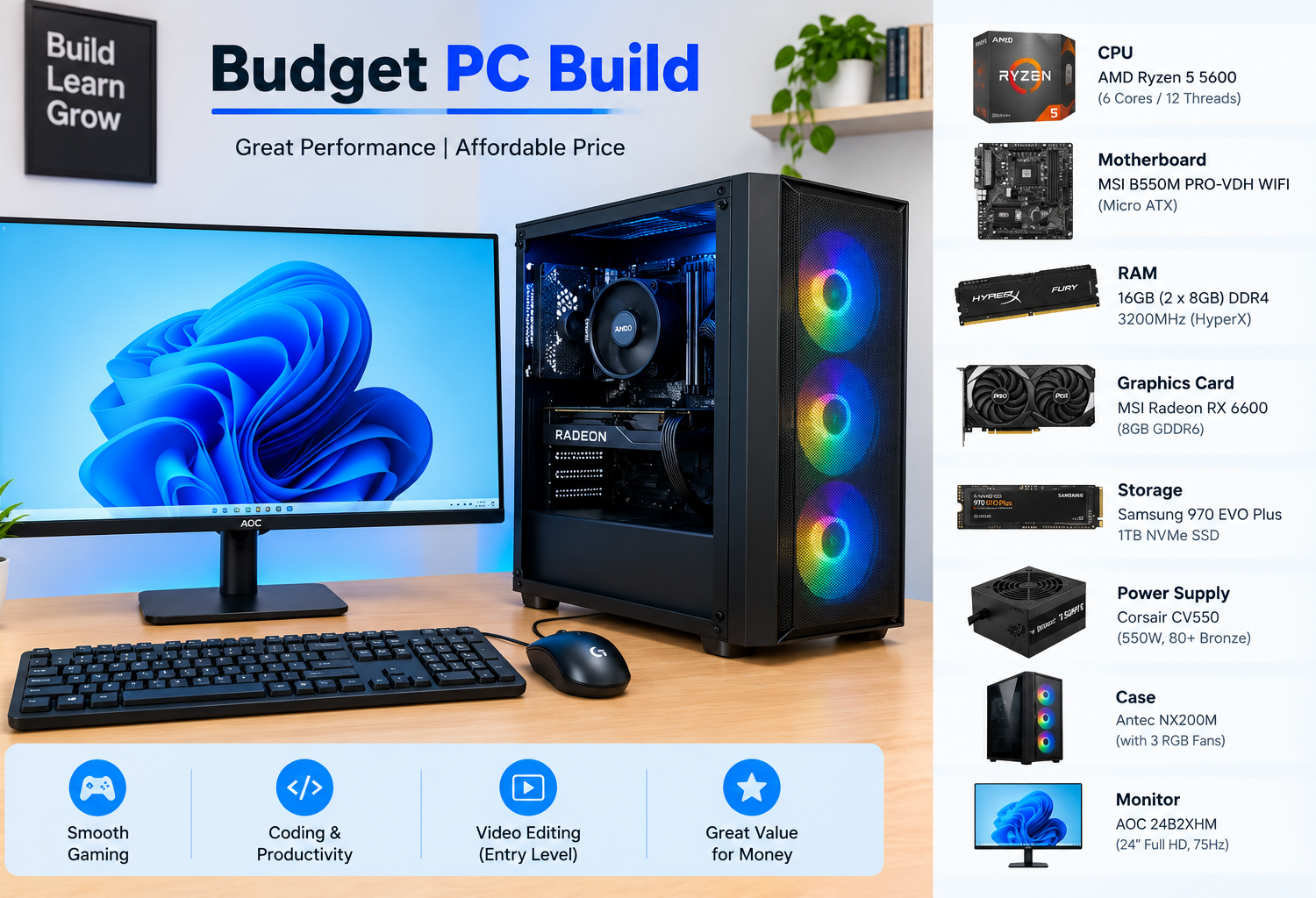
Building your own PC used to be the easy way to save money. In 2026, it is still the smartest way to get the most performance for your budget, but the rules have changed.
The biggest surprise this year is not the graphics card. It is memory. An AI-driven shortage has pushed RAM prices to levels nobody expected, and a stick of memory that used to be a small line item can now cost as much as a graphics card. Graphics card prices have also crept above their launch prices.
That does not mean a budget PC is impossible. It means you need to plan smarter. In this guide, we will show you exactly where to spend, where to save, and three realistic budget PC builds for October 2026, plus how to put everything together.
Quick Info: Budget PC Build at a Glance
| Detail | Quick Answer |
|---|---|
| Realistic budget gaming PC cost (Oct 2026, US) | About $700 to $1,200, depending on GPU and RAM |
| Target performance | 1080p gaming at medium to high settings |
| Best ultra-budget CPU | AMD Ryzen 5 5600 (AM4, DDR4) |
| Best budget CPU with upgrade path | AMD Ryzen 5 7600 (AM5, DDR5) |
| Budget GPU picks | RTX 5050, Arc B580, RTX 5060, RX 9060 XT |
| RAM | 16 GB minimum, 32 GB ideal (but expensive this year) |
| Storage | 1 TB NVMe SSD |
| Power supply | 550 W to 650 W, 80 Plus Bronze or Gold |
| Biggest 2026 challenge | Very high RAM prices |
| Time to build | 2 to 4 hours for a first-timer |
Key Takeaways
- Spend the most on your graphics card. It has the biggest effect on gaming performance.
- RAM is the 2026 budget trap. A 32 GB DDR5 kit costs around $450 at the low end right now. Start with 16 GB and upgrade later, or use a DDR4 platform.
- DDR4 builds are back in fashion for tight budgets, because DDR4 memory costs much less per gigabyte than DDR5.
- AM5 (Ryzen 7000 and 9000) gives you an upgrade path, so it suits people who plan to keep upgrading.
- Do not cheap out on the power supply. A reliable PSU protects every other part.
- Prices change weekly. Use the numbers here as a guide and compare current prices before you buy.
Important: Why 2026 Is Different for Budget Builders
The RAM shortage
AI data centers are buying huge amounts of memory, and manufacturers have shifted production toward them. The result is a sharp rise in consumer RAM prices.
| Memory kit | Rough price a year ago | Rough price in October 2026 (US) |
|---|---|---|
| 32 GB DDR5-6000 | Under $100 | About $450 and up for the cheapest kits |
| 16 GB DDR5-6000 | Around $50 | Around $240 and up |
| 32 GB DDR4-3200 | $60 to $90 | About $190 to $210 |
| 16 GB DDR4-3200 | Around $40 to $50 | About $105 to $120 |
Industry trackers expect prices to stay high into 2027, so waiting may not help much. The practical lesson for a budget build is simple: buy the memory you need now, not extra “just in case” capacity.
Graphics card prices
Graphics cards have also been affected, because they use memory chips too. Several popular cards now sell above their original launch prices. Budget-friendly cards in the $250 to $350 range are still available, though, and they handle 1080p gaming well.
Your local prices may be different
All prices in this guide are approximate US prices from October 2026. If you live elsewhere, including Pakistan, India, the UK, or the Middle East, prices and availability can be very different. Use this guide to choose the parts, then compare local shops and online stores.
How to Split Your Budget
For a gaming PC, a good rough split looks like this:
| Part | Share of budget | Why |
|---|---|---|
| Graphics card (GPU) | 30 to 40% | The single biggest factor for gaming FPS |
| Processor (CPU) | 15 to 20% | Needs to keep up with the GPU |
| Memory (RAM) | 12 to 25% | Higher than usual in 2026 because of the shortage |
| Motherboard | 10 to 12% | Must match the CPU socket and RAM type |
| Storage (SSD) | 6 to 8% | 1 TB NVMe is the sweet spot |
| Power supply (PSU) | 6 to 8% | Do not go cheap here |
| Case | 5 to 7% | Good airflow matters more than looks |
If your PC is mainly for school, office work, and browsing rather than gaming, you can skip the graphics card entirely and use a processor with built-in graphics instead. We cover that in Build 3.
Choosing Each Part (Plain-English Guide)
1. Processor (CPU)
The CPU is the brain of your PC. For a budget gaming build, you want 6 cores and 12 threads as a sensible minimum in 2026.
| CPU | Platform | Memory | Best for |
|---|---|---|---|
| AMD Ryzen 5 5600 | AM4 | DDR4 | Cheapest strong gaming CPU; no future upgrade path |
| Intel Core i5-14400F | LGA1700 | DDR4 or DDR5 | Good gaming and multitasking; older platform |
| AMD Ryzen 5 7600 | AM5 | DDR5 | Best value with an upgrade path to newer Ryzen chips |
| AMD Ryzen 5 9600X | AM5 | DDR5 | Newer and faster, for a bit more money |
| AMD Ryzen 5 8600G | AM5 | DDR5 | Strong built-in graphics if you want to skip a GPU for now |
If a CPU name ends in F (like i5-14400F), it has no built-in graphics, so you must use a graphics card.
2. Graphics card (GPU)
This is where most of your gaming performance comes from. PC Gamer currently names the RTX 5050 as its best budget graphics card and the RX 9060 XT 16 GB as its best value pick.
| GPU | VRAM | Rough Oct 2026 US price | Notes |
|---|---|---|---|
| Nvidia RTX 5050 | 8 GB | Around $250 | Cheapest solid new option for 1080p |
| Intel Arc B580 | 12 GB | Around $300 to $310 | More VRAM for the money; check game compatibility |
| Nvidia RTX 5060 | 8 GB | Around $360 | Strong 1080p card with DLSS 4 support |
| AMD RX 9060 XT 16 GB | 16 GB | Around $500 | Best long-term value if you can stretch the budget |
VRAM (graphics memory) matters more each year. 8 GB cards still work well at 1080p, but some newer games need lower texture settings. If you can afford 12 GB or 16 GB, it will last longer.
3. Memory (RAM)
- 16 GB is the minimum for gaming in 2026.
- 32 GB is ideal but very expensive right now.
- Always use two sticks (for example, 2 x 8 GB) so the memory runs in dual-channel mode, which is noticeably faster than a single stick.
- Match the RAM type to your motherboard. AM4 uses DDR4. AM5 uses DDR5. Some Intel boards support one or the other, never both.
Smart 2026 tip: if you already own DDR4 memory from an older PC, building on a DDR4 platform lets you reuse it and save a lot of money.
4. Motherboard
The motherboard connects everything. It must match your CPU’s socket:
- AM4 for Ryzen 5 5600 (look for B550 boards)
- AM5 for Ryzen 7600, 9600X, and 8600G (look for B650 or B850 boards)
- LGA1700 for Intel 12th to 14th gen (look for B760 boards, and check DDR4 vs DDR5)
A basic board is fine for a budget build. Look for at least one M.2 slot for your SSD and built-in Wi-Fi if you will not use a network cable.
5. Storage (SSD)
Get a 1 TB NVMe SSD. It makes Windows and games load fast. A 500 GB drive fills up quickly with modern games. You can always add a second drive later.
6. Power supply (PSU)
For a budget build with a card like the RTX 5050 or RTX 5060, a 550 W to 650 W unit with an 80 Plus Bronze or Gold rating from a trusted brand is plenty. Avoid unbranded power supplies. A bad PSU can damage other parts.
7. Case and cooling
Choose a case with a mesh front panel for good airflow and at least two fans included. Most budget CPUs come with a basic cooler. A cheap aftermarket tower cooler (around $25 to $35) keeps things quieter and cooler, but it is optional.
8. Windows
Do not forget the operating system. Windows 11 needs a compatible CPU, 4 GB RAM, 64 GB storage, and TPM 2.0, which every CPU in this guide supports on modern motherboards. Windows is a type of system software, which our guide on what system software is explains in simple terms.
Build 1: Ultra-Budget 1080p Gaming PC (About $750 to $850)
This build uses the older AM4 platform with DDR4 to save money on memory.
| Part | Recommended pick | Rough price (US, Oct 2026) |
|---|---|---|
| CPU | AMD Ryzen 5 5600 | $100 to $130 |
| Motherboard | B550 micro-ATX board | $90 to $110 |
| RAM | 16 GB DDR4-3200 (2 x 8 GB) | $105 to $120 |
| GPU | Nvidia RTX 5050 8 GB | Around $250 |
| SSD | 1 TB NVMe (PCIe 3.0 or 4.0) | $60 to $90 |
| PSU | 550 W 80 Plus Bronze | $50 to $65 |
| Case | Mesh-front mid tower or micro-ATX | $50 to $70 |
| Estimated total | About $705 to $835 |
What to expect: Smooth 1080p gaming in esports titles like Valorant, Fortnite, and CS2, and playable frame rates in most AAA games at medium to high settings.
Trade-off: AM4 is the end of the line. To upgrade the CPU significantly later, you will need a new motherboard and RAM.
Save even more: If you already own DDR4 RAM, reuse it and take $105 or more off the total.
Build 2: Balanced 1080p Gaming PC With Upgrade Path (About $1,050 to $1,250)
This build uses AM5, so you can drop in a faster Ryzen CPU in the future without changing the motherboard.
| Part | Recommended pick | Rough price (US, Oct 2026) |
|---|---|---|
| CPU | AMD Ryzen 5 7600 | $180 to $230 |
| Motherboard | B650 board | $110 to $140 |
| RAM | 16 GB DDR5-6000 (2 x 8 GB) | Around $240 to $250 |
| GPU | Intel Arc B580 12 GB or Nvidia RTX 5060 8 GB | $300 to $360 |
| SSD | 1 TB NVMe PCIe 4.0 | $70 to $100 |
| PSU | 650 W 80 Plus Gold | $70 to $90 |
| Case | Mesh-front mid tower with 2 to 3 fans | $60 to $80 |
| Estimated total | About $1,030 to $1,250 |
What to expect: High settings at 1080p in most games, and some light 1440p gaming, especially with upscaling.
Upgrade plan: Add another 16 GB of DDR5 when prices fall, then upgrade the GPU or CPU in a year or two.
Want to go further? Swap in an RX 9060 XT 16 GB for about $150 to $200 more. The extra VRAM will help the PC last longer.
Build 3: Budget PC Without a Graphics Card (About $550 to $650)
For school, office work, browsing, streaming, and light gaming, a CPU with strong built-in graphics is enough. You can add a graphics card later when prices or your budget improve.
| Part | Recommended pick | Rough price (US, Oct 2026) |
|---|---|---|
| CPU | AMD Ryzen 5 8600G (strong built-in graphics) | Check current price |
| Motherboard | B650 board | $110 to $140 |
| RAM | 16 GB DDR5 (2 x 8 GB) | Around $240 |
| SSD | 1 TB NVMe | $60 to $90 |
| PSU | 550 W 80 Plus Bronze | $50 to $65 |
| Case | Micro-ATX or mid tower | $50 to $70 |
What to expect: Fast everyday performance, 1080p video and streaming, and light gaming in older or esports titles at lower settings.
Cheaper alternative: On a very tight budget, the AM4 Ryzen 5 5600GT with DDR4 costs less overall, but it has weaker graphics and no upgrade path.
Note: Built-in graphics rely heavily on memory speed and dual-channel RAM, so always use two sticks.
Where to Save and Where Not to Save
| Save money on | Do not save money on |
|---|---|
| Fancy RGB lighting and glass panels | The power supply |
| Expensive motherboards with features you will not use | Dual-channel RAM (always two sticks) |
| Huge storage at the start (add later) | A GPU with too little VRAM for your games |
| Premium coolers for budget CPUs | A case with poor airflow |
| 32 GB RAM right now (upgrade later) | Buying from trusted sellers with warranties |
Buying used parts
Used graphics cards and CPUs can save a lot, but be careful:
- Buy from sellers who let you test the part or offer returns.
- Avoid used power supplies and very old SSDs.
- Ask about warranty and original purchase receipts.
- Check prices of new parts first so you know a used deal is actually worth it.
Step-by-Step: How to Build Your Budget PC
What you need
- A Phillips #2 screwdriver
- A clean table with good lighting
- Your motherboard manual (keep it open)
- A USB flash drive of at least 8 GB for installing Windows
Step 1: Prepare the motherboard outside the case
Place the motherboard on its box. This makes the first steps easier.
Step 2: Install the CPU
- Lift the socket lever or retention arm.
- Line up the small triangle on the CPU with the triangle on the socket.
- Gently place the CPU in. Do not push. It should drop into place.
- Lower the lever to lock it.
Step 3: Install the RAM
Check the manual for the correct slots for two sticks (usually slots 2 and 4, often labeled A2 and B2). Line up the notch, then press firmly until the clips click.
Step 4: Install the SSD
Remove the M.2 cover or screw, slide the SSD in at a slight angle, press it down, and secure it.
Step 5: Install the CPU cooler
If your cooler does not already have thermal paste applied, add a small pea-sized dot to the center of the CPU. Mount the cooler following its instructions and plug its fan cable into the CPU_FAN header.
Step 6: Install the power supply and motherboard in the case
- Mount the PSU in its spot (usually the bottom of the case).
- Screw the motherboard standoffs in if needed and install the I/O shield if your board has a separate one.
- Place the motherboard and screw it in.
Step 7: Install the graphics card
- Remove the matching slot covers on the back of the case.
- Push the GPU firmly into the top long PCIe x16 slot until it clicks.
- Screw it to the case and connect its power cable from the PSU.
Step 8: Connect the cables
- 24-pin main power to the motherboard
- 8-pin CPU power near the top of the motherboard
- GPU power cable(s)
- Front panel cables (power button, USB, audio). Use the manual, since these tiny pins are easy to mix up.
- Case fans to the motherboard fan headers
Step 9: First boot
Plug your monitor into the graphics card, not the motherboard (except in Build 3, which uses the motherboard’s video ports). Turn on the PSU switch and press the power button. If you see the motherboard logo or BIOS screen, the hardware is working.
Step 10: Check BIOS settings
- Confirm the RAM and SSD are detected.
- Turn on EXPO (AMD) or XMP (Intel) so your RAM runs at its rated speed.
- Make sure TPM and Secure Boot are available for Windows 11.
- Update the BIOS if the manufacturer recommends it, especially for newer CPUs on older boards.
Step 11: Install Windows and drivers
- Create a Windows installer on your USB drive using Microsoft’s official Media Creation Tool.
- Boot from the USB drive and follow the setup steps.
- Install your chipset driver from the motherboard maker’s website and your graphics driver from Nvidia, AMD, or Intel.
- Run Windows Update.
If you are new to setting up software, our guide on what software installation is explains the basics, and our article on why software needs updates explains why drivers and BIOS updates matter.
Common First-Build Problems
| Problem | Likely cause | Fix |
|---|---|---|
| PC does not turn on | PSU switch off or front panel cable wrong | Check the PSU switch and power button pins |
| Fans spin but no display | Monitor in motherboard port, RAM not seated | Use GPU port; reseat RAM firmly |
| Long first boot | Memory training on DDR5 | Wait a few minutes; this is normal on AM5 |
| RAM running slow | EXPO or XMP off | Turn it on in BIOS |
| CPU very hot | Cooler not seated or no thermal paste | Reinstall cooler properly |
| SSD not showing in Windows setup | Drive not seated or needs drivers | Reseat the SSD; check BIOS |
Upgrade Path: How to Make Your Budget PC Last
- Add more RAM when prices fall. Moving from 16 GB to 32 GB is an easy upgrade.
- Upgrade the GPU in two or three years for the biggest gaming boost.
- On AM5, upgrade the CPU without replacing the motherboard.
- Add a second SSD when you run out of space.
- Keep a bit of PSU headroom so future GPUs will not need a new power supply.
Is It Cheaper to Build or Buy a Prebuilt in 2026?
Building usually still gives better value, because you choose every part and avoid cheap power supplies and slow memory that some prebuilts use. However, in 2026, large prebuilt makers sometimes get better deals on RAM and GPUs than individual buyers. If you find a prebuilt with the same parts for nearly the same price, it can be worth it, especially for first-timers who want a single warranty.
Always check the exact parts list of a prebuilt: the PSU brand, RAM amount and number of sticks, and SSD size.
Frequently Asked Questions
How much does a budget gaming PC cost in 2026?
In the US, a realistic budget gaming PC costs about $700 to $1,200 in October 2026, depending mainly on the graphics card and RAM.
Why is RAM so expensive in 2026?
AI data centers are using a large share of global memory production, which has pushed consumer RAM prices up sharply. A 32 GB DDR5 kit now costs several times what it did a year ago.
Is 16 GB of RAM enough for gaming in 2026?
Yes, for most games at 1080p. 32 GB is better for heavy multitasking and some newer games, but you can upgrade later.
Should I choose DDR4 or DDR5 for a budget build?
DDR4 (AM4 or some Intel boards) is cheaper right now and great for tight budgets. DDR5 (AM5) costs more but gives you a better upgrade path.
What is the best budget GPU in 2026?
The RTX 5050 is a strong low-cost pick, the Arc B580 offers more VRAM for the money, the RTX 5060 is a great 1080p all-rounder, and the RX 9060 XT 16 GB is the best long-term value if you can afford it.
Can I build a PC without a graphics card?
Yes. Choose a CPU with strong built-in graphics, like the Ryzen 5 8600G, and add a graphics card later.
Is building a PC hard for beginners?
Not really. Most first-timers finish in two to four hours by following the motherboard manual carefully.
Do I need to buy Windows?
You need Windows (or another operating system like Linux) to use the PC. Windows can be installed from Microsoft’s official tool, and a license is required for full use.
Should I wait for prices to drop?
Memory prices are expected to stay high into 2027. If you need a PC now, build it with 16 GB and upgrade RAM later instead of waiting indefinitely.
Final Thoughts
A budget PC build in 2026 takes a little more planning than before, mainly because of high RAM prices. But the formula for a great value build has not changed: spend most on the graphics card, choose a sensible 6-core CPU, use two sticks of RAM, and never cut corners on the power supply.
Pick the build that fits your budget, check current prices in your area, and take your time putting it together. The result is a PC you understand, can upgrade, and built yourself.
References
Disclaimer
This guide is for general information only. All prices are approximate US prices as of October 2026 and change frequently, especially for memory and graphics cards. Prices, availability, and warranties differ by country and retailer. Always check current prices, compatibility, and return policies before buying, and follow the instructions in your motherboard and component manuals when building. TechOriginHub is not affiliated with any brand or retailer mentioned, and this article is not sponsored and contains no paid links. Building a PC involves handling electrical components, so always switch off and unplug the power supply before working inside your PC.