
 By Saad Qureshi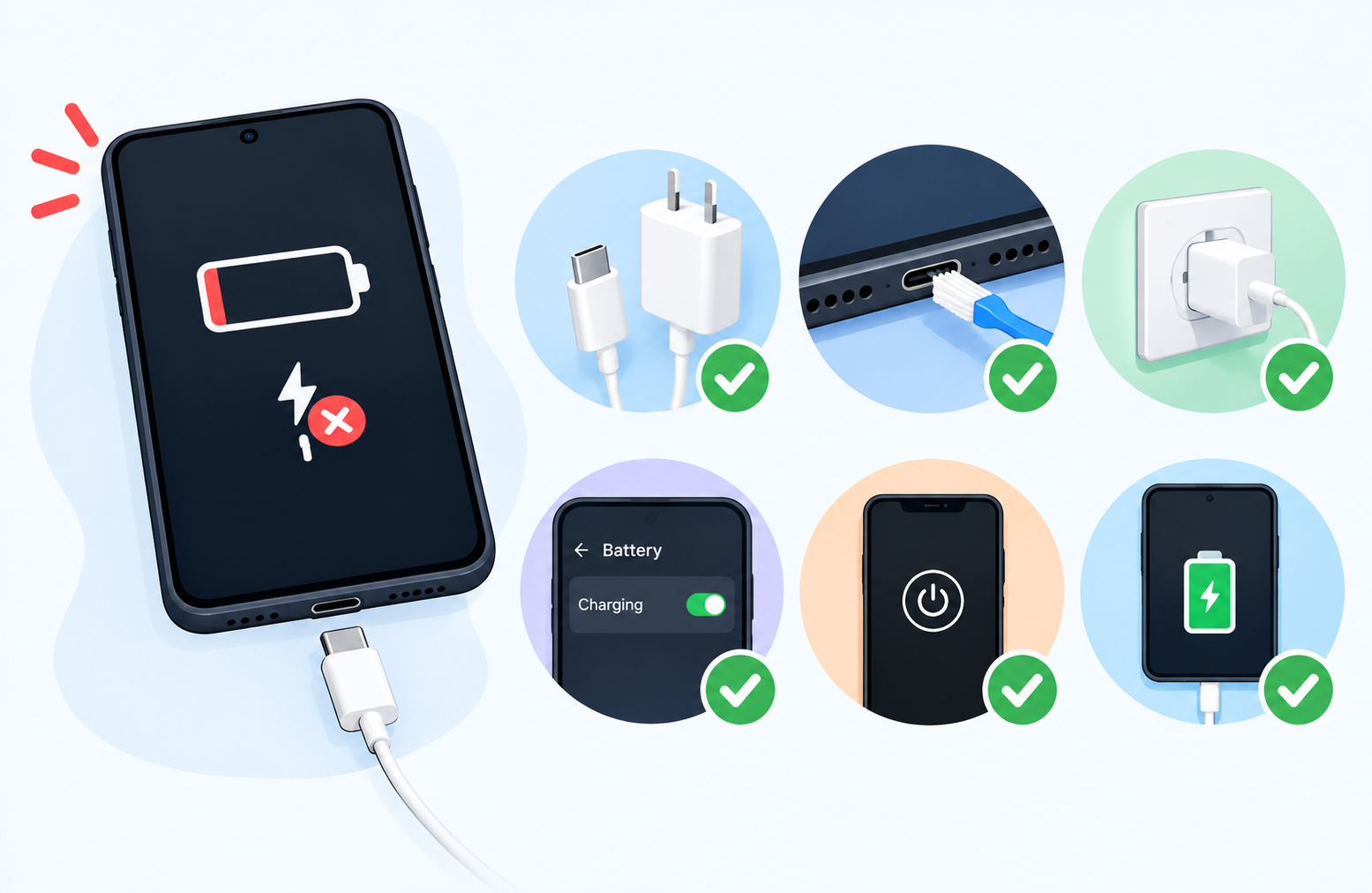
You plug in a phone with 2% battery, and the screen stays dark. It’s a stressful moment, but the cause is often simple. Here is how to fix a phone that is not charging, starting with the easiest checks.
Quick Info: The 60-Second Fixes
-
Plug the charger into a different wall outlet.
-
Try a different cable, ideally one you know works.
-
Try a different adapter from a trusted brand.
-
Remove the case and look into the charging port with a flashlight.
-
Leave the phone plugged in for 15 to 30 minutes, then try turning it on.
Key Takeaways
- Wattage matters less than quality. Phones ask the charger for the power they can use, so a higher-wattage charger from a trusted brand is generally safe. A cheap, uncertified one is the real risk.
- Cables wear out faster than adapters. They bend, twist, and get pulled every day, so a bad cable is the most common culprit.
- Port debris is common. Lint and dust pack into the port over months and block the connection.
- Moisture and corrosion can do real damage. Charging a wet port can corrode the contacts, so let it dry first.
- A weak battery needs a proper replacement. If the battery is swollen, very hot, or drains in minutes, stop using it and visit an authorized service provider.
How This Guide Was Written
This guide uses standard hardware troubleshooting steps and general guidance of the kind published by phone makers such as Google and Samsung. We avoided anything that needs you to open the phone, use metal tools, or modify the software.
Menu names differ between brands and Android versions, and so do button combinations. If a step looks different on your phone, check your manufacturer’s support page for your exact model.
Diagnosing Your Phone’s Charging Problem
Match what your phone is doing with the likely cause in this table.
| What the Phone Is Doing | Likely Root Cause | Recommended Solution |
|---|---|---|
| Charges only when the cable is held at an angle, or on and off | Worn cable or debris in the port | Try another cable, then clean the port gently |
| Shows a message like “Liquid or debris detected” | The port’s safety sensor sees moisture or dirt | Unplug, let the phone dry for hours, and clean the port |
| Says “Slow charging” | Weak adapter, low-quality cable, or a weak outlet | Switch to a better cable and adapter |
| Completely dark and unresponsive | Fully drained battery, bad cable or adapter, or a software freeze | Charge for 30 minutes with a known good setup, then try a forced restart |
| Charging stops at a certain level or gets very hot | Battery wear or a heat safeguard | Remove the case, charge in a cool place, and get the battery checked |
1. Inspecting the Physical Charging Hardware and Cable Integrity
Always rule out the cheapest parts first. Chargers and cables fail far more often than phones do.
Check the wall outlet and adapter
- Plug a lamp or another device into the same outlet to confirm it has power.
- Move your phone’s charger to a different outlet or a different power strip.
- Try a different adapter. Use a certified one from a trusted brand, such as your phone’s official charger or a high-wattage USB Power Delivery adapter.
- Leave the phone connected for 15 to 30 minutes before you decide it isn’t working.
If you try a higher-wattage adapter, use a good cable too. The cable has to carry the power, and a weak one limits it.
Inspect the cable
- Hold the cable under a bright light.
- Look for kinks, bends, or frayed sections, especially near the connectors.
- Check for exposed copper wire or a cracked casing.
- Look inside the connector for bent or dirty contacts.
- Try a second cable. If the phone charges, retire the first one.
Don’t keep using a cable with exposed wire. It can overheat and is a safety risk.
Test a different charging setup
If you have another USB-C or Lightning cable and a different adapter, try each combination. Changing only one part at a time tells you exactly which part is bad.
2. Safely Extracting Debris and Managing Moisture Alerts
If the cable and adapter work with another phone, the problem is likely in your phone’s charging port.
Clean the port
- Unplug everything and power off the phone completely. See How to Turn Off an Android Phone: Different Methods Explained if you’re not sure how.
- Shine a flashlight into the charging port and look for lint or dirt.
- Use a non-metallic tool, such as a thin wooden toothpick or a sliver of a plastic guitar pick.
- Gently scrape along the edges and corners, then lift out the debris.
- Don’t press hard, and avoid the center tongue with the contact pins.
- Power the phone back on and test the charger.
Plastic is safer than wood, since wood can splinter. If you’re not comfortable doing this, a repair shop can clean it quickly.
If you see a liquid or debris warning
Many phones show a message such as “Liquid or debris detected in charging port” when the sensor sees moisture or something blocking the contacts. This is a safety feature that helps prevent a short circuit.
- Disconnect the charger right away.
- Wipe the outside of the phone with a soft, dry cloth.
- Leave the phone in a dry, open place with some airflow for at least 2 to 4 hours. Longer is fine.
- Don’t shake the phone. Shaking can push moisture deeper.
- Check the port again with a flashlight, then try charging.
Don’t use heat to speed it up, and don’t put the phone in rice. Some phones offer an override to charge anyway, but charging a wet port risks corrosion, so waiting is safer.
If the warning keeps coming back after drying and cleaning, the port may need a repair.
3. Checking Battery Health Readings via Device Settings
If the phone turns on but charges badly, your settings can give you clues.
Look at the battery screen
- Open Settings.
- Tap Battery. On some brands, tap Battery and device care, then Battery.
- Check the usage graph to see whether the level is rising while plugged in.
- Look at the lock screen or notification area for a label like Charging, Fast charging, or Slow charging.
If you see “Slow charging,” the phone doesn’t think it’s getting enough power. Try another cable and adapter.
Check battery health, if your phone offers it
Some phones show battery health or capacity under Settings > Battery or in the maker’s diagnostic app. If yours doesn’t, that’s normal, and many models don’t include this.
A battery that drops quickly, shuts the phone off at 20% to 30%, or won’t hold a charge may be worn out. Look at your warranty and contact the maker or an authorized service provider.
Rule out an app problem
If charging behaves oddly after you install a new app, try Safe mode.
Our guide on How to Turn On and Turn Off Safe Mode on Android explains how.
4. Resetting the System Power IC Protocol Using Forced Reboots
Sometimes the phone’s software freezes and doesn’t react to the charger. A forced restart can clear that, and it doesn’t erase your data.
To be precise, a forced restart reboots the phone’s software. It doesn’t directly reset a hardware chip, but it often clears the glitch that stops charging from being recognized.
Steps
- Keep the phone plugged into a working charger.
- Press and hold the Power button and the Volume Down button together.
- Keep holding for 10 to 15 seconds, even if the screen flashes or shows a menu.
- Release when the screen goes black and the boot logo appears.
- Let the phone start fully, then check whether it’s charging.
Brand differences
On many Samsung Galaxy phones, you hold Volume Down + Side key for around 7 to 10 seconds. On Pixel phones, holding the Power button alone for about 30 seconds usually works. Check your manufacturer’s page if the combination above doesn’t work.
If it still won’t turn on
Charge for at least 30 minutes with a known good cable and adapter. Then try the forced restart again.
If the phone does turn on but you worry about its health, back up your data now. Our guide on How to Back Up an Android Phone: Complete Step-by-Step Guide explains how, and you can also check Google’s official Pixel and Android backup guidelines. Samsung users can use Samsung’s official Smart Switch support page to copy data to a computer.
Dangerous Mistakes That Can Permanently Ruin Your Port
- Using safety pins, needles, or metal paperclips. They can bend the internal pins or short-circuit the board.
- Blasting a hair dryer into the port. Heat can damage adhesive seals and other parts, and it’s hard on the battery.
- Pouring rubbing alcohol into the charging slot. Liquid can seep inside and cause damage.
- Charging while the port is wet. This can corrode the contacts.
- Using the cheapest no-name charger you can find. Poor chargers can deliver unstable power.
- Pushing hard with a tool. Too much force can break the port’s contacts.
- Ignoring a swollen or very hot battery. Stop using the phone and take it to a professional.
Frequently Asked Questions
Why is my phone not charging even though it’s plugged in?
The usual causes are a bad cable, a faulty adapter, a dirty port, or a software freeze. Try a different cable and outlet first, then clean the port.
Can a higher-wattage charger damage my phone?
Generally no. Your phone and charger agree on how much power to use, so the phone only draws what it can handle. Use a charger from a trusted brand.
How do I clean a charging port safely?
Power off the phone, then gently remove debris with a non-metallic tool like a plastic pick or a wooden toothpick. Never use metal objects or liquids.
What should I do if I get a “liquid detected” warning?
Unplug the charger, wipe the phone dry, and let it sit in an open, dry area for at least 2 to 4 hours. Don’t shake it or use heat.
When should I replace the battery or visit a repair shop?
See a professional if the battery is swollen, gets very hot, or drains very quickly, or if the phone still won’t charge after you’ve tried a new cable, adapter, cleaning, and a forced restart.
Disclaimer:
This article is for general educational and informational purposes only. It offers general troubleshooting steps for common phone charging problems. Technical pathways may vary based on your specific Android OS version, phone brand, or device carrier settings. Always secure your login credentials and back up your important data before attempting repairs or resets.