
 By Saad Qureshi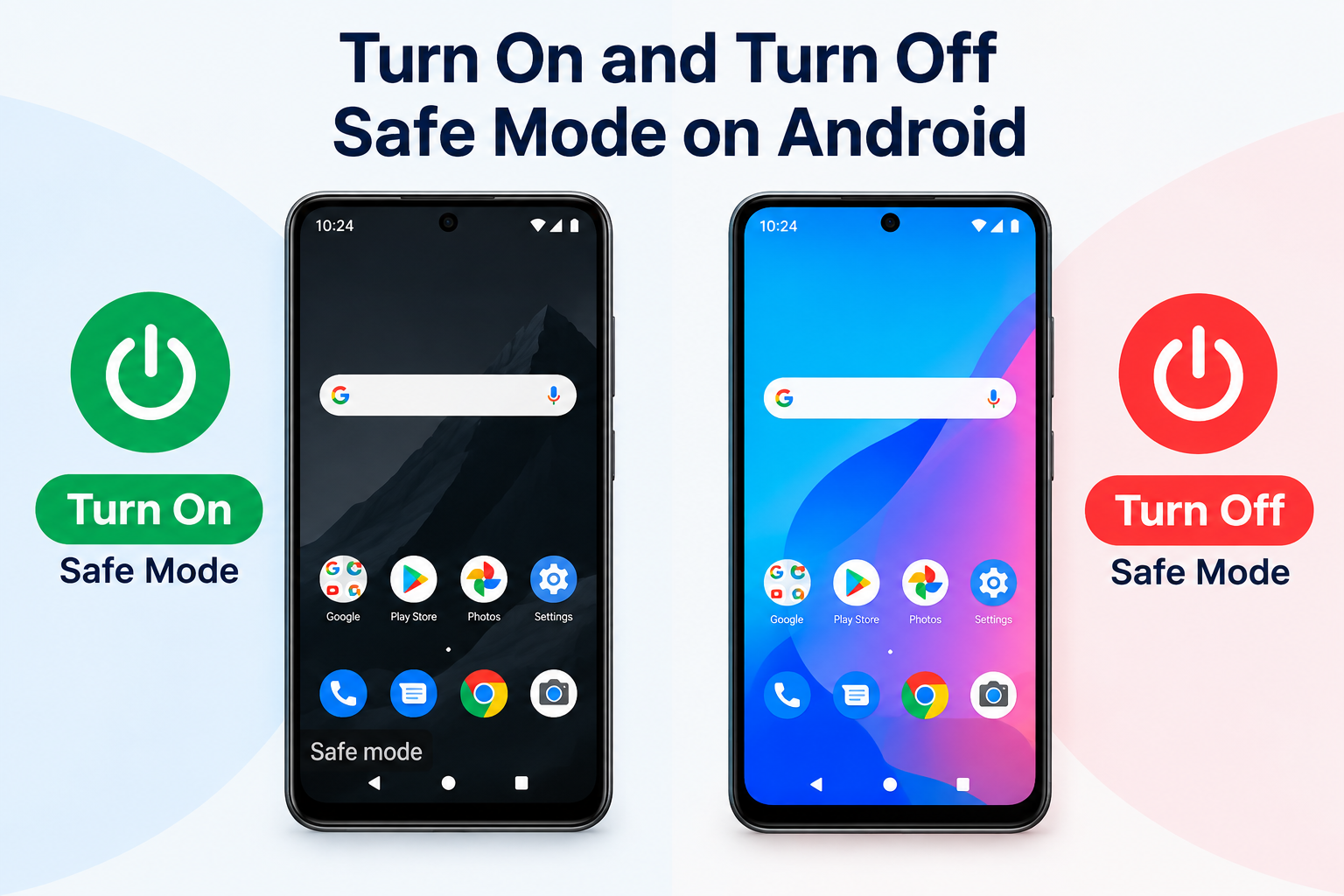
Your phone freezes mid-scroll, apps crash one after another, and every restart ends the same way. Most of the time a single bad app is the cause, and you do not need to wipe the phone to find it. Safe Mode lets you test that theory in a few taps, and this guide shows how to get in and, just as important, how to get out.
Quick Info: The 60-Second Version
Stuck in Safe Mode by accident? Try these in order.
-
Swipe down from the top of the screen to open your notifications.
-
On a Samsung Galaxy, tap the Safe mode is on notification, then tap Turn off.
-
On a Samsung Galaxy, press and hold the Power key and tap Restart. On a Pixel 6 or later, press and hold Power + Volume Up, then tap Restart.
-
If the screen is frozen, hold the Power button for about 30 seconds until the phone restarts.
-
After the restart, check that Airplane mode is off and that your widgets are back on the home screen.
Key Takeaways
- Safe Mode is a diagnostic mode. Google says it temporarily turns off all downloaded apps. Samsung says it ensures no third-party apps run, which helps you see whether an app is causing the problem.
- Some widgets disappear on purpose. Google notes that Safe Mode removes some home screen widgets. Take a screenshot of your home screen first so you can rebuild the layout later.
- Airplane mode can switch on by itself. Google’s Pixel help page says Airplane mode turns on automatically when you enter Safe Mode. Turn it off to get Wi-Fi, GPS, and calling back.
- Exiting varies by phone. Google states that turning off Safe Mode depends on the device, so the steps for a Samsung Galaxy and a Pixel are not identical.
- A factory reset is the last step, not the first. Google lists it as a final measure after updates, app removal, and Safe Mode testing. Back up your data before you try it.
How This Guide Was Verified
We verified every configuration route in this guide directly against the official 2026 support documentation from Google and Samsung to ensure accurate technical pathways for your device.
These are the manufacturers’ own button and menu routes. Nothing here uses debugging scripts, developer tools, or system modifications.
This guide compiles documentation. It does not include results from our own lab or device testing, so menu labels on your phone may differ slightly. Where Google or Samsung does not publish a step, we say so instead of guessing.
Identify Your Android Safe Mode Scenario
| Current Device Status | Underlying Boot State | Recommended Navigation Path |
|---|---|---|
| App Crashing/Frozen Screen (Enter Software Safe Mode) | The phone is running normally, and you can still reach the power menu. | Open the power menu, touch and hold Power off (or Restart on a Pixel), then tap Safe mode or OK. |
| Boot-Looping/Black Screen (Hardware Button Combination) | The phone is off or restarting and never reaches a usable screen. | Turn the phone off, power it on, and hold Volume Down at the right moment during startup. |
| Stuck in Safe Mode Loop (Exiting via System Panel or Force Restart) | The phone is booted with downloaded apps turned off. | Use the Safe mode is on notification (Samsung), or restart from the power menu. If the screen is frozen, hold Power for about 30 seconds. |
1. How to Turn On Safe Mode Using Modern Android Software Controls
Use this method when the phone still responds and you can reach the power menu. It is the cleanest route and works on current Samsung Galaxy and Pixel phones.
Samsung Galaxy
Samsung documents two ways to reach the power options. Pick whichever matches your phone.
- Swipe down from the top of the screen with two fingers to open Quick settings.
- Tap the Power icon in the top right corner.
- Touch and hold the Power off icon for a few seconds.
- Tap the Safe mode icon.
- Wait for the phone to restart.
Alternatively, press and hold the Power key until the power off screen appears. Then touch and hold Power off until the Safe mode option shows up, and tap it. Samsung says the words “Safe mode” appear in the bottom left corner of the screen when it works.
Google Pixel 6 and Later
- Press and hold Power + Volume Up for a few seconds.
- Touch and hold Power off or Restart.
- Tap OK when the Safe mode prompt appears.
- Wait for the phone to restart.
Google Pixel 5a and Earlier
- Press and hold the Power button for a few seconds.
- Touch and hold Power off.
- Tap OK when the Safe mode prompt appears.
- Wait for the phone to restart.
Google says you will see “Safe mode” at the bottom of the screen. Wait a bit to see whether the problem goes away.
Other Android Brands
Google’s main Android help page says that restarting in Safe Mode depends on your phone and sends people to the manufacturer’s support site. The power menu method above works on many phones, but check your maker’s page if it does not.
What to Do Once You Are in Safe Mode
Safe Mode is only the test. The fix comes next.
- Use the phone normally for a few minutes. If the freezing or crashing stops, a downloaded app is the likely cause.
- Restart the phone normally to leave Safe Mode.
- Remove recently downloaded apps one at a time, and restart after each one. Google suggests this method to find the culprit.
- Update your apps in Google Play and check for a system update at Settings > System > Software update.
- Make sure the phone has free storage. Google recommends at least 10 percent.
2. Booting Into Safe Mode via Physical Hardware Keys (Frozen Devices)
Use this method when you cannot reach the power menu, such as when the screen is frozen or the phone will not stay on long enough to open it. Timing matters. You press the volume key during startup, not before.
Google Pixel
- Turn the phone off completely.
- Press the Power button to turn it on.
- When the startup animation begins, press and hold Volume Down.
- Keep holding until the animation ends.
- Look for Safe mode at the bottom of the screen.
Samsung Galaxy
- Turn the phone off completely.
- Press the Power key to turn it on.
- When the Samsung logo appears on its own, press and hold Volume Down.
- Keep holding until the phone finishes starting.
- Look for Safe mode in the bottom left corner of the screen.
If the Phone Will Not Turn Off
Google says that for a frozen screen you can hold the power button for about 30 seconds to restart. After it restarts, try the button method again from a full power-off.
If you cannot get a reliable result, check your manufacturer’s support page for your exact model. Button timing differs between brands.
3. How to Turn Off Safe Mode and Restore Your Hidden Third-Party Apps
Leaving Safe Mode is usually a normal restart. Your downloaded apps are turned off temporarily, not deleted, so they return once the phone boots normally.
Route A: Use the Notification (Samsung Galaxy)
- Swipe down from the top of the screen to open your notifications.
- Tap the Safe mode is on notification.
- Tap Turn off.
- Wait for the phone to restart normally.
Route B: Restart From the Power Menu
On a Samsung Galaxy, this is the standard method.
- Press and hold the Power key.
- Tap Restart.
- Wait for the phone to boot without the Safe mode label.
On a Pixel 6 or later, press and hold Power + Volume Up for a few seconds, then tap Restart. On a Pixel 5a or earlier, press and hold the Power button for about 30 seconds, or until the phone restarts.
Route C: Force a Restart When the Screen Is Frozen
If the notification or the power menu will not respond, hold the Power button for about 30 seconds, which is the time Google gives for a frozen screen. The phone should restart on its own.
Samsung’s Safe Mode pages do not list a separate force-restart key combination. Check Samsung’s support page for your model if the 30-second hold does not work.
Restore Your Phone After Leaving Safe Mode
- Open Settings and check that Airplane mode is off. Google says it turns on automatically in Safe Mode.
- Check your home screen. Google notes that Safe Mode removes some widgets, so re-add any that did not come back.
- Compare your layout with the screenshot you took earlier.
- Open your most-used apps to confirm they launch.
- If the original problem returns, go back to uninstalling recent apps one at a time.
When a Factory Reset Becomes Necessary
Google lists a factory data reset as the final measure after updates, app removal, and Safe Mode testing. It removes all data from the phone, although content tied to your Google Account can be restored afterward.
Back up first. Review Google’s official Pixel and Android backup guidelines and, on a Galaxy phone, Samsung’s official Smart Switch support page. After a reset, you can transfer contacts to a new phone or restore them from your account, and you can retrieve text messages from an Android phone if your backup included them.
If you only need to restart the device normally and not use Safe Mode, our guide on How to Turn Off an Android Phone: Different Methods Explained covers every option.
Common Mistakes That Keep Your Device Stuck
- Holding a stuck or pressed volume key during startup. The Volume Down hold is what triggers Safe Mode at boot. A damaged key, or a case pressing on the button, can send the phone into Safe Mode without you asking. Remove the case and try again.
- Pressing the volume key too early or too late. On a Samsung Galaxy, the hold starts when the logo appears on its own. Starting before the power-on or after the logo disappears can miss the window.
- Leaving the problem app installed. Safe Mode only turns downloaded apps off for a while. If you do not uninstall the app causing trouble, the crashes return after the next normal restart.
- Removing several apps at once. Google suggests removing recent apps one at a time and restarting after each. That way you know which one fixed it.
- Forgetting that Airplane mode is on. If Wi-Fi or calls do not work after Safe Mode, check Airplane mode first. Google says it turns on automatically on a Pixel.
- Skipping the home screen screenshot. Safe Mode can remove some widgets, so a screenshot saves you from rebuilding your layout from memory.
- Jumping straight to a factory reset. A reset erases the phone. Try the update, uninstall, and Safe Mode steps first.
- Interrupting a restart. Pulling the SIM tray or battery during a restart is not part of any official step and will not help. Use the power button instead.
Frequently Asked Questions
Will Safe Mode delete my apps or data?
No. Google describes Safe Mode as temporarily turning off downloaded apps, and it is a diagnostic mode rather than a reset. Your apps return after a normal restart.
Why is my phone stuck in Safe Mode?
Start with a normal restart from the power menu. On a Galaxy, you can also tap the Safe mode is on notification and choose Turn off. If the phone keeps booting into Safe Mode, check whether a case or damaged button is holding the volume key.
Why are my widgets missing?
Google says Safe Mode removes some home screen widgets. After you exit, check your home screen and re-add any widget that did not come back. A screenshot taken beforehand makes this quick.
Why can’t I use Wi-Fi or make calls in Safe Mode?
On a Pixel, Google says Airplane mode turns on automatically when you enter Safe Mode. Turn it off in Settings to restore Wi-Fi, GPS, and calling.
When should I factory reset instead?
Only after updating the phone and apps, removing recent apps one at a time, and testing in Safe Mode. Google lists the reset as a final measure, and it erases the phone, so back up first.
Disclaimer:
This article is for general educational and informational purposes only. It compiles official troubleshooting steps from the support documentation of Google and Samsung. Technical pathways may vary based on your specific Android OS version or device carrier settings. Always secure your login credentials before initiating data transfers.