
 By Saad Qureshi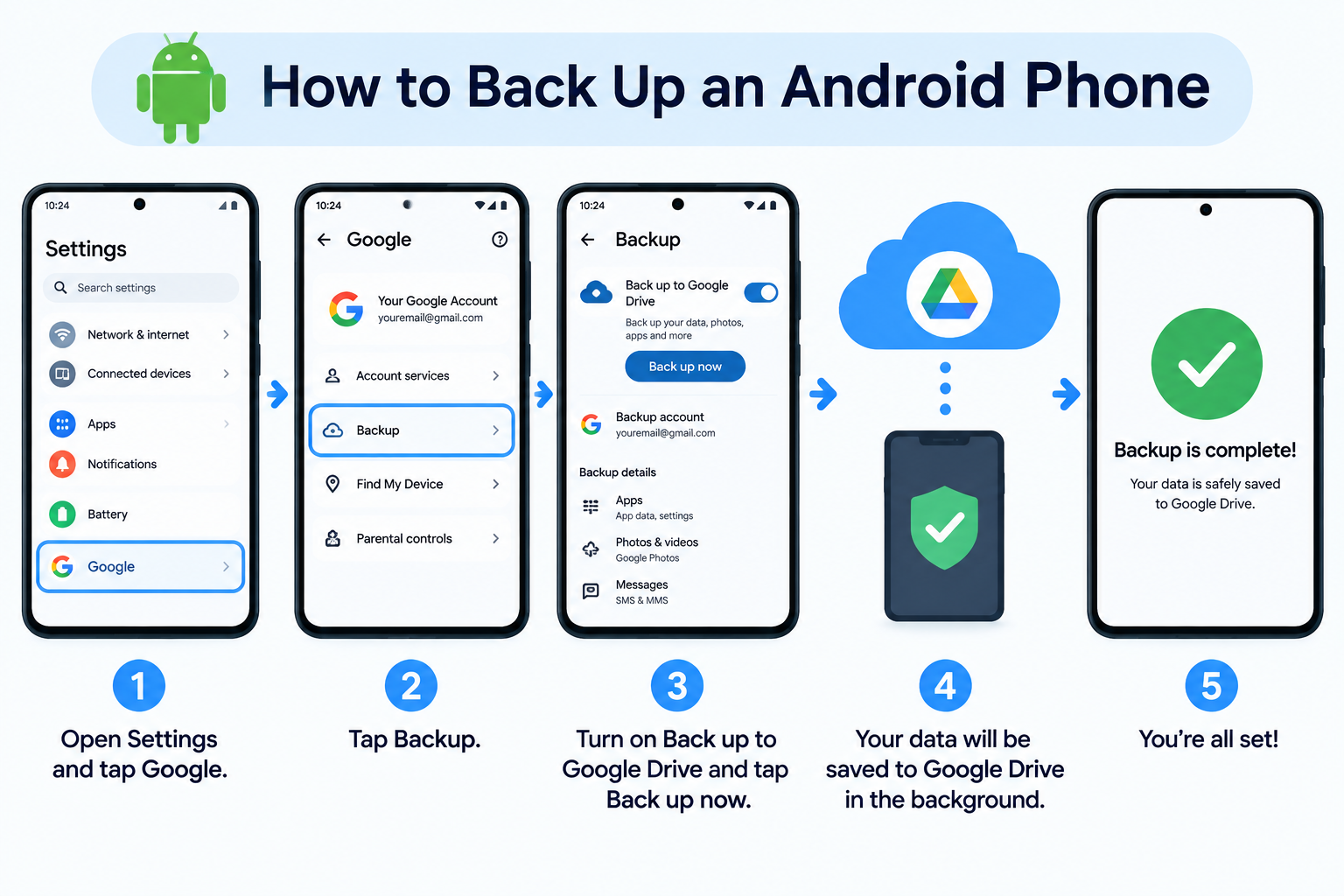
One dropped phone, one failed update, or one stolen bag can wipe out years of photos, messages, and contacts. A backup takes minutes to set up and protects you from all of it. This guide shows you exactly where to tap.
Quick Info: The 60-Second Version
- Connect to Wi-Fi and plug in your charger.
- Open Settings > Google > All services > Backup, turn on Backup by Google One, and tap Back up now.
- Open the Google Photos app, tap your profile icon, then go to Photos settings > Backup and turn it on.
- On a Samsung Galaxy, also check Settings > Accounts and backup > Google Drive.
- Connect your phone to a computer with a USB cable and run Samsung Smart Switch for a full local copy.
Key Takeaways
- Cloud backup has a ceiling. Google gives you 15 GB free, shared across Gmail, Drive, and Photos. A full account can stop your backup without a loud warning.
- Watch your data cap. Large photo and video uploads over a metered mobile plan can burn through your allowance fast. Stick to Wi-Fi for the first backup.
- Photos do not back up on their own. You have to open Google Photos and switch backup on once.
- Choose your photo quality on purpose. Original quality keeps full resolution but uses more storage. Storage saver uses less space.
- Keep one copy you can hold. A local backup on a computer protects you if your cloud account is locked, full, or hacked.
We verified every configuration route in this guide directly against the official 2026 support documentation from Google and Samsung to ensure accurate technical pathways for your device.
How This Guide Was Put Together
Every step in this guide comes from official manufacturer support documentation. That means Google’s official Android help pages and Samsung’s official technical support. We did not include unverified third-party tools or risky modifications like rooting.
Menu names can shift between Android versions and phone brands. If a screen looks different on your phone, follow the official page for your device.
You can read the original instructions in Google’s official Pixel and Android backup guidelines.
First, Work Out What Kind of Backup You Need
Not every backup method saves every kind of data. Match what you want to keep with the right tool before you start.
| What You Want to Save | Best Storage Destination | Start With |
|---|---|---|
| App data, call history, contacts, and SMS | Google Cloud (Google One) | Settings > Google > All services > Backup |
| Full-resolution photos and videos | Google Photos | Google Photos app > Photos settings > Backup |
| A complete offline snapshot of your device | Your computer (PC) | Samsung Smart Switch on Windows or Mac |
Most people need the first two. The third is for anyone who wants a copy that does not depend on the internet or a cloud account.
1. Backing Up System Data via Google One Cloud
This is the built-in cloud backup. It runs quietly in the background once you turn it on.
What gets saved
Google’s backup covers:
- App data
- Call history
- Contacts
- Device settings
- SMS text messages
What is saved can vary by Android version, phone brand, and each app developer’s choices. Files in folders like Downloads are not part of this backup.
Step-by-step
- Connect your phone to Wi-Fi and plug it in.
- Open Settings.
- Tap Google.
- Select the All services tab.
- Under Backup and restore, tap Backup.
- Turn on Backup by Google One.
- Tap the blue Back up now button.
- Check Backup details to confirm what is included.
If you have more than one Google account on the phone, make sure the right one is selected. Backing up to the wrong account is a common slip.
Check that it worked
After a few minutes, look for the last backup time on the same screen. If the time looks recent, the backup ran.
If you plan to switch phones soon, you may also want to transfer contacts to a new phone. A synced Google account makes that step much easier.
2. Safeguarding Photos and Videos in Full Resolution
Photos and videos are handled by Google Photos, not by the system backup above. This is the step people forget.
Step-by-step
- Open the Google Photos app. Install it from the Play Store if it is missing.
- Tap your Profile icon in the top right corner.
- Tap Photos settings.
- Tap Backup.
- Turn the toggle ON.
- Choose your upload size: Original quality keeps full resolution, while Storage saver compresses files slightly to save space.
- Open Back up device folders and turn on folders like Screenshots and WhatsApp Images.
By default, Google Photos mostly backs up your camera folder. Pictures saved by other apps stay unprotected until you switch their folders on.
Managing mobile data in the US
Your first photo backup can be huge. On a metered plan from carriers like AT&T, T-Mobile, or Verizon, that can eat your data cap quickly.
Go to Photos settings > Backup > Mobile data usage and review your options. If you want to back up over mobile data, set it up carefully and check your carrier plan for caps and speed limits. If you have unrestricted 5G, you can allow mobile backup, but Wi-Fi is still the safer choice for the first upload.
Check your storage
Your free 15 GB is shared with Gmail and Drive. Heavy photo and video users often need more space, so check Google One for current plans and prices.
3. Creating a Full Local Snapshot on a Computer (Samsung Smart Switch)
A local backup does not depend on cloud space or a signal. It gives you a second copy that you control.
Samsung’s built-in path
Samsung Galaxy users can also check Settings > Accounts and backup > Google Drive. This lets you link your Google Drive backup from within Samsung’s own settings menu.
Backing up to a PC with Smart Switch
Samsung’s desktop tool is called Smart Switch. Get it only from Samsung’s official site, and follow Samsung’s official Smart Switch support page for the current download and instructions.
- Download and install Smart Switch on your Windows PC or Mac.
- Connect your phone to the computer with a good USB cable.
- Unlock your phone.
- Tap Allow on the phone when it asks for access to your data.
- Open Smart Switch on the computer.
- Click Backup.
- If a screen asks what to include, choose the data types you want to save.
- Wait until the backup finishes before you unplug the cable.
Keep the cable connected until the app says it is done. Unplugging early can leave you with an incomplete backup.
Keep it safe
Store the backup on a computer you trust, and consider a second copy on an external drive. If the app offers a password option for backups, use it.
If you need messages back later
If you ever need to retrieve text messages from an Android phone, having a Google or Smart Switch backup in place gives you a much better chance.
Common Mistakes That Lose Your Data
- Assuming photos back up on their own. Open Google Photos and turn on Backup. Until you do, your pictures may exist only on the phone.
- Backing up large files over a metered mobile plan. Photo and video uploads can eat your data cap fast. Use Wi-Fi for the first backup.
- Skipping your authenticator apps. Two-factor codes are not always included in a normal backup. Save recovery codes or follow the app’s own transfer steps before you wipe a phone.
- Letting your Google storage fill up. A full account can stop new backups. Check your storage every few months.
- Backing up to the wrong Google account. Confirm the account name on the Backup screen.
- Never checking the backup. Open a few photos on photos.google.com, or check the last backup time, so you know it works.
- Waiting until the phone is failing. A dying phone may not survive a backup. Do it while everything works.
Frequently Asked Questions
How often should I back up my Android phone?
Leave Backup by Google One and Google Photos on so they run automatically. Add a manual computer backup about once a month, and always before an update, repair, or reset.
Is Google One backup free?
Backup uses your Google account storage, which includes 15 GB free. If you run out, you can buy more space through Google One. Check Google’s site for current pricing.
Does Google backup include my photos?
Photos and videos are handled by Google Photos. Open the app, go to Photos settings > Backup, and turn it on.
Will a Smart Switch backup work on a non-Samsung phone?
Smart Switch is built mainly for Samsung Galaxy devices. If you plan to switch brands, rely on your Google backup, and check Samsung’s support page for what Smart Switch supports.
Can I back up my phone without Wi-Fi?
Yes. Use a USB cable and a computer with Samsung Smart Switch, or copy your files over directly. Cloud backups need an internet connection.
Disclaimer:
This article is for general educational and informational purposes only. It compiles official troubleshooting steps from the support documentation of Google and Samsung. Technical pathways may vary based on your specific Android OS version or device carrier settings. Always secure your login credentials before initiating data transfers.